
Brand icon with single-color tint
Recolors a dark UI symbol into an exact brand hex code in one click while keeping its vector paths clean for headers, buttons, and app favicons.
Change SVG color live inside your browser with zero uploads. Extract every fill, stroke, and gradient swatch, recolor individual tones or apply a brand tint, and export lossless SVG or crisp PNG.
Drop an SVG to change its colors
Extracts every fill, stroke, and gradient color so you can recolor live in your browser.
Choose SVG fileOpen any sample vector below to see how this SVG color changer maps detected palette swatches, preserves white highlights during monochrome tinting, and checks dark-mode contrast.
Recolors a dark UI symbol into an exact brand hex code in one click while keeping its vector paths clean for headers, buttons, and app favicons.

Lists every detected fill and gradient stop with usage counts so you can swap accent tones individually without touching adjacent highlights.

Updates clean stroke colors across open paths and icon contours for dark or light UI surfaces without accidentally adding unwanted solid fills.
Swap individual vector tones, build dark-mode icon pairs, or apply a cohesive monochrome tint locally without opening desktop design software.
Drag an SVG or SVGZ file onto the drop zone, or click Choose SVG file. The local parser immediately scans fills, strokes, inline styles, and gradient stops to build your editable color palette.
Click any detected color swatch to replace it with a custom hex value, switch on Single-color brand tint with optional white-highlight preservation, or click Invert colors to test dark-theme variants on Light, Dark, or Checker backdrops.
Verify every detail on the live canvas, then click Download SVG for lossless vector paths, Copy SVG for instant HTML or React pasting, or Download PNG for transparent presentations and decks.
Built to handle real-world SVG markup, including nested groups, CSS styles, strokes, and multi-stop gradients, without breaking geometry.
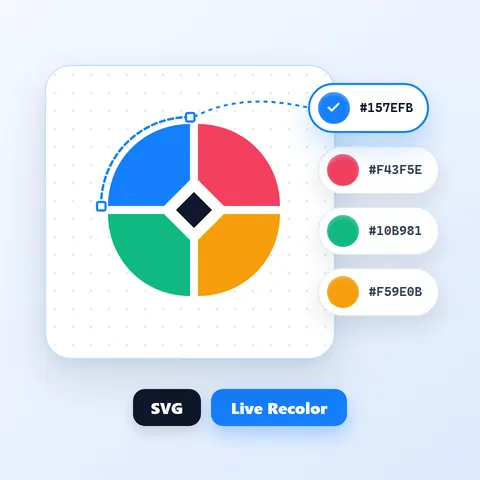
Stop hunting through raw XML lines with find-and-replace. The studio reads every fill, stroke, and gradient stop automatically, grouping identical hex, RGB, and named colors into tidy swatches with exact usage badges so you can edit SVG color accurately.
Need a multi-tone emblem adapted to one brand hue for a footer or watermark? Turn on Single-color brand tint to unify every dark and midtone path, and enable Keep white highlights so interior cutouts, eyes, and negative spaces stay crisp instead of turning solid.
Adapting dark icons for a night-mode header takes a single click. Use Invert colors to flip tonal polarity immediately, and toggle between Checker, Light, and Dark preview stages to verify readability and edge contrast before exporting.
Keep your original Bezier geometry untouched while saving a clean recolored .svg file, copy the updated markup straight into your code editor, or render a transparent PNG ready for slide decks, email headers, and chat threads.

Real-world vectors exported from Figma, Illustrator, and icon packs mix presentation attributes, inline CSS styles, and linear gradient stops. This SVG color changer rewrites matching definitions consistently so no stubborn path stays stuck in its old shade.

Unannounced rebrands, client wordmarks, and internal product icons never leave your machine. Every XML parse, palette rewrite, and PNG render runs strictly inside local browser memory with zero remote storage.
Five practical principles to recolor SVG artwork cleanly for design systems, dark themes, and brand kits.
Unlike flat pixel images, an SVG stores colors in several places at once: presentation attributes like fill="#1d4ed8" and stroke="#0f172a", inline style strings, embedded <style> blocks, gradient <stop> tags, and implicit black defaults when a shape omits a fill attribute altogether. Manual text edits often miss half those declarations. Using a structured parser to change color of SVG files catches every active color channel together so your updated palette stays completely consistent.
Per-color mode shines on badges, mascots, and multi-tone diagrams where you want to swap a blue accent to emerald while leaving neutral grays untouched. Monochrome tinting works best when unifying third-party icons into one cohesive brand shade or subtle footer gray. Whenever a glyph relies on white interior paths rather than compound holes, keep the Keep white highlights switch enabled so inner details stay sharp and legible.
A mid-tone navy icon that looks balanced on crisp white can vanish against a charcoal header. Switch the workspace stage between Light, Dark, and Checker backgrounds while you edit SVG color values so you can inspect legibility on the exact surface your visitors will see. Starting with Invert colors gives an instant dark-theme baseline, after which you can nudge pure white slightly toward soft off-white to prevent visual glare.
Line-art icons built with stroke attributes and fill="none" behave differently from solid filled glyphs. Blindly injecting a fill color into every path turns clean wireframe drawings into solid black silhouettes. Always recolor SVG line icons by targeting their active stroke declarations while keeping fill="none" intact, ensuring uniform line weights and clean transparent interiors across every screen density.
Pulling exact brand hex values from a reference banner or mood board first? Sample them cleanly in Color Palette from Image, then paste those codes here to change SVG color values accurately. Once your palette looks right, trim extra editor metadata in SVG Optimizer, adjust icon dimensions or padding in SVG Resizer, or batch-render high-DPI rasters with SVG to PNG.
Everyday brand, interface, and content tasks where quick browser recoloring replaces heavy desktop vector suites.
Adapt open-source icon sets, dark-mode symbols, and hero graphics to match Tailwind or brand hex tokens in seconds and copy clean SVG straight into code.
Generate white, black, and primary-color logo variants for partner slides, co-branded banners, and press kits without waiting on a design ticket.
Quickly change color of SVG illustrations to harmonize with quarterly slide themes, then save transparent PNG copies ready for PowerPoint or Keynote.
Preview alternate vinyl, shirt, and sticker colorways on layered vector graphics before sending finished files to cutting or print software.
Straight answers about fill and stroke detection, gradients, monochrome tinting, PNG export, and local browser privacy.
Drop your .svg or .svgz file into the workspace, click any detected color swatch to choose a new hex shade, or toggle Single-color brand tint for a unified hue. When you click Download SVG, only color declarations change while every Bezier curve and coordinate stays 100% lossless.
Yes. The scanner extracts every fill, stroke, and linear or radial gradient stop into separate palette swatches with usage counts, letting you recolor individual shades independently or reset back to the original palette at any time.
Open wireframe icons with fill="none" and colored strokes are detected cleanly. Recoloring updates only the active stroke color while leaving transparent interiors empty, so thin line illustrations stay crisp.
Many badges and emblems use solid white paths on top of dark shapes to form letters, sparkles, or cutouts. Enabling Keep white highlights tells the monochrome tint pass to leave near-white fills untouched so interior details stay visible.
Yes. In SVG, paths without an explicit fill attribute default to solid black (#000000). Our studio detects those implicit black elements so you can swap them cleanly to white or any brand color without hand-editing XML.
No. Parsing, live swatch editing, monochrome tinting, SVG serialization, and PNG rendering all happen strictly inside your browser tab. Your private brand assets never leave your device.
Yes. Click Download SVG for infinitely scalable vector output, Copy SVG to paste directly into HTML or JSX, or Download PNG to save a clean transparent raster version for documents and slides.
Click Reset colors at any point to restore every original fill, stroke, and gradient stop instantly without reloading the file, or toggle between Per-color mode and monochrome tint to compare looks.
Drop any SVG or SVGZ graphic to inspect every fill, stroke, and gradient swatch, recolor live in your browser, and download lossless SVG or crisp PNG.
Choose SVG file