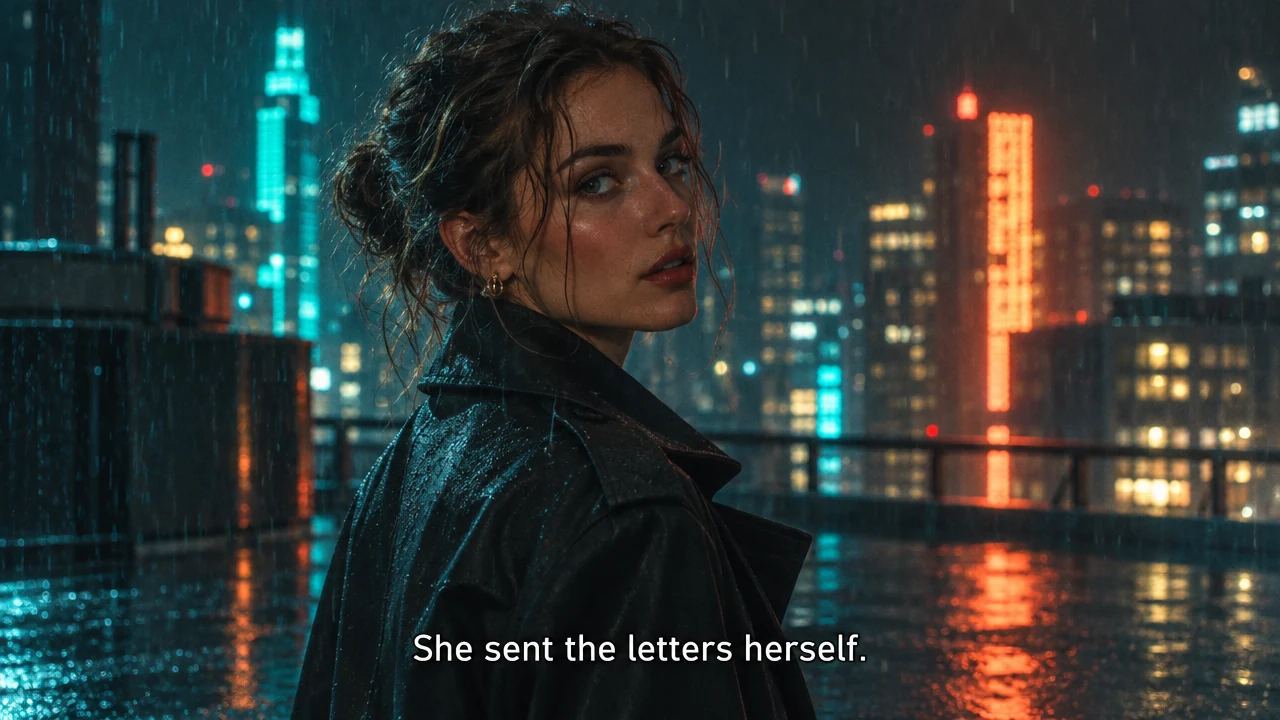
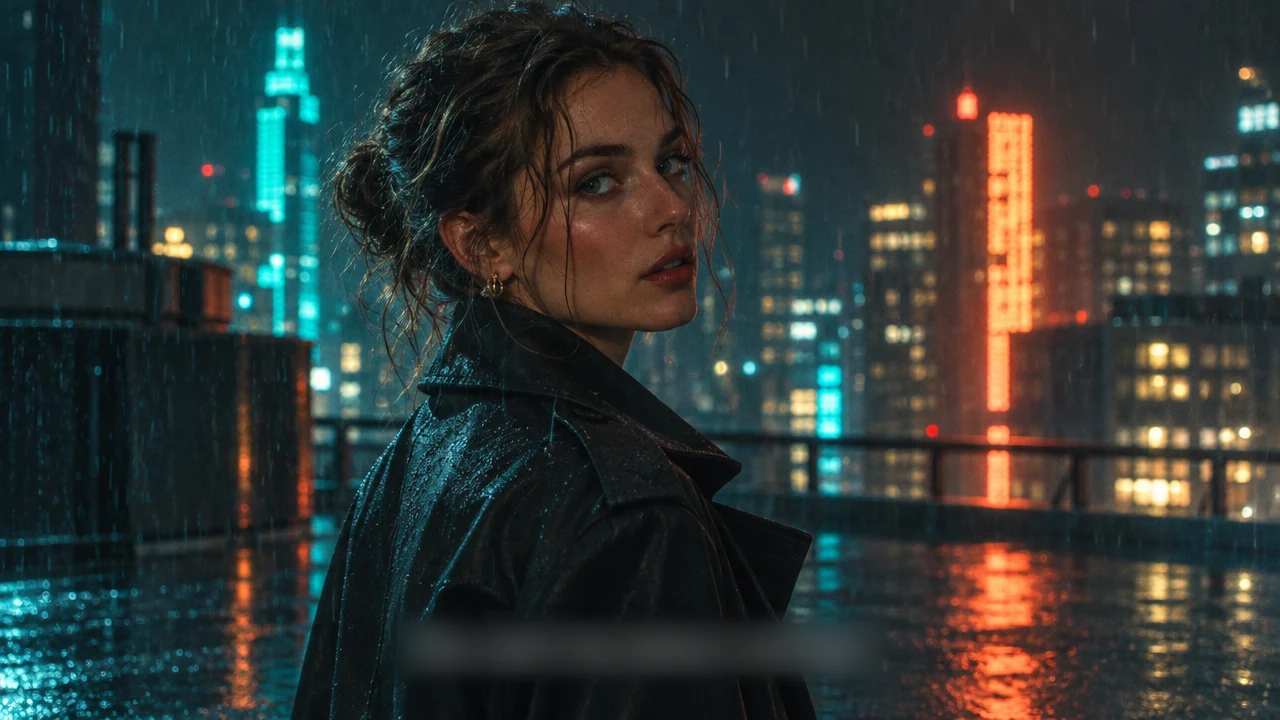
A spoiler in a subtitle
One box blurs the subtitle with the twist, and the film still keeps all of its mood.
Drag a box over a name, an address or a spoiler and blur text in a second: every letter melts into a soft band of the colors around it, so a chat screenshot, a bill or a photo still looks clean. Set the strength, switch a password to Solid, and download at full size. It all runs in your browser, so the picture never leaves your device.
Drop a picture here
PNG, JPG, WebP, GIF, BMP or AVIF. It stays on your device.
Each picture below had its text blurred with this tool. Open one to see its boxes and change them yourself.
One box blurs the subtitle with the twist, and the film still keeps all of its mood.
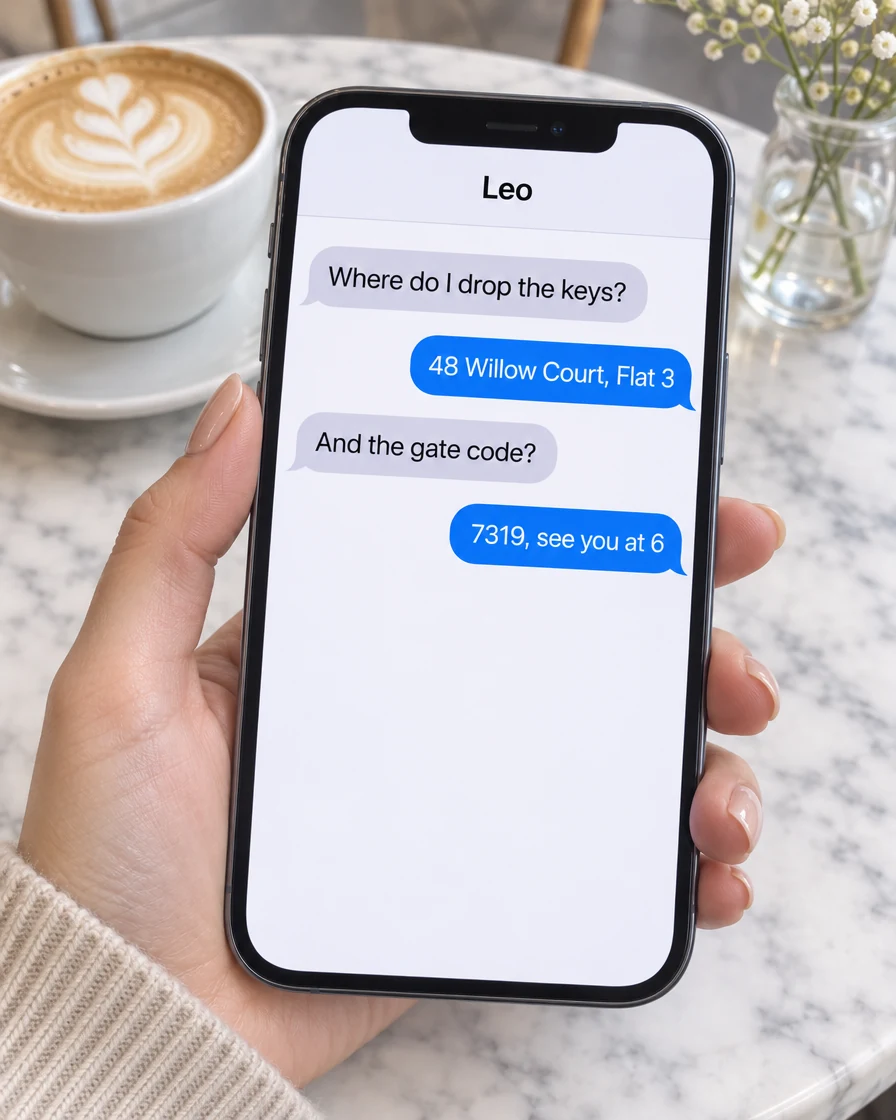
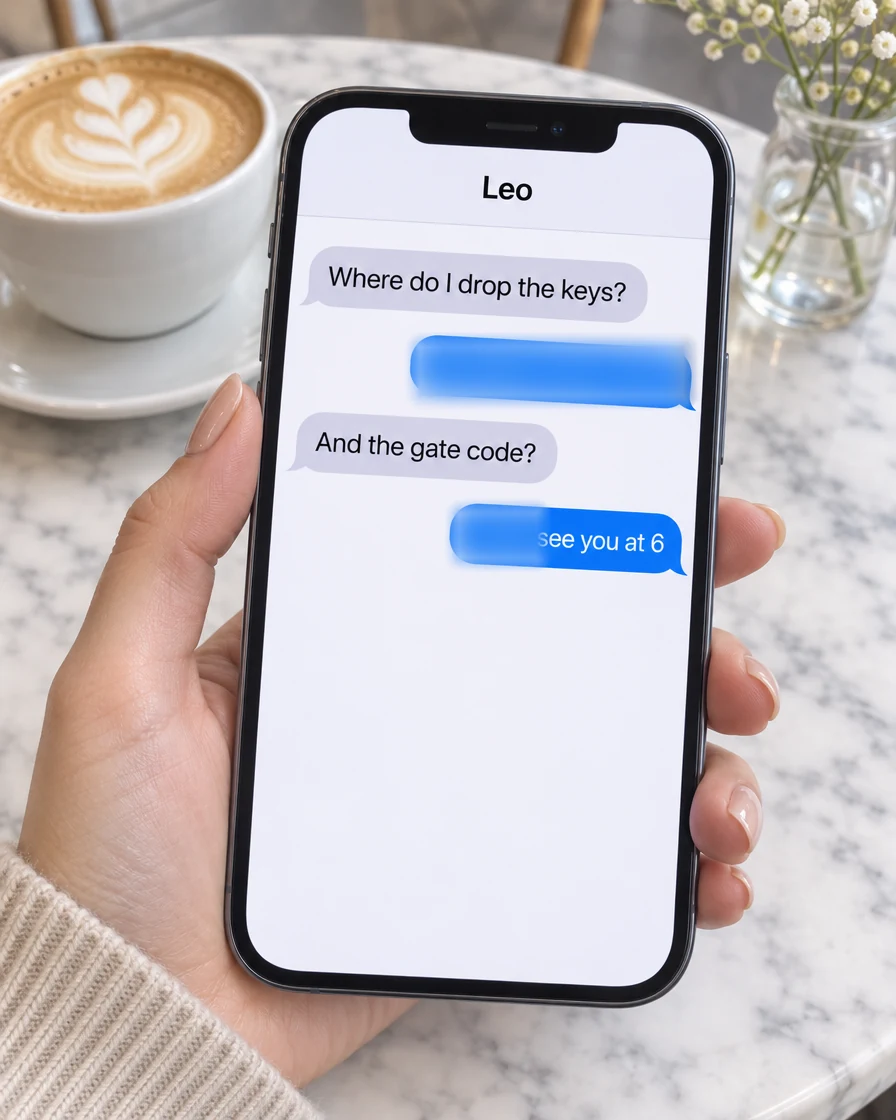
The address bubble and the gate code are blurred, and the rest of the chat stays easy to read.
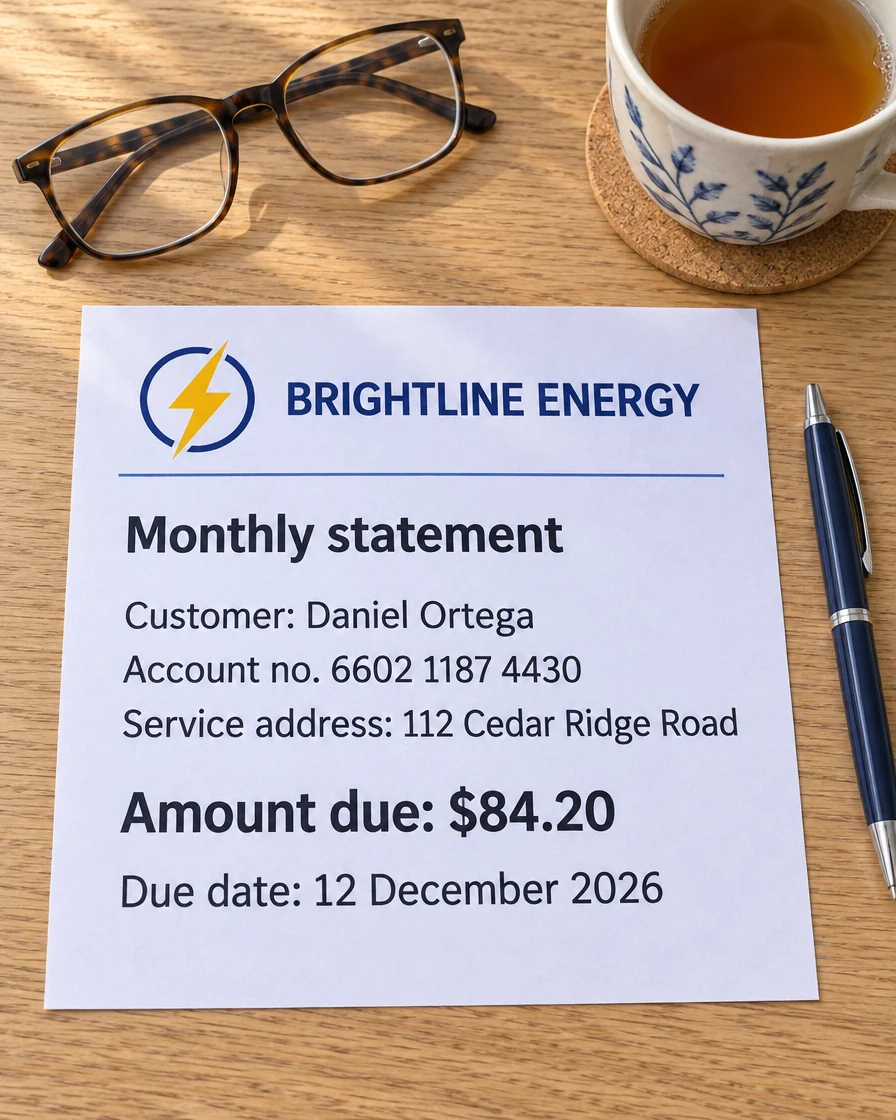
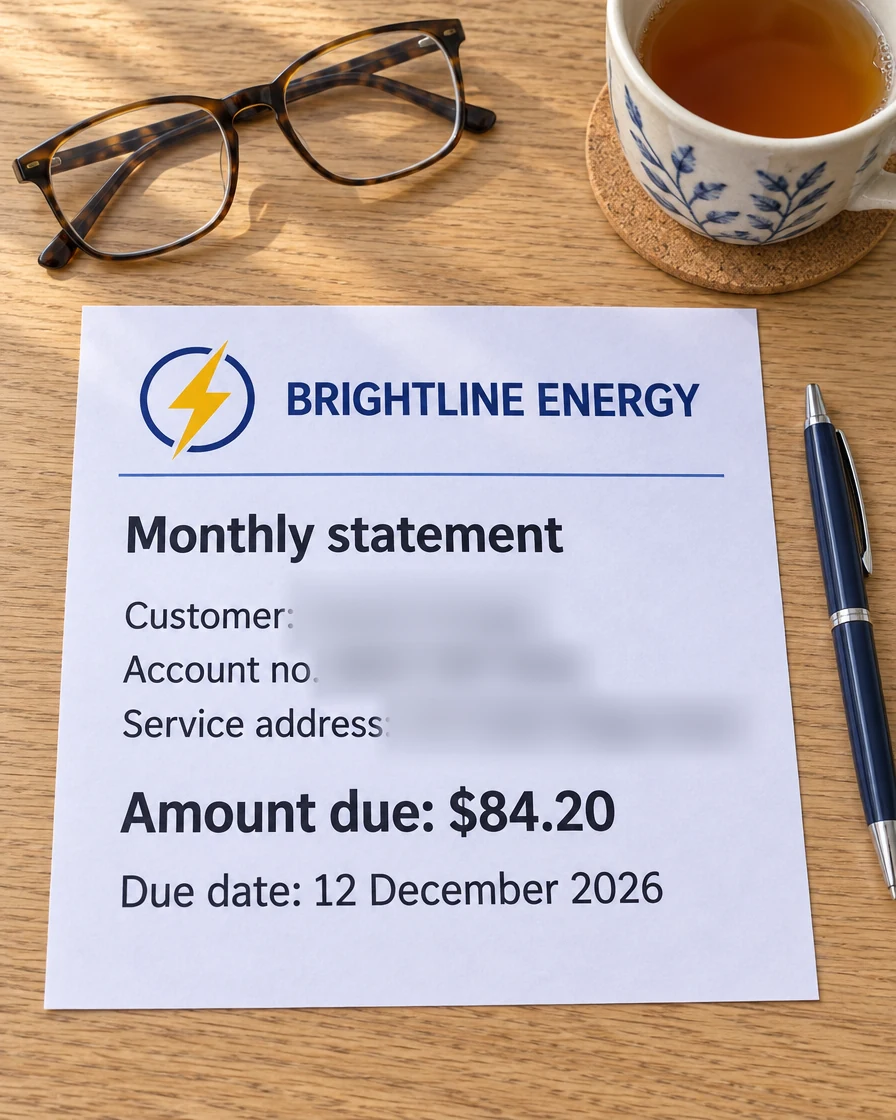
Name, account number and address blurred line by line, while the amount and due date stay clear.


One box blurs the name on the badge, and the photo from the event stays as it was.
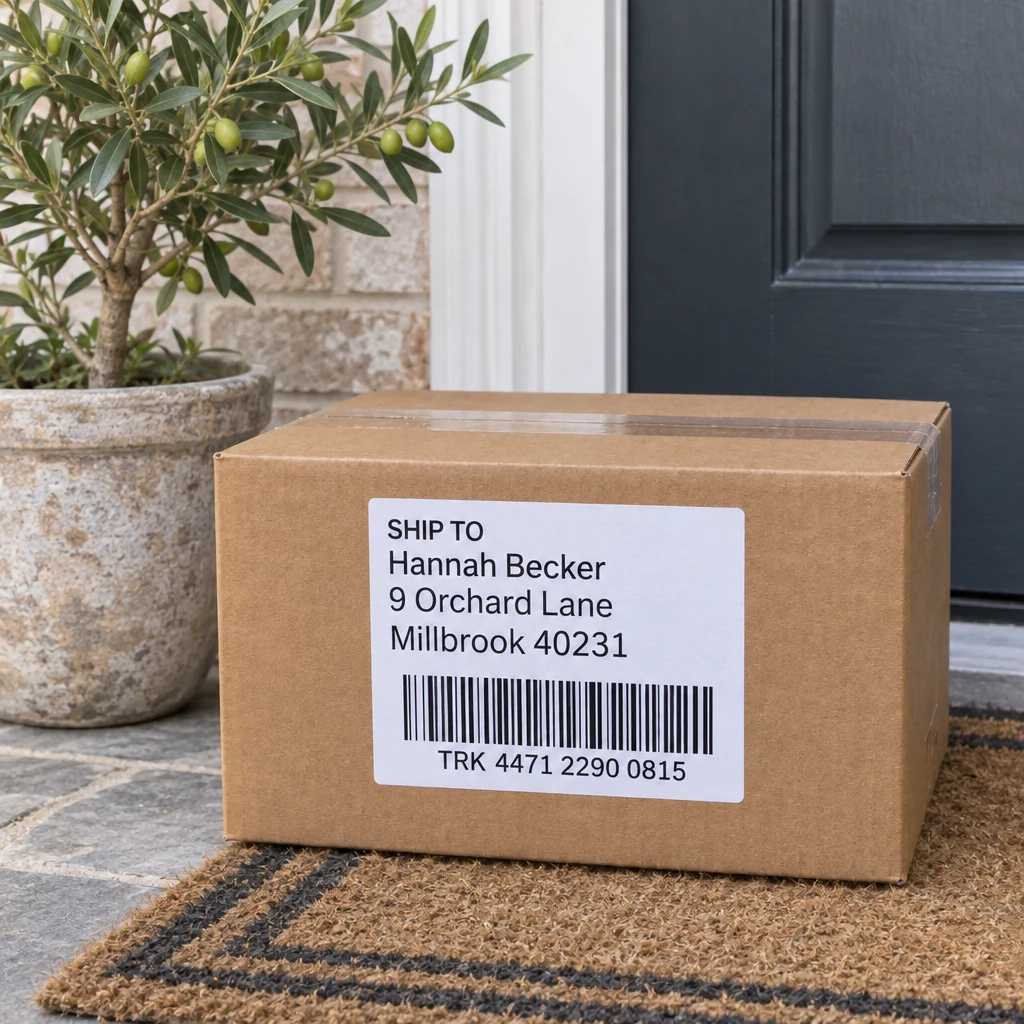
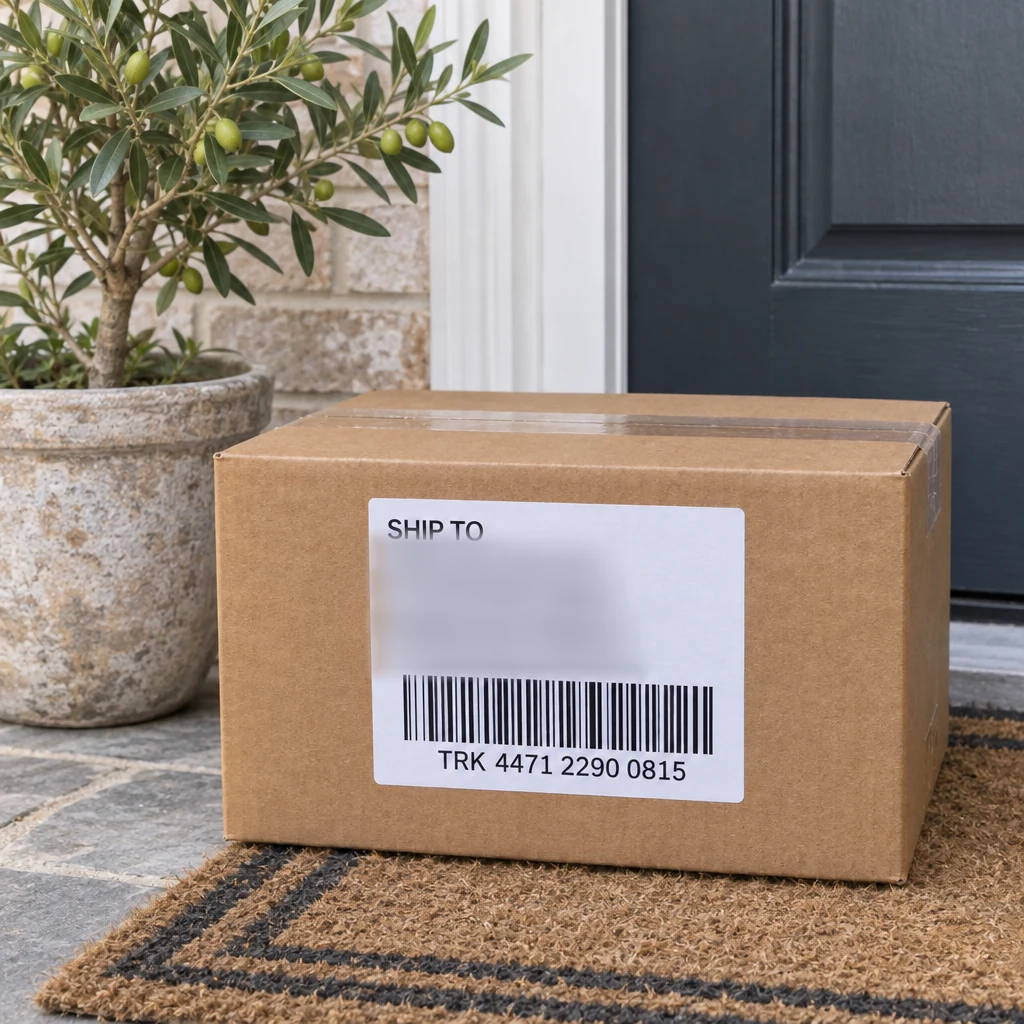
Three boxes blur the name and address, ready for a parcel photo in a review.
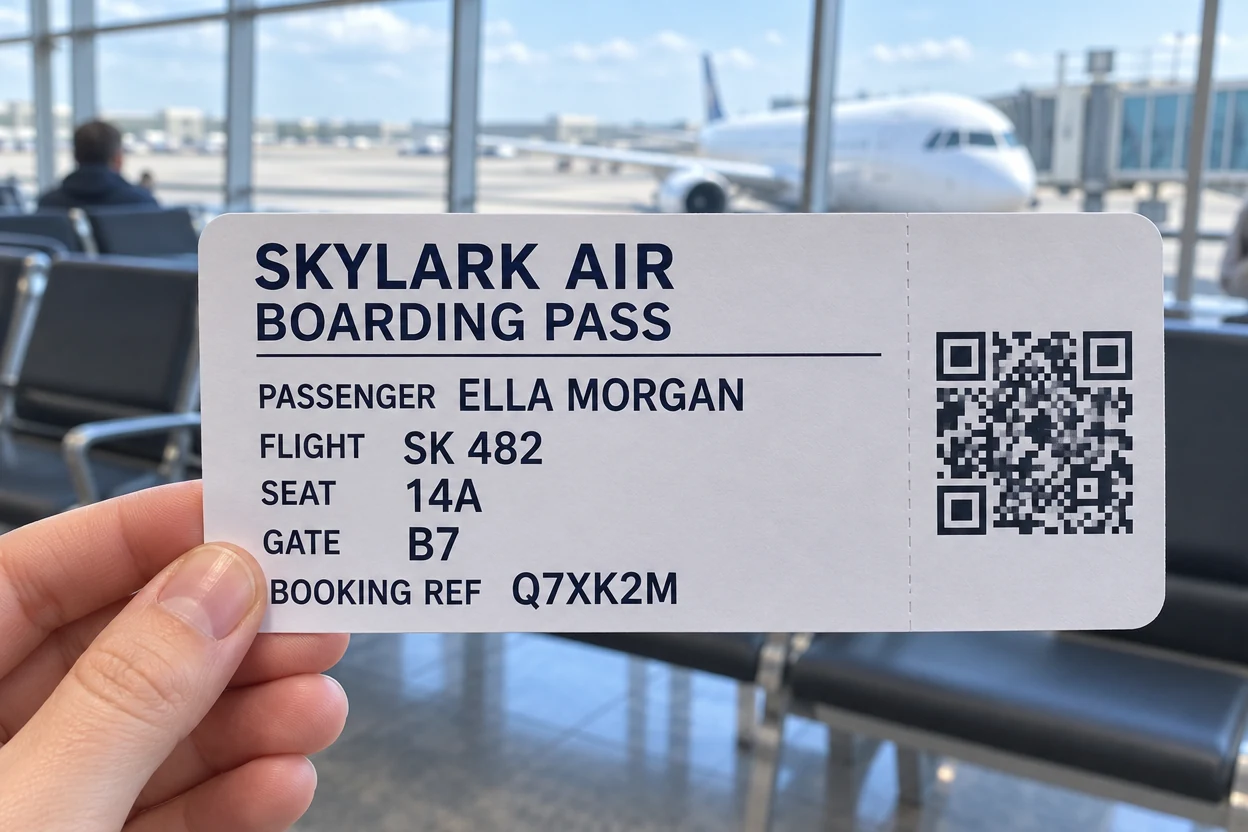
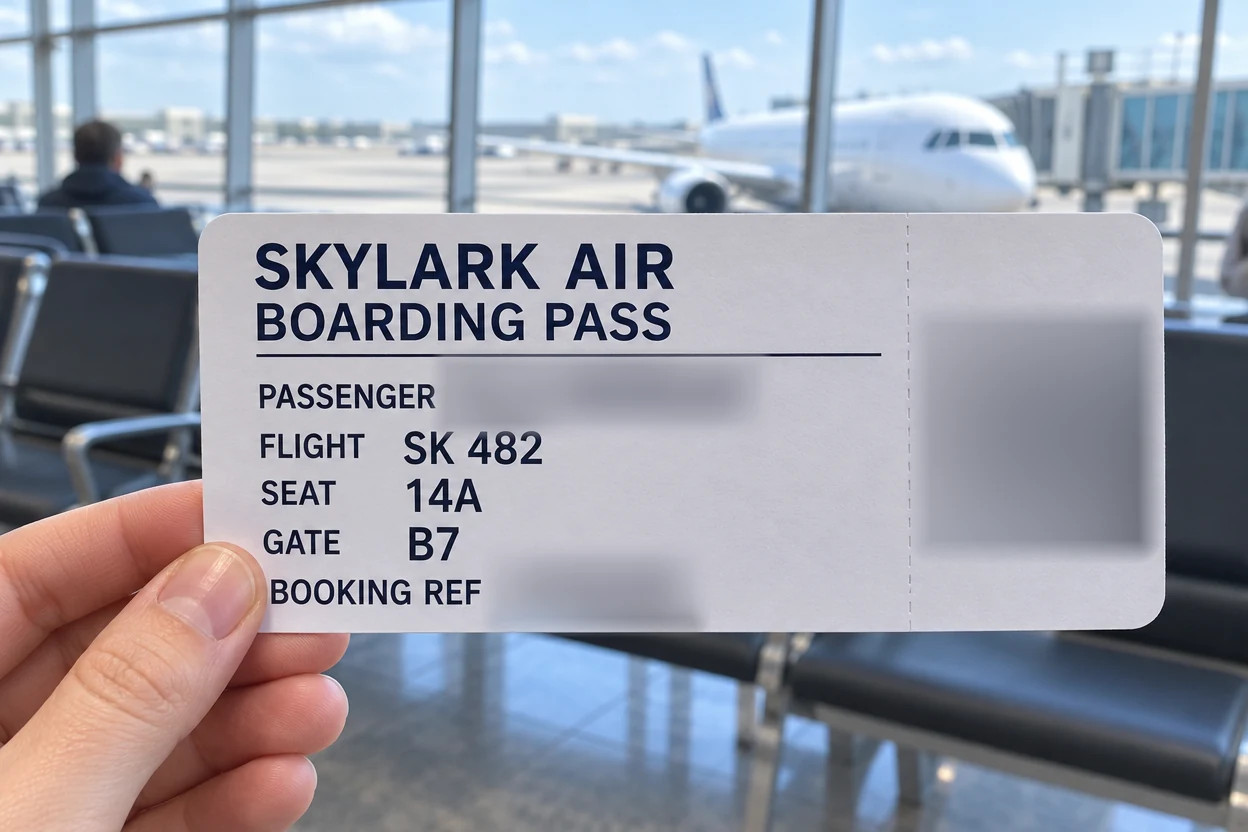
Passenger name, booking code and QR code blurred, with the flight and seat left readable.
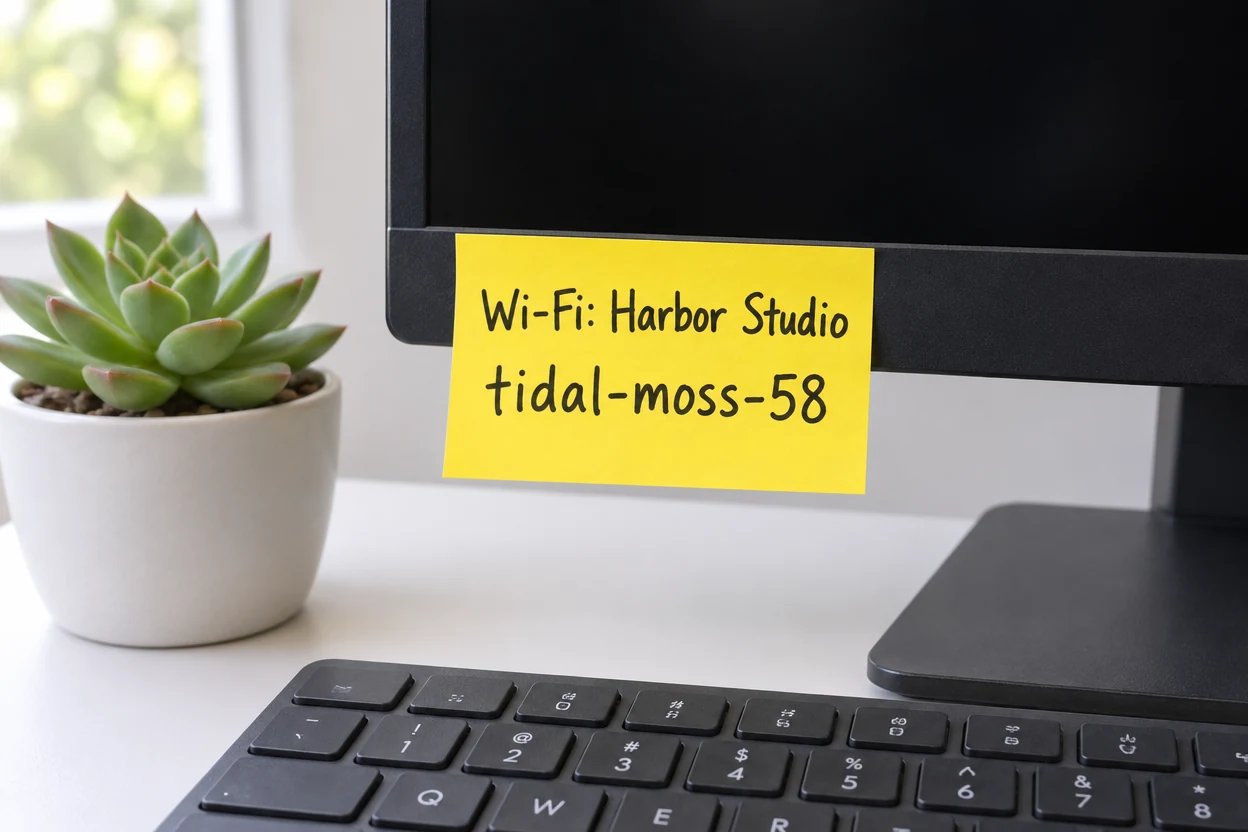
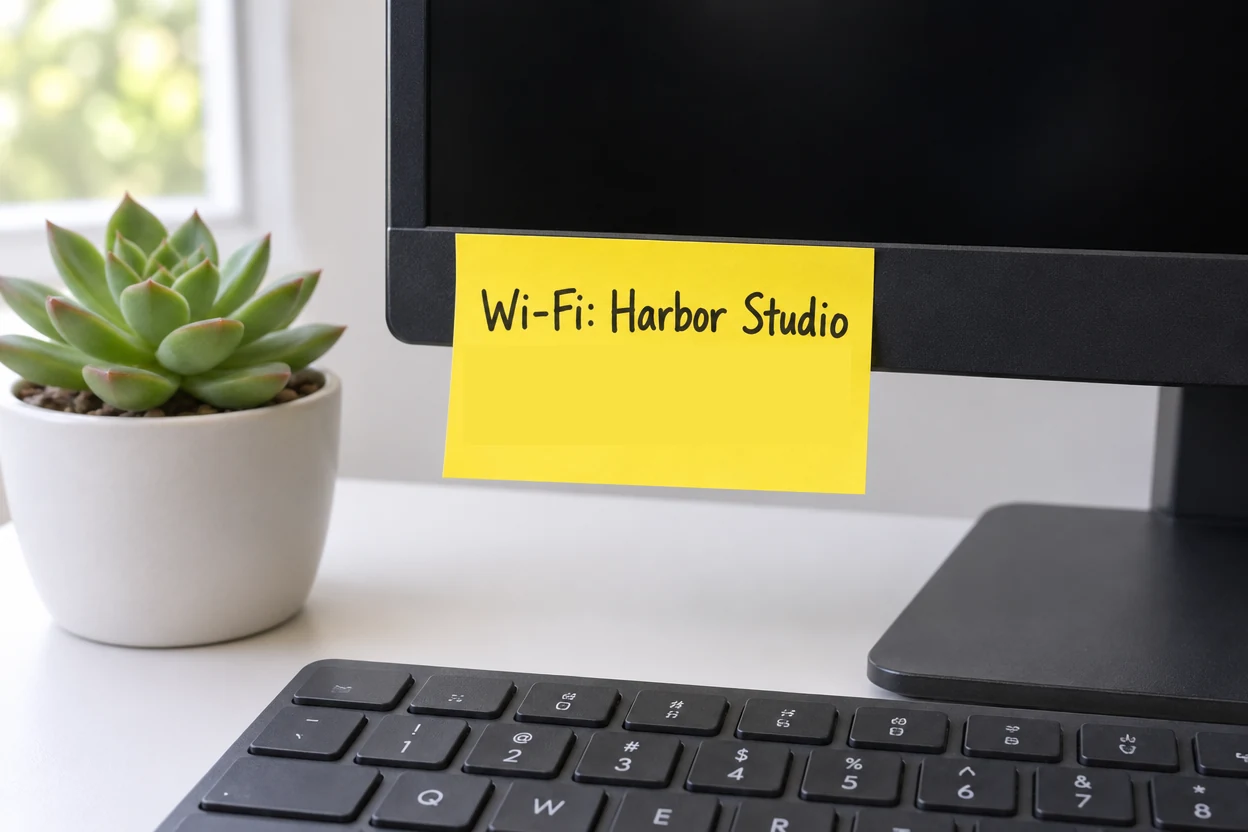
For a password, Solid in the note's own yellow covers the line completely and the note looks untouched.
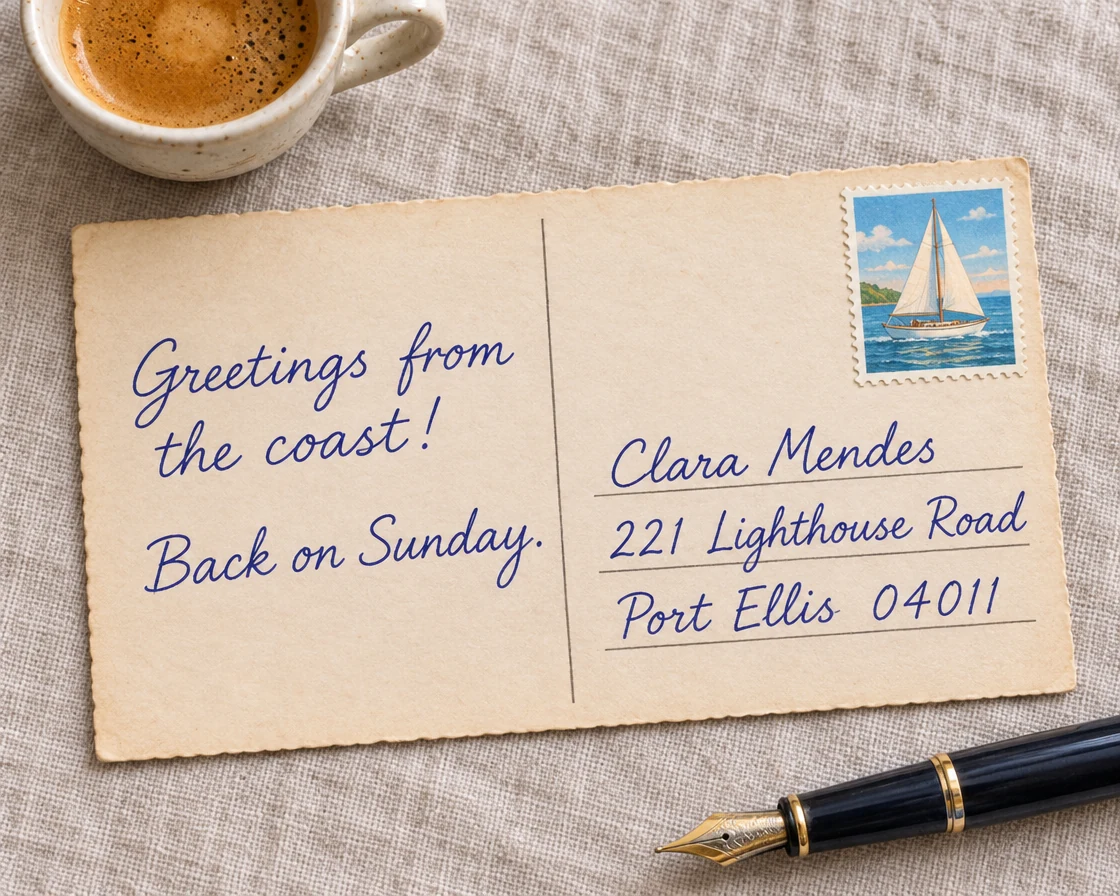
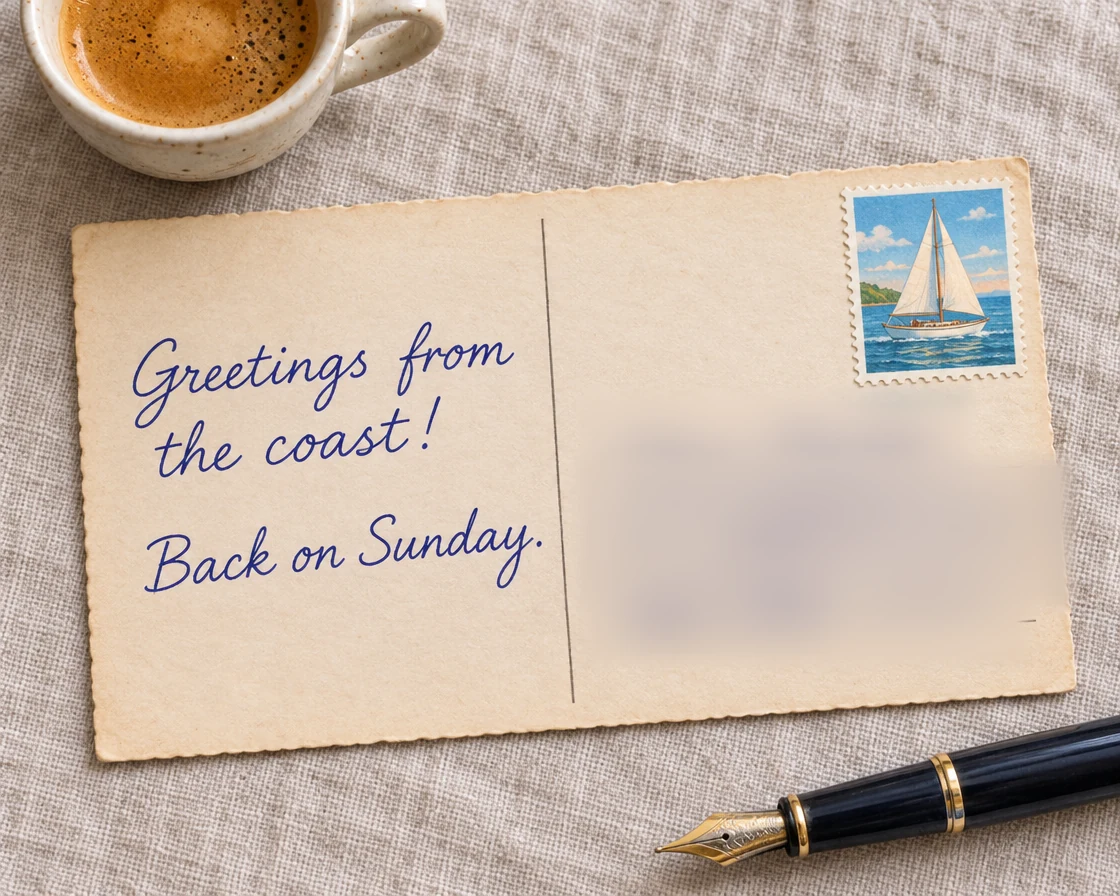
A lighter blur over three handwritten lines keeps the postcard pretty and the address private.
Three steps to blur out text in any screenshot or photo, all in your browser.
Drop a screenshot or a photo, choose a file or paste one from your clipboard. PNG, JPG, WebP, GIF, BMP and AVIF all work, up to 40 megapixels.
Drag a box over each line to blur text in it: one box per name, number or address. Paint along handwriting or a curved label with the brush, and slide Strength up for anything secret.
Pick PNG, JPG or WebP and download. The file keeps its full size, and it is written anew, so location and camera data stay out of it.
When you blur text here, the blur is made for lines of letters: strong enough to wipe out every letter, gentle enough to keep the picture tidy.
OriginalEvery box is measured against the height of the line it covers, so at the default strength the letters melt into a soft band, in tiny print and in big headlines alike. One slider takes it to full strength.
OriginalA blurred line keeps the colors of the bubble, the paper or the label under it, and its edge fades into the picture. A chat with three blurred lines still looks like a clean screenshot.
OriginalSwitch any box to Solid and pick black, white or the color of the paper around it. A password, a PIN or a card number is covered completely, and the picture still looks neat.
OriginalDrag a box over printed lines, paint along handwriting or text on a curved label with the brush, or blur text across the entire picture at once. Every area keeps its own strength.
OriginalBlur out text line by line: the name, the address and the order number each get a box you can move, resize, delete or switch to another effect. Undo and Redo step through every change.
The picture is opened and edited on your device and never uploaded. The download is a new flat file with no layers, no edit history and no location data.
A few habits that make blurred text look clean and keep private details private.
Draw one box per line instead of one large box over a whole paragraph. Each line gets the blur it needs, the lines you keep stay readable, and a blurred screenshot is still easy to follow.
Let each box reach a few pixels past the first and last letter and above and below the line. The blur then takes in accents, descenders and the tails of handwriting, and fades softly into the page.
For names in a chat, the default strength gives a clean, natural blur. For passwords, card numbers, ID numbers and anything secret, blur text at 100% or switch the box to Solid, which covers it completely. When a box looks like a line of text, the tool offers Solid with one press.
Pinch, or press Ctrl and scroll, to check every blurred line at full size, small print in the corners included. Hold Original to compare with the picture as it was.
Screenshots stay sharpest as PNG, and photos stay small as JPG. Both are written at the picture's full size, so the text you kept stays crisp next to the text you blurred.
Anyone who shares a screenshot or a photo with words in it can blur text here in seconds.
Blur out names, phone numbers and addresses in a chat or an email before it goes to a group or a post.
Blur text on shipping labels, order numbers and receipts before a photo goes into a listing, a review or a ticket.
Blur a spoiler in a subtitle, a plot twist or a final score so everyone can choose when to read it.
Blur text in slides and screenshots: customer names in a demo, student names on a board, numbers that are not public yet.
Answers about strength, screenshots, privacy and files.
Open the picture, drag a box over the words and they are blurred at once. Add a box for every line, move or resize them, set the strength, then download the picture as PNG, JPG or WebP.
Yes. This blur text tool is free, with no sign-up, no watermark and no daily limit. It runs in your browser, so there is nothing to install.
No. The picture is opened, blurred and saved on your own device, so a screenshot with private messages never reaches a server.
At the default 80% every letter melts into a soft band. For passwords, card numbers and ID numbers, blur text at 100% or switch the box to Solid, which covers it completely in black, white or any color you pick.
Yes. Paste the screenshot with Ctrl+V, drag a box over each message or name, and download it as PNG. The bubbles keep their colors, so the screenshot still reads like a chat.
Yes. Choose Brush and paint along the words, as wide as the letters. It suits handwriting, a label on a bottle, a sign seen at an angle and any line a box would not fit.
Yes. Open the page on your phone, tap to choose a screenshot, drag with one finger to cover the words and pinch to zoom. The picture stays on your phone the whole time.
Yes. The file has the same pixel size as your picture, up to 40 megapixels on a computer and 16 on a phone, and only the text you covered changes. Location and camera data are left out of the file.
Open a screenshot or a photo, drag over the words and download it in seconds. Blur text free in your browser.
Open a picture