Remove People from Photo Backgrounds Cleanly with AI

Upload a travel snapshot, portrait, or architectural shot, paint over unwanted passersby, crowds, or photobombers, and remove people from photo scenes in one pass. Our AI brush reconstructs stone, foliage, water, and light behind every figure at original resolution for a flat 2 credits per image.

Paint over the people or things to remove. Only the painted area changes; every other pixel stays as it was.

Try one of these

  • Erase tourists, crowds & photobombers
  • Precision brush, full original resolution
  • Flat 2 credits per photo
  • No watermarks, private history

Before & After Results: Remove People from Photo

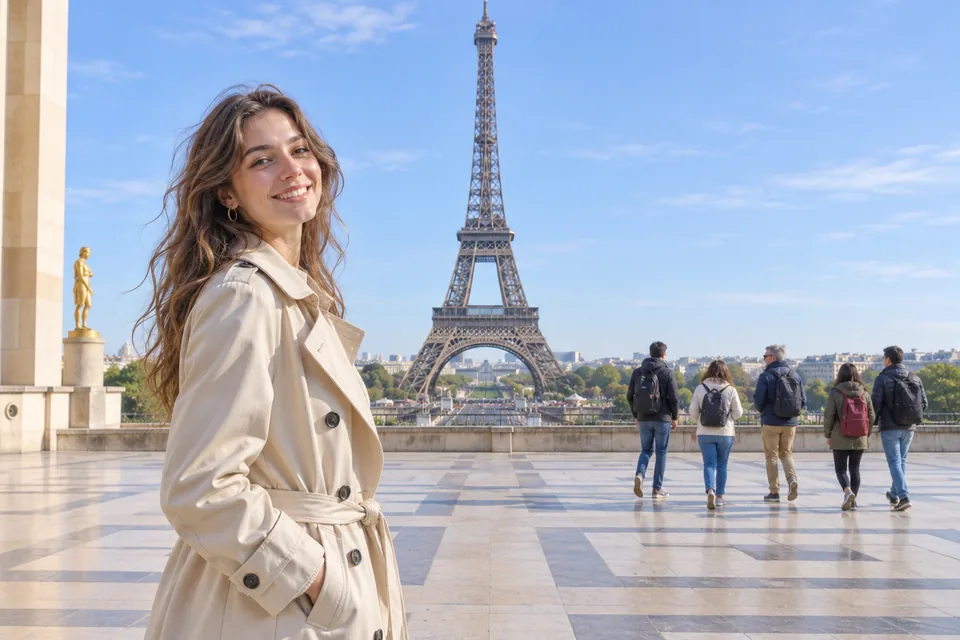
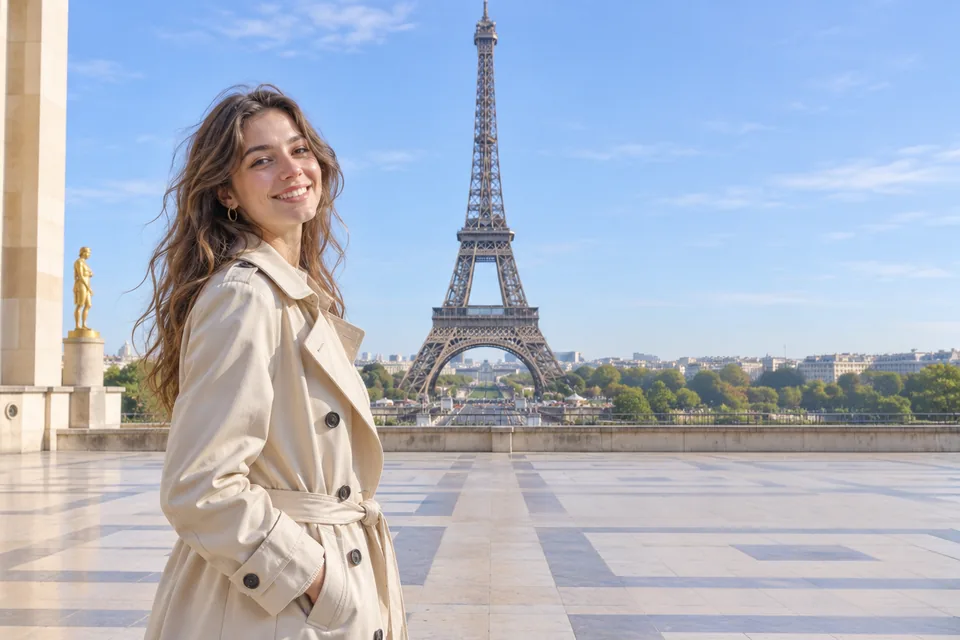
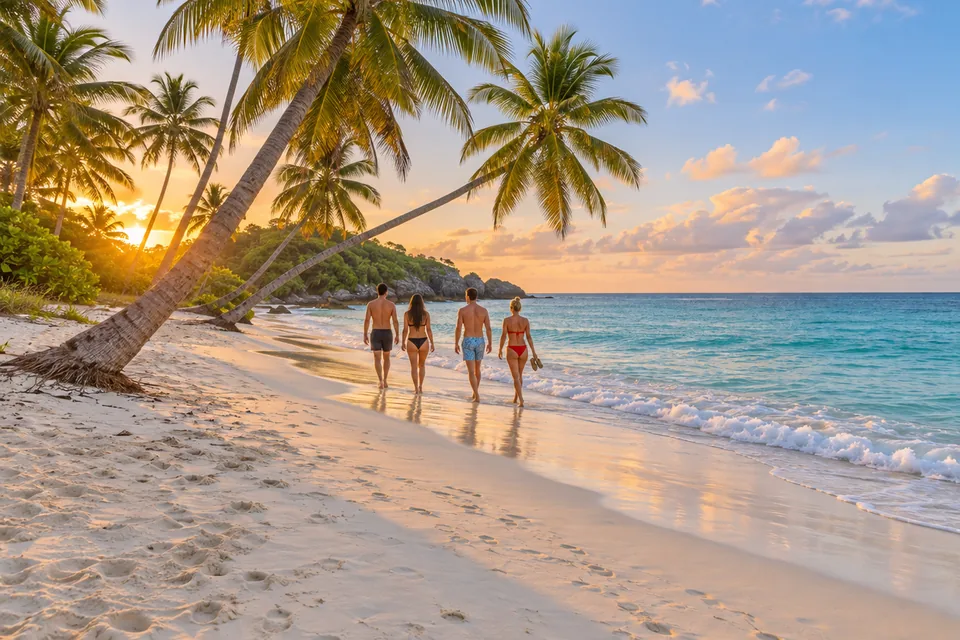
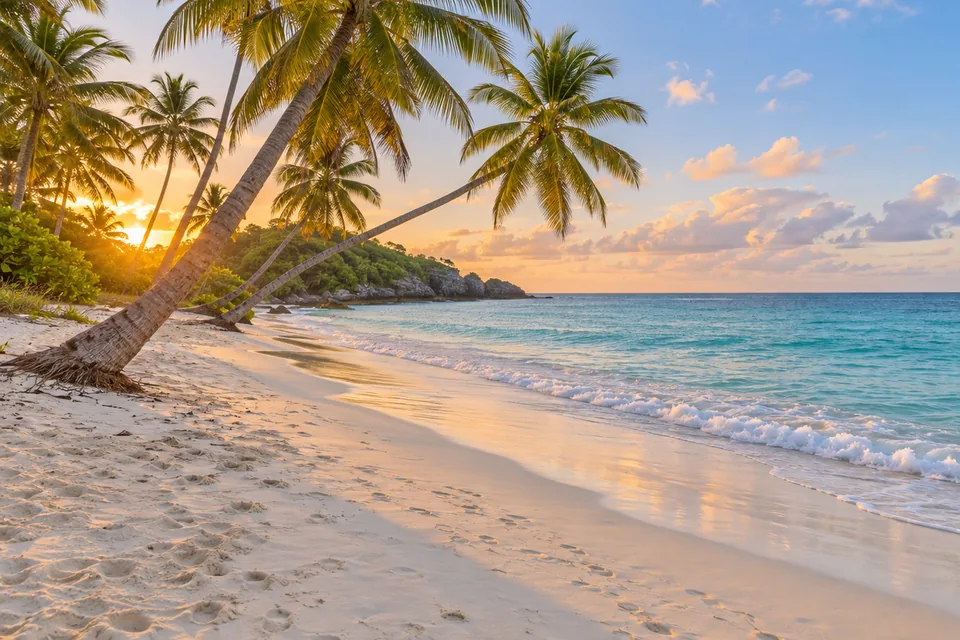
Drag each slider below to compare the original crowded shot with the cleaned PNG produced in this studio. Every plaza, shoreline, alley, bridge, gallery room, and cliffside staircase was restored directly with our brush workflow to show texture continuity and shadow cleanup.

  • BeforeAfter

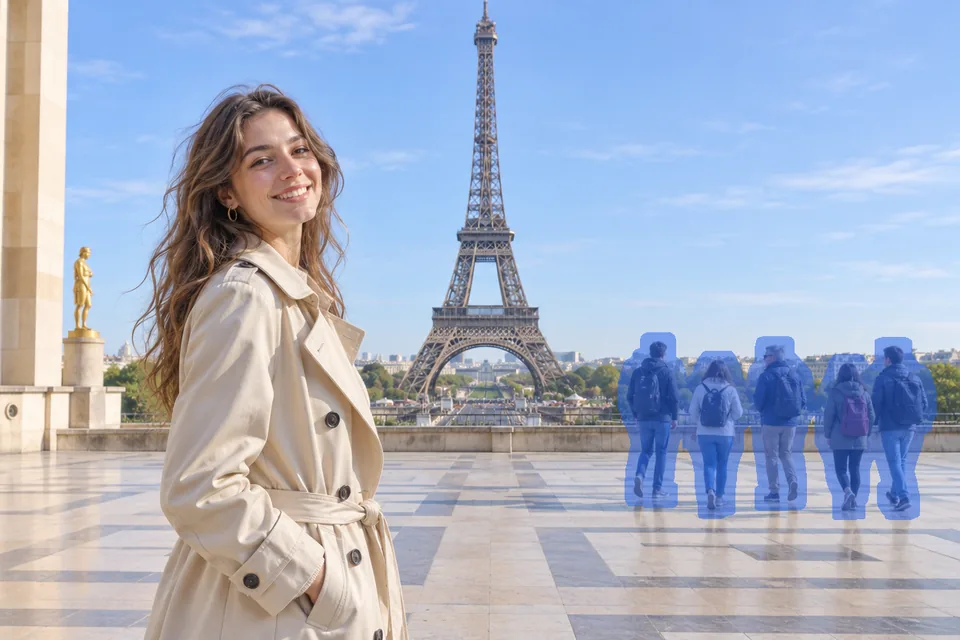
    Eiffel Tower plaza portrait with distant tourists cleared

  • BeforeAfter

    Golden-hour tropical shoreline with beach walkers erased

  • BeforeAfter

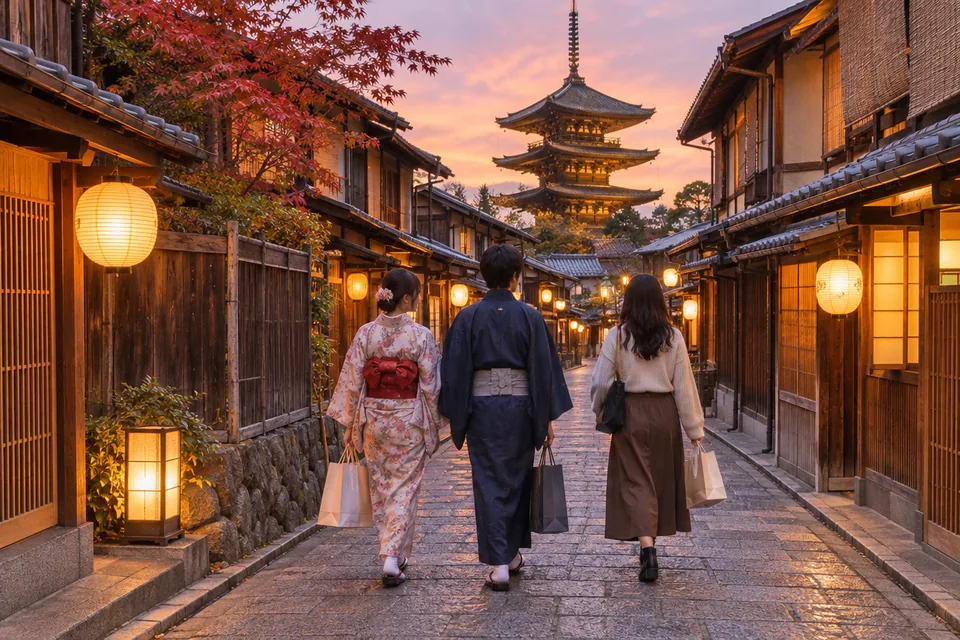
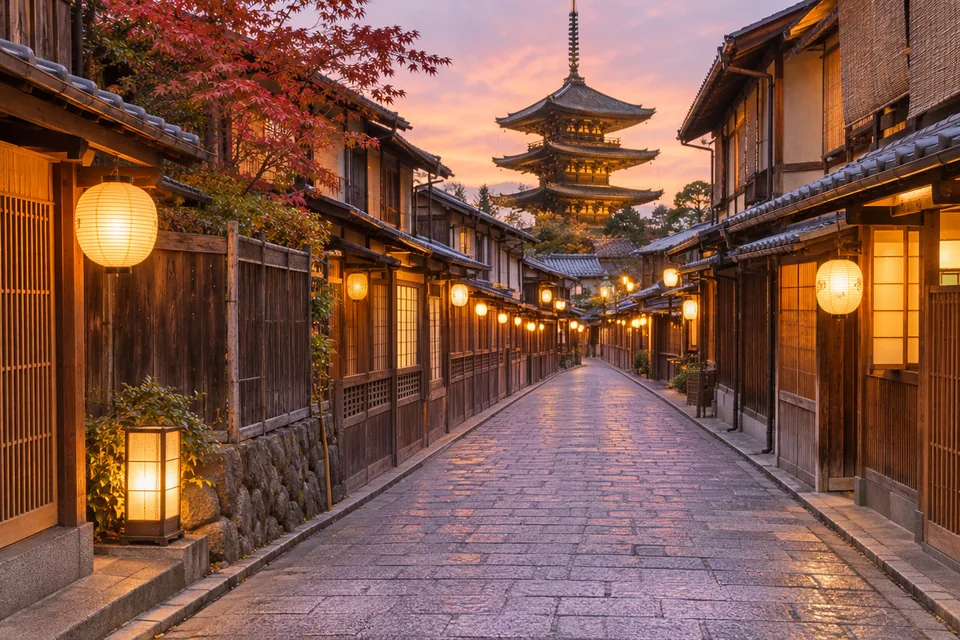
    Dusk Kyoto lantern alley with pedestrians removed

  • BeforeAfter

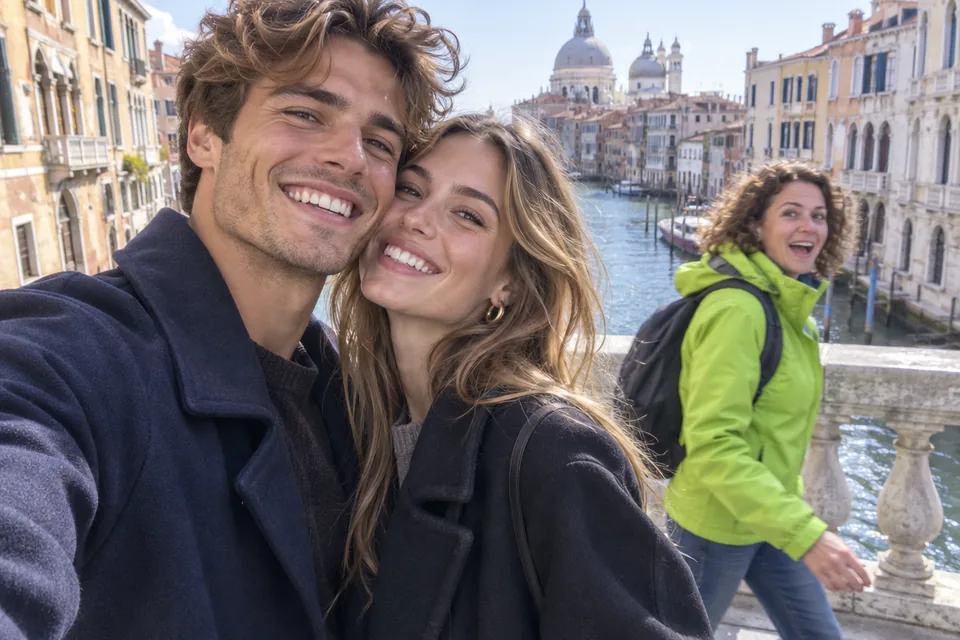
    Canal bridge couple portrait with neon-jacket photobomber gone

  • BeforeAfter

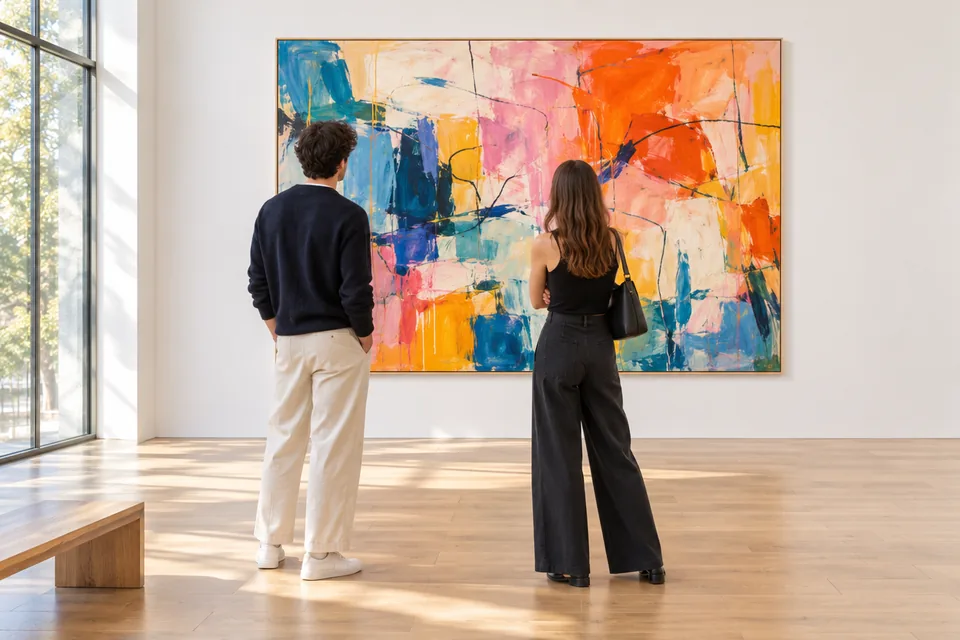
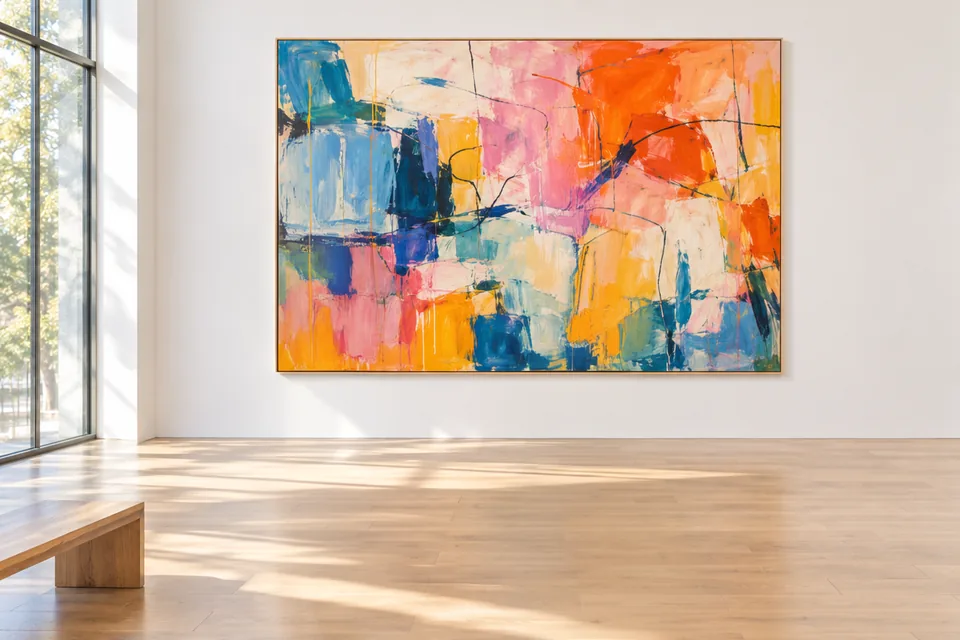
    Minimalist art gallery room with visitors cleared from canvas

  • BeforeAfter

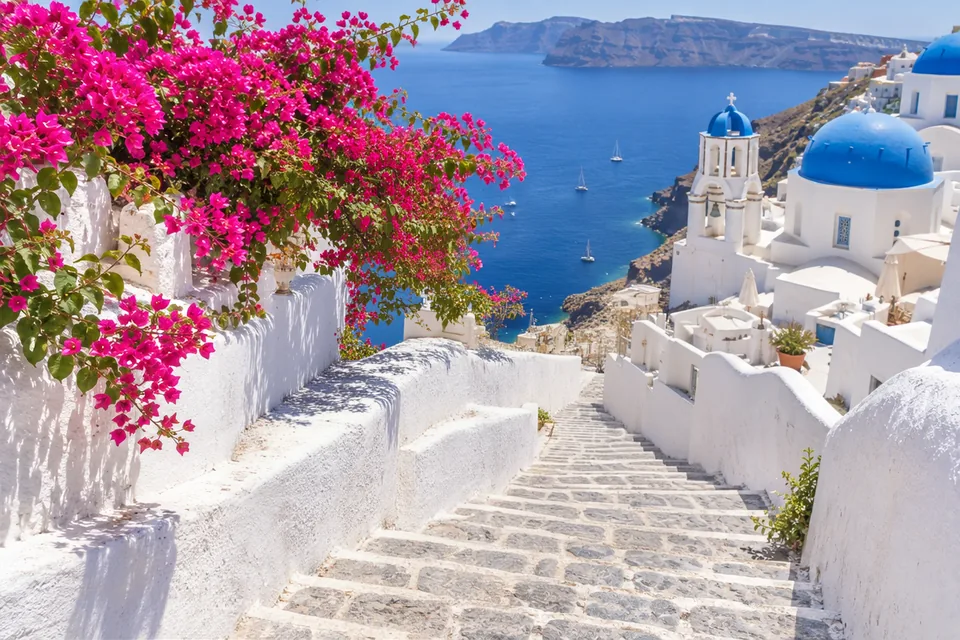
    Santorini cliffside steps with staircase tourists removed

How to Remove People from Photo in Three Steps

Clean up busy landmarks and candid portraits inside your browser in under a minute without complex masking layers or clone stamping.

  1. Drop a JPG, PNG, or WebP file up to 10 MB straight onto the canvas. Your photo loads at its native aspect ratio with zero crops so every landmark detail stays intact.

  2. Select a fine, medium, or wide brush and paint across each photobomber, pedestrian, or tourist group. Sweep slightly beyond outlines and cast shadows so the AI knows the full area to rebuild.

  3. Run cleanup for 2 credits and review the restored PNG in roughly 40 seconds. Save the full-size photo immediately, click Paint again to refine tiny details, or send it to upscaling or PSD export.

Precision Features Built to Erase People from Photo Scenes

Basic smudge erasers leave blurry patches over tile, brick, and waves. Every stage here is built to remove background people while respecting real geometry and light.

  1. Targeted Brush Control That Protects Main Subjects

    Targeted Brush Control That Protects Main Subjects

    You decide exactly who stays and who disappears. Because only brushed pixels are synthesized, your main portrait subject, clothing folds, hair strands, and foreground framing remain 100 percent untouched.

  2. Seamless Texture & Perspective Reconstruction

    Seamless Texture & Perspective Reconstruction

    When you remove tourists from photo landmarks, the engine reads surrounding paving stones, ocean ripples, wooden railings, and architectural lines to rebuild natural background geometry instead of smearing colors.

  3. Complete Shadow, Reflection & Edge Cleanup

    Complete Shadow, Reflection & Edge Cleanup

    Strangers cast long afternoon shadows across sidewalks and leave reflections on wet cobblestones or gallery floors. Brushing both the silhouette and its shadow removes every trace that anyone stood there.

  4. Single Photobombers or Whole Crowds in One Pass

    Single Photobombers or Whole Crowds in One Pass

    Whether you need to remove person from photo edges behind a couple or clear five scattered sightseers across a plaza, paint every figure before running and clear them all together.

  5. Predictable Flat 2-Credit Pricing on Any Resolution

    Predictable Flat 2-Credit Pricing on Any Resolution

    Every cleanup costs 2 credits whether you remove one stray shoulder or a dozen distant pedestrians, on phone snapshots or large camera files. Your credit total always shows on the button first.

  6. Full-Resolution PNG Output & One-Click Next Steps

    Full-Resolution PNG Output & One-Click Next Steps

    Your cleaned image returns as a lossless PNG matching your uploaded dimensions with no watermarks. Download right away or hand off directly to Image Upscaler, Background Remover, or Image to PSD.

Pro Brush Guide: How to Remove People from Pictures Without Traces

Smart masking habits turn tricky tourist crowds, cast shadows, and tight architectural corners into natural, publication-ready photographs.

Paint Slightly Past Clothing Edges and Cast Shadows

When clearing a photobomber beside a canal bridge portrait, leave a slim margin around shoulders, backpacks, shoes, and any long shadows stretching across the pavement. Covering that outer halo gives the synthesis step clean border pixels of stone, water, or grass to sample from, preventing faint outlines, color bleed, or dark ground patches on sunlit surfaces.
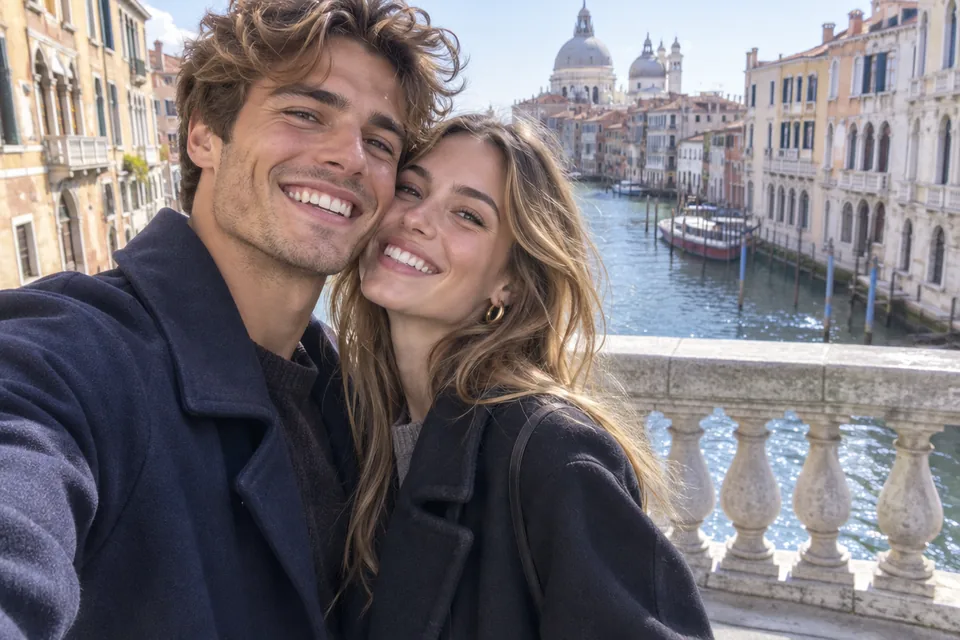
Paint Slightly Past Clothing Edges and Cast Shadows

Match Brush Diameter to Foreground and Distant Figures

Switch brush widths across depth planes. Use the wide brush to sweep rapidly over nearby tour groups, then drop to the small brush when tracing tightly beside a main subject's arm, hair, or railing. Undo removes your latest stroke immediately whenever a pass drifts close to someone you want to keep.

Clear Multiple Tourists and Beach Walkers in a Single Run

Instead of spending extra runs on one pedestrian at a time, brush every unwanted figure across the horizon, shoreline, or public square before hitting submit. Combining four beach walkers or five distant plaza visitors into one continuous mask keeps exposure, sand grain, and lighting consistent across the entire frame for the same 2 credits.

Clear Multiple Tourists and Beach Walkers in a Single Run

Use Paint Again for Tight Overlaps and Complex Architecture

Iron railings, framed gallery canvases, or lantern-lit wooden storefronts occasionally benefit from a quick second look when figures overlap fine repeating patterns. Open the result, click Paint again, brush only the lingering edge or shadow, and run a focused pass so repeating bars and moldings align cleanly.

Keep Original Pixels and Chain Your Finishing Workflow

Because every export preserves your original width and height in uncompressed PNG format, you can print framed travel art or deliver client galleries immediately. When a cleaned scene needs higher print clarity or wider banner framing, send it in one click to Image Upscaler or Image Expand.

Keep Original Pixels and Chain Your Finishing Workflow

Where Creators Remove Background People Most

From milestone vacations to architectural portfolios, clearing stray figures turns busy captures into calm, timeless images.

  • Travel & Iconic Landmark Photography

    Popular plazas, coastal steps, and historic alleys stay crowded all day. Remove tourists from photo memories of Paris, Kyoto, or Santorini so architecture and scenery feel quiet and personal.

  • Couples, Weddings & Candid Family Portraits

    Save genuine smiles on honeymoon bridges, coastal viewpoints, beaches, and outdoor ceremony venues even when a passerby in a bright jacket walks straight behind your loved ones right as the shutter clicks.

  • Architecture, Galleries & Real Estate Interiors

    Showcase museums, sunlit hotel lobbies, patios, and listed properties without distracted visitors standing in front of focal artwork, clean sightlines, staircases, or pale oak floors.

  • Editorial Street Shots, Creators & Print Keepsakes

    Polish lookbook backdrops, blog headers, thumbnail covers, and framed photo books by clearing stray pedestrians before sharing or sending files to print.

Remove People from Photo FAQ

Answers on brush technique, multi-person crowd removal, original resolution, flat credit pricing, and upload privacy.


Remove People from Photo Memories in Seconds

Upload your picture, paint over unwanted tourists or photobombers, and download a clean full-resolution PNG for 2 credits on ImageToPSD.ai.

Remove people now