Before and after
2 pictures
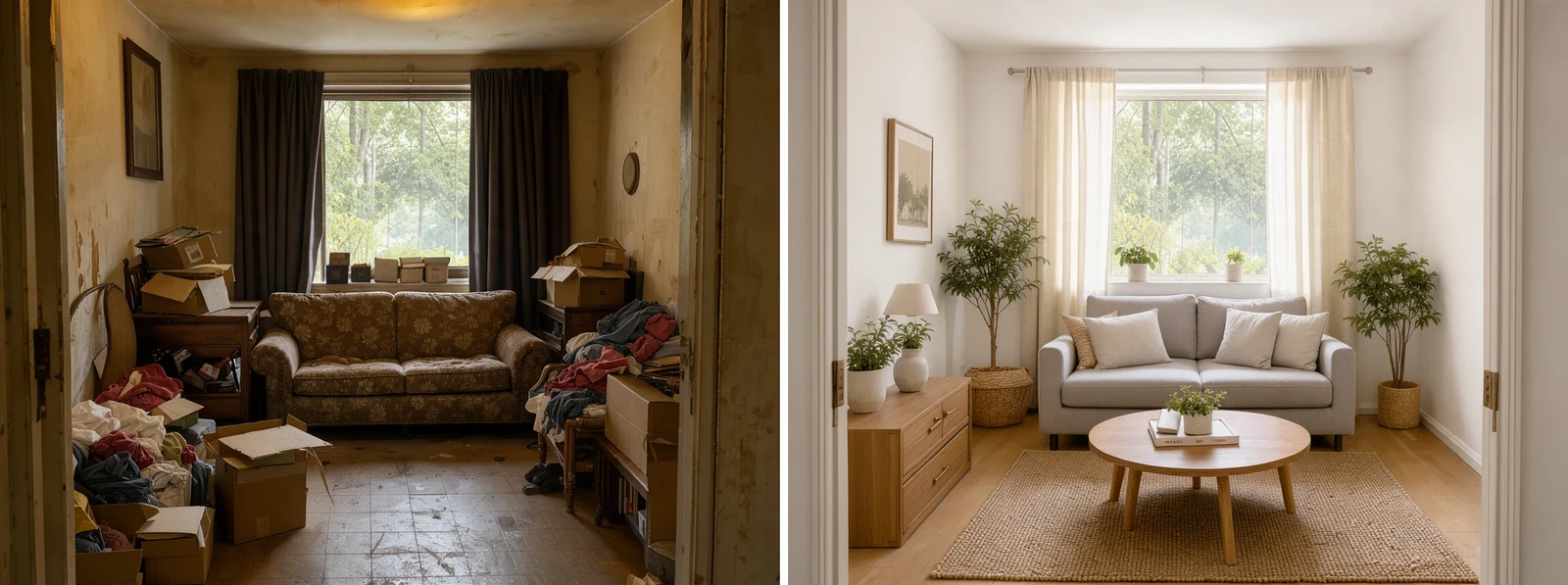
A room before and after its makeover, side by side at the same height with a white gap.
Combine images side by side, stacked or in a grid: put two photos together at the same height, line up screenshots or make a collage with spacing, borders and rounded corners, at full resolution and free in your browser.
Drop pictures to combine them
Two or more photos, screenshots or drawings: PNG, JPG, WebP, GIF or AVIF. You can also paste with Ctrl+V.
To make each picture below, we combine images from the row under it with this tool, at the settings it opens with.
A room before and after its makeover, side by side at the same height with a white gap.

Four product photos in square cells with spacing and rounded corners on light grey.
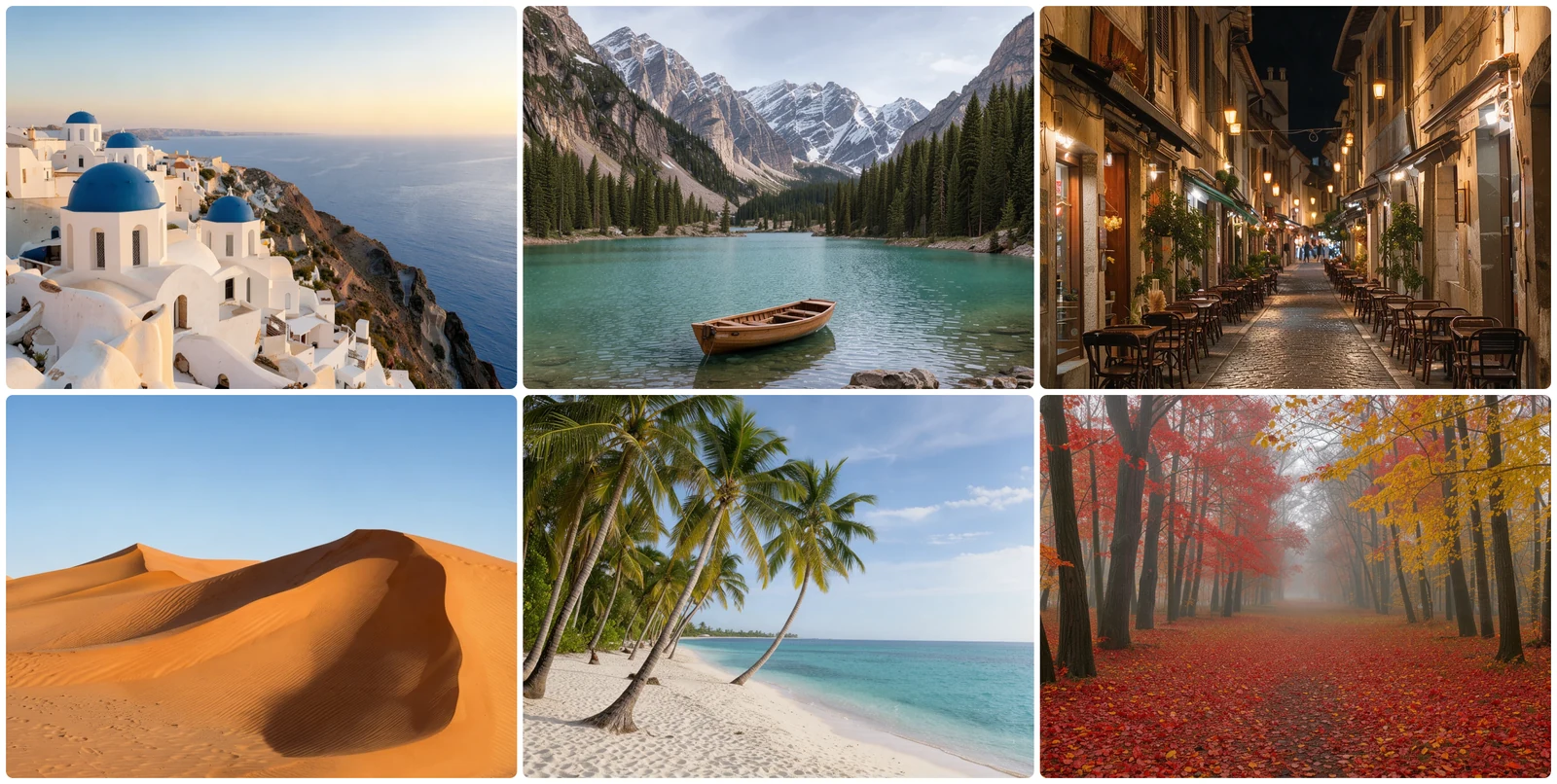
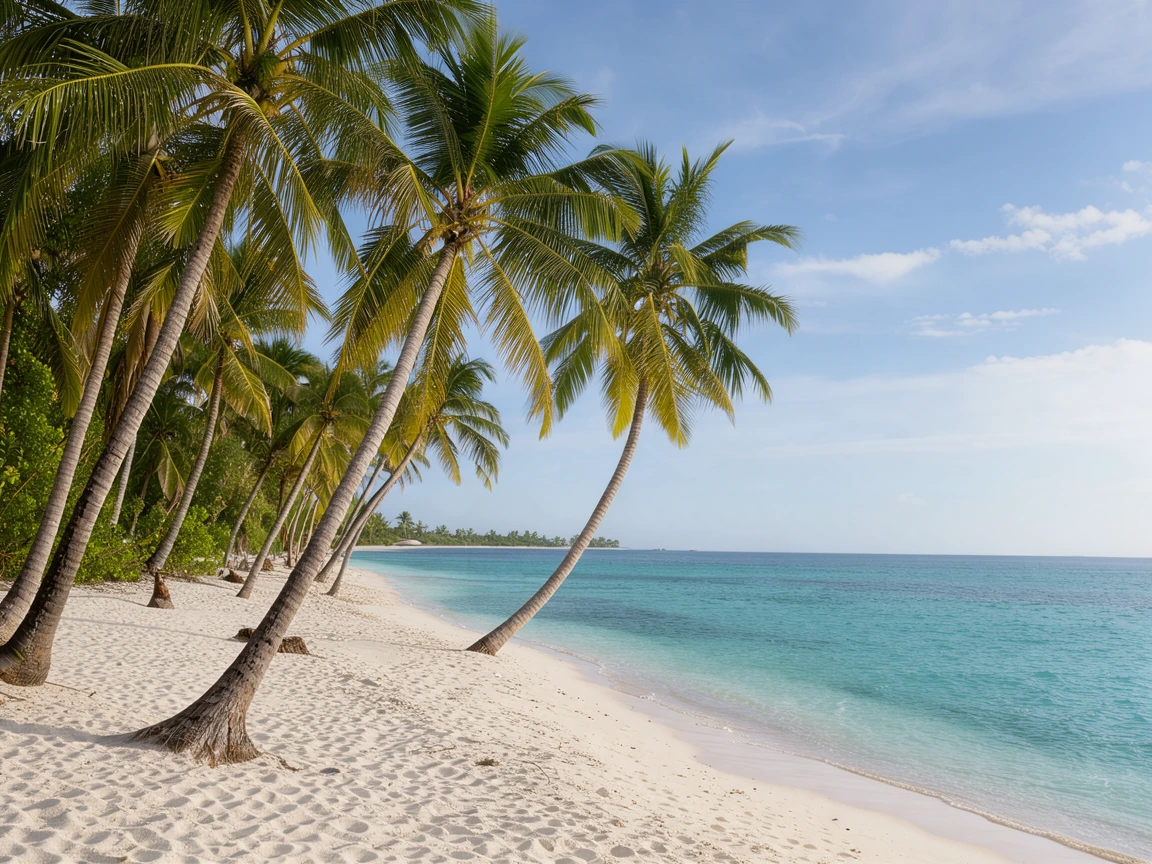
Combine photos from a trip, six different shapes, in a three-column grid, each filled from its centre.

Two portraits: combine two photos into one picture at the same height.
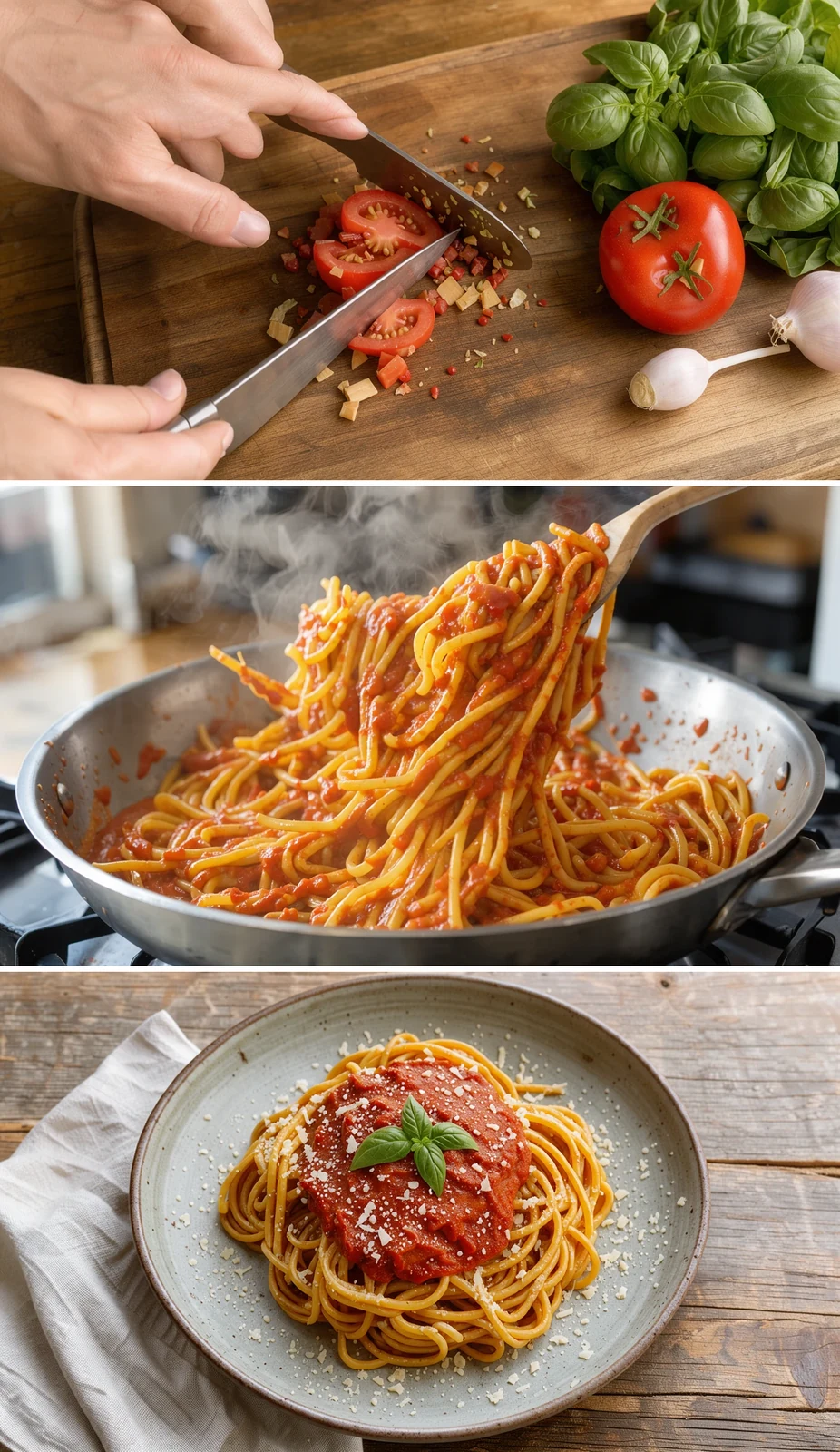
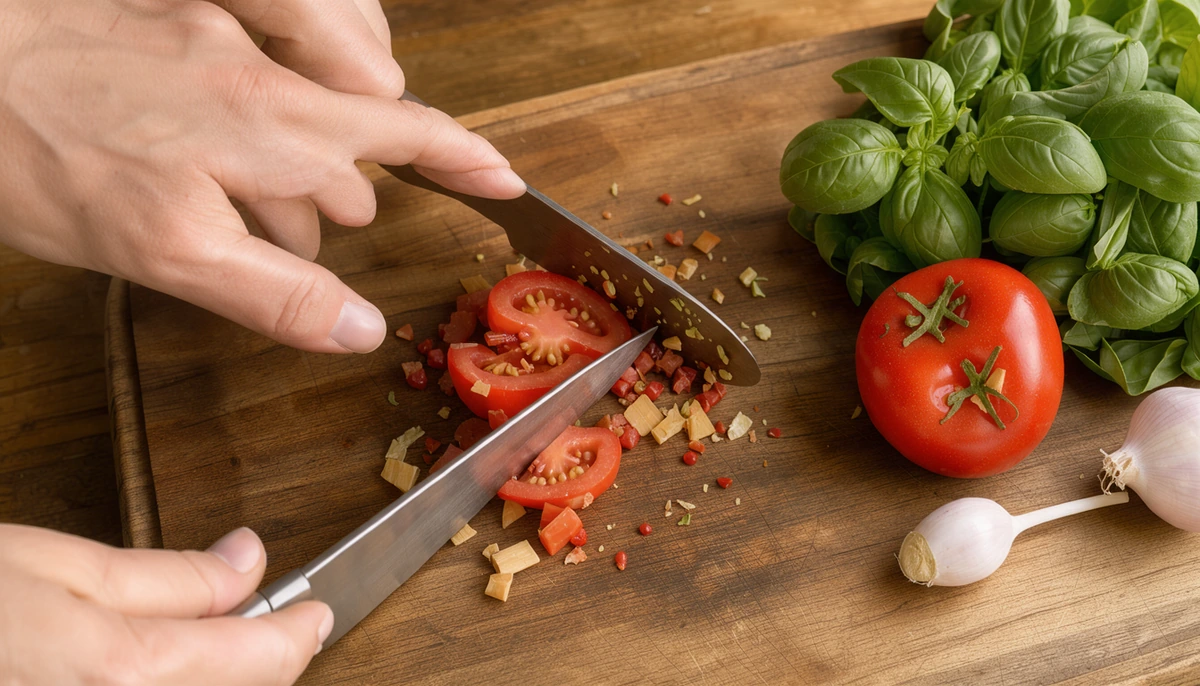
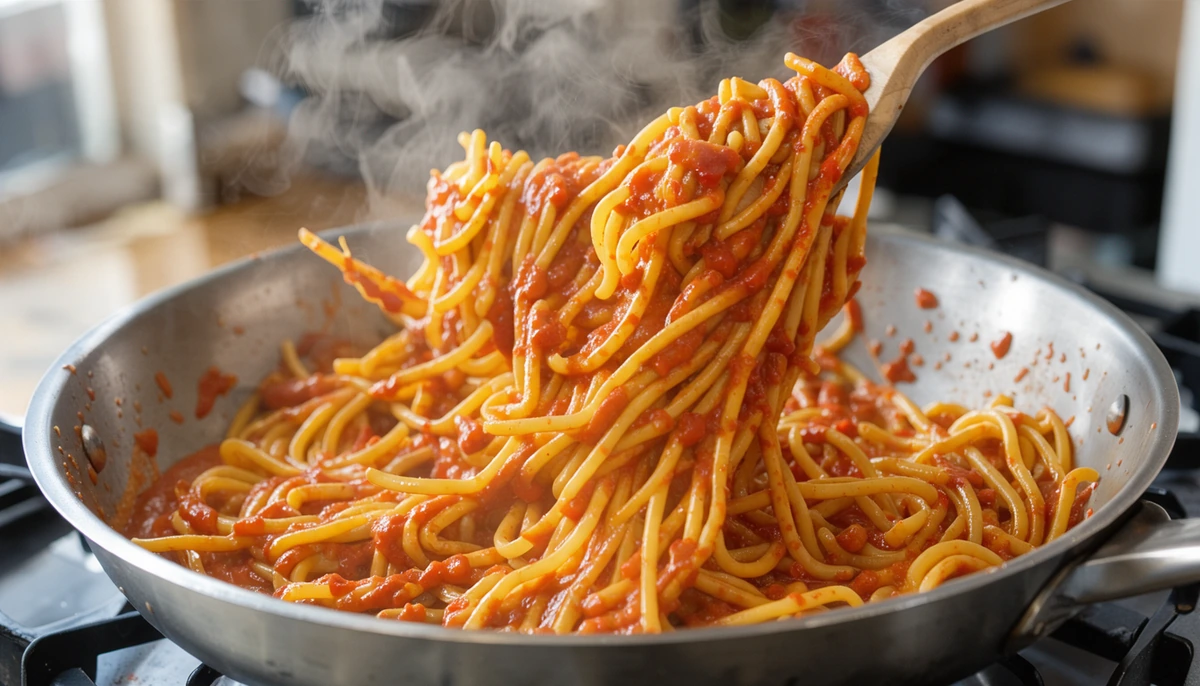
Three cooking steps stacked in one tall picture for a blog or Pinterest.

Four panels in a row with black gutters, like a printed strip.

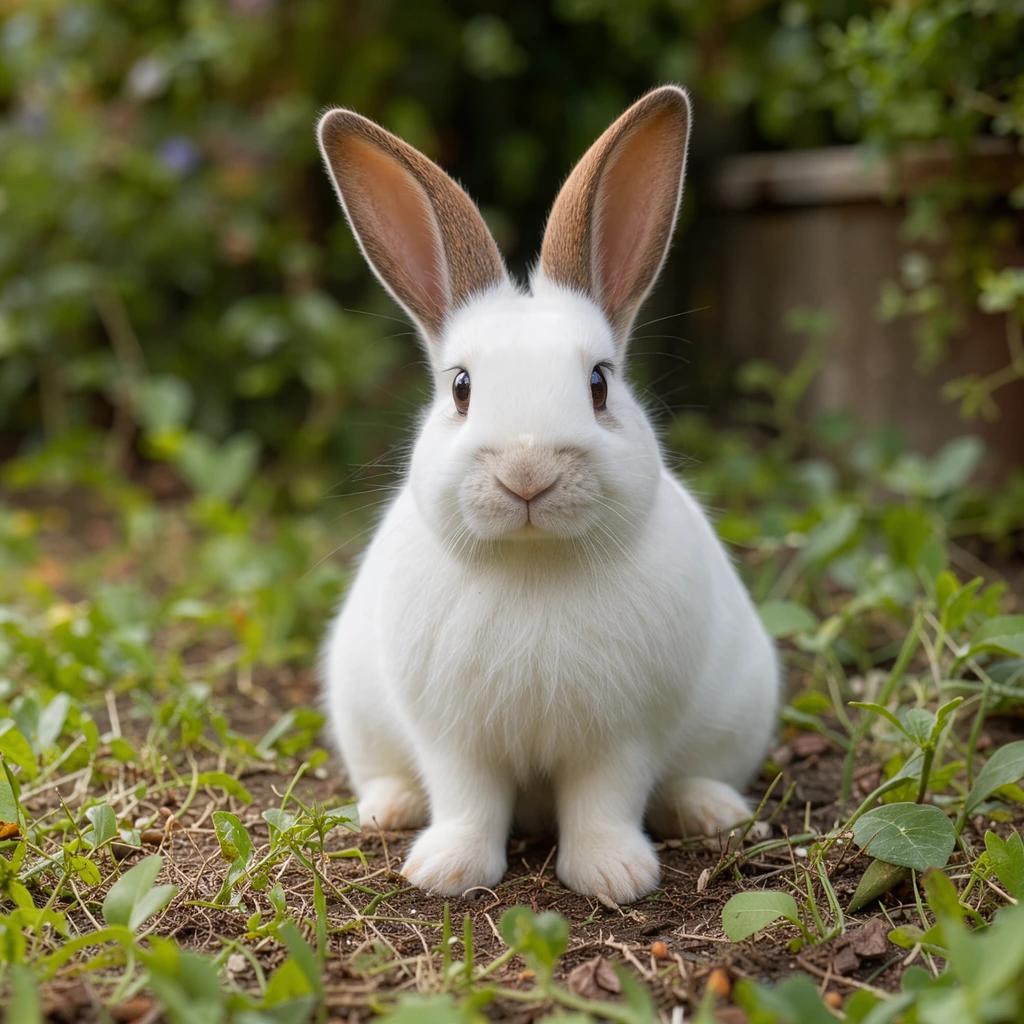
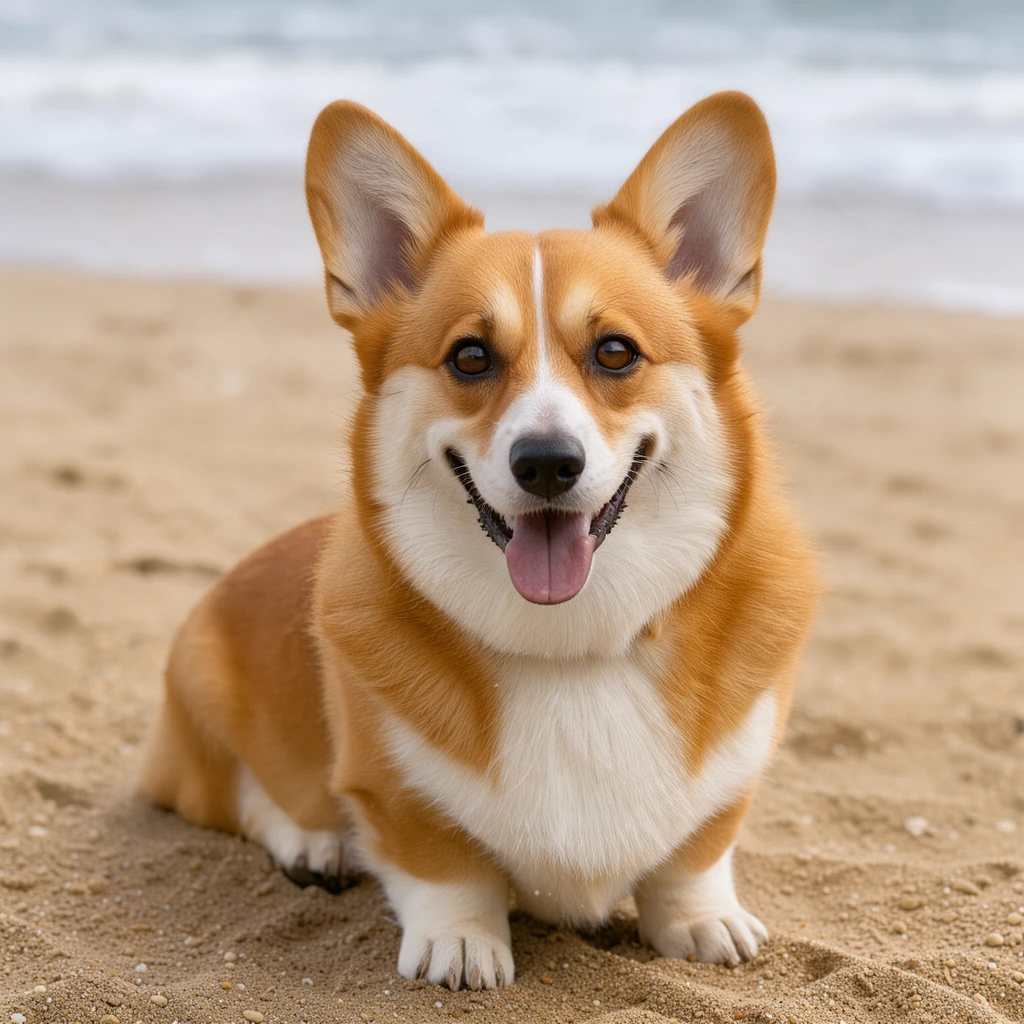
Four pets in a square grid with big rounded corners on a warm yellow.
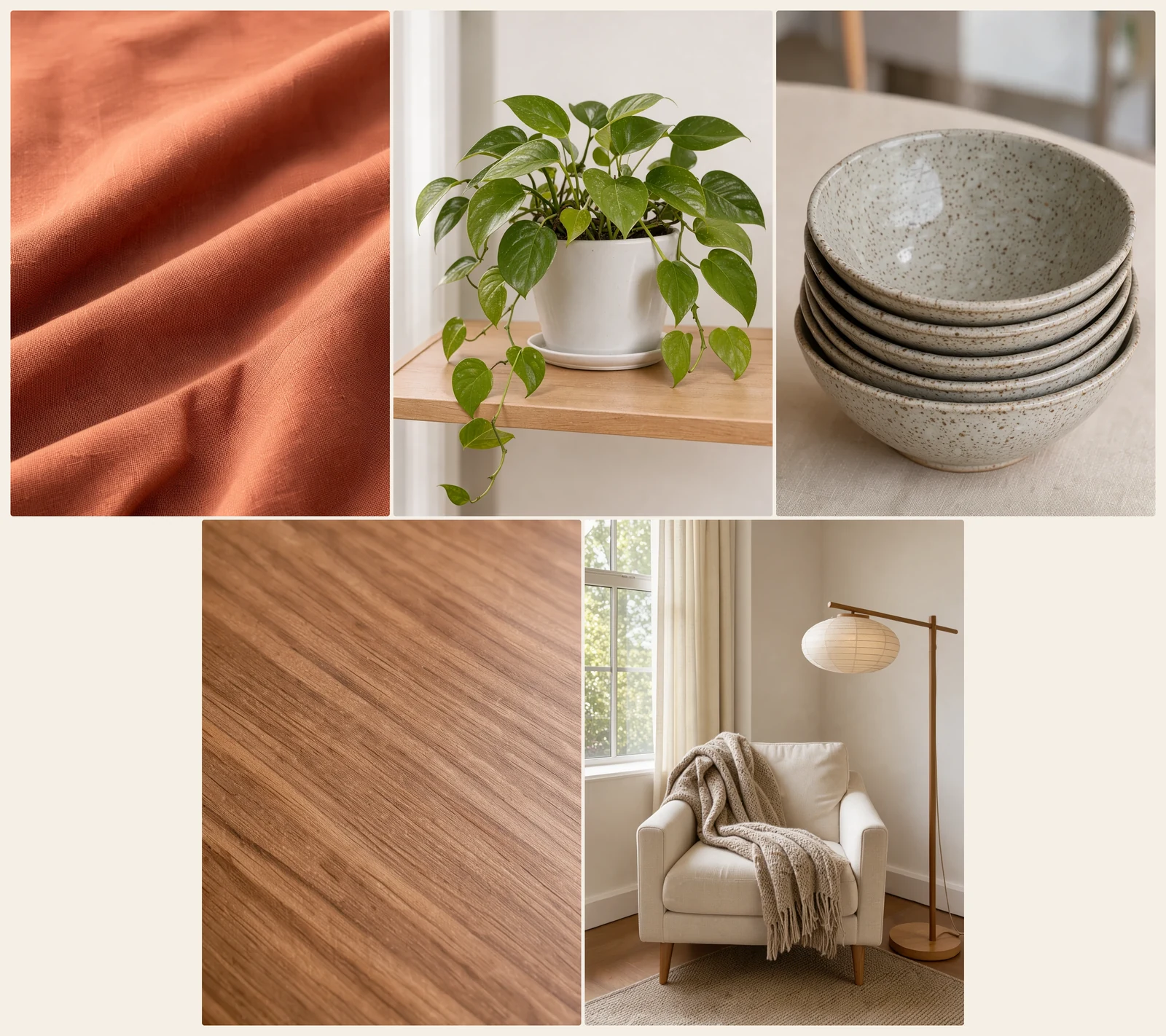
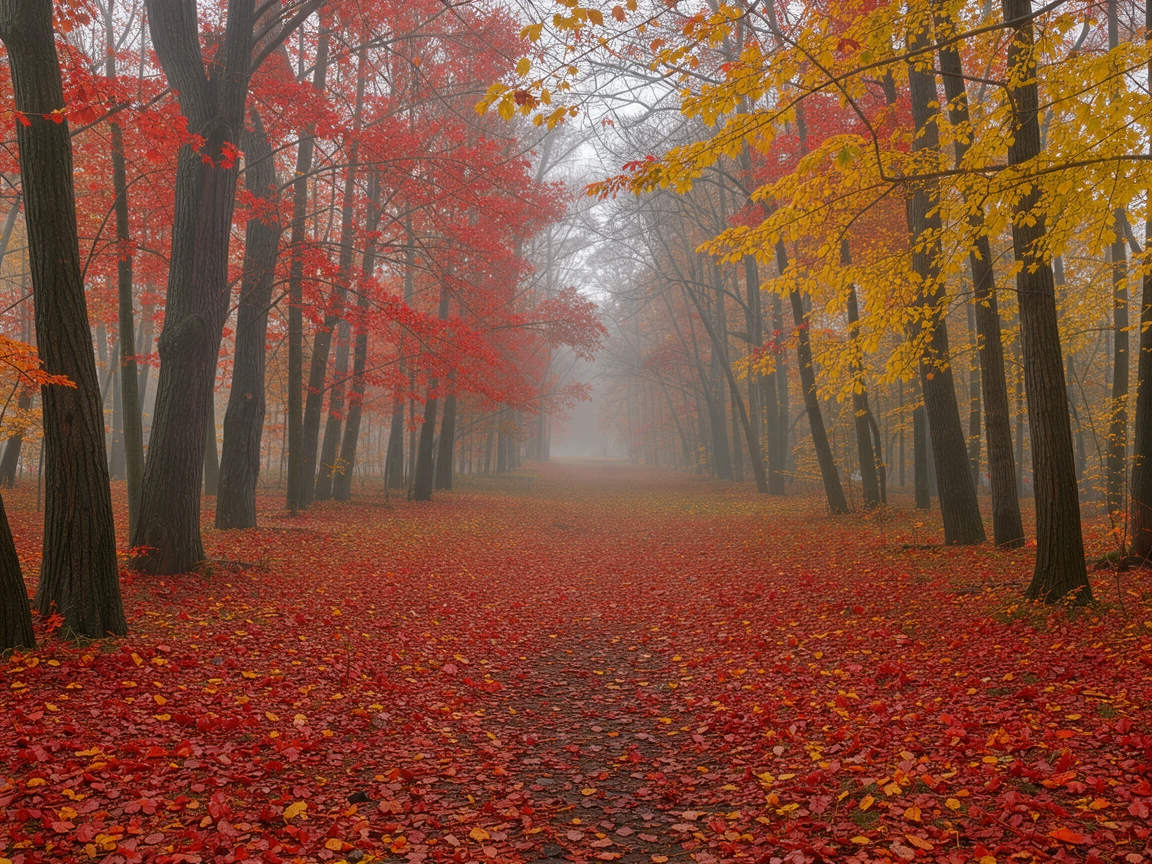
Five textures and rooms on a sand background, the short last row centered.
Three steps to combine images, all in your browser.
Drop photos, choose files or paste with Ctrl+V. Drag a picture to change the order and rotate any that are sideways.
Side by side, stacked or a grid, then spacing, a border, rounded corners and the background color. The preview follows every change.
Download a JPG, PNG or WebP at full size, or at the exact width you need for a post or a page.
Six things that make combining images quick and clean.
Merge two photos into one at the same height, so faces and rooms sit at one scale, or keep their own sizes and line them up at the top, middle or bottom.
Stack screenshots, recipe steps or comic panels at one width, with the space between them you choose.
Lay out up to 30 pictures in 1 to 10 columns. Each cell is filled from the picture's centre or shows it whole, and a short last row is centered.
Set the space between pictures, a border around them and rounded corners in pixels, on white, black, any color or a transparent background.
The file is made from your original pictures at full resolution, with a warning before any picture is enlarged: a JPG that keeps colored text sharp, a PNG or a WebP, at full size or any width up to 16,000 pixels.
Every picture you make is free, with no account and no watermark. Your images are combined on your own device and never uploaded.
Five short notes to combine images well: layouts, sizes, grids, spacing and files.
Side by side suits before and after shots, comparisons and two photos of the same moment. Stacked suits screenshots, steps and tall phone pictures. When you combine photos of two landscapes side by side you get a wide banner; two portraits make a near square.
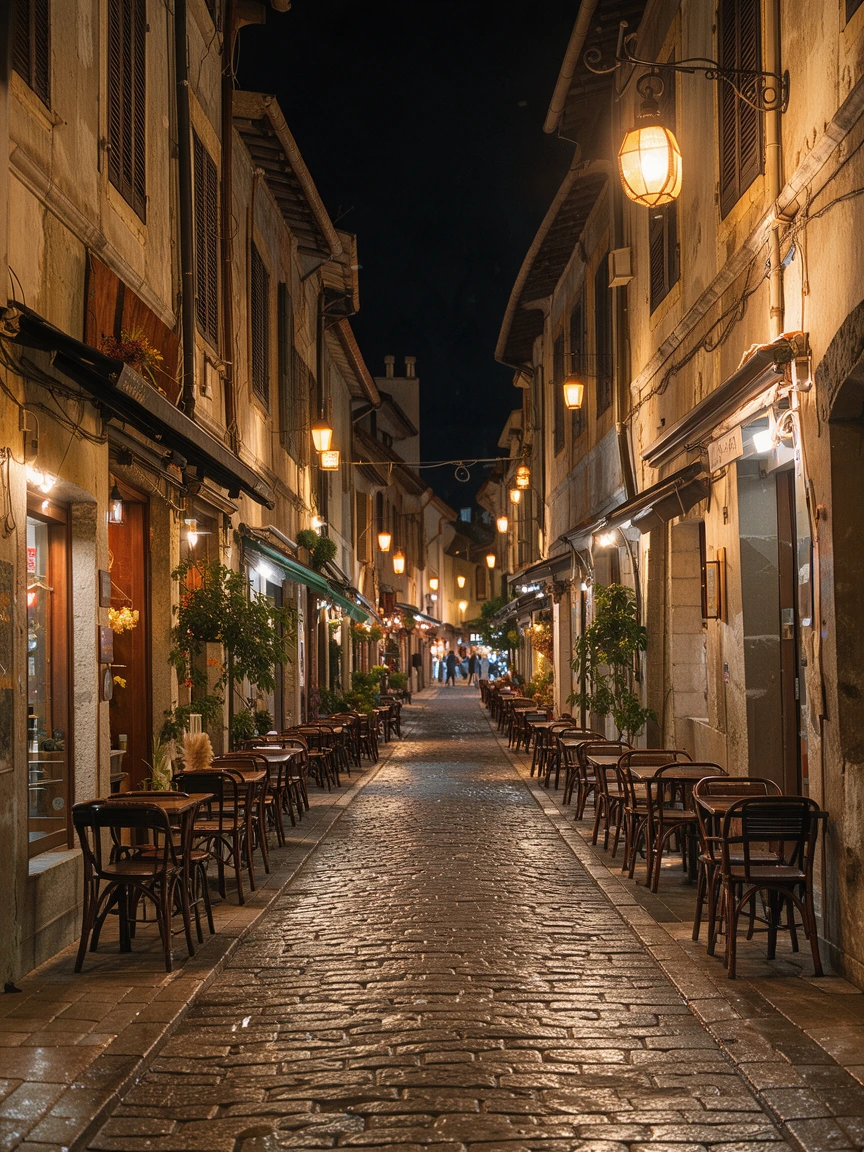
When you merge images of different sizes, Same height scales every picture to the smallest one, so nothing is enlarged; choose Largest for a bigger file. Original sizes keeps every pixel as it is and lines the pictures up, leaving the background around the shorter ones.
The cell shape comes from the first picture or a ratio you pick: 1:1 or 4:5 for social posts, 4:3 for travel photos. Fill crops each picture from its centre to the cell; Show whole keeps the full picture with the background around it.
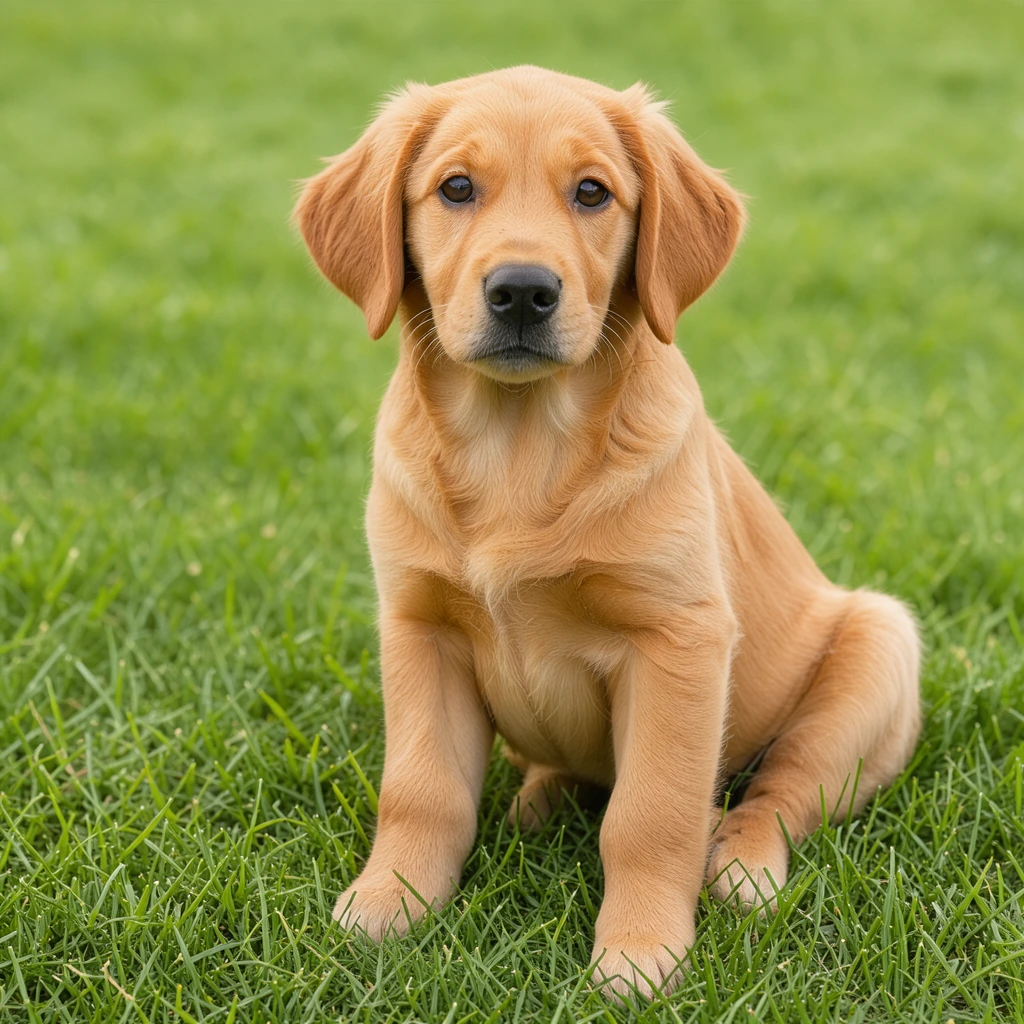
Spacing and borders are pixels of the finished picture, so they stay the same when you change the width. A gap of about 2% of the width reads cleanly; white suits print and shops, black suits comics and photos, transparent PNG suits design work.
Full size keeps all the detail when you combine images. Set a width for the web: 1080 px for Instagram, 1200 px for blogs. JPG keeps photos small, PNG keeps screenshots sharp and supports transparency, and WebP is the lightest for websites.
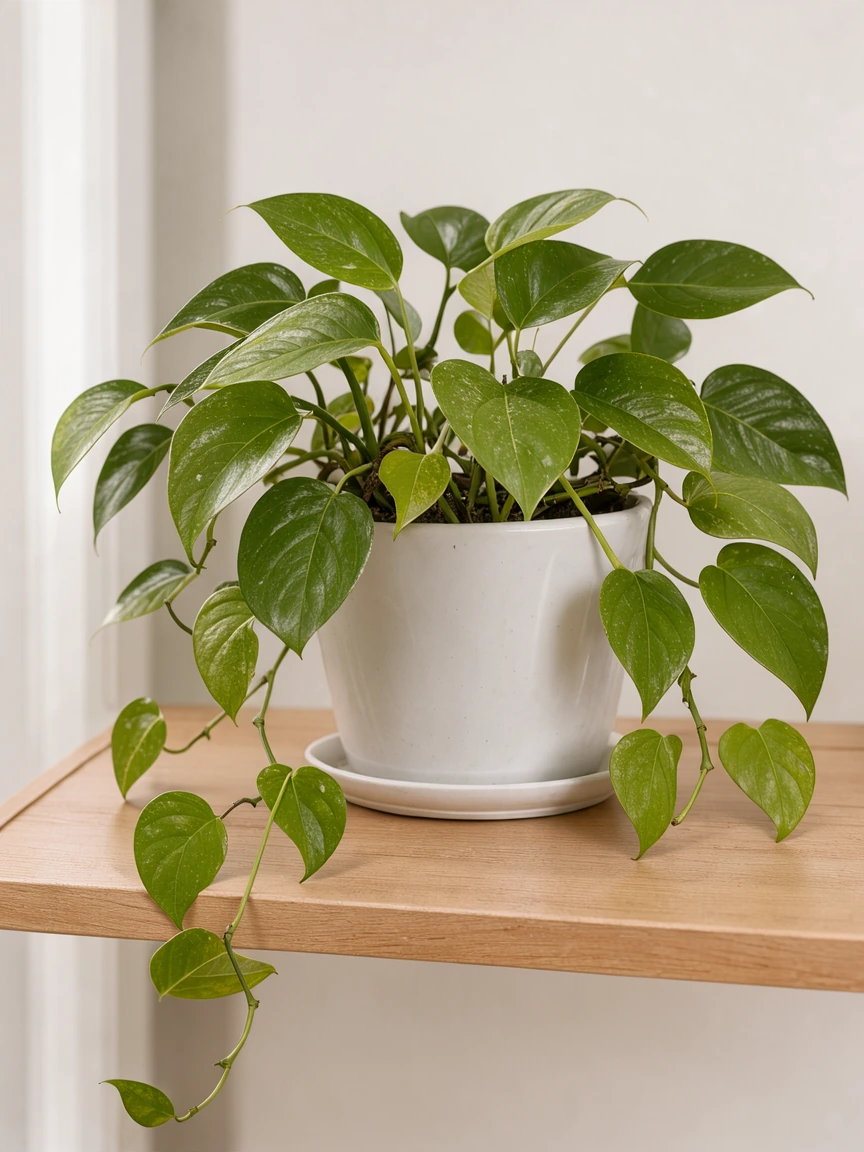
Anyone who needs to combine images into one.
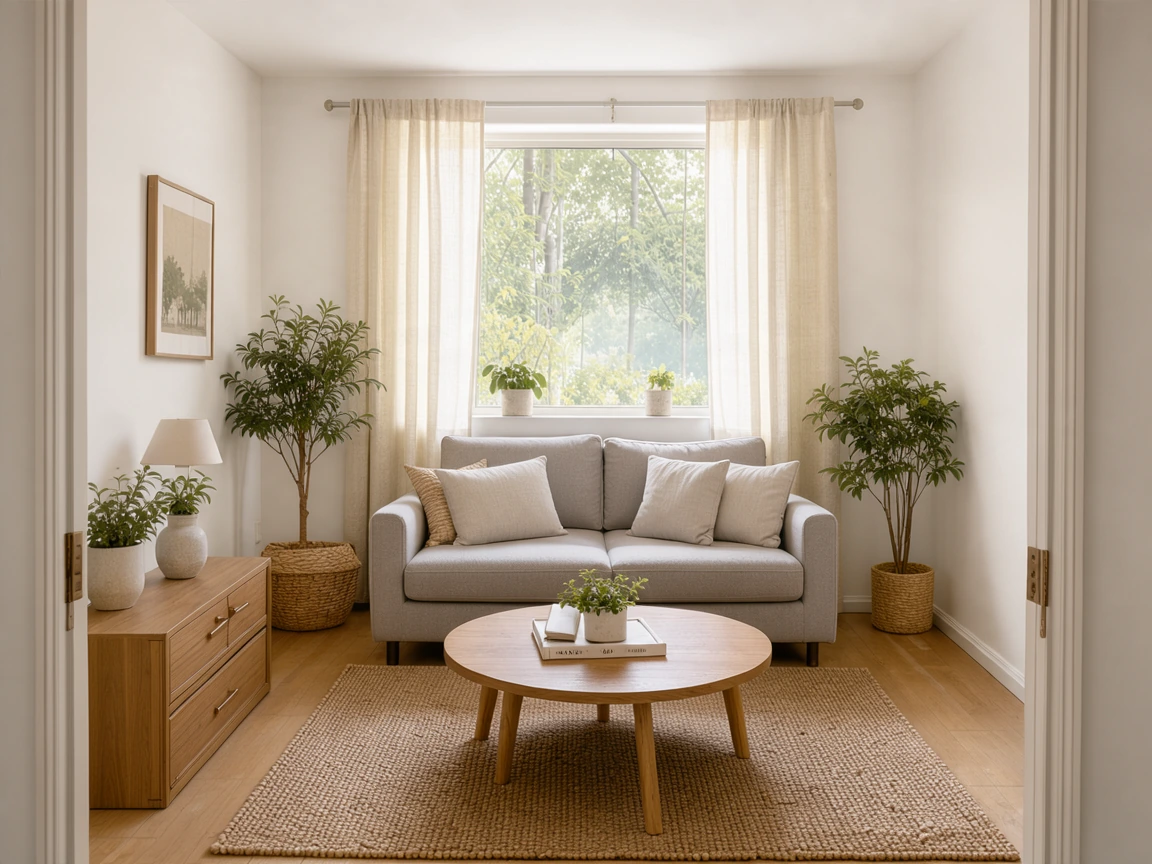
Merge two photos, before and after, side by side at one height.
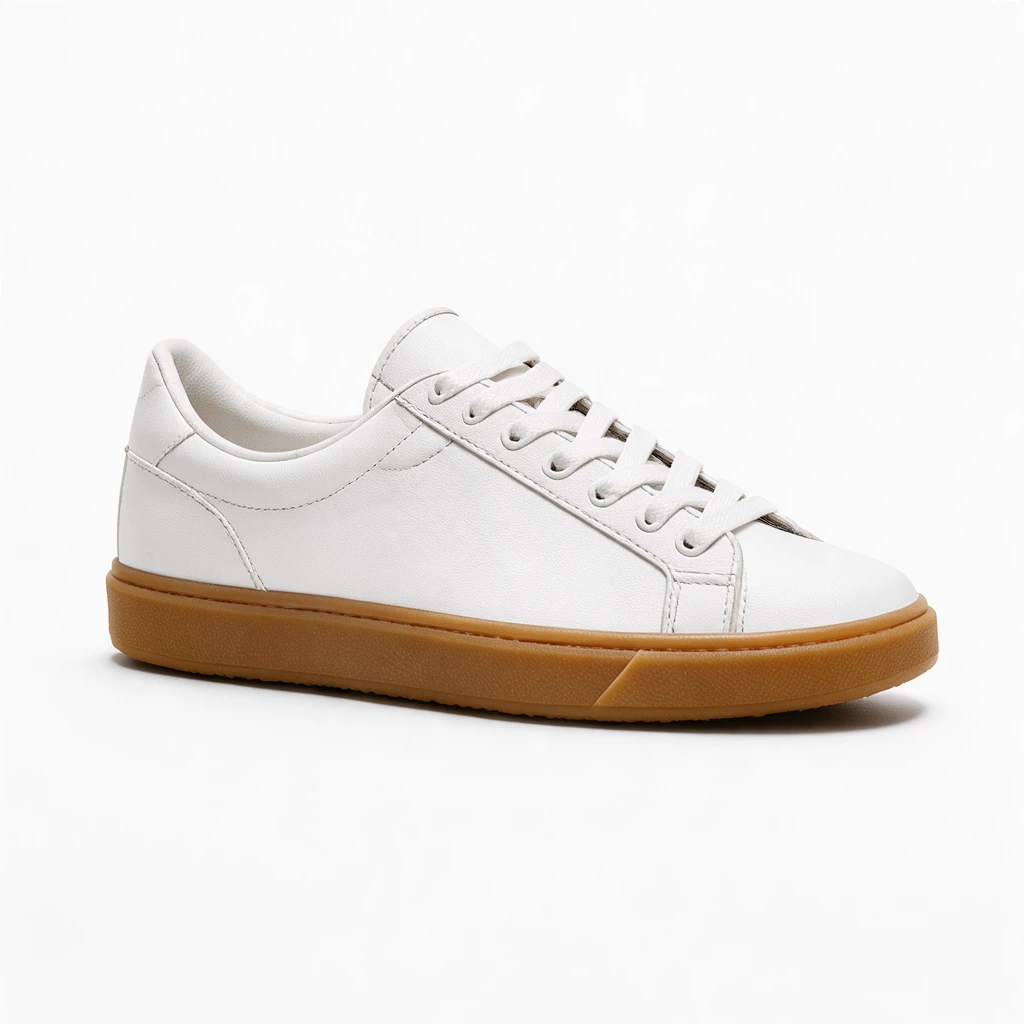
Product grids and color variants for listings and catalogs.

Collages, comic strips and photo dumps in one picture.
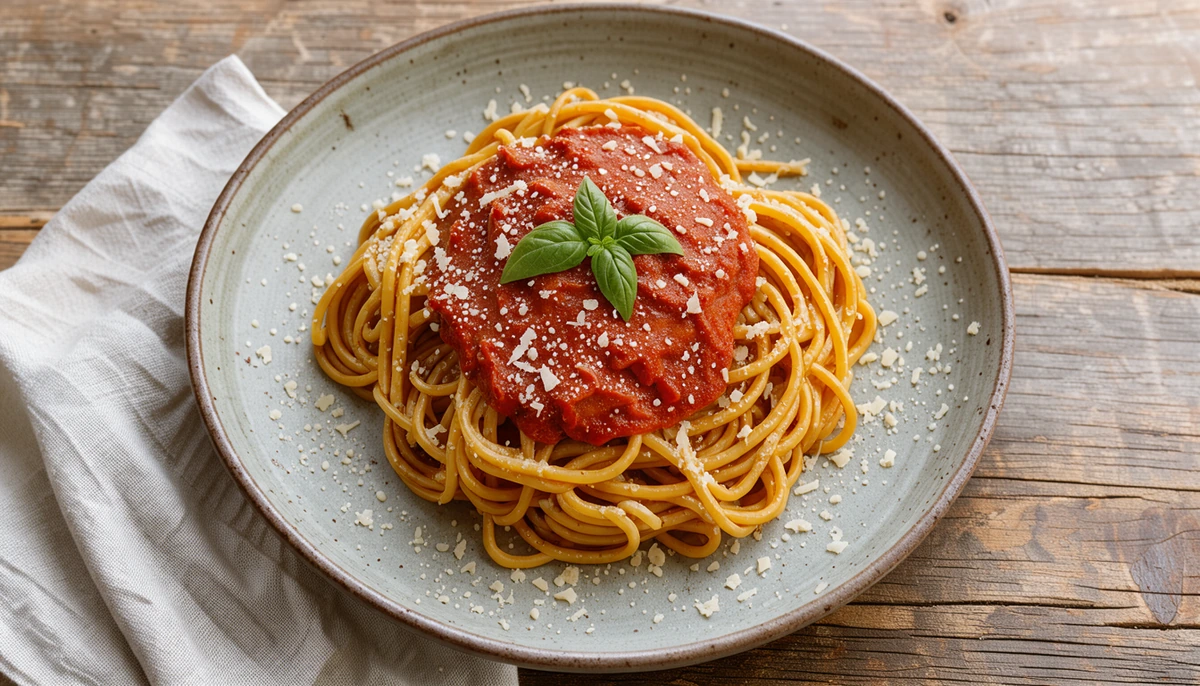
Step-by-step pictures stacked for a post or a pin.
Answers about layouts, sizes, quality and privacy.
Add both pictures, choose Side by side or Stacked, set the spacing and background, then download. The two images are combined into one file at full resolution.
Yes. Combining images here is free, with no sign-up, no watermark and no limit on how many pictures you make.
Choose Side by side and Same height: both pictures get one height and sit next to each other, the quickest way to combine two photos. Drag a thumbnail to swap their order.
Up to 30 pictures at a time, in a row, a column or a grid of 1 to 10 columns.
When you combine images of different sizes, Same height or Same width scales them to match the smallest (or the largest). Original sizes keeps them as they are and lines them up; a grid fills or fits each picture in equal cells.
No. The file is made from your original pictures at full resolution; set a width only when you want a smaller file. JPG is saved at high quality, PNG and WebP without loss.
Yes. The tool works in the browser on iPhone and Android: add pictures from your photos, reorder them with the arrows and download the result.
No. Your images are opened and combined on your own device, and the file is made in your browser.
Add your pictures and combine images into one at full resolution, free in your browser.
Add pictures