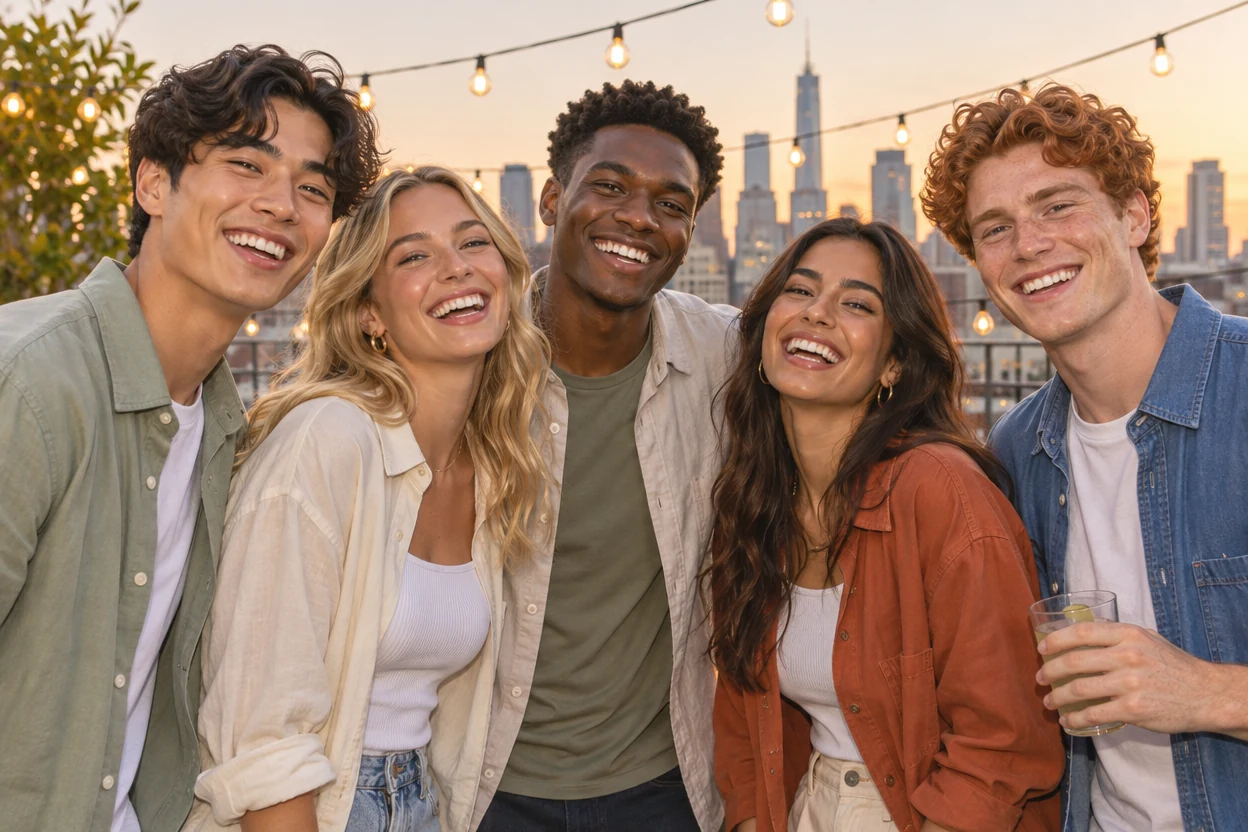
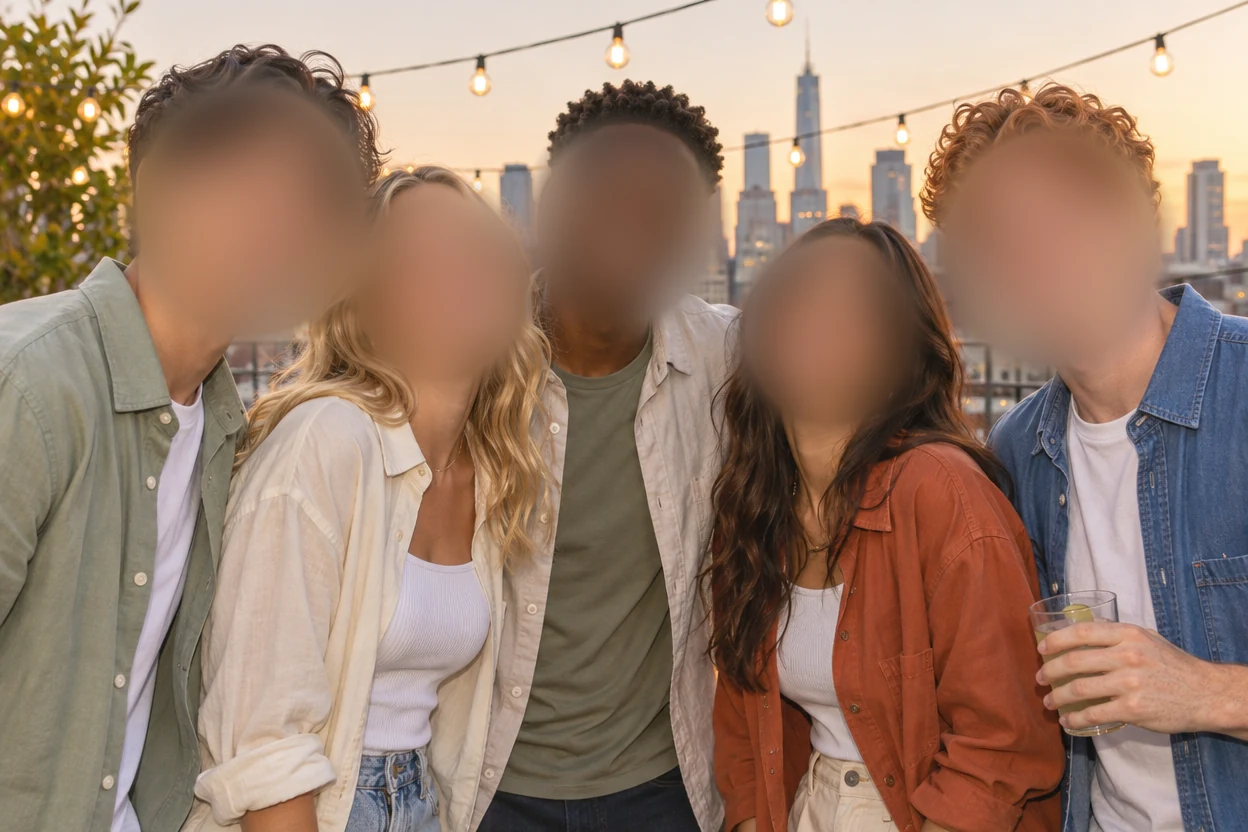
Five friends at a party
Find faces covered all five faces in one press, each with its own soft oval.
Open a photo and every face is found and blurred in seconds, small faces at the back of a crowd included. Keep the person who matters sharp, add an oval for anyone turned away, and blur face after face with soft edges that look natural. Download at full size; the photo never leaves your device.
Drop a picture here
PNG, JPG, WebP, GIF, BMP or AVIF. It stays on your device.
Each photo below had its faces found and blurred with this tool. Open one to see its ovals and change them yourself.
Find faces covered all five faces in one press, each with its own soft oval.
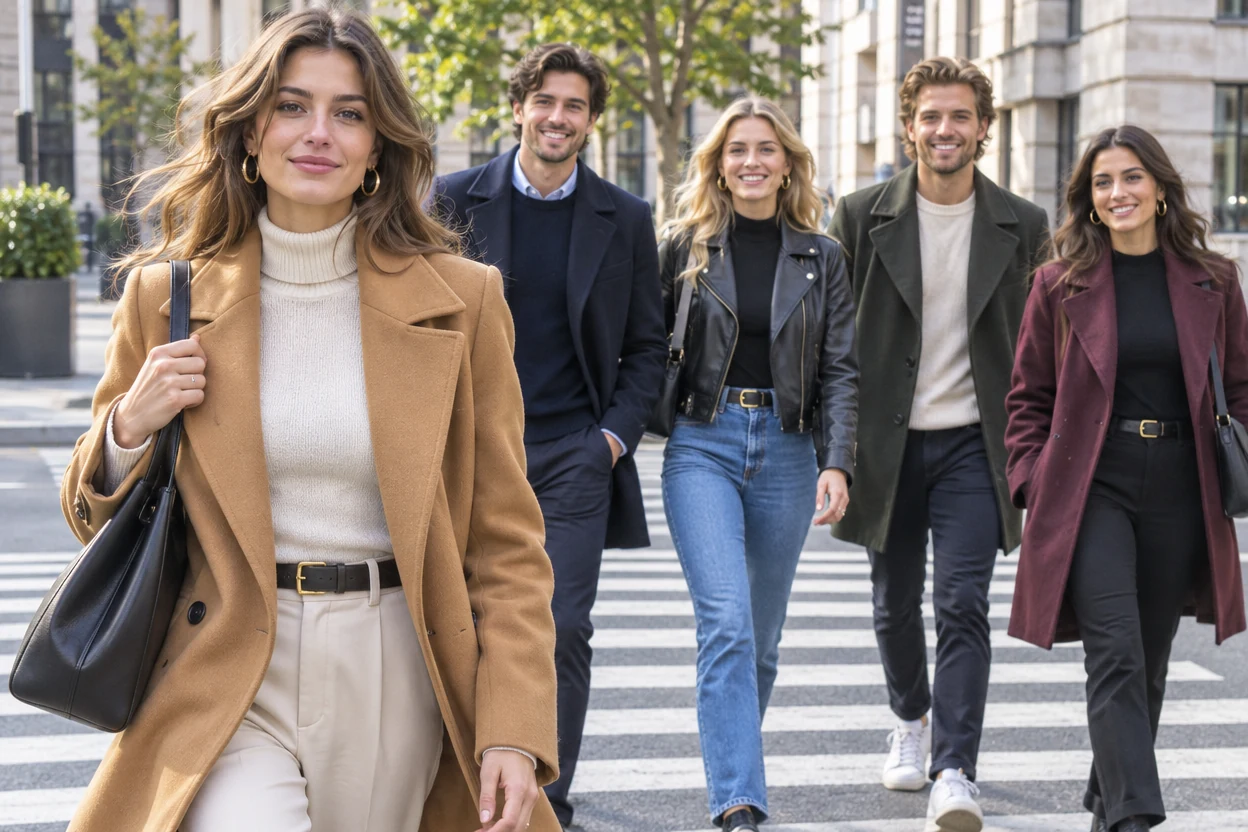
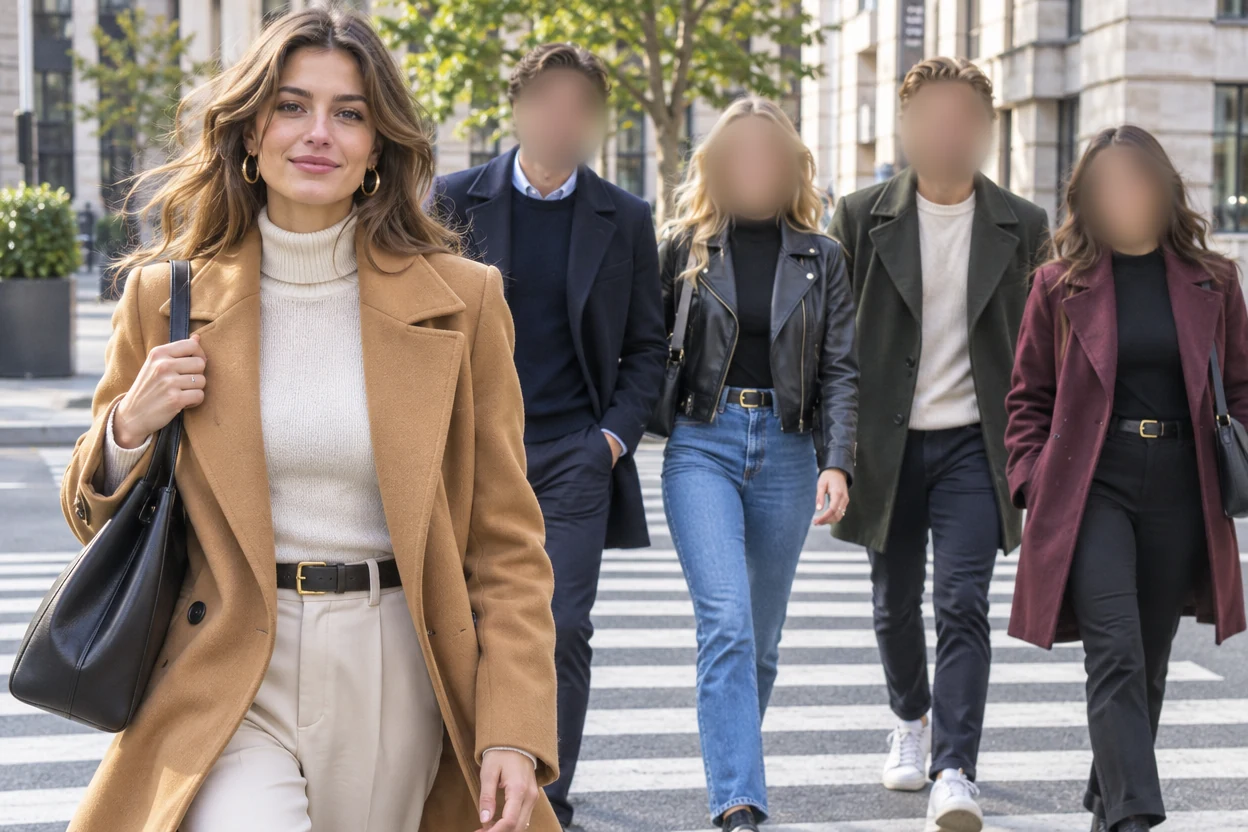
Four passers-by are blurred, and the woman in front stays exactly as she was photographed.

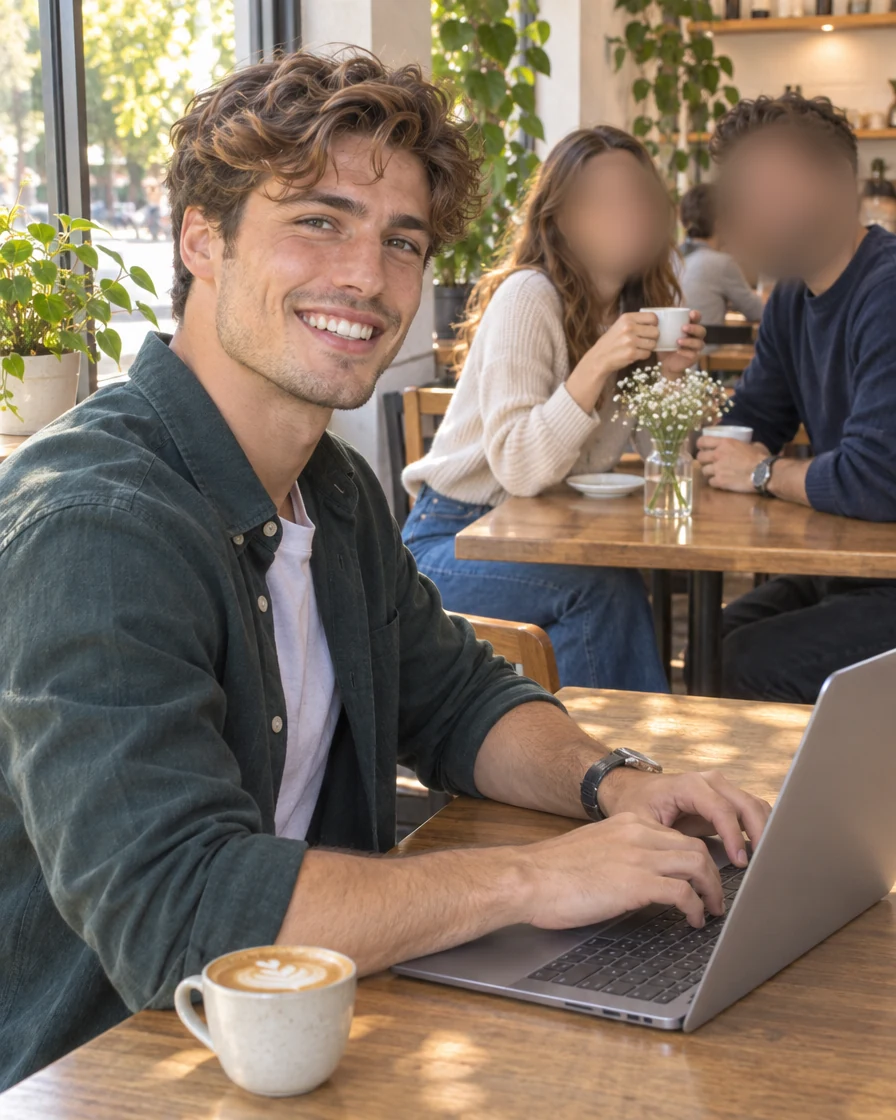
The couple behind is blurred, and the man with the laptop stays sharp.
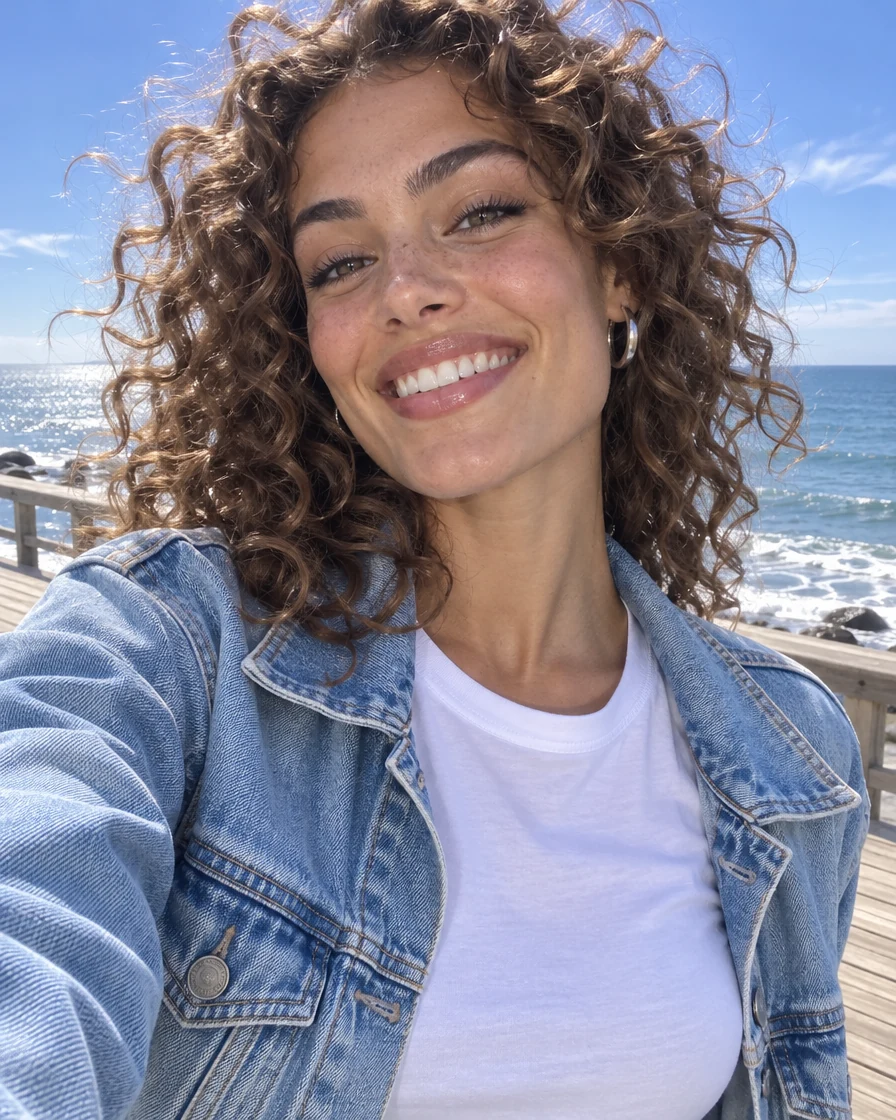
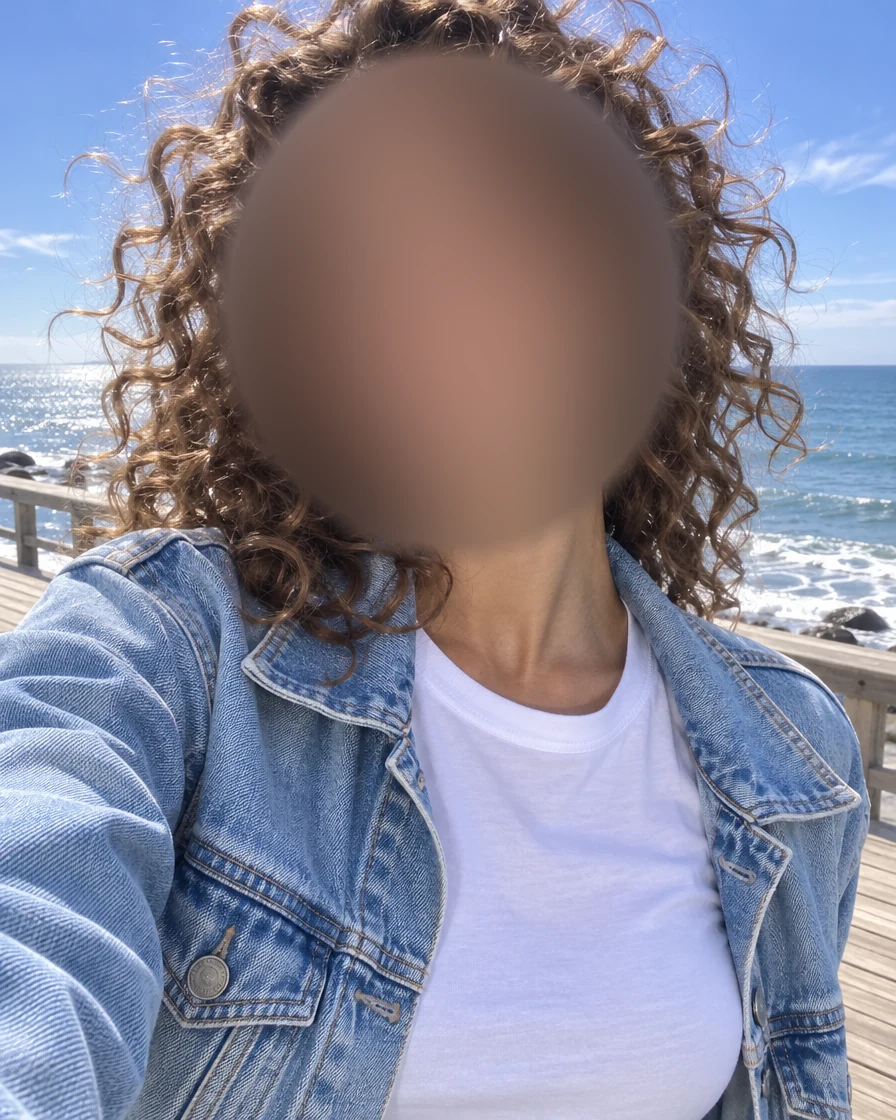
One oval blurs the face, while the curls, the jacket and the sea stay crisp.
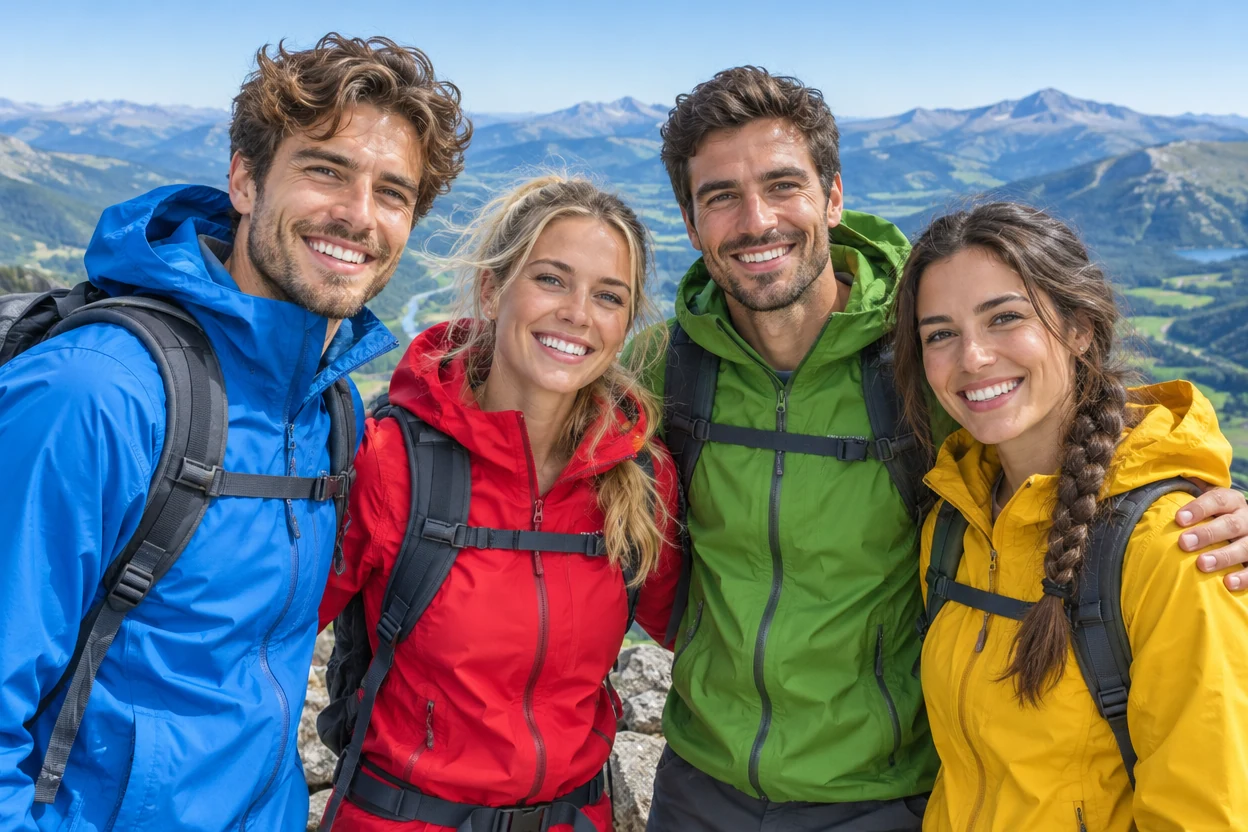
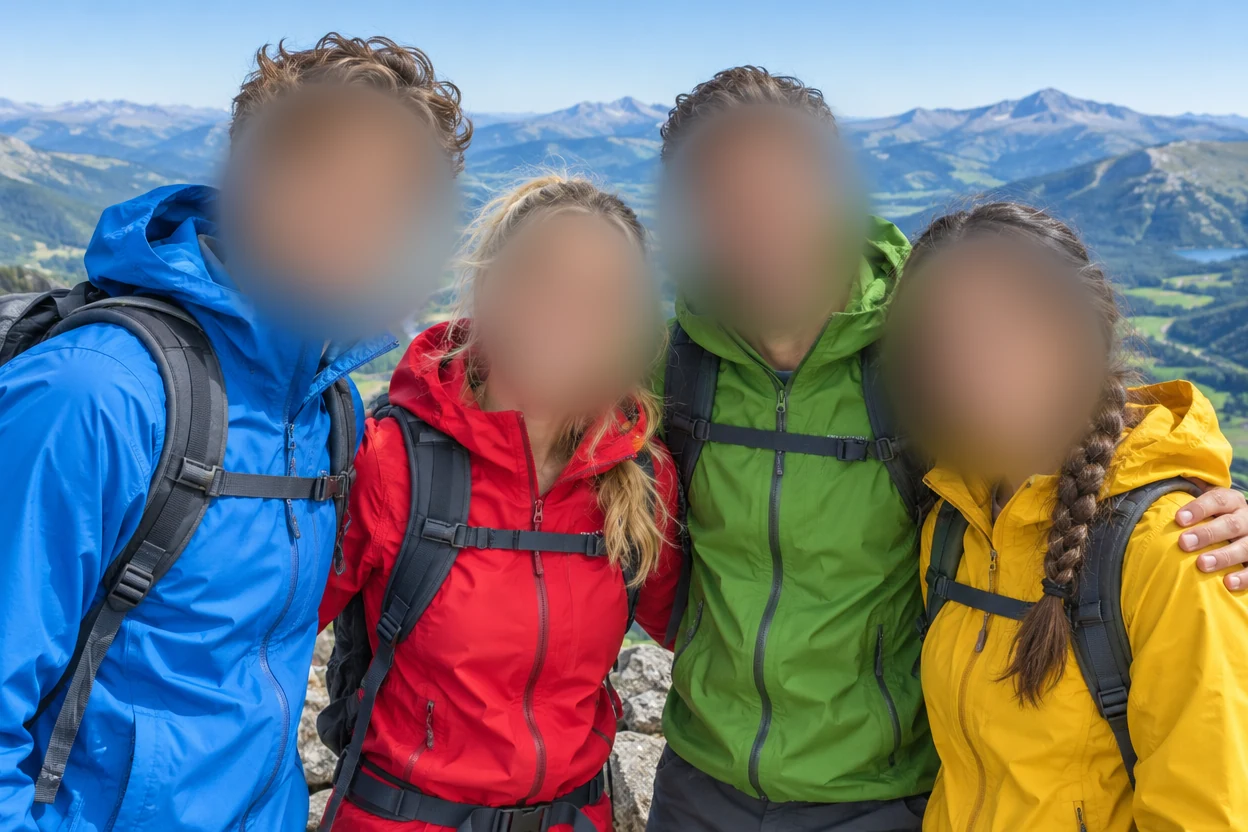
Four faces found and blurred at once, the mountains behind them untouched.
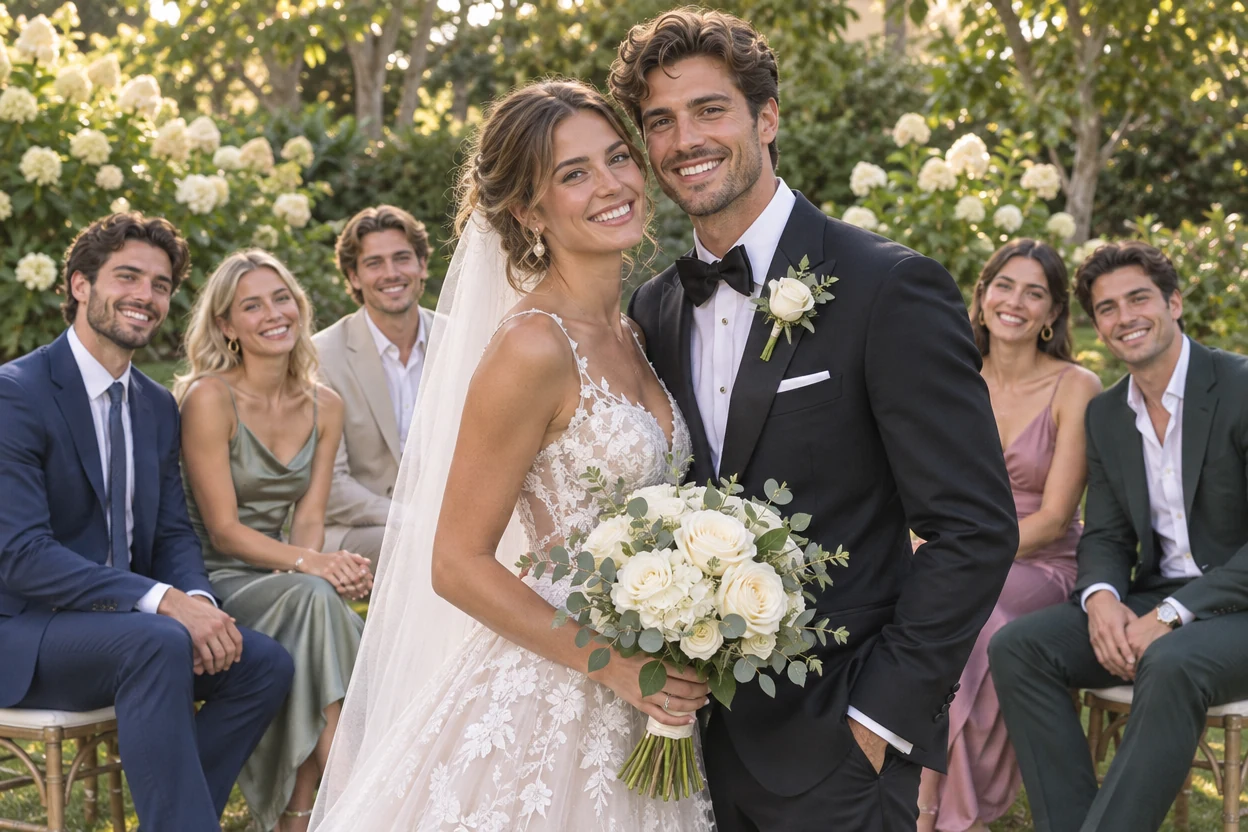
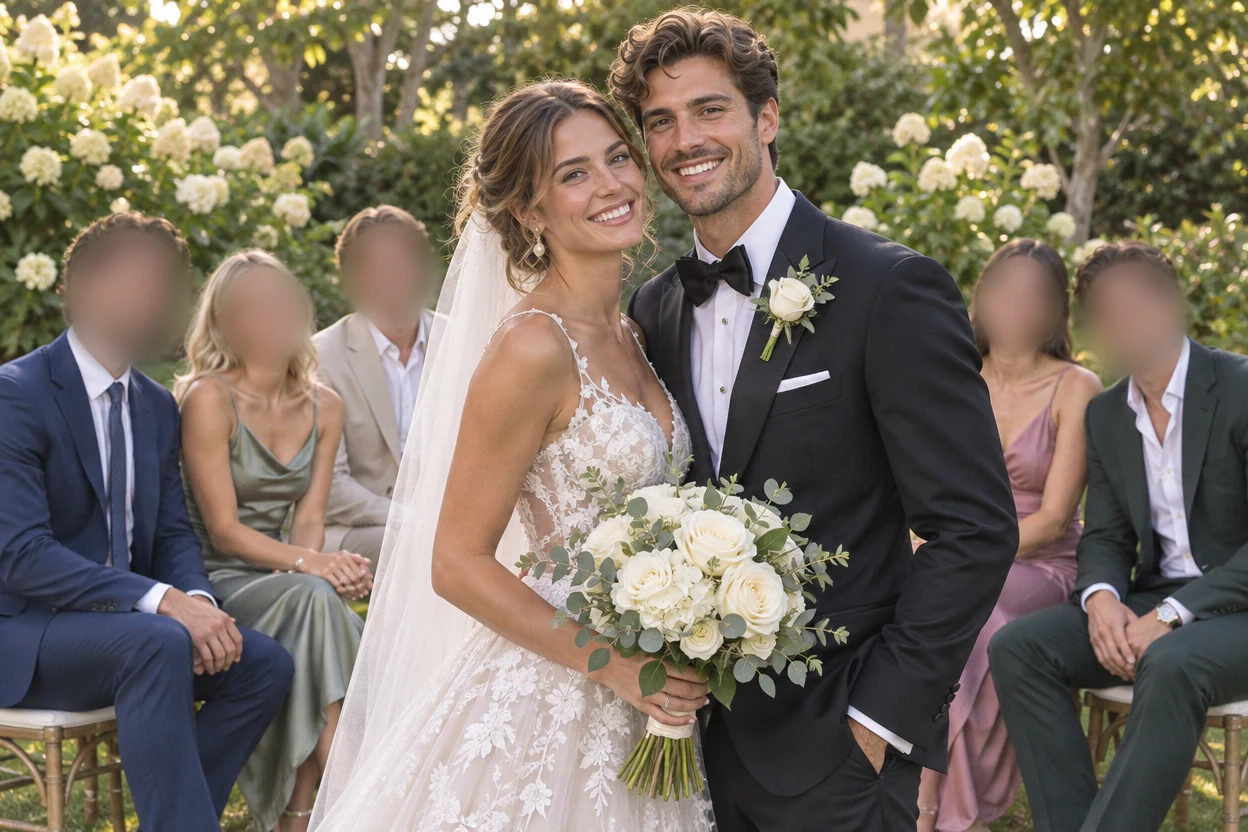
Five guests are blurred, and the bride and groom stay sharp in front of them.
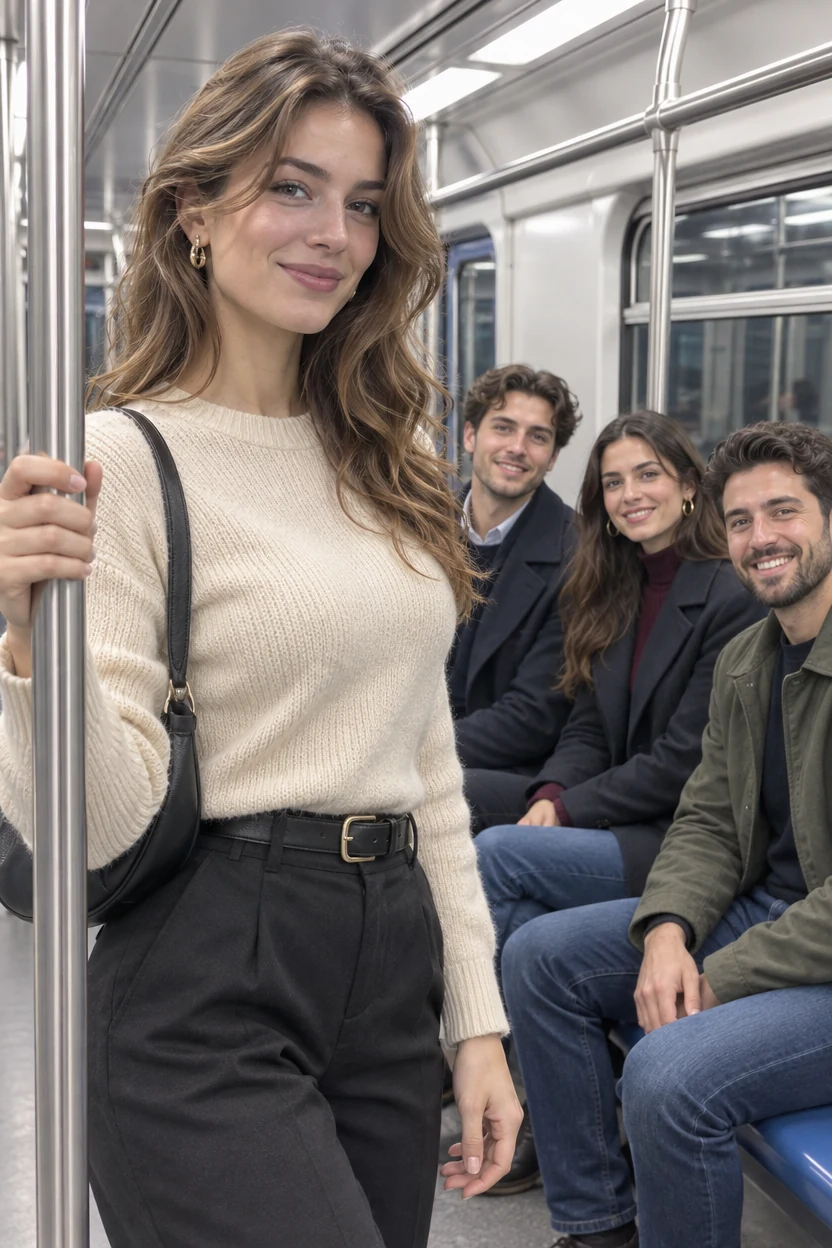
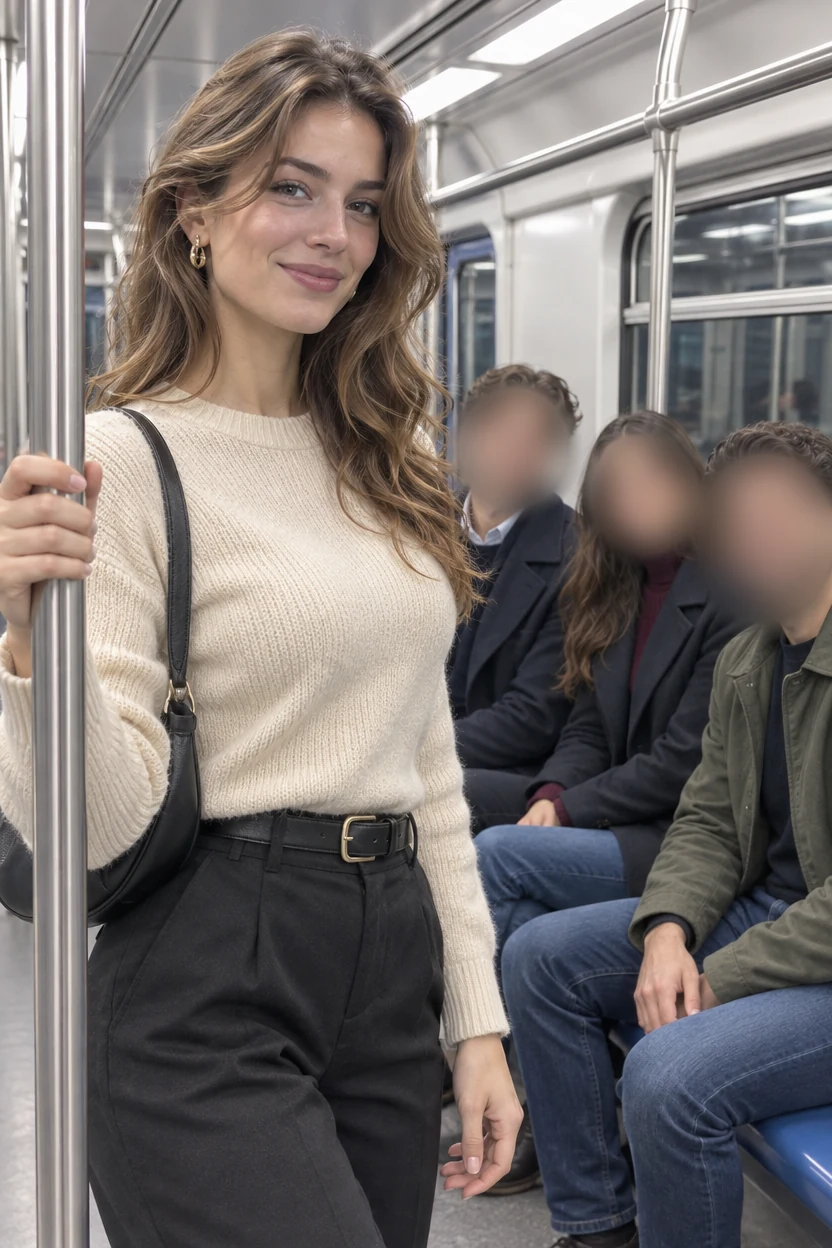
The three seated passengers are blurred, the woman at the pole stays clear.
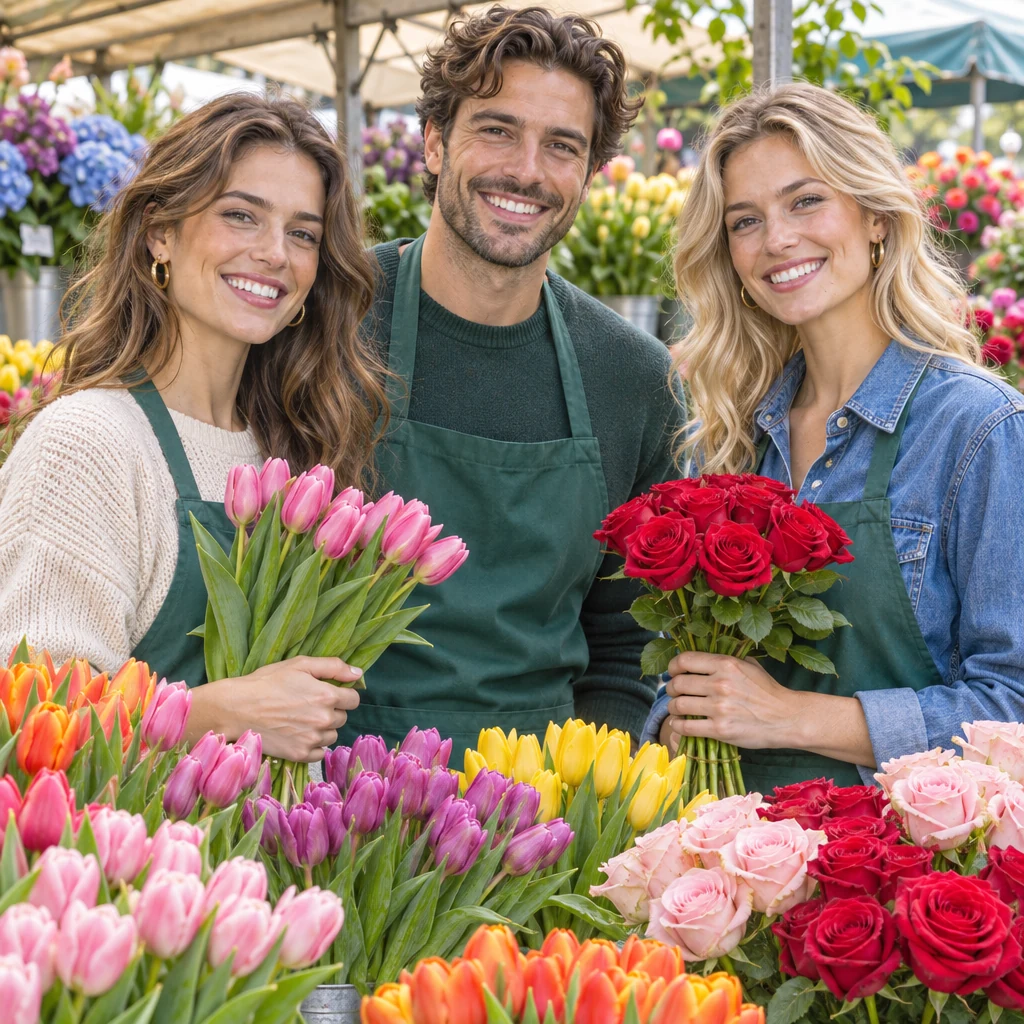
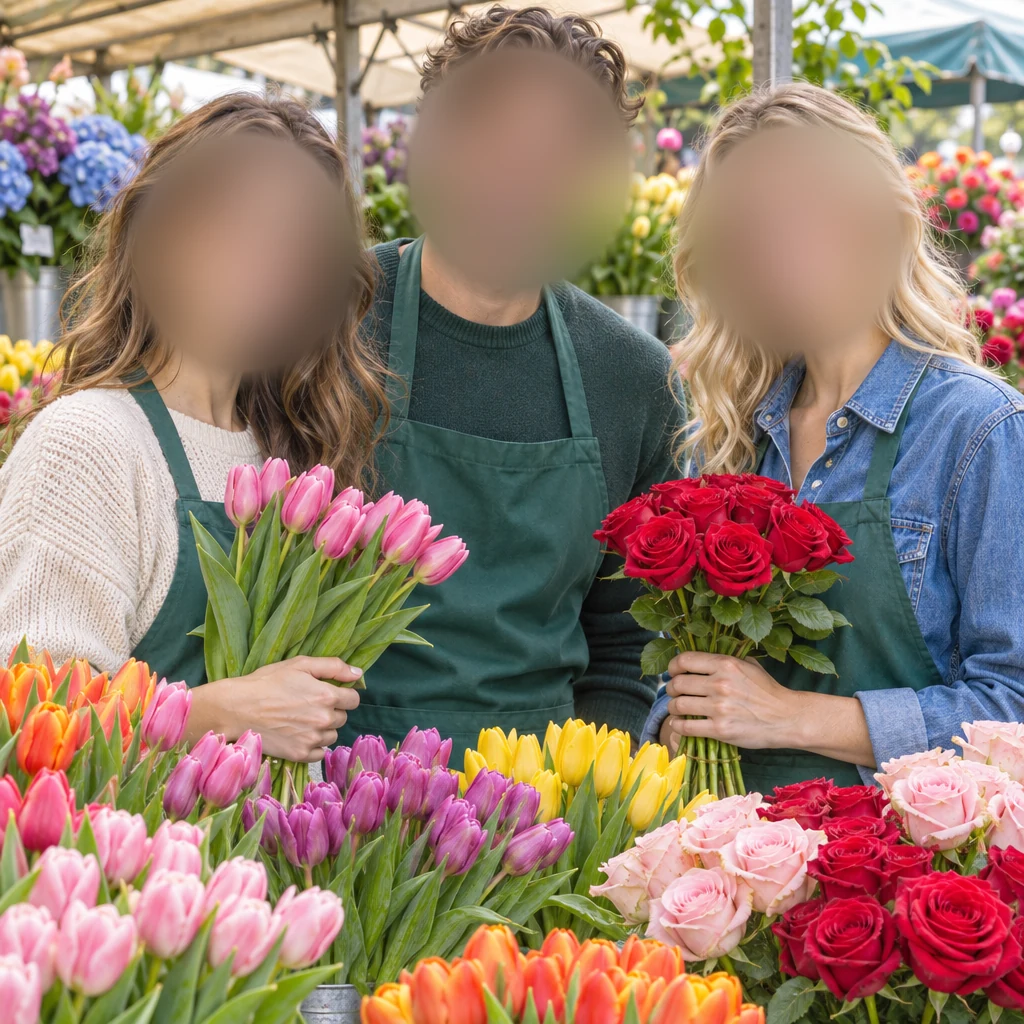
Three faces blurred with soft edges, every tulip and rose left as it was.
Three steps to blur face after face in any photo, all in your browser.
Drop a photo, choose a file or paste one from your clipboard. PNG, JPG, WebP, GIF, BMP and AVIF all work, up to 40 megapixels.
Every face is found and blurred as soon as the photo opens. Delete the oval on anyone to keep, and drag a new oval over a face in profile or half hidden.
Pick PNG, JPG or WebP and download. The file keeps the photo's full size, and it is written anew, so location and camera data stay out of it.
This face blur finds the faces for you, softens each one by as much as it needs, and leaves everything else in the photo untouched.
OriginalThe whole photo is searched as it opens, in overlapping tiles so small faces at the back of a crowd are found too. Each face gets a blurred oval you can move, resize or delete.
OriginalDelete the oval on the person you photographed and blur faces of everyone else: wedding guests, passers-by and other diners fade out while your subject stays exactly as shot.
OriginalEach face is blurred inside an oval a little larger than the face, with an edge that fades into the hair and the background, so a blurred face looks like part of the photo.
OriginalThe blur scales with each oval, so a small face in the back row is as hard to recognize as a large one in front. One slider sets every face, or set each oval on its own.
OriginalA face in profile, under a hat or half turned away takes one drag with Oval. Box and Brush cover a name tag, a tattoo or a reflection beside it.
Faces are found by your own browser, so the photo is never uploaded, not even to look for faces. The download is a new file with no location data.
A few habits for a face blur that hides the right people and still looks good.
Let the faces be found first, then zoom in on the back of the crowd and add an oval for any face turned away or very small, so every face in the photo is covered.
To blur only strangers, delete the oval on your subject. Everyone else stays blurred, and Undo brings the oval back if you change your mind.
At 80% and above the eyes, nose and mouth are gone while the hair and the shape of the head stay soft and natural. When nobody in the photo may be recognized, blur face areas at 100%.
Hair, tattoos, a name tag or a team shirt can tell who someone is. Drag a box or paint with the brush over them; every area takes the same soft blur.
Hold Original to see the photo as it was, then let go to see the blurred faces. Undo and Redo step through every change, so trying another strength costs nothing.
Anyone who shares a photo of people can blur faces here in seconds, before it goes online.
Blur the faces of children and relatives before a family photo goes to social media or a group chat.
Blur face after face of passers-by and guests, so the people you came to photograph are the only ones recognizable.
Blur the faces of witnesses, interviewees and bystanders who should stay anonymous in a story or a report.
Blur faces in event photos, office tours and video call screenshots before sharing them outside the team.
Answers about finding faces, strength, privacy and files.
Open the photo and every face is found and blurred for you. Move or resize an oval to fit, delete the ones to keep, drag a new oval over any face you want to add, then download the result.
Yes. This blur face tool is free, with no sign-up, no watermark and no daily limit. It runs in your browser, so there is nothing to install.
No. Faces are found by your own browser, and the photo is opened, blurred and saved on your device. Nothing is sent to a server.
Yes. The photo is searched in tiles, so small faces in the back rows are found too, and each one gets its own oval. A team photo, a class or a wedding crowd takes one press.
Yes. After the faces are found, delete the oval on the person to keep. Everyone else stays blurred, and you can delete more ovals the same way.
Choose Oval and drag over the face; it is blurred at once with the same soft edge. Faces in profile, behind a hand or under a cap each take one drag.
Blur keeps the photo soft and natural, which suits family, travel and event photos. Pixelate gives the blocky look of news footage, and Solid covers a face completely. Each oval can take any of the three.
Yes. The file has the same pixel size as your photo, up to 40 megapixels on a computer and 16 on a phone, and only the faces you covered change. Location and camera data are left out of the file.
Open a photo, let the faces be found and download it in seconds. Blur faces free in your browser.
Open a photo