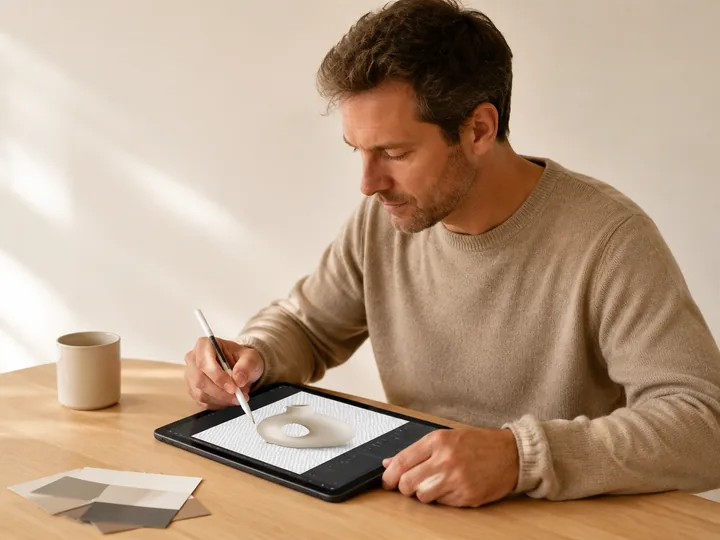
Clean subject isolation
Pull the main product, character or object out of a flat image onto its own transparent layer. Useful when the original PSD is lost but the hero element still needs retouching, resizing or reuse.
Pixels. Styles. Design.
Upload a JPG, PNG or WebP to convert image to PSD: the AI puts the subject, text, decorations and background on their own layers and paints in what was hidden behind them.
A layered PSD in about two minutes, with no masking by hand.
Up to 16 named layers, with the PSD assembled in your browser
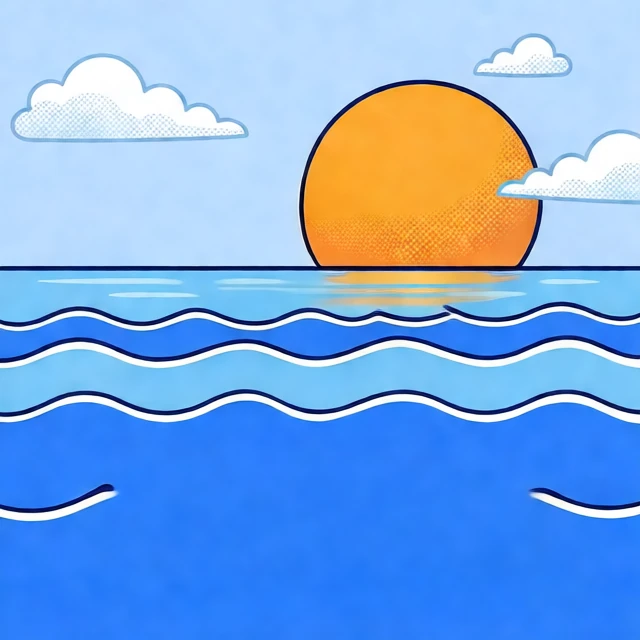

Upload a picture and the default model, Seedream 5.0 Pro Layerize, finds up to 16 layers and names them, or pick Qwen-Image-Layered to set 2 to 8. A caption guides the image to PSD conversion, and 1 layer gives a free single-layer PSD made in your browser.
Examples
Numbers from our own runs, so you know the wait, the layers and the files before you start.
From upload to a layered PSD with the default model
Named layers the AI finds, or 2 to 8 you pick with Qwen
Download a layered PSD or transparent PNG layers
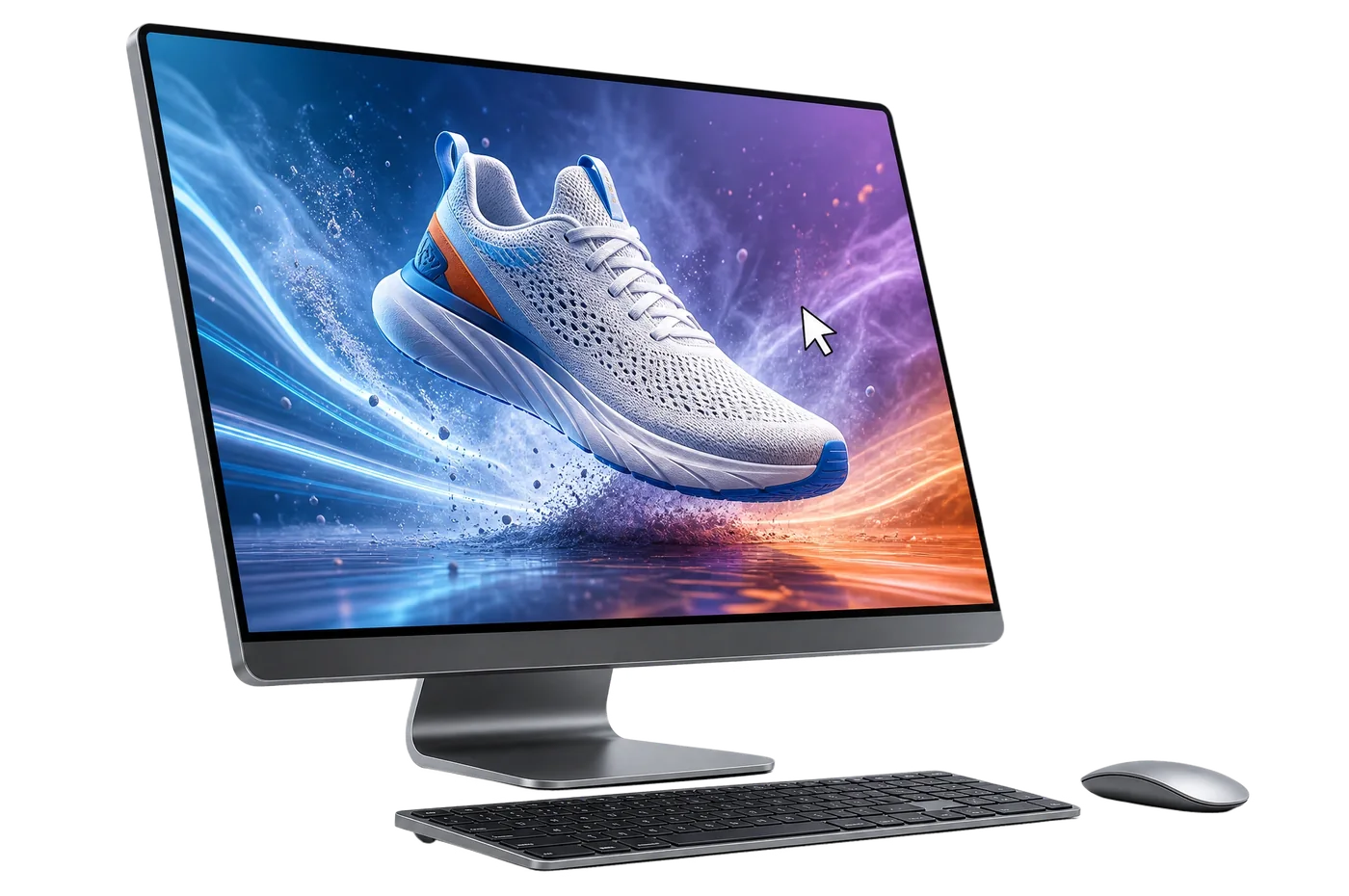
A focused three-step workflow, from a flat picture to a layered PSD.
Add a JPG, PNG or WebP up to 10 MB by clicking, dragging or pasting.
The AI finds the layers itself, up to 16, names them and fills the background behind them. Pick a preset such as Poster or Product, or Qwen-Image-Layered for 2 to 8 layers.
Preview the result, open each layer, then download a PSD file or a ZIP of transparent PNG layers.
See how flattened artwork turns into editable layers, from the main subject to the smallest accent.
Pull the main product, character or object out of a flat image onto its own transparent layer. Useful when the original PSD is lost but the hero element still needs retouching, resizing or reuse.
Headlines, labels and badges come out on their own layers, with the background filled in behind them. The text stays pixels, not live type: hide the layer and retype the copy with the Type tool.
Keep skies, gradients, rooms, textures, and scenery on their own background layer so the visual can be extended or cleaned up later. This gives designers a safer base for Photoshop edits and layout variants.
Capture stickers, shapes, effects, motion marks, and small graphic accents as independent parts. Move or remove supporting details without damaging the main subject or rebuilding the full artwork from scratch.
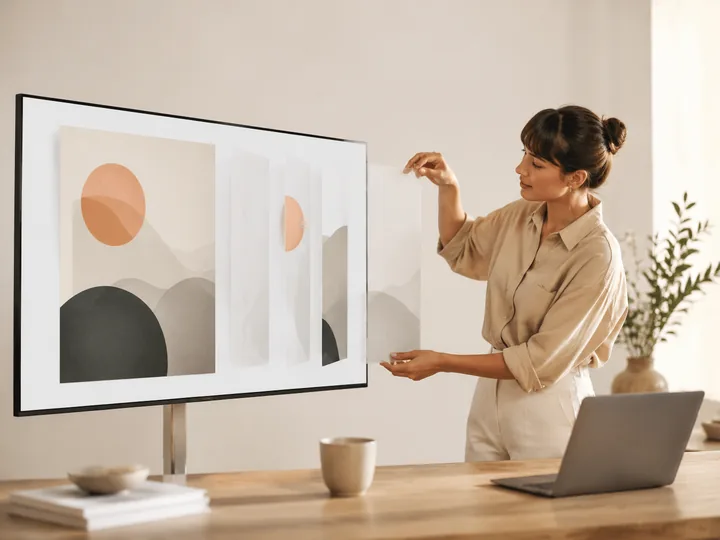
Turn a finished poster into a practical stack of foreground, subject, text, and background layers. The structure is useful for social resizes, animated previews, thumbnails, and quick Photoshop handoff.
Preview each generated layer before downloading a PSD or transparent PNG layer ZIP. Teams can inspect the split, choose what to keep, and continue editing in Photoshop, Photopea, or Affinity Photo.
ImageToPsd.AI focuses on editable output, clear timing and files that open in any PSD editor.
For each image to PSD run, the AI finds subjects, text blocks, decorations and the background, and puts each on its own named layer.
Download a PSD built from generated image layers and continue editing in Photoshop, Photopea, or Affinity Photo.
The layers are made on our servers; your browser builds the PSD and the PNG ZIP, so downloads start at once.
Say what to separate in a short caption, or pick a preset: poster or ad, logo, character, product or photo depth.
Let the default model decide, up to 16 layers, or pick Qwen-Image-Layered to get exactly 2 to 8.
Every conversion stays in your history and My Creations, so you can download the PSD and ZIP again later.
Answers about layers, text, quality, price, Photoshop and privacy.
Upload a design, poster, product shot or mockup and convert the image to PSD, with layers separated by AI, in about two minutes.