Image to Image AI: Change Any Picture with Words
Upload a picture, describe the change, and our image to image AI edits it while everything else stays as it was. Swap the background, outfit, season or style, or combine up to 6 images in one prompt.
Real edits, one sentence each
- 9 editing models, priced per image
- Up to 6 reference images
- Before and after on every result
- Three change levels, Keep to Reimagine
How to Use Image to Image AI in 3 Steps
Image to image AI edits a picture from one sentence, so you skip layers, masks and brushes.
- 1
Add your pictures
Drop, paste or choose up to 6 JPG, PNG or WebP images. They are numbered, so your prompt can say image 1 or image 2.
- 2
Describe the change
Write what should change, or start from a quick idea such as new background, change outfit or restore old photo. Then pick a model and how much may change.
- 3
Compare and keep editing
Open the result to drag between before and after. Download it, split it into layers, or edit the original again with a new sentence.
Image to Image AI Examples
Every pair below was made on this page with one sentence and no retouching. Drag a pair to compare, or reuse its instruction on your own picture.
 BeforeAfter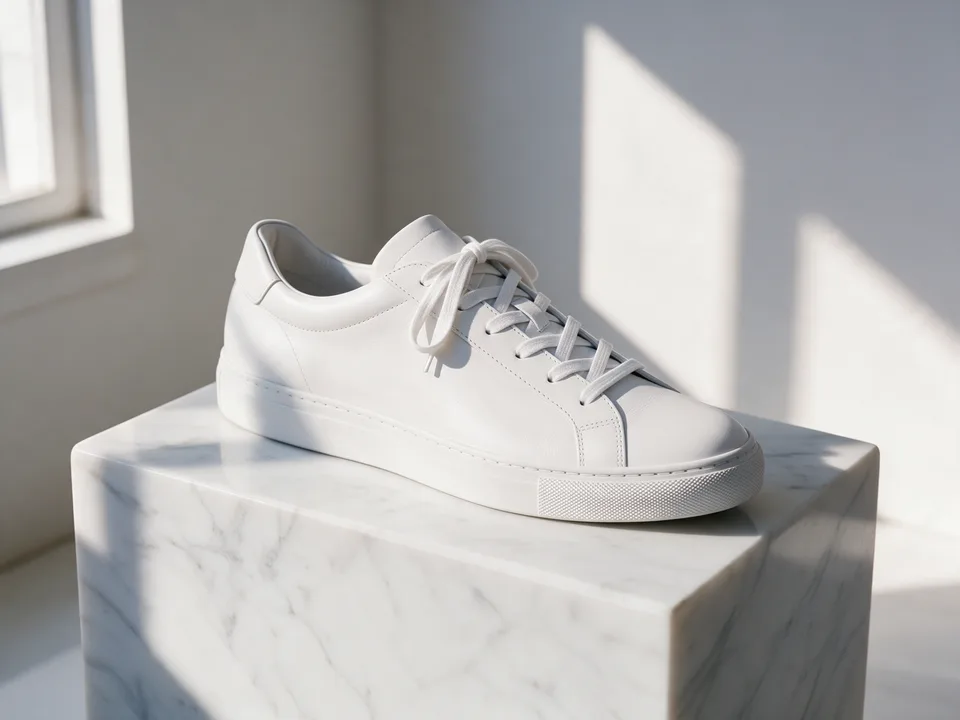
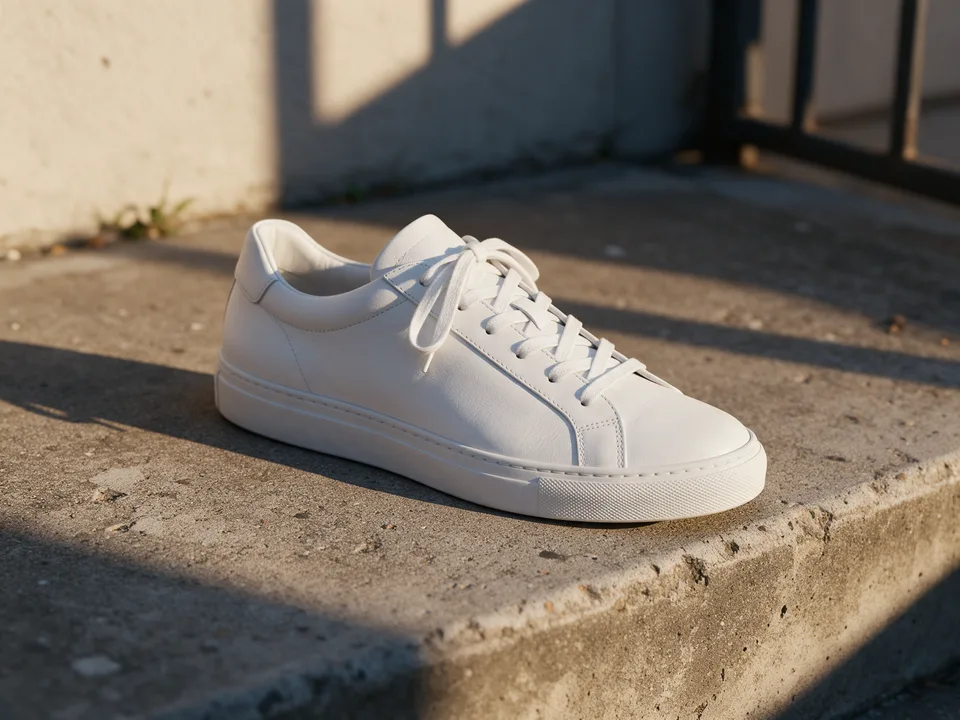
New background
“Place the sneaker on a white marble pedestal in a bright minimal studio with a soft shadow”
Seedream 5.0 ProKeep
 BeforeAfter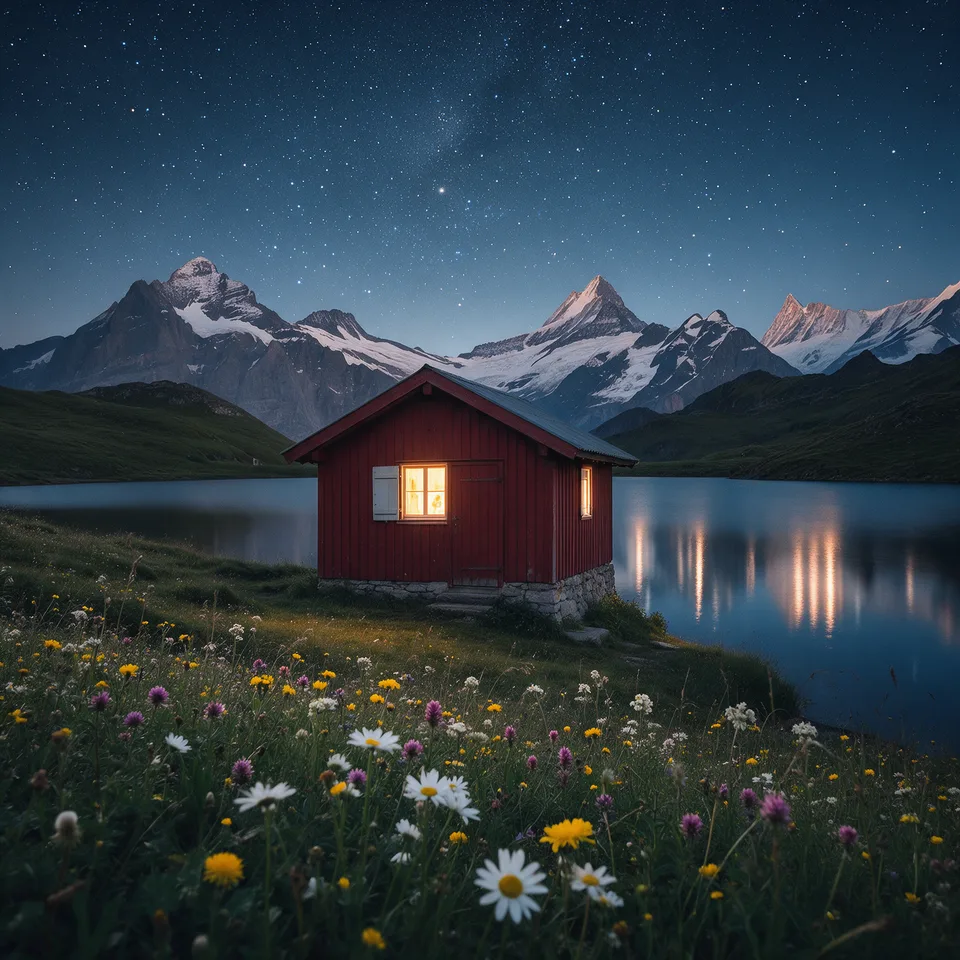
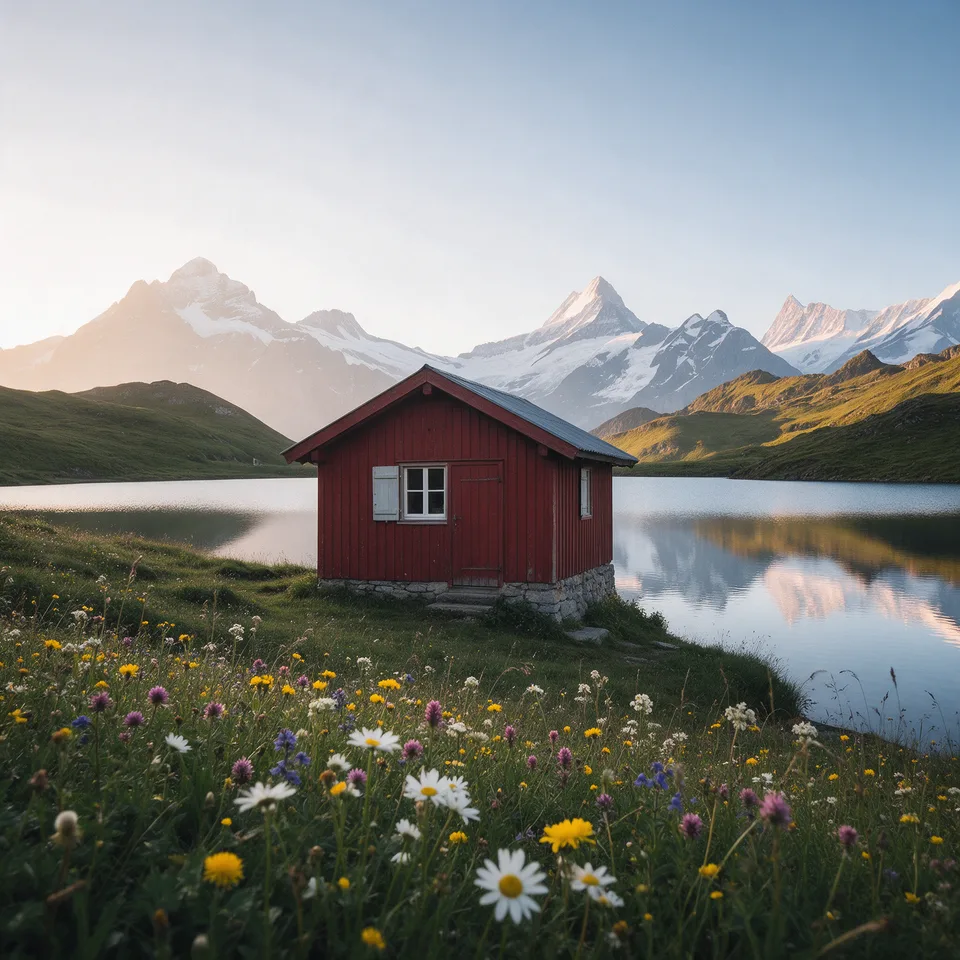
Day to night
“Turn the scene into a clear starry night, with warm light glowing in the cabin windows and the stars reflected in the lake”
Seedream 5.0 ProKeep
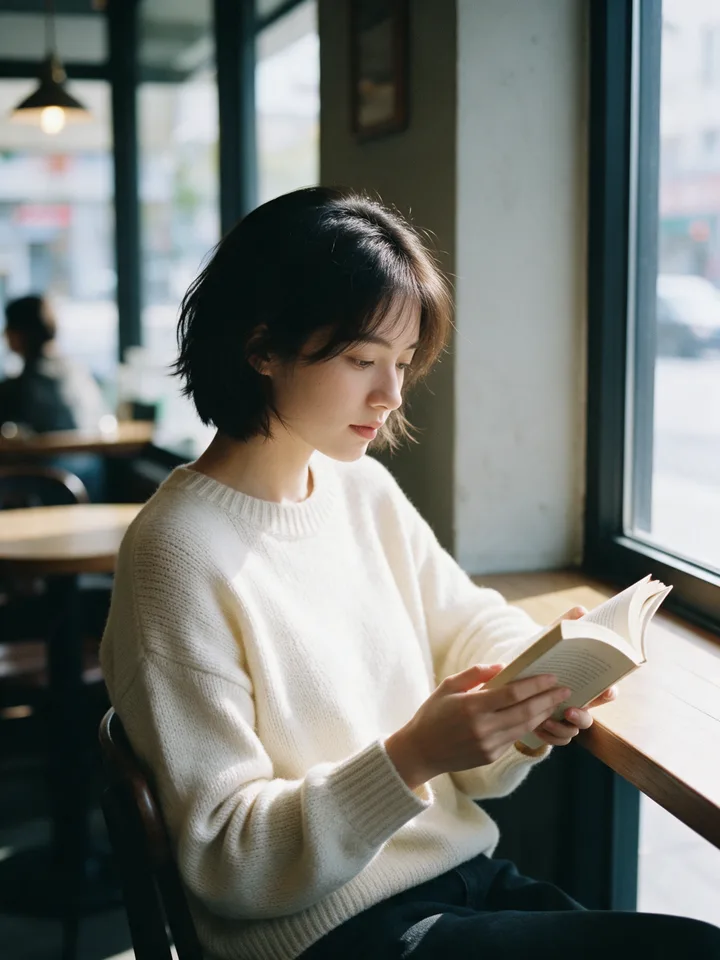 BeforeAfter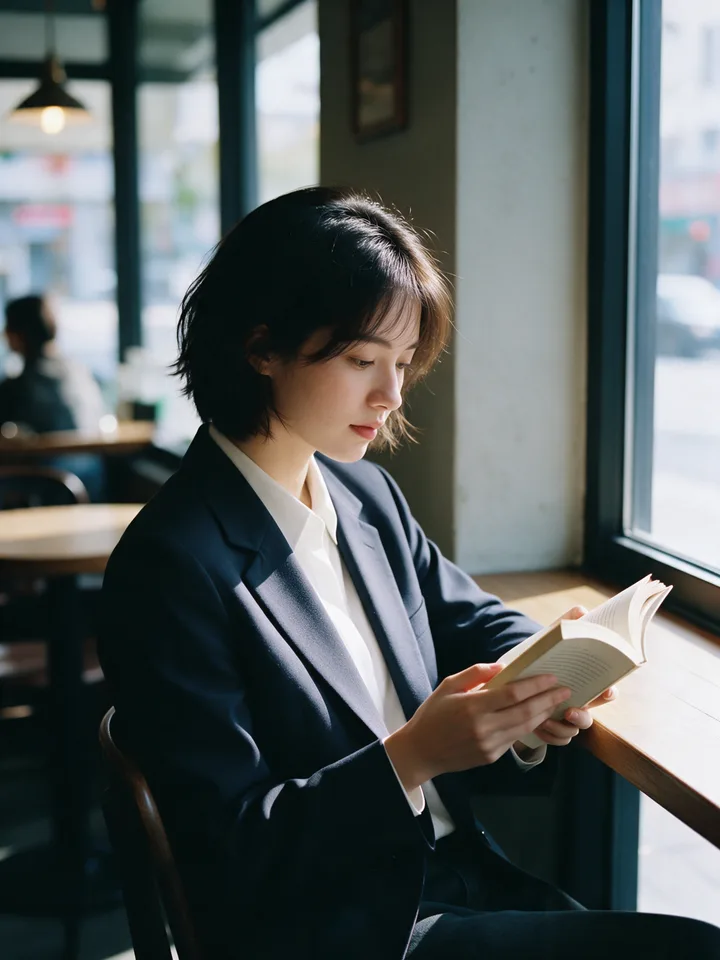
Change outfit
“Change her sweater to a tailored navy blazer over a white shirt”
Seedream 5.0 ProKeep
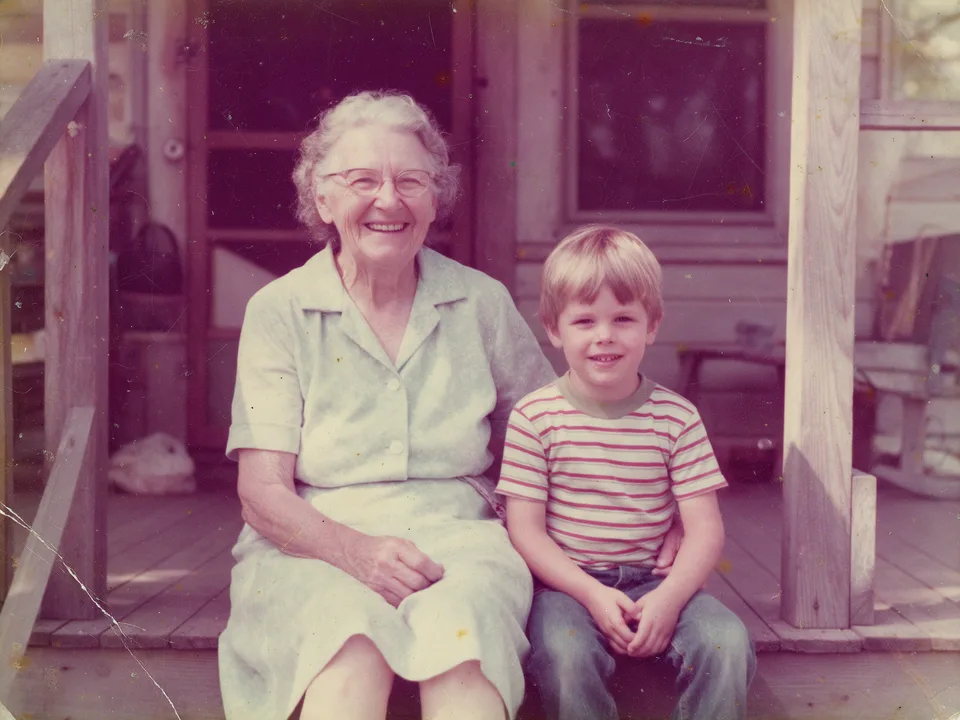 BeforeAfter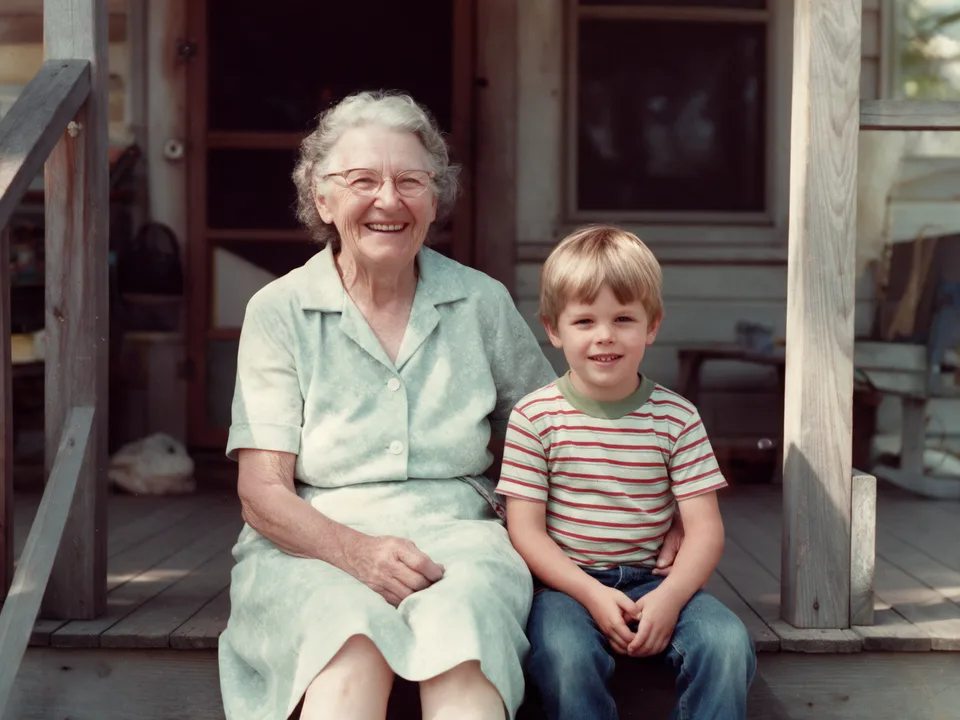
Restore old photo
“Restore this old photo: remove scratches and dust and bring back faded colors”
Seedream 5.0 ProKeep
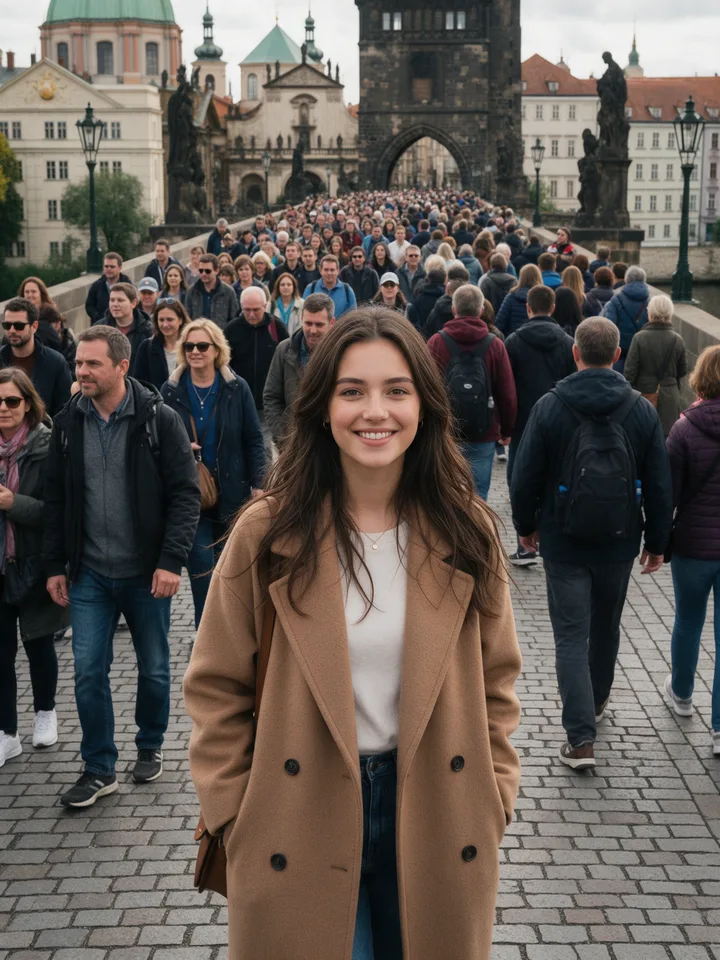 BeforeAfter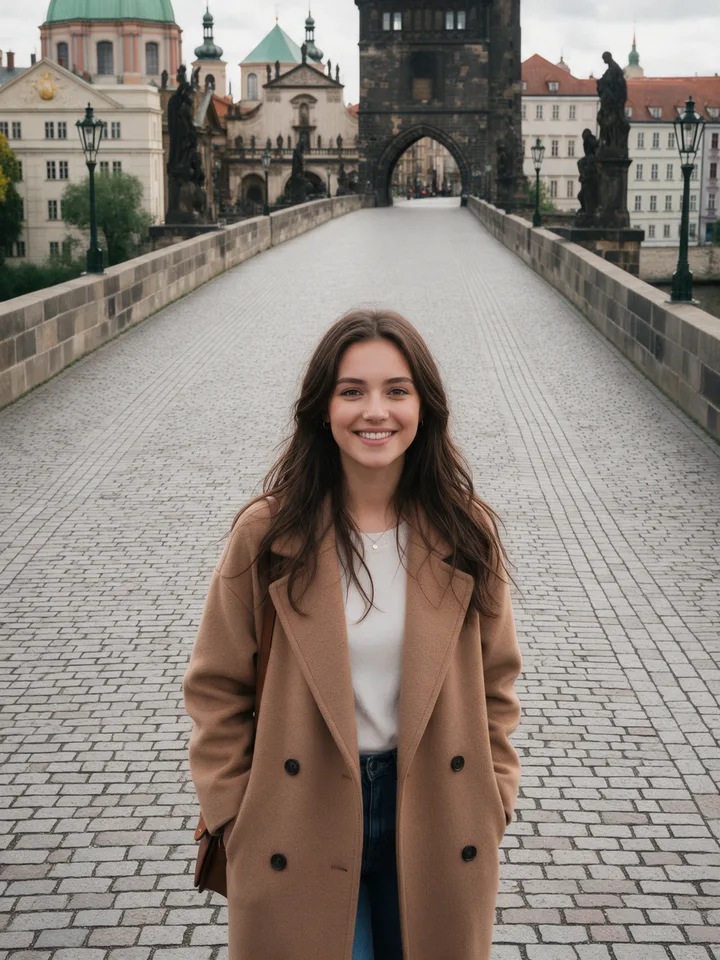
Remove people
“Remove all the other people behind her and keep the bridge and the buildings”
Seedream 5.0 ProKeep
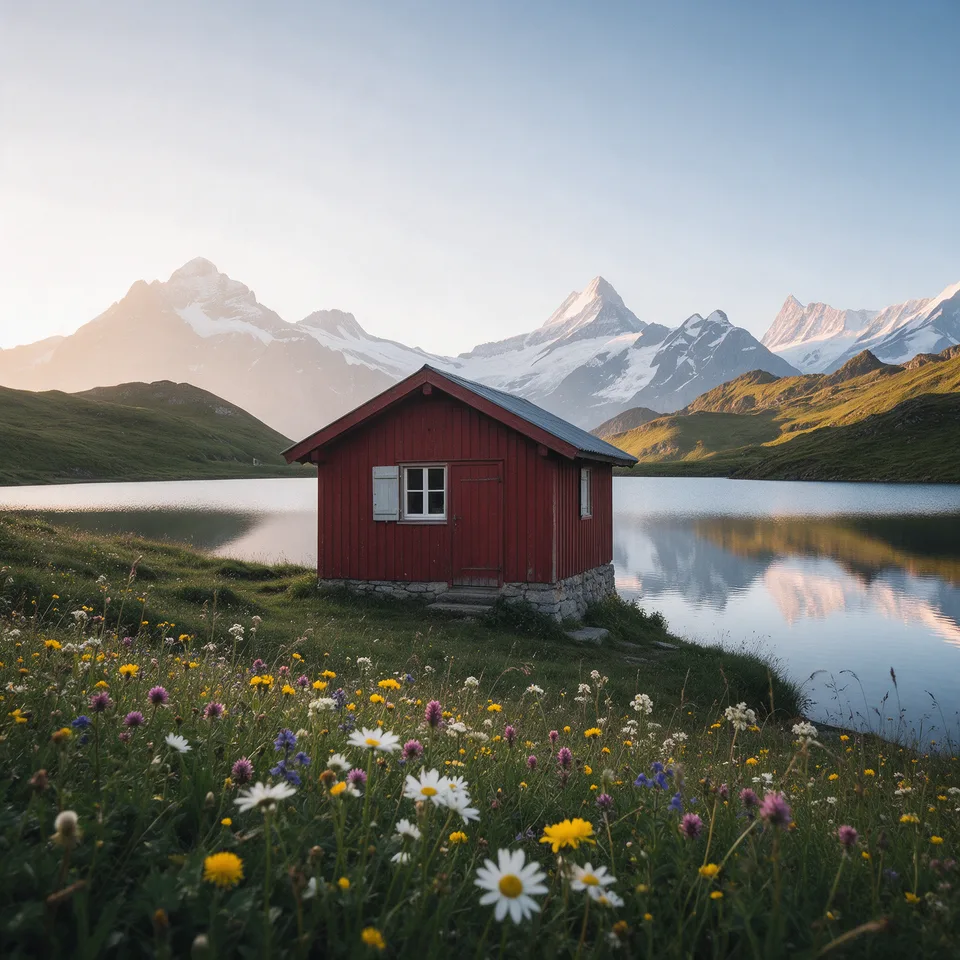 BeforeAfter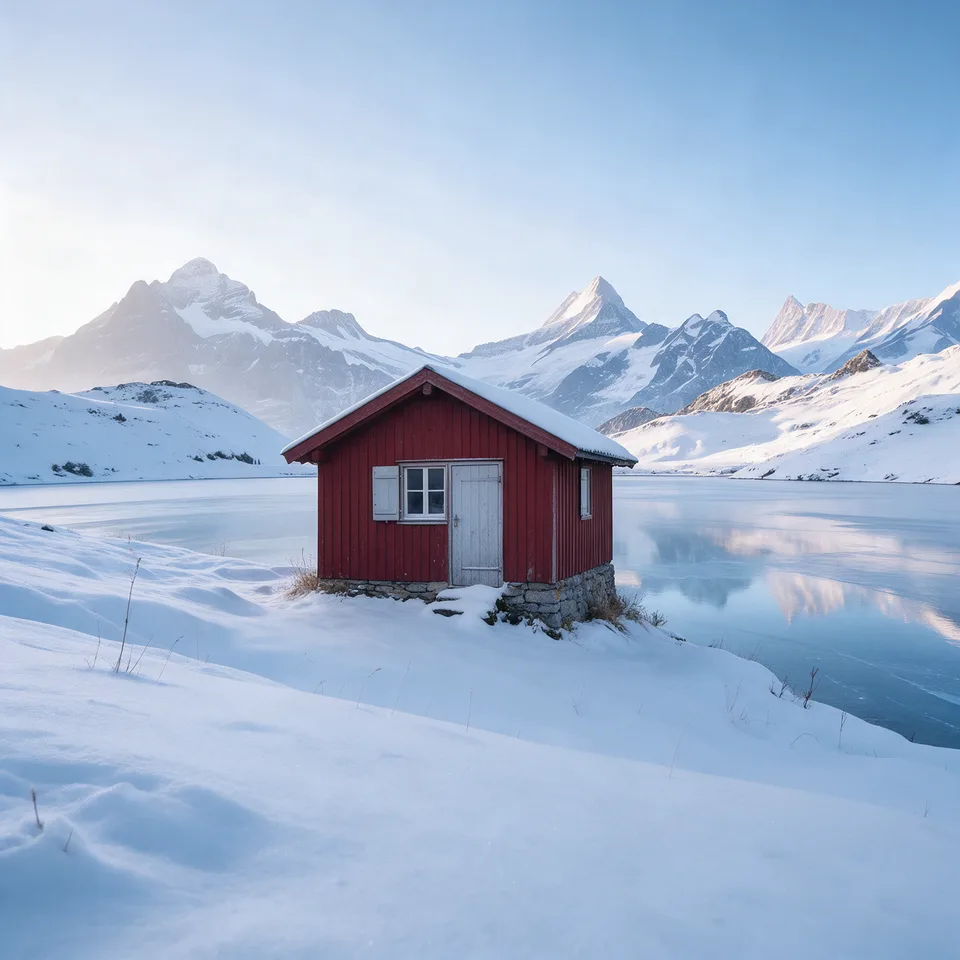
Change the season
“Turn it into a winter morning with deep fresh snow on the meadow and the cabin roof, and a frozen lake”
Seedream 5.0 ProBalanced
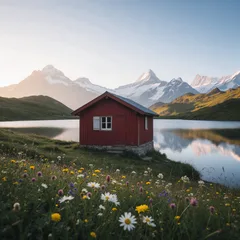 1
1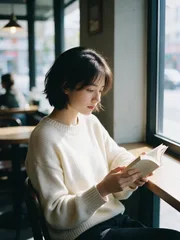 2
2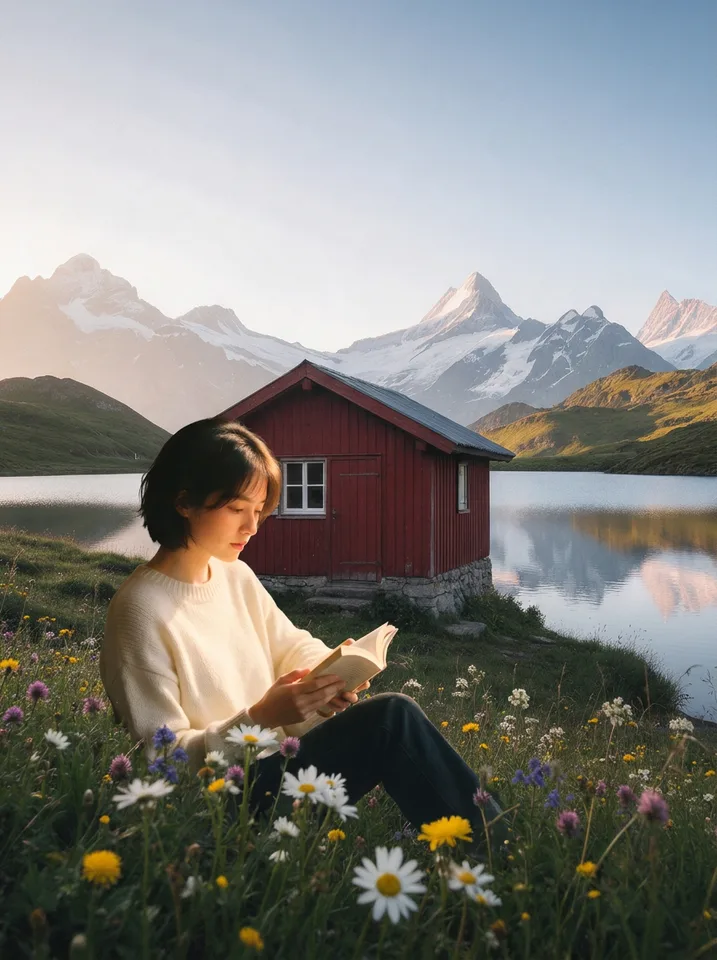
Combine two images
“Place the woman from image 2 sitting on the grass in the foreground of image 1, reading her book, lit by the same sunrise light”
Nano Banana ProBalanced
What Image to Image AI Does Well, and Where It Struggles
Knowing the limits saves credits. Here is what to expect before you run an edit.
Works well
- Backgrounds, lighting, time of day and seasons: the subject stays, the scene changes.
- Outfits, colors and materials on people and products.
- Removing people or clutter from the background, and restoring old photos.
- Combining pictures, such as putting a person or product from one image into another scene.
Harder
- Exact text and logos; small lettering can change or blur.
- Faces after many edits in a row; start again from the original instead.
- Precise layouts, such as moving an object a set distance or showing an exact count.
- Very small or blurry inputs; the model has to guess the missing detail.
Faces change most on Reimagine. For portraits, keep the change level on Keep and edit the original again rather than editing a result.
Why Edit Images with AI on ImageToPsd.AI
An image to image editor that shows the price first and keeps your original safe.
Pick the model for the job
Seedream 5 Pro for faithful edits at 3 credits, Nano Banana Pro for scenes built from several images at 7, GPT Image 2 for text and graphic detail at 3 or 10. Faster Seedream and Nano Banana versions start at 2.
Up to 6 reference images
Numbered references let one prompt combine a person, a product and a place, and say exactly which picture is which.
Three real change levels
Keep, Balanced and Reimagine are three instructions that tell the model how much may change. None of these models has a strength setting, so there is no fake slider.
Before and after on every edit
Open any result to drag between the original and the edit, then download it or split it into editable layers.
Edits that do not wear out
Edit the original again starts from your first picture, so the tenth version is as sharp as the first.
Private by default
Pictures stay private: they are not posted to a public feed and are not used to train AI models.
Image to Image Prompt Guide
How to write instructions that image to image AI follows, with patterns you can copy.
Say what changes, not what the picture is
The model already sees your picture, so describing it again wastes words. Start with a verb and name the change: replace the background with a beach at sunset, change the jacket to red leather, remove the car on the left. One clear change per run works better than five at once.
Choose Keep, Balanced or Reimagine
Keep tells the model to leave everything you did not mention untouched, which suits product shots and portraits. Balanced allows the light and mood to follow the change. Reimagine lets the model rebuild the picture around your idea, useful for new styles and concept art, but faces and small details may move.
Refer to images by number
With several references, name them: put the bag from image 2 in the hand of the woman in image 1, use the colors of image 3. Put the main picture first, and when you combine images, choose an aspect ratio so the result has the shape you need. Nano Banana Pro and Seedream 5 Pro take up to 6 images, GPT Image 2 up to 4.
Pick the right model
Nano Banana 2 is the default: about 20 seconds, faithful to your picture and good with faces and text. Seedream 5 Pro returns about 2K. Nano Banana Pro is best at blending several images and keeping faces, at 1K, 2K or 4K. GPT Image 2 handles signs, labels and graphic layouts. Every model shows its price per image before you run.
Fix a result without losing quality
If an edit is close but not right, open it and choose edit the original again. The new run starts from your first picture with your sentence ready to adjust, so quality does not drop the way it does when you keep editing an edited copy.
What People Edit with Image to Image AI
Image to image AI replaces hours of masking and retouching for everyday picture edits.
Product photos
Put one product shot into a studio, a kitchen or a beach scene, or try new colors, without a new photo shoot.
Portraits and profile photos
Change outfits, backgrounds and lighting while keeping the face, then crop for social or work profiles.
Real estate and travel
Show a place at night or in another season, clear away people and cars, or brighten a gray sky.
Family photos
Restore scratched and faded prints, then bring the colors back for framing or sharing.
Image to Image AI FAQ
Answers about prices, models, faces, file sizes and privacy.
Edit Your Picture with Image to Image AI
Upload a picture, write one sentence and compare the result in about a minute.