PNG & JPG to PSD Converter
Convert PNG to PSD right in your browser, and JPG, WebP or GIF too. Drop up to 50 pictures, get Photoshop files with transparency kept, and download them one by one or as a ZIP.
Can I turn a PNG into a PSD? Yes. This converter wraps each picture into a one-layer Photoshop document. Nothing is uploaded and no account is needed.
PNG to PSD with one layer, or with real layers
Converting PNG to PSD gives you a Photoshop file with your picture on one layer. When you need the background, objects and text apart, the AI splits them.
Free single-layer PSD
Free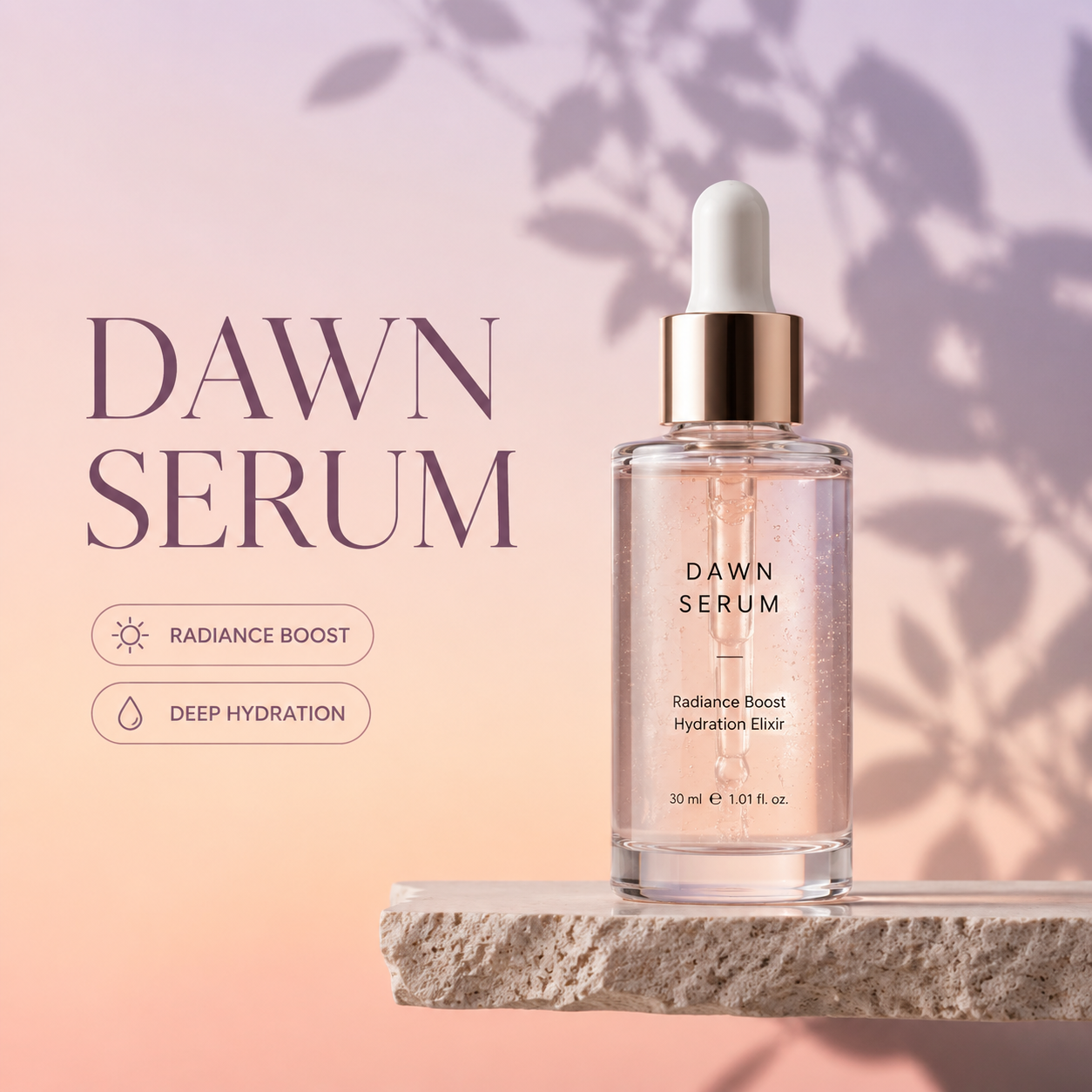 dawn-serum
- One layer named after the file
- Transparency kept as a real transparent layer
- Original size, with the DPI you choose
- Private, instant and unlimited
AI layer separation
Credits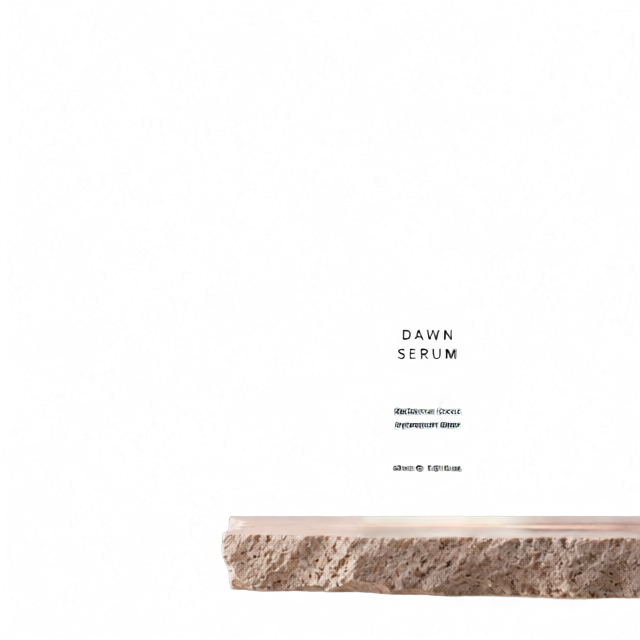 Layer 3
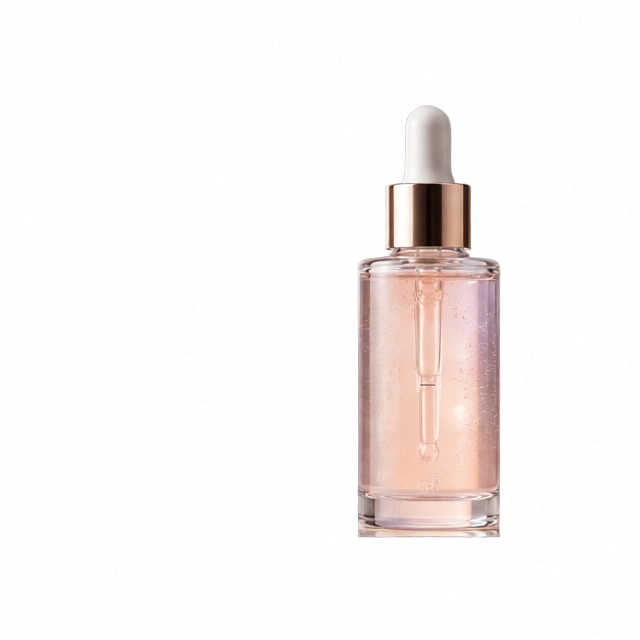 Layer 2
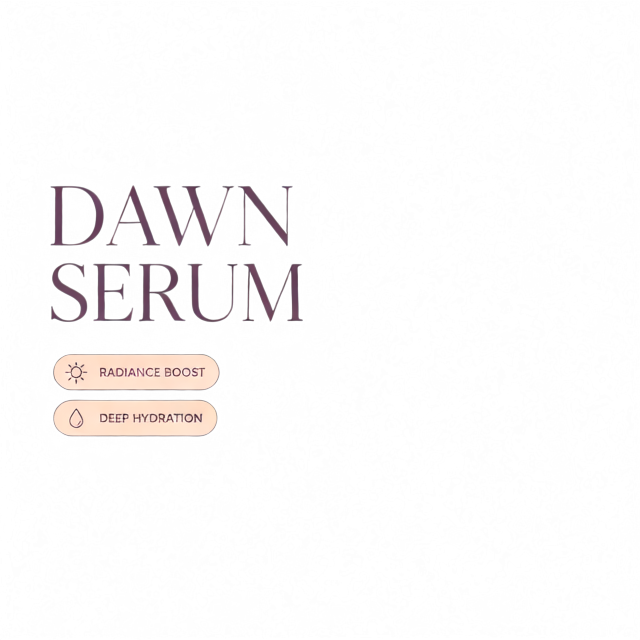 Layer 1
 Background
- 2 to 8 layers: background, objects, text
- The hidden background is rebuilt
- Paid with credits
- Download a layered PSD or PNG layers
Need real layers? Turn the picture into a layered PSD
Upload the same PNG or JPG, choose 2 to 8 layers, and the AI separates background, objects and text into editable Photoshop layers.
Outputs: PSD with auto-detected layers
How to convert PNG to PSD in three steps
The same steps work for JPG, WebP or a screenshot.
- 1
Add your pictures
Drop PNG, JPG, WebP, GIF, BMP or AVIF files, choose them, or paste a screenshot. Up to 50 at a time.
- 2
Pick the resolution
Keep the DPI stored in each file or set 72, 150 or 300 DPI for print.
- 3
Download the PSD files
Each picture converts in a second or two. Download one PSD per file or all of them as a ZIP.
Why designers use this converter
Built for designers who need a Photoshop file fast, without uploading client work.
Batch conversion
Convert PNG to PSD in batches: up to 50 PNG and JPG files in one go, with every PSD in a single ZIP.
Transparency kept
PNG transparency becomes a real transparent layer, not a locked background with an alpha channel.
Named layers
Each layer takes the file name, so you know what is what when you place it in a bigger design.
DPI control
Keep the original resolution or set 72, 150 or 300 DPI so print layouts come out at the right size.
Private by design
Pictures are converted on your device. Nothing is uploaded, and it keeps working offline once the page has loaded.
More than PNG and JPG
WebP, GIF, BMP and AVIF convert to PSD too, with EXIF rotation applied.
Guide: pic to Photoshop without surprises
What a converted PSD can and cannot do, and how to get the file your printer or designer actually asked for.
PNG vs PSD
A PNG is one flattened picture with optional transparency. A PSD is a Photoshop document that can hold many layers, masks and text. Converting gives you a valid Photoshop file with the picture on one layer; it does not invent separate layers.
JPG vs PSD
A JPG has no transparency and loses a little detail each time it is saved. Converting JPG to PSD keeps every pixel as it is now, so start from the largest JPG you have.
Logos and vector art
When a printer asks for an editable logo, they usually need the original vector file (AI, SVG or PDF), not a PSD. A PSD made from a PNG is still pixels. Use AI layers when you need parts of the picture separated.
Printing: DPI and colour
Set 300 DPI for print so the document size in inches is right. The PSD is RGB; switch it to CMYK in Photoshop (Image, Mode, CMYK Color) when your printer asks for it.
Opening the PSD
Photoshop, Photopea, Affinity Photo, GIMP and Krita all open the file. In Photoshop the picture arrives as a normal layer named after the file, ready to drag into another document.
Questions before you convert
Answers about converting pictures to Photoshop files.
Convert your pictures to PSD now
Drop your PNG and JPG files and download Photoshop documents in seconds.