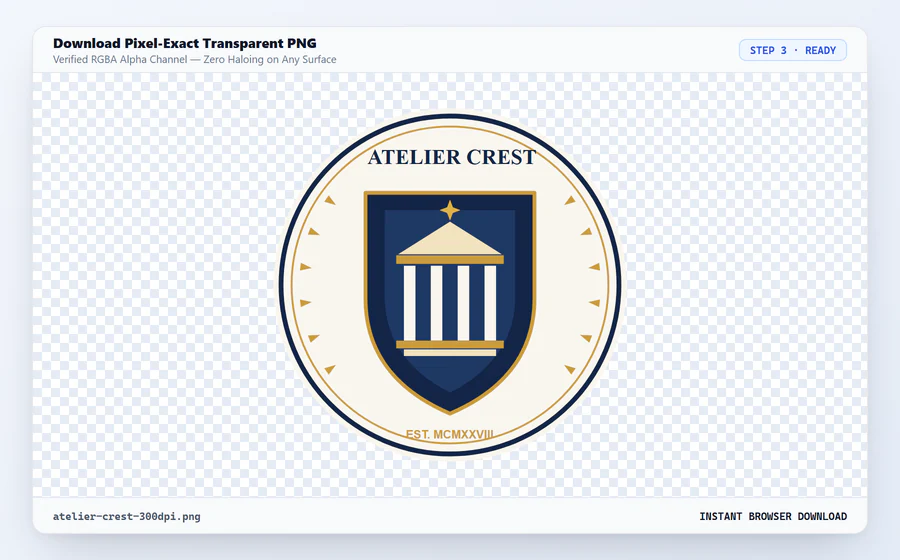
Transparent brand logo lockup
Demonstrates crisp eps to transparent png rasterization with clean anti-aliased edges and zero white halo around curved letterforms.
Convert eps to png at exact print or screen resolution straight inside your browser without uploading files. This client-side PostScript rasterizer renders vector curves onto a high-DPI canvas with true alpha transparency, selectable 72 to 600 DPI presets, custom pixel dimensions, and lossless PNG output.
Drop .EPS files to export crisp high-DPI PNGs
Parses PostScript Level 2/3 curves, fills, CMYK colors, and DOS binary EPS headers locally — nothing leaves your device.
Runs locally in your browser. Nothing is uploaded.
Or test instantly with a built-in EPS preset
Load any built-in PostScript sample into this browser rasterizer to compare DPI clarity, alpha transparency edges, and solid backdrop options before uploading your own graphics.
Demonstrates crisp eps to transparent png rasterization with clean anti-aliased edges and zero white halo around curved letterforms.

Showcases high-DPI 300 DPI rendering with thick outer outlines, vivid fills, and a clean alpha matte ready for print-on-demand catalogs.

Highlights high-resolution 600 DPI export sizing when you render vector art into PNG for crisp DTG garment proofs and product mockups.
Render vector PostScript artwork into sharp transparent or solid-backdrop PNG images locally in moments.
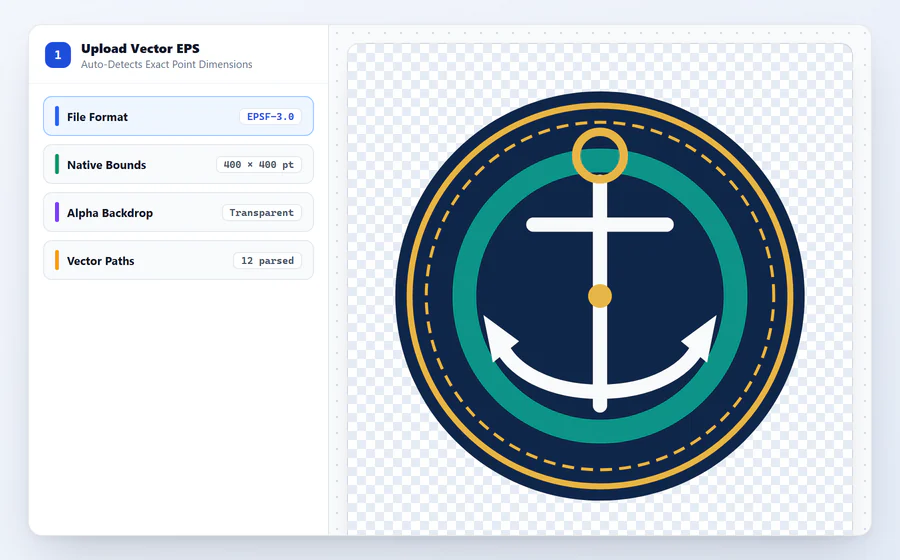
Drag any Encapsulated PostScript logo, badge, or print illustration into the workspace. The browser decodes the vector geometry and BoundingBox dimensions locally with zero remote uploads.
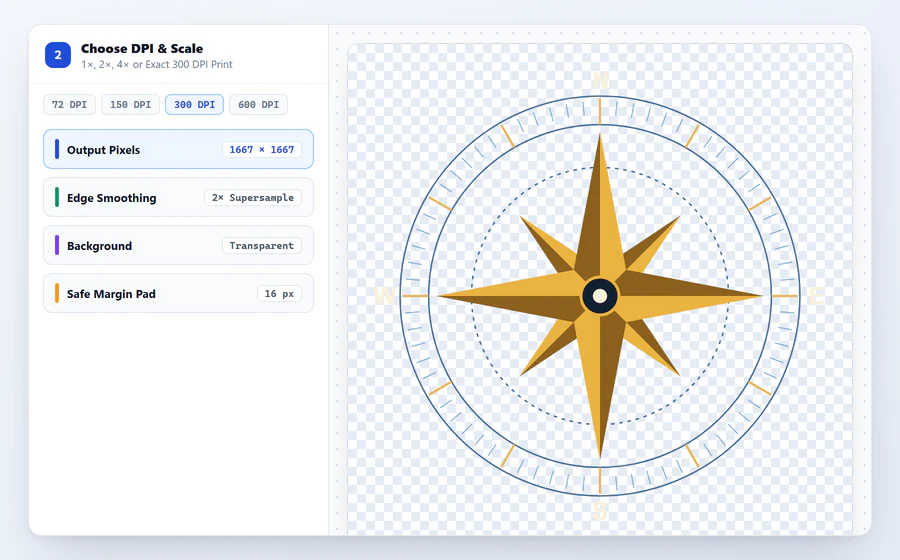
Select 72 DPI for quick web previews, 150 DPI for slide decks, or 300 and 600 DPI for crisp print mockups. Keep a transparent alpha channel for clean transparent PNG output or choose a solid white or brand color background.
Inspect the live rendered preview at actual scale, verify clean edge anti-aliasing over the checkerboard grid, and save your lossless PNG file straight to disk.
Render directly from mathematical PostScript curves at your target pixel size so exported PNGs never look blurry or upscaled.
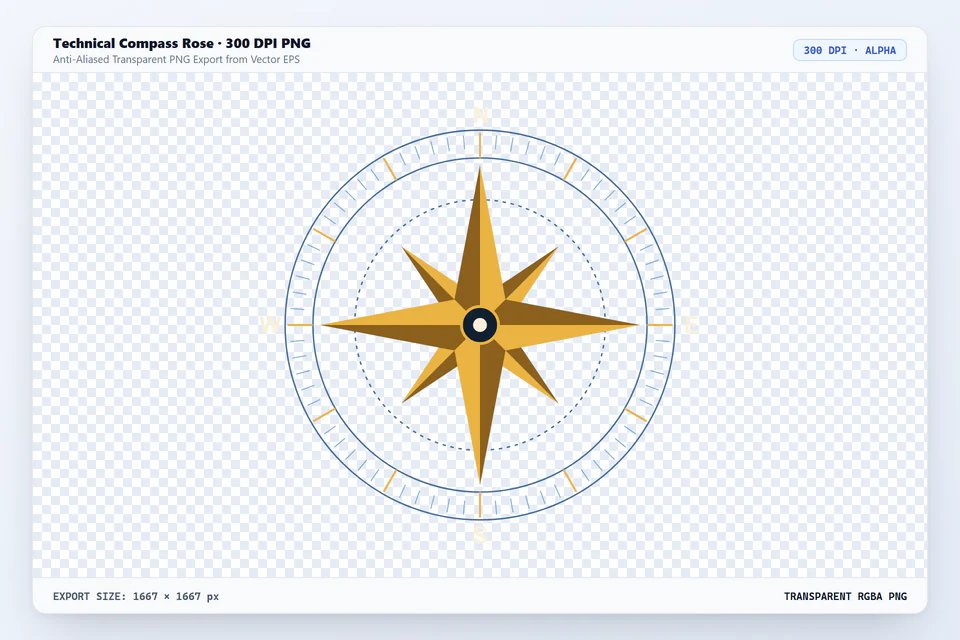
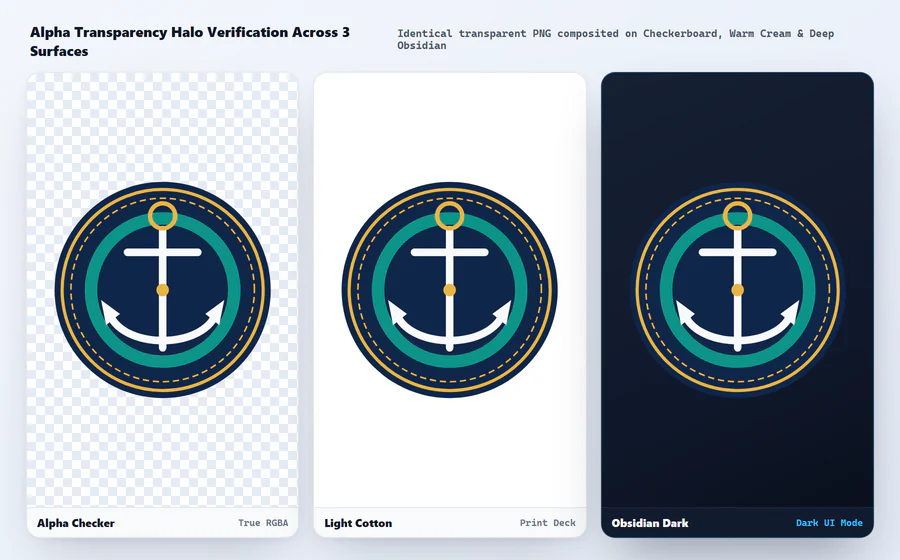
Draws vector fills straight onto a transparent RGBA canvas so logos, icons, and stickers keep razor-sharp anti-aliased alpha borders on both dark and light surfaces.
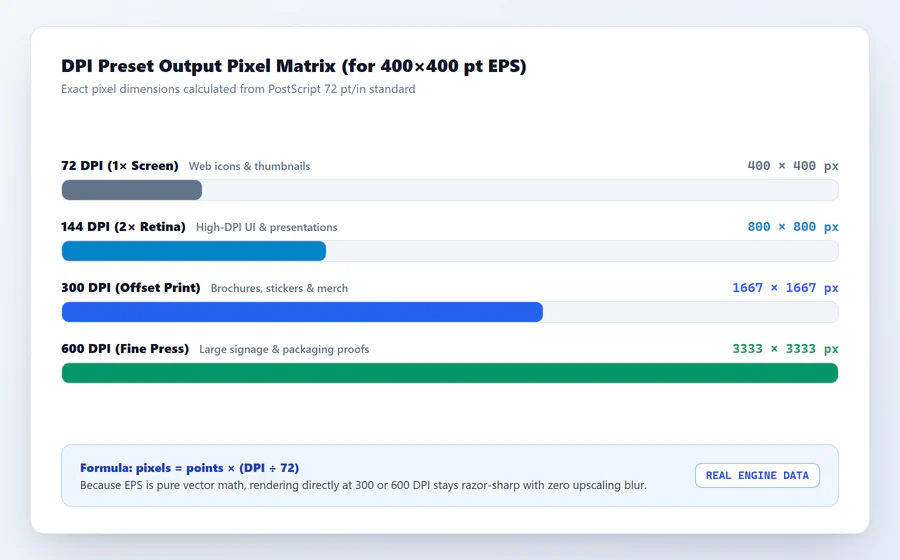
Scale straight from PostScript points (72 points per inch) to exact print-grade pixel counts or enter custom width and height dimensions with aspect-ratio lock.
Switch effortlessly between transparent alpha output, clean white backgrounds for document embeds, or custom hex backdrops to preview reversed white EPS marks.
Ignores grainy embedded DOS thumbnails whenever PostScript paths exist, rasterizing genuine Bezier curves so every rasterized PNG export stays sharp at poster scale.
Translates press CMYK ink commands into consistent sRGB pixels so brand colors stay lively when shared across websites, social posts, and presentation slides.
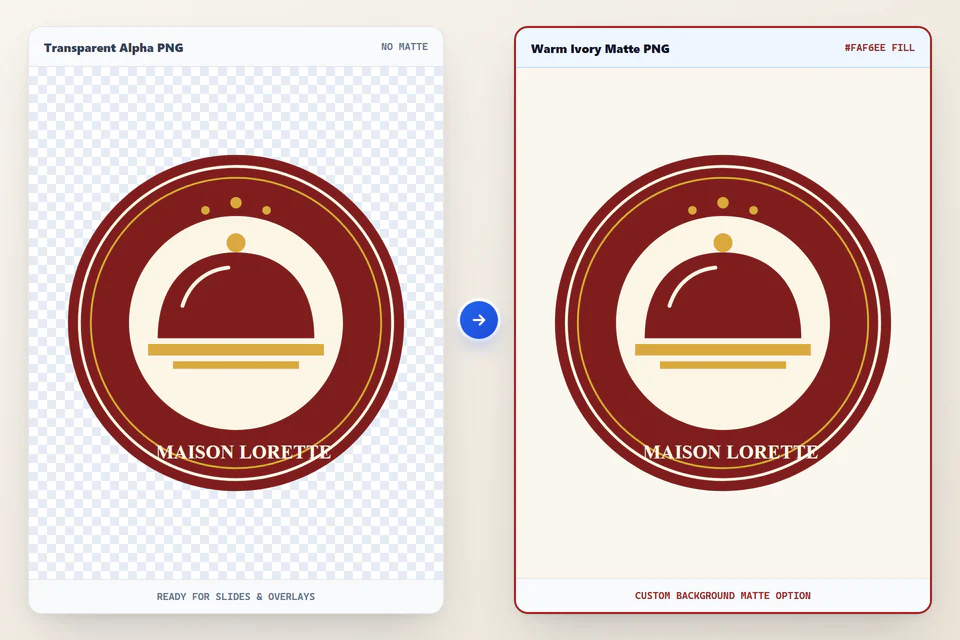
Run every conversion inside your browser tab using this client-side tool with zero file queues, zero upload wait times, and total local privacy.
Choose the right DPI scale, keep transparent alpha edges clean, and avoid common rasterization pitfalls when turning EPS files into PNG.
Because EPS stores vector dimensions in points at 72 points per inch, multiplying by your target DPI directly determines final pixel width and height. Exporting at 72 DPI matches nominal point size for compact thumbnails, while 150 DPI delivers sharp retina clarity for slides, newsletters, and documentation. When you convert eps to png for stickers, apparel print-on-demand platforms, or detailed product mockups, selecting 300 DPI or 600 DPI renders every thin stroke and subtle curve cleanly from the source vectors.
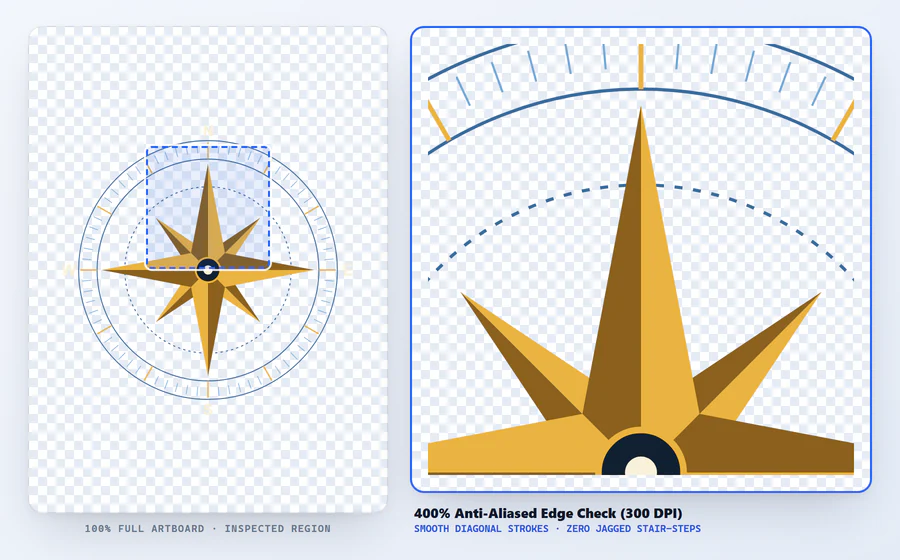
One of the biggest advantages of PNG over JPG is full 8-bit alpha transparency. An eps to transparent png export lets designers drop a brand lockup onto hero photography, colored banners, video lower-thirds, or dark-mode interfaces without an ugly white box behind it. Always verify your artwork over the checkerboard backdrop inside the preview canvas so you can confirm whether an EPS file accidentally includes a filled white background rectangle that should be trimmed or matched.
Taking a screenshot of an EPS preview or exporting at default 72 DPI and stretching it later creates blurry edges and blocky diagonals. Rasterizing directly from the PostScript geometry at your exact final pixel dimensions solves that problem completely. Because the browser canvas evaluates smooth Bezier paths at target resolution, diagonals and circles receive crisp subpixel anti-aliasing tailored to the exact width your website, storefront, or print template expects.
PNG is an RGB and grayscale image format designed for screens, web browsers, and digital printing workflows that accept sRGB assets. Legacy print EPS masters often specify fills in CMYK percentages meant for offset ink plates. Using an eps to png online converter with calibrated CMYK-to-sRGB conversion preserves hue relationships and prevents overly dark shadows when repurposing packaging or brochure logos for social profiles and e-commerce thumbnails.
Choose PNG whenever a destination requires universal raster compatibility, including email signatures, social banners, slide decks, chat apps, and print-on-demand upload portals. If you still need editable vector curves or resolution-independent web icons, inspect paths first in EPS Viewer, export clean scalable XML via EPS to SVG, build print-ready sheets with EPS to PDF, or rasterize existing SVG graphics with SVG to PNG.
Trusted by marketers, e-commerce sellers, content creators, and print teams turning PostScript masters into crisp PNG images.

Turn agency EPS brand marks into sharp transparent PNG overlays for campaign graphics, slide decks, email headers, and partner pages.

Use this browser rasterizer at 300 or 600 DPI to prepare crisp transparent artwork for apparel mockups, die-cut stickers, and storefront listings.

Convert technical EPS diagrams and company badges into retina-ready PNGs that embed reliably into slides, wikis, and office documents.

Export eps to transparent png watermarks, sponsor logos, and corner bugs ready to layer cleanly over high-definition video timelines.
Helpful answers on transparent backgrounds, DPI presets, custom pixel sizing, file quality, and browser-local privacy.
Yes. Transparent alpha output is enabled by default so you can create an eps to transparent png whenever the source EPS does not paint a solid background rectangle.
Pick 72 DPI for standard screen previews, 150 DPI for crisp presentations and retina web assets, or 300 to 600 DPI for stickers, apparel uploads, and print-grade mockups.
Yes. You can specify custom pixel dimensions with automatic aspect-ratio locking so the rendered PNG matches exact storefront, banner, or avatar requirements.
This client-side rasterizer renders straight from the mathematical PostScript curves at your selected output resolution rather than stretching a small embedded preview thumbnail.
Yes. Switch the background selector from transparent to white or any custom hex color before downloading your PNG.
Yes. PostScript CMYK and grayscale color operators are converted smoothly into balanced sRGB colors suitable for web and digital PNG delivery.
No. Parsing, canvas rasterization, and PNG encoding happen 100% locally in your browser tab so sensitive logos and artwork stay private on your device.
Yes. You can render vector EPS into PNG at up to 600 DPI with full transparency completely free in your browser without creating an account.
Drop any EPS artwork to rasterize sharp transparent or solid-background PNG images at up to 600 DPI free right in your browser.
Convert EPS to PNG now