
iPhone portrait at 92% JPEG quality
Decodes a detailed camera portrait into a balanced, universally compatible JPG with clean skin tones, crisp eye detail, and manageable sharing size.
Convert HEIC to JPG free directly inside your browser with zero uploads. Decode up to 50 iPhone HEIC or HEIF photos locally, tune JPEG quality or scale, and save individual files or one ZIP.
Drop iPhone HEIC or HEIF photos here
Batch convert up to 30 HEIC files to PNG, JPG, or WebP directly in your browser.
100% local in-browser decoding. Photos never leave your device.
Load any sample photograph below into this HEIC to JPG studio to inspect JPEG quality tuning, resolution scaling, and batch ZIP export before dropping your own camera files.
Decodes a detailed camera portrait into a balanced, universally compatible JPG with clean skin tones, crisp eye detail, and manageable sharing size.

Turns a scenic outdoor capture into a compact JPEG ready for Windows viewers, email threads, messaging apps, and online photo printing kiosks.
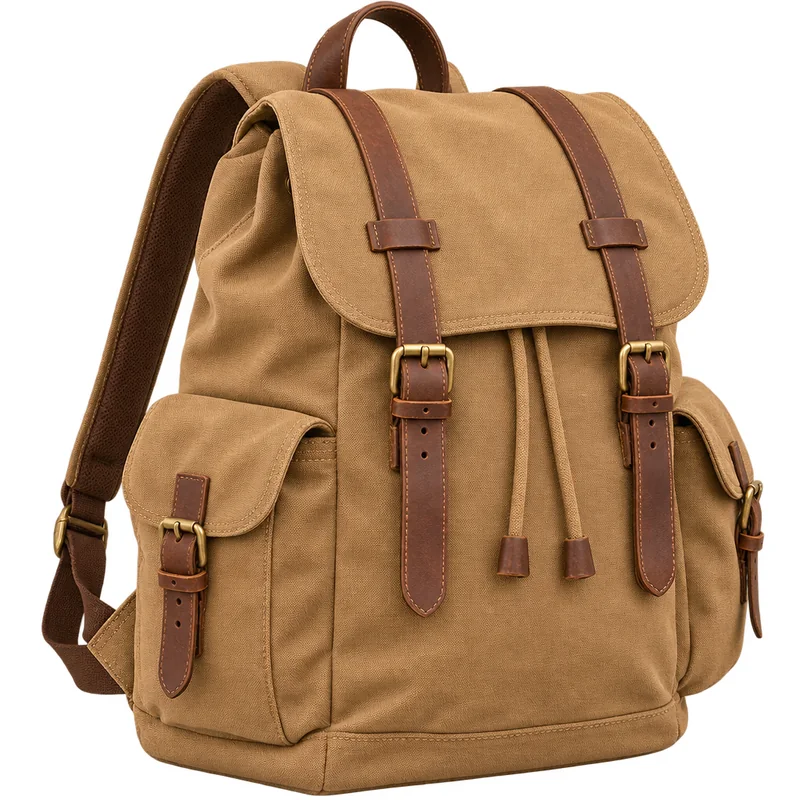
Converts a bright mobile product photo into a lightweight JPG with optional 75% or 50% downscaling for quick catalog listings and storefront uploads.
Turn Apple HEIC and standard HEIF camera files into universal JPEG images right on your computer or phone without installing system codecs.
Drag up to 50 photos (up to 50 MB each) onto the drop zone, or click Choose files to select pictures copied from an iPhone, iPad, or digital camera. Extensions .heic, .heif, and .hif are detected automatically through their ISO container header.
Keep JPG selected for universal sharing and fine-tune the quality slider between 60% and 100% (defaulting to a balanced 92%). Keep 100% for full native dimensions, switch to 75% or 50% for lighter attachments, or toggle to PNG or WebP without re-decoding.
Check every decoded thumbnail alongside its exact output pixel dimensions and byte weight. Click Download on any single photo card, or click Download ZIP to bundle an entire folder of converted pictures into one neat archive.
Engineered around local WebAssembly HEIF decoding so every iPhone photo library converts quickly, privately, and cleanly across Windows, macOS, and Linux.
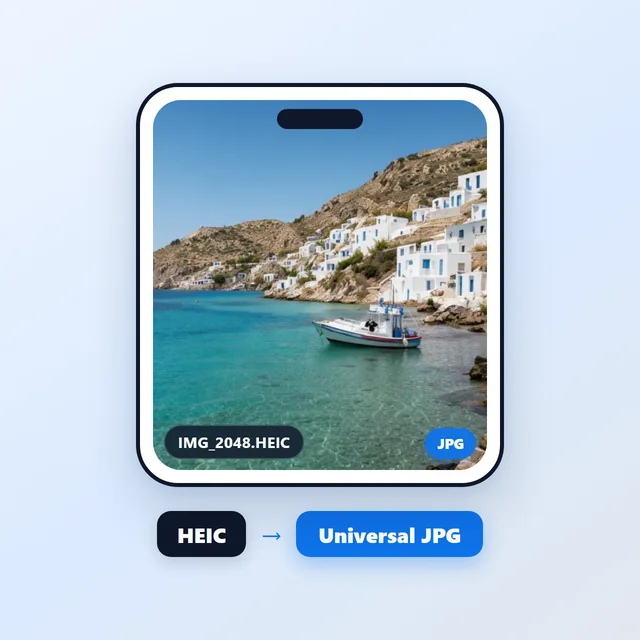
Windows File Explorer, older office tools, and strict web submission portals often refuse Apple's High Efficiency Image Container. Our built-in WebAssembly decoder opens genuine HEIC, HEIF, and HIF bitstreams directly inside your browser tab without asking you to hunt for desktop codec extensions.
Exporting a holiday folder or property inspection from an iPhone rarely means a single snapshot. Queue up to 50 pictures in one pass (up to 50 MB each), watch cards finish locally, and save the entire batch together inside a single organized ZIP file.
Different destinations demand different compression budgets. Keep the default 92% quality setting for crisp photography and prints, push up toward 96% or 100% for subtle gradients, or pull back toward 76% to 84% when a strict portal or email attachment limit matters most.
Modern 12 MP and 48 MP smartphone sensors generate wide pixel frames that stay heavy even after a clean heic to jpeg export. Leave scale at 100% for archival fidelity, or click 75% or 50% high-quality resampling to trim both pixel dimensions and kilobytes in one move.

Because every photo stays decoded in browser memory during your session, switching the output toggle from JPG to lossless PNG or modern WebP re-encodes your entire queue in seconds without reloading source files. Any transparent areas flatten cleanly onto crisp white for JPEG output.

Camera rolls carry family portraits, travel snapshots, home records, and work receipts that never belong on third-party servers. Every decoding pass, resize calculation, and JPEG stream finishes privately inside your browser tab, keeping sensitive photos strictly on your own hardware.
Five practical habits for sharper JPEG exports, smaller uploads, and smoother cross-platform photo handling.
Apple adopted HEIC (built on the HEIF container standard and HEVC coding) so modern iPhones can store high-resolution photos at roughly half the disk weight of classic JPEG files while preserving rich color range. That space savings works smoothly inside Apple ecosystems, yet Windows workstations, legacy CMS uploaders, government portals, and print counters frequently insist on standard .jpg files. Running a fast heic to jpeg pass restores universal compatibility everywhere.
Setting JPEG quality to 100% rarely improves visible sharpness over 92%, yet it can easily double or triple the resulting file size. For portraits, landscapes, and archival family sets, 90% to 94% maintains smooth skies and fine hair texture without bloated megabytes. For web listings, email attachments, or online forms, dialing quality down to 80% to 86% trims weight dramatically while keeping subjects crisp and clean.
Many HR applications, insurance forms, and marketplace dashboards reject attachments above 2 MB or 5 MB. When a 48 MP iPhone photo still weighs too much at 85% quality, click the 75% or 50% scale toggle right inside the toolbar to reduce overall pixel area before saving. Need exact kilobyte targeting afterward? Drop the exported photos into our Compress JPG utility or resize them precisely with Image Resizer.
Sorting fifty vacation or event snapshots by hand after conversion wastes valuable time. When you convert iPhone HEIC to JPG in batch mode here, every finished file preserves its original camera stem (so IMG_2048.heic becomes IMG_2048.jpg). If two images pulled from different folders share an identical filename, the local ZIP packer appends a clean numeric suffix automatically so nothing overwrites when you unzip.
JPEG is the everyday champion for sharing photographs, printing snapshots, and filling web upload fields. If you plan to retouch edges, preserve crisp photographed text, or avoid any second round of lossy coding, switch to our HEIC to PNG studio for lossless bitmaps. Packaging receipts or inspection shots into one shareable document? Assemble them directly in HEIC to PDF, or convert finished photos to lighter web assets with JPG to WebP.
Everyday desktop, business, and creative situations where turning iPhone photos into universal JPG files removes friction.
Open iPhone and iPad photos copied over cable, email, or cloud drives directly on Windows or Linux machines without searching for extra system codecs or desktop software.
Turn batches of phone product angles and property walkthrough shots from iPhone HEIC to JPG so listing dashboards, MLS portals, and catalog forms accept every frame.
Convert photographed receipts, ID checks, and claim evidence into standard JPEG files that government, banking, and HR portals process smoothly with zero server exposure.
Use this local batch photo utility to prepare holiday albums, print shop orders, and shared family folders that open reliably on smart TVs, digital frames, and older laptops.
Straight answers about iPhone photo support, JPEG quality settings, batch ZIP limits, metadata handling, and local browser privacy.
Drag your .heic or .heif photos into the workspace at the top of this page, keep JPG selected, adjust the quality slider or pixel scale if desired, and click Download on a single card or Download ZIP for the whole batch. Everything runs free in your browser with no signup.
Yes. Beyond checking .heic, .heif, and .hif filename extensions, the built-in decoder inspects each file's ISO Base Media ftyp brand header. That means iPhone captures, iPad exports, and modern mirrorless camera HEIF photos all decode cleanly into universal JPEG images.
No. The WebAssembly HEIF decoder and browser canvas JPEG encoder execute entirely inside your device's local tab memory. Your private camera roll photos stay strictly on your own computer or phone from selection through export and never touch an external server.
You can queue up to 50 files at once, with each individual photo up to 50 MB. Once two or more pictures finish converting, the Download ZIP button packages your entire converted batch into one tidy archive while preserving each original filename.
At the default 92% quality setting and 100% native scale, exported JPEG photos preserve crisp natural detail and clean color transitions with virtually invisible compression differences. For maximum retention, raise the quality slider to 96% or 100%, or switch output to lossless PNG.
HEIC uses newer video-derived compression that packs photographic detail more tightly than classic JPEG at similar visual quality. Because JPEG works everywhere, a high-quality 92% JPG often weighs slightly more than the source HEIC, though lowering quality to 82% or scaling to 75% shrinks it quickly.
Yes. Because decoding runs through our self-contained WebAssembly library directly inside Chrome, Edge, Firefox, or Safari, Windows and Linux visitors can run a full HEIC to JPEG batch immediately without downloading desktop utilities, browser plugins, or system codec packs.
Yes. After your HEIC files finish decoding in memory, clicking PNG or WebP in the format control bar re-encodes every loaded card within seconds without re-decoding your original phone files, letting you compare exact pixel sizes and byte weights before saving.
Drop up to 50 iPhone HEIC or HEIF photos, tune JPEG quality or scale, and save clean JPG files or a single ZIP privately in your browser.
Choose HEIC files