Unblur Image and Upscale with AI
Upload a soft or small picture and unblur the image while it grows 2× or 4×. Edges, hair and text get crisp again, faces stay true to the photo, and most pictures cost 1 credit.
A real result from this tool. Drag the handle to compare.
- Unblur and upscale in one pass
- 2× or 4×, up to 8192 × 8192
- 1 credit for most pictures
- Faces stay true to the photo
How to Unblur an Image in 3 Steps
No sliders to guess and no prompt to write: pick a size and the AI image upscaler does the rest.
- 1
Upload the blurry picture
Drop, paste or choose a JPG, PNG or WebP up to 10 MB. The output size and the price appear before you run.
- 2
Choose 2× or 4×
2× is right for most photos. 4× suits small web images, thumbnails and prints. Both settings unblur the image as they enlarge it.
- 3
Compare and download
Drag the slider to see the photo before and after, then download the sharp version or send it on to another tool.
Unblur Image Examples, Before and After
Both results were made with this tool and nothing else. The squares on the right show the same spot up close.
- BeforeAfter
Unblur a soft photo, 2×
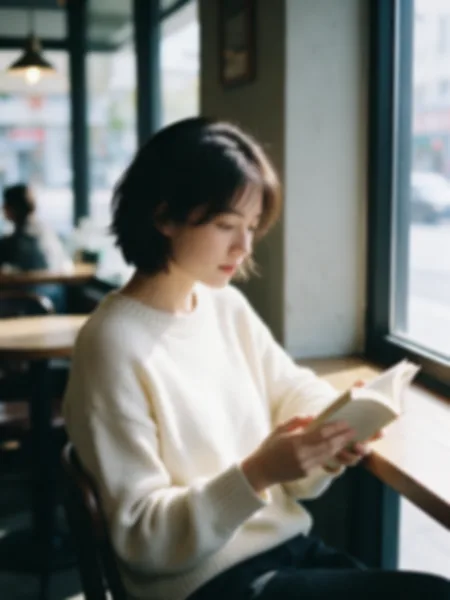
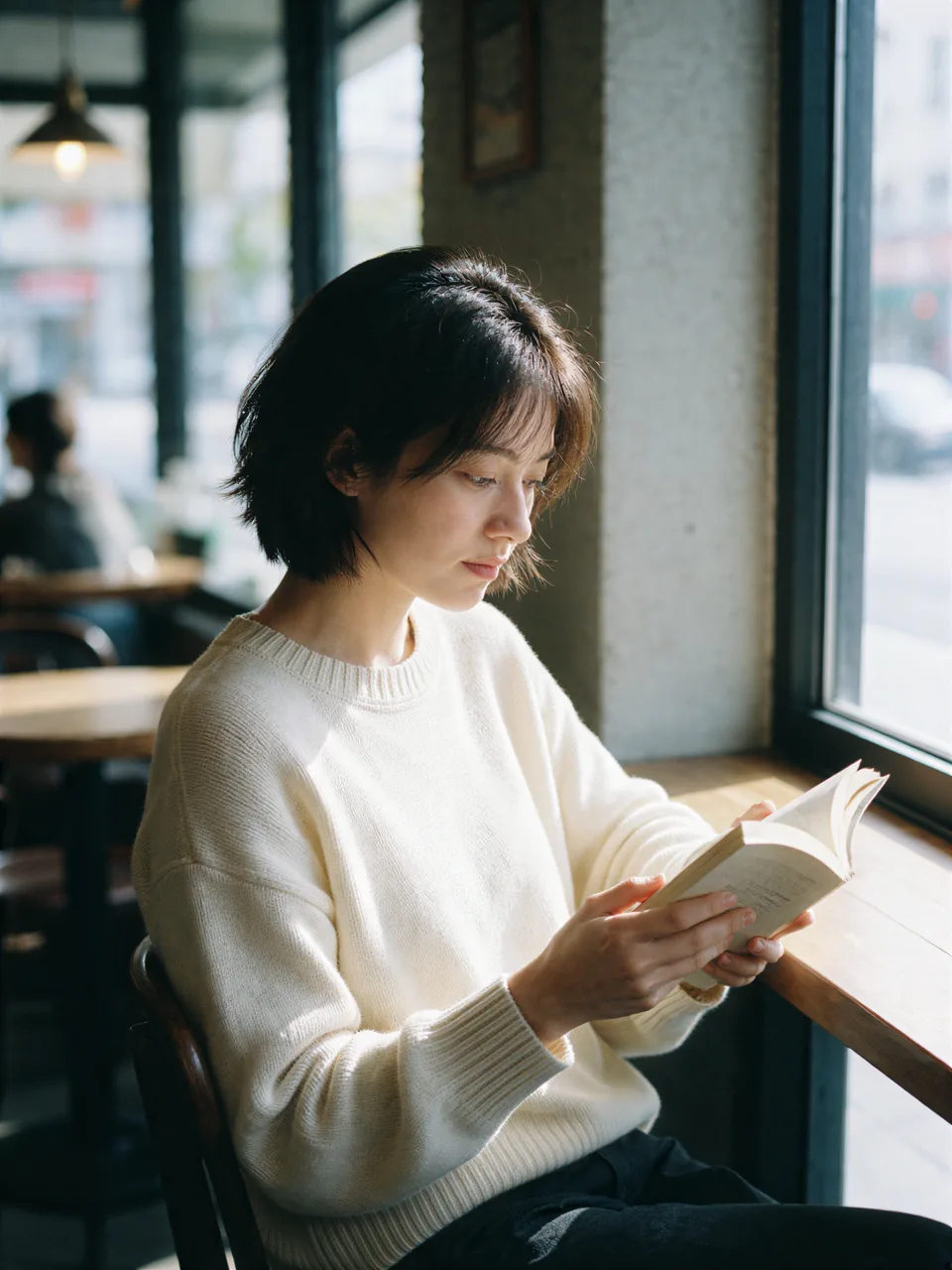
An out of focus portrait at 600 × 800 comes back at 1200 × 1600 with sharp hair, eyes and knit, and the same face.
Close-up of the same spot
Before After 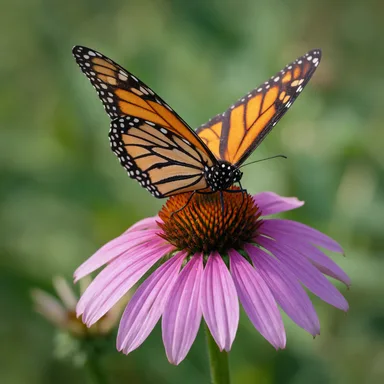 BeforeAfter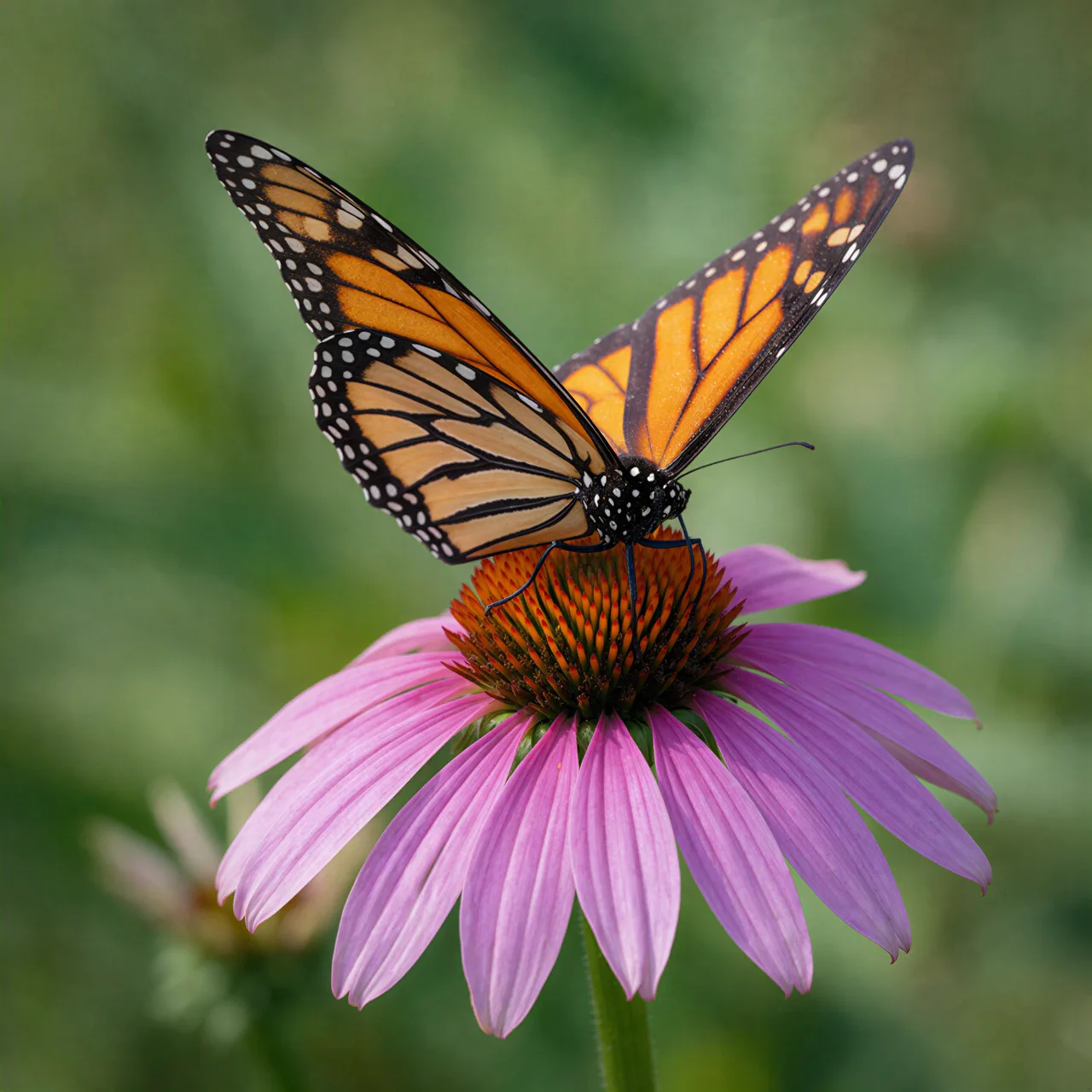
Upscale a small picture, 4×
A 384 px image grows to 1536 px. The wing scales and petal veins are rebuilt instead of stretched.
Close-up of the same spot
Before After
What an AI Image Upscaler Can and Cannot Fix
Unblurring works best when the photo is soft, not smeared. Here is what to expect before you spend a credit.
Works well
- Slightly out of focus photos, soft phone shots and pictures saved too small.
- Portraits and pets: hair, eyes and fur come back without changing the face.
- Small web images, thumbnails and AI art that need a bigger size for print or a banner.
- Products and buildings with clean edges and textures.
Harder
- Strong motion blur, where the subject is smeared into streaks.
- Number plates and tiny text that were never readable; the tool will not invent them.
- Faces only a few pixels wide in a crowd.
- Transparency: PNG cut-outs come back on a solid background, so remove the background after you upscale.
Tip: for a picture that is both small and blurry, start with 2×. Run it again at 2× if you need more size; it costs less than going straight to 4× on a large picture.
Why Unblur Images with ImageToPsd.AI
One engine that sharpens and enlarges together, with the size and the price shown before you run.
Unblur and upscale together
Most tools only enlarge, so a blurry photo becomes a bigger blurry photo. Here the AI restores lost detail while it adds pixels.
Faces stay faces
We tested four engines on the same blurry portrait and picked the one that kept the eyes, nose and smile of the original.
Up to 8192 × 8192
Choose 2× or 4×. The exact output size is shown before you run, and anything too large is refused before credits move.
From 1 credit
Most pictures cost 1 credit; only very large 4× results cost 2 or 3, and the price shows before you run.
No prompt, no presets
There is nothing to tune. The image enhancer reads the picture and restores it, so the result is predictable.
Private by default
Pictures sit behind unguessable links, appear only in your own history and are not used to train AI models.
Unblur Image Guide: Get the Sharpest Result
Five short tips on choosing a size, preparing the picture and using the result.
Unblurring and upscaling are not the same
Upscaling adds pixels; unblurring brings back detail that the camera missed. A plain enlargement of a soft photo just gives you a bigger soft photo. This tool does both at once, so pick the size you need and the sharpening happens on the way.
Pick 2× or 4×
Use 2× for photos that are already a normal size but soft. Use 4× for small images such as web thumbnails, old screenshots or AI art at 512 px. The panel shows the output size before you run, so you can check it fits your print or layout.
Start from the best copy you have
Upload the original file rather than a screenshot or a copy saved from chat apps, which compress the picture again. Crop away what you do not need first: the AI image upscaler then spends its pixels on the part that matters.
Sizes for print and screens
For a sharp print, aim for about 300 pixels per inch: 2400 × 3000 for an 8 × 10 inch photo. For a 4K screen or banner, 3840 px across is plenty. Upscale image files to that size rather than the maximum, which keeps downloads light.
Combine it with other tools
Unblur the image first, then remove the background for a clean cut-out, expand the canvas for a banner, or turn the photo into a painting. Each tool starts from the sharp version, so the final result looks better too.
Where People Use an AI Image Upscaler
From family photos to product pages, these are the common reasons to unblur a picture.
Family and phone photos
Rescue a soft snapshot from a birthday, a trip or an old phone so it is good enough to frame or share.
Product and listing photos
Sharpen small supplier images so products look crisp on your store, marketplace or catalog.
Print and posters
Enlarge pictures for canvas prints, posters and photo books without the blocky look of a plain resize.
Design and AI art
Upscale AI images, thumbnails and old web graphics to a size that works in slides, banners and Photoshop.
Unblur Image FAQ
Answers about quality, sizes, price, faces and privacy.
Unblur Your Image Now
Upload a soft or small picture, choose 2× or 4×, and download the sharp version in seconds.