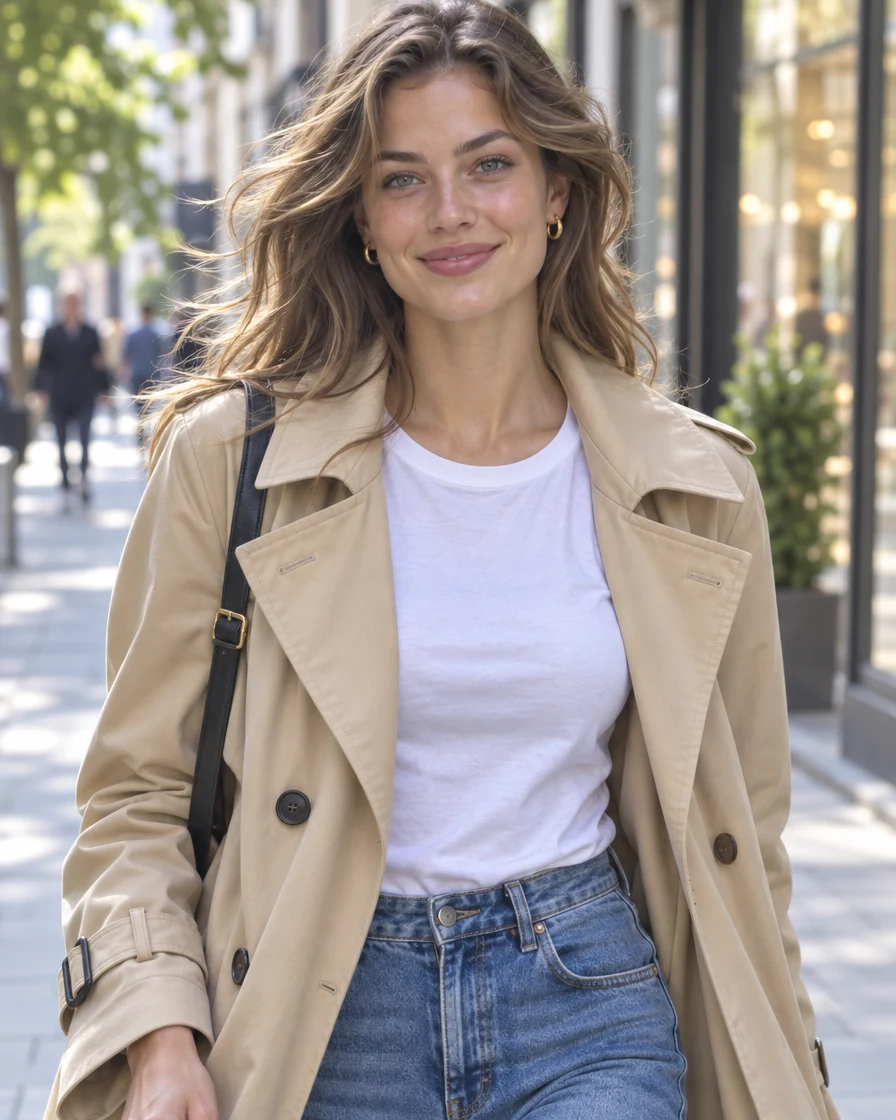
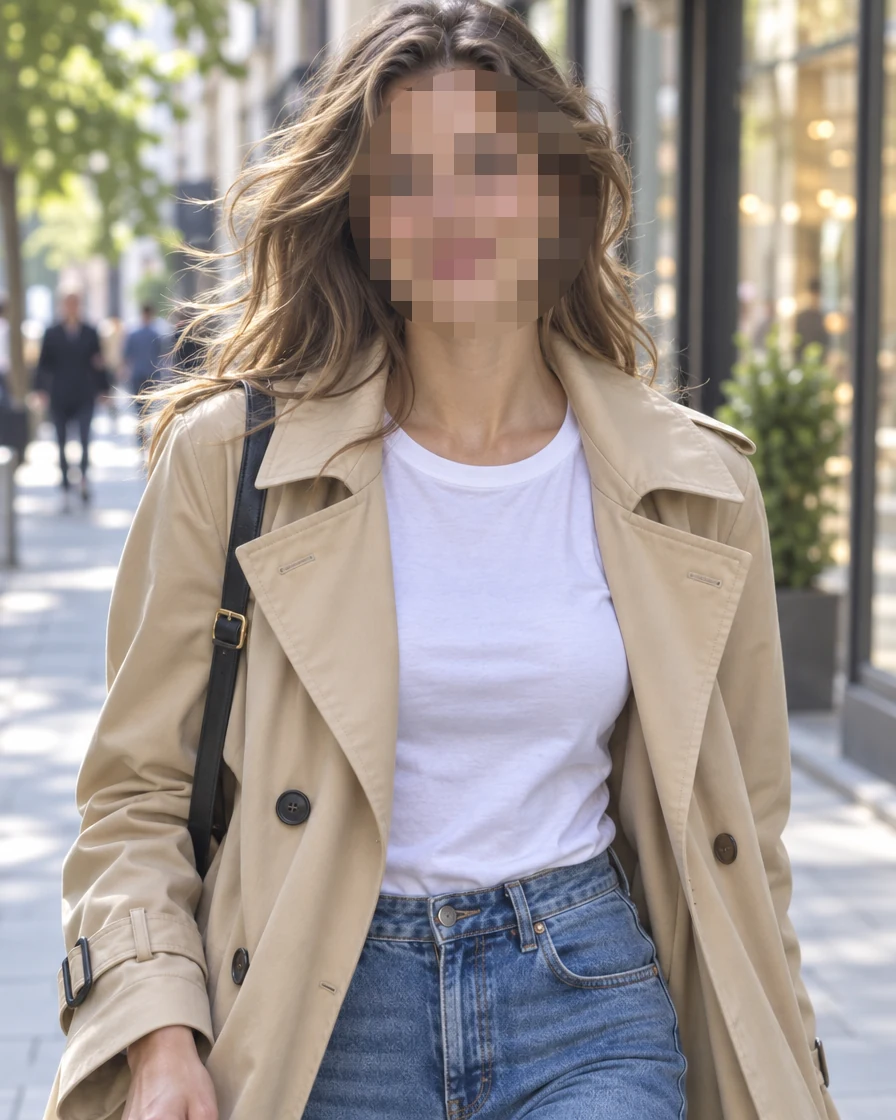
A face in a street photo
Find faces covered her face with one oval, and Pixelate hides who she is.
Open a photo or a screenshot and pixelate image areas in seconds: faces are found for you, and a box, an oval or a brush covers anything else. Choose pixels, blur or a solid cover for each area, then download at full size. Everything runs in your browser, so the picture never leaves your device.
Drop a picture here
PNG, JPG, WebP, GIF, BMP or AVIF. It stays on your device.
Each picture below was covered with this image pixelator. Open one to see its areas and change them yourself.
Find faces covered her face with one oval, and Pixelate hides who she is.
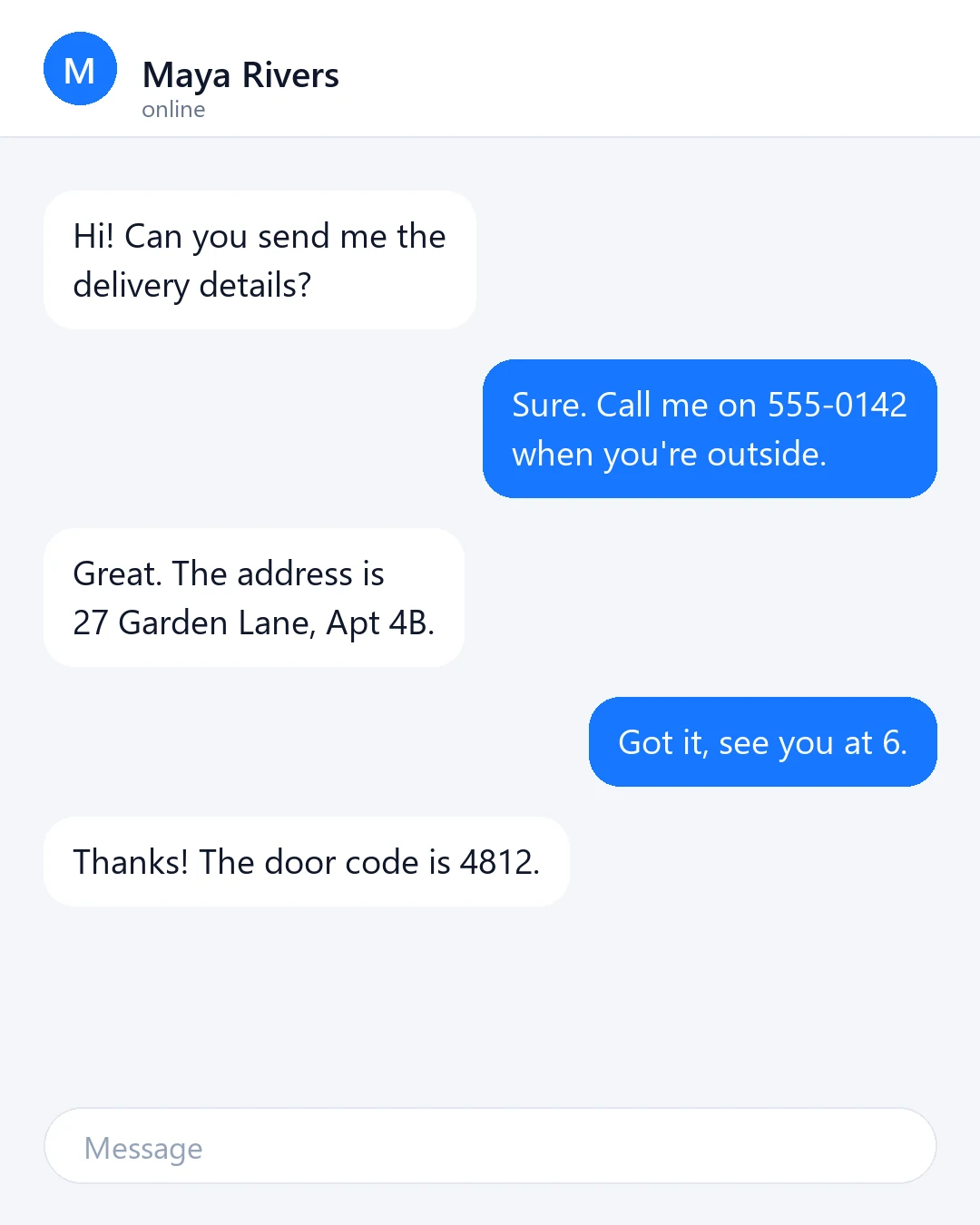
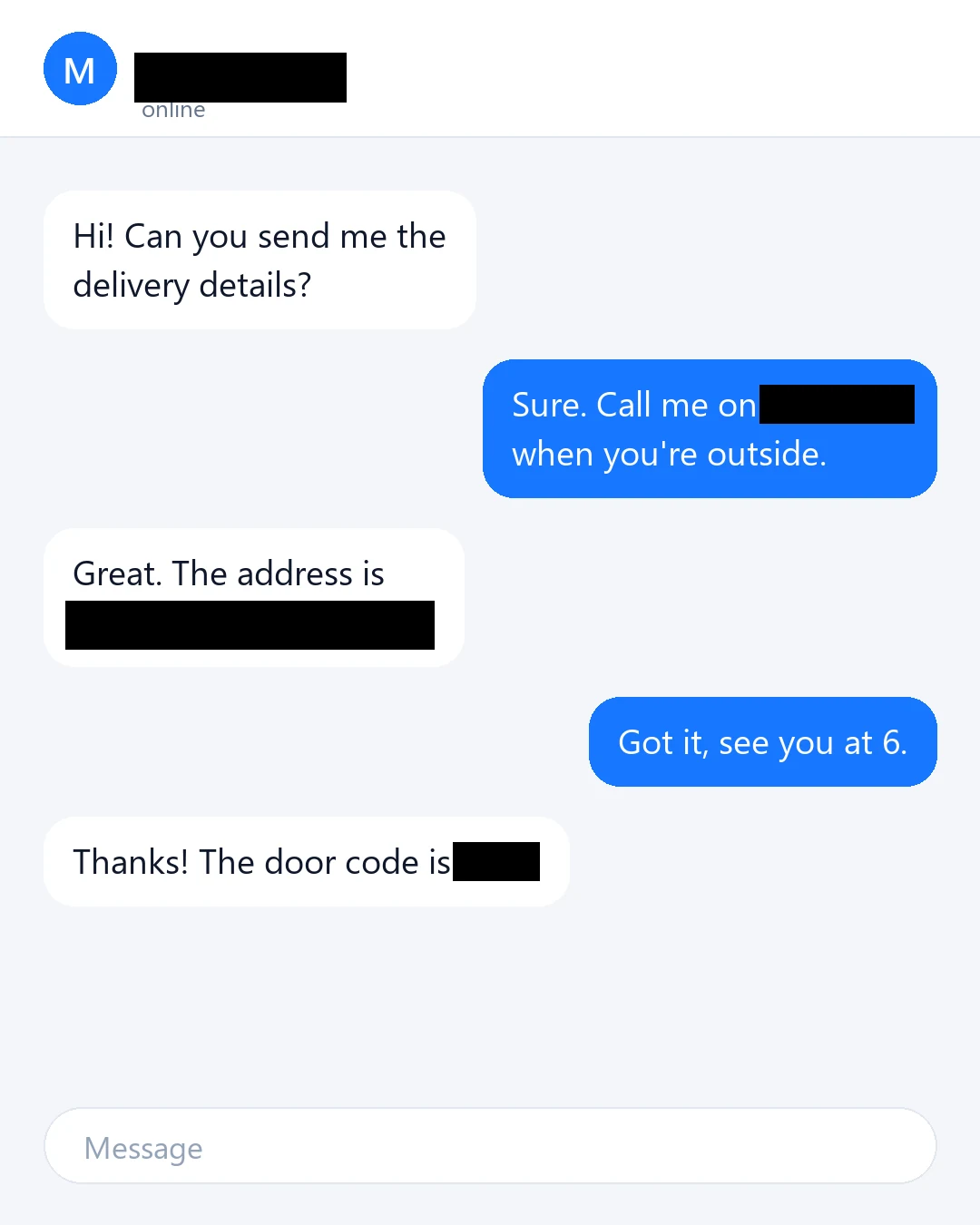
Solid boxes cover the name, the phone number, the address and the door code.
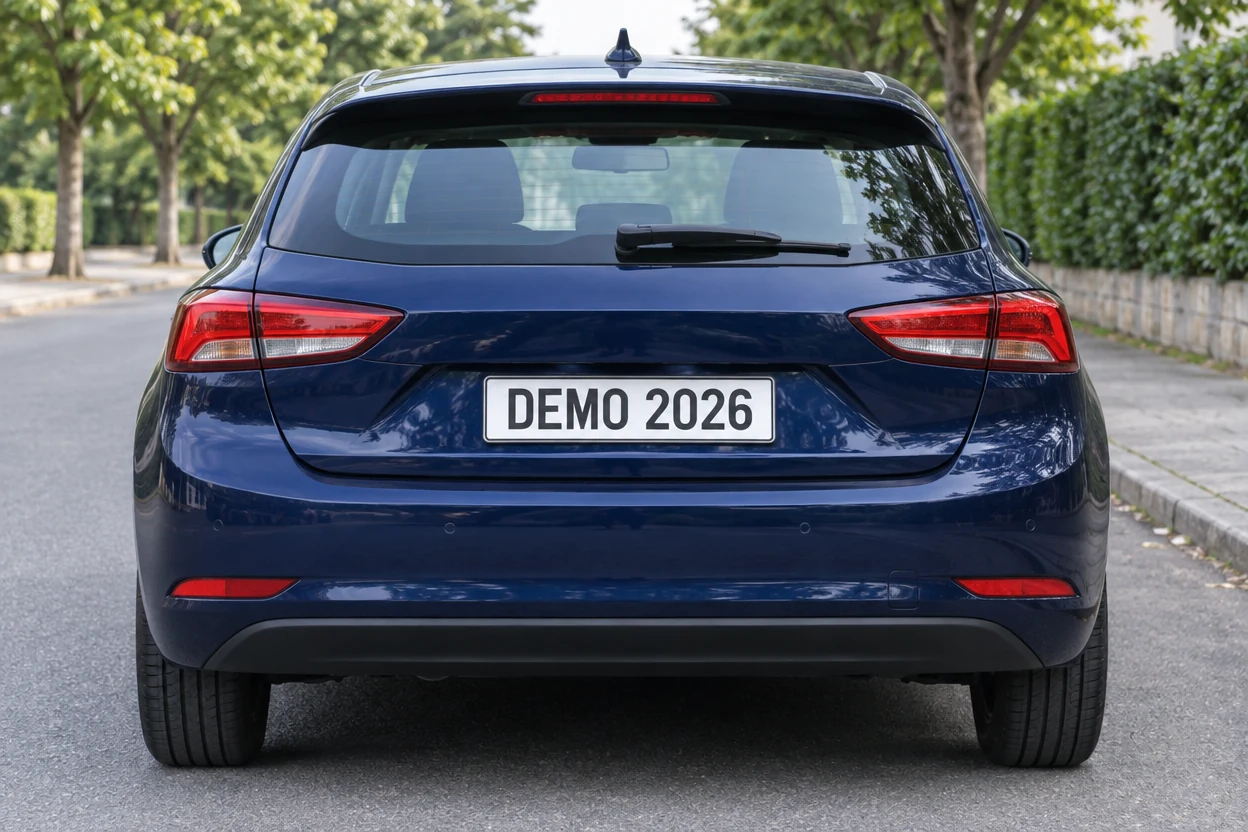
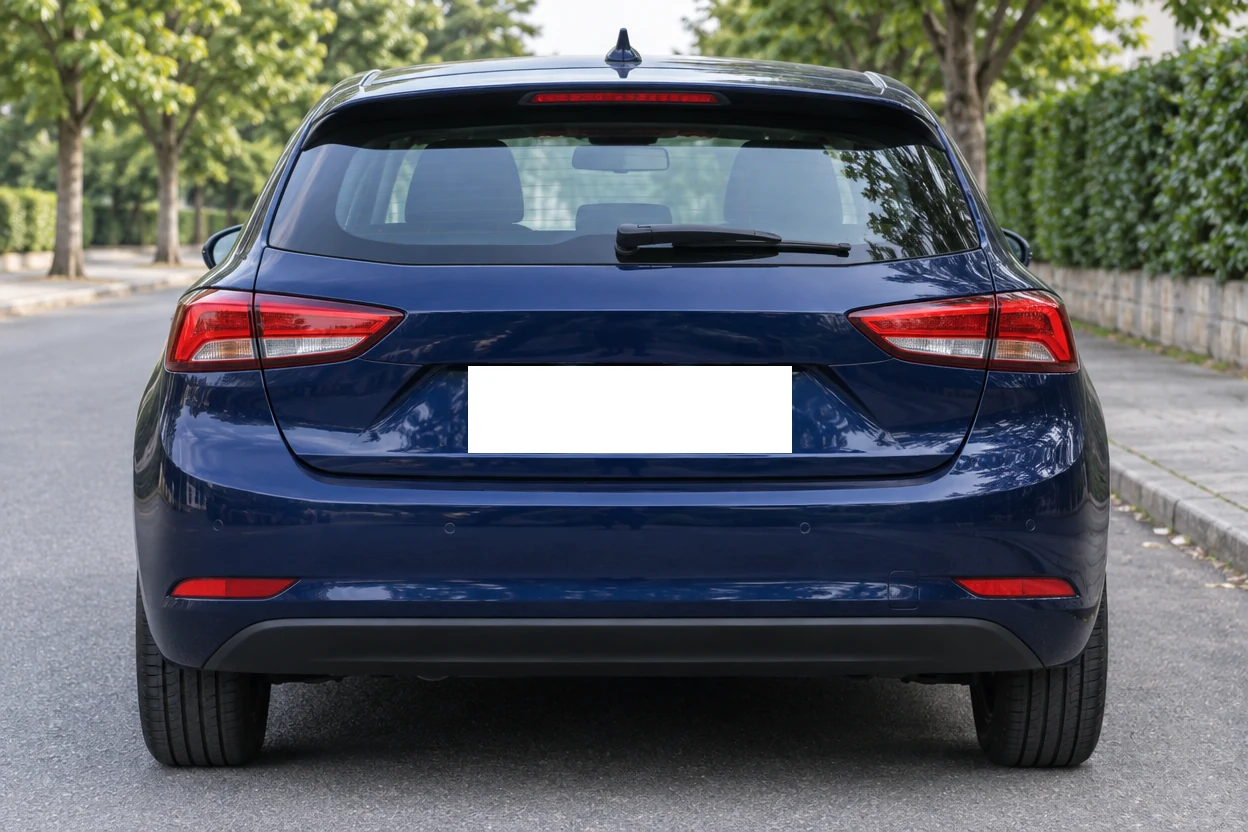
One white Solid box leaves the plate blank.


One press of Find faces covered all four, and Blur keeps the photo soft.
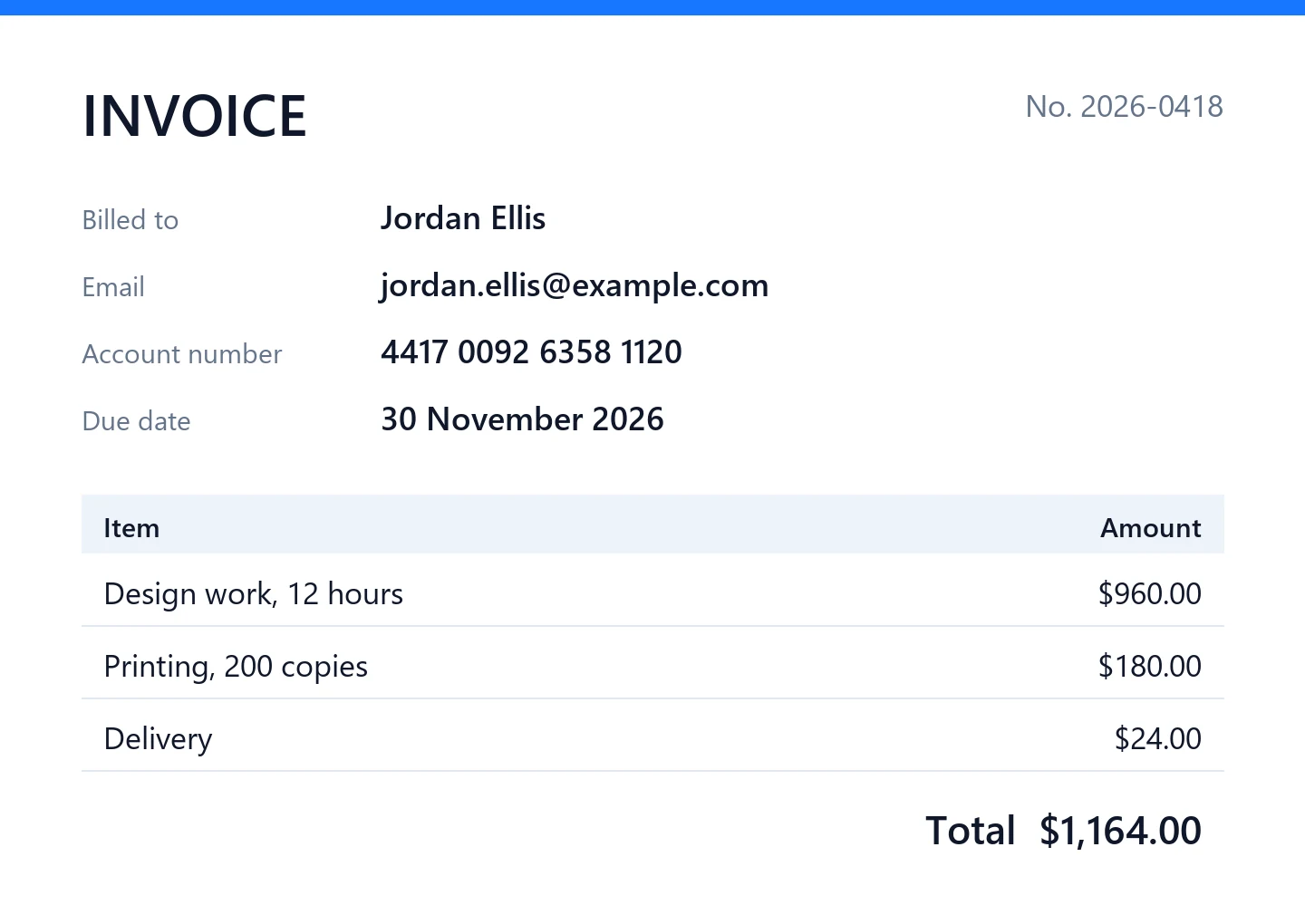
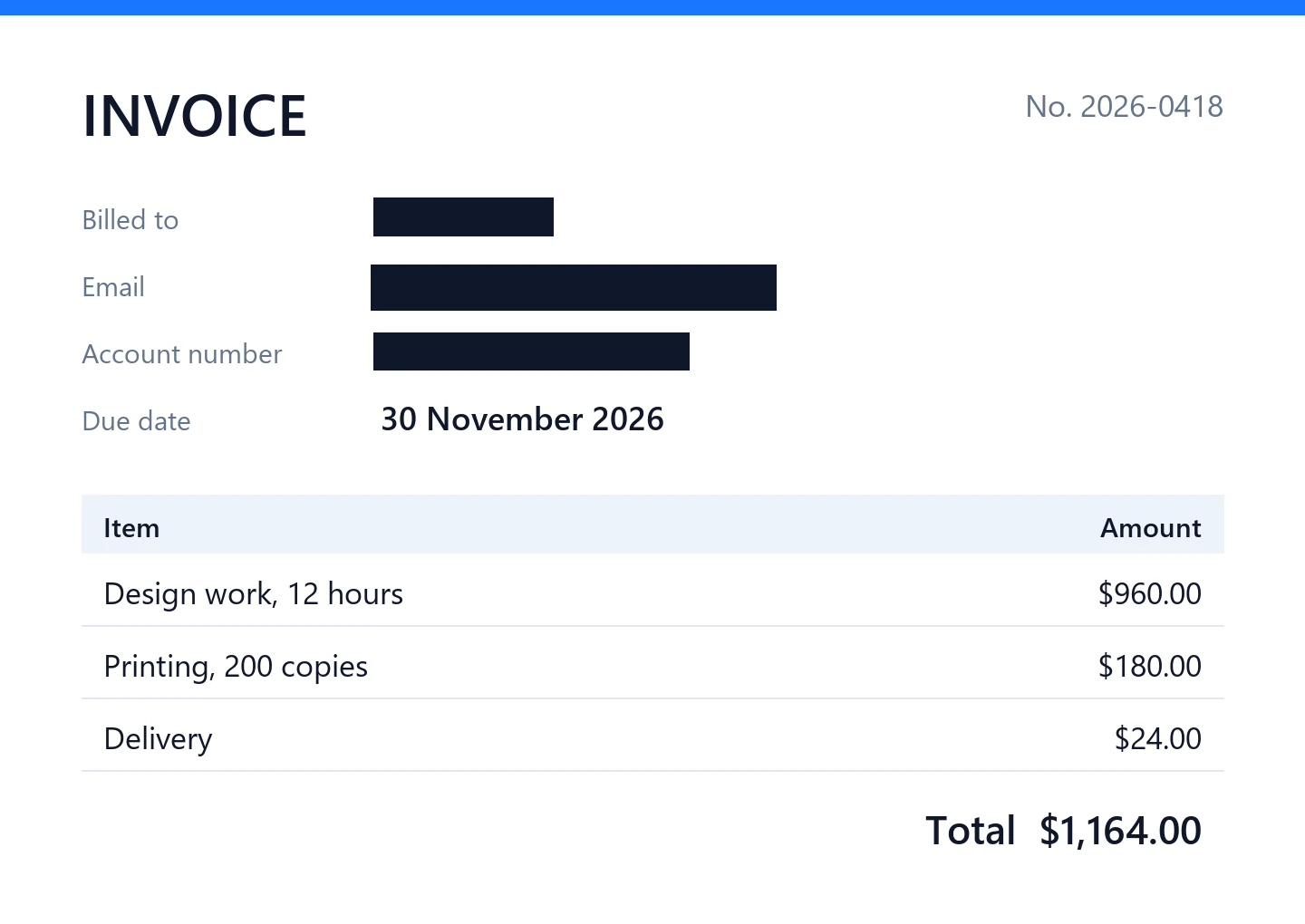
Solid boxes hide the name, the email and the account number.
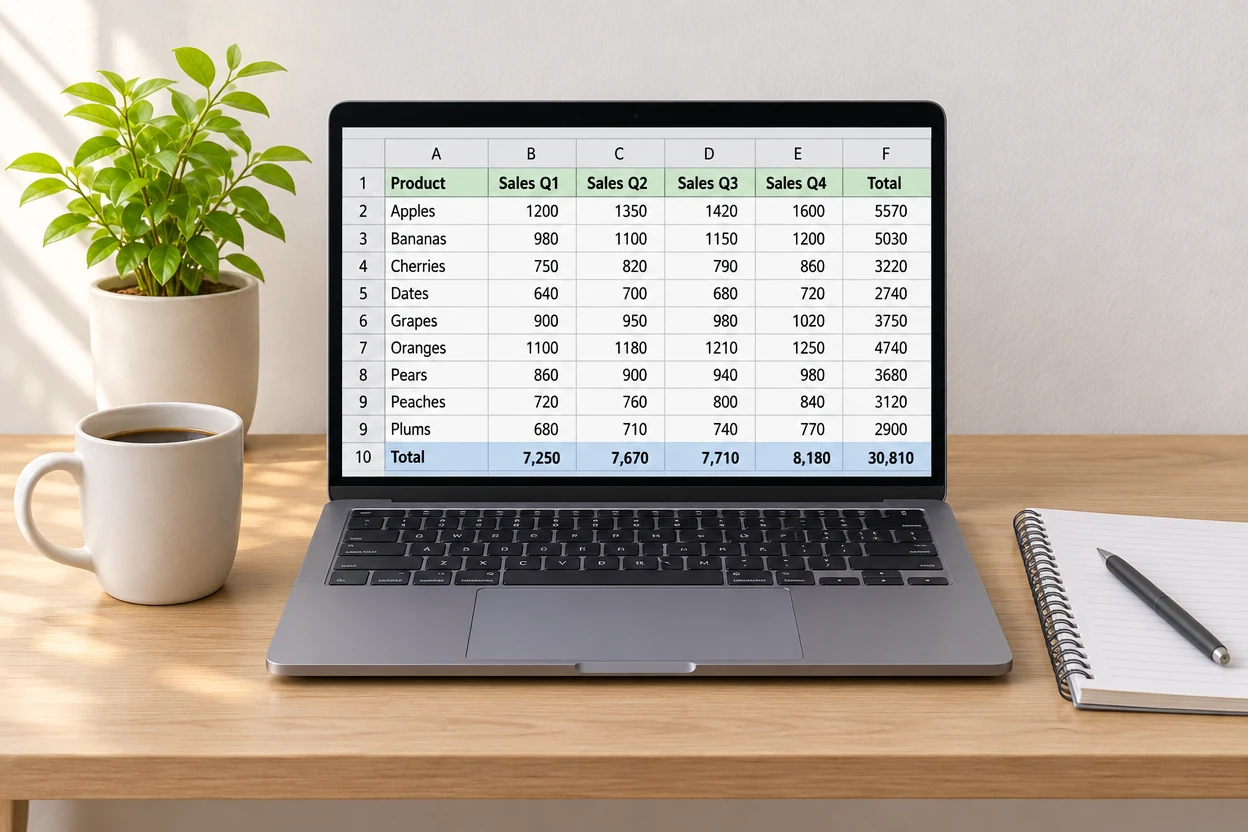
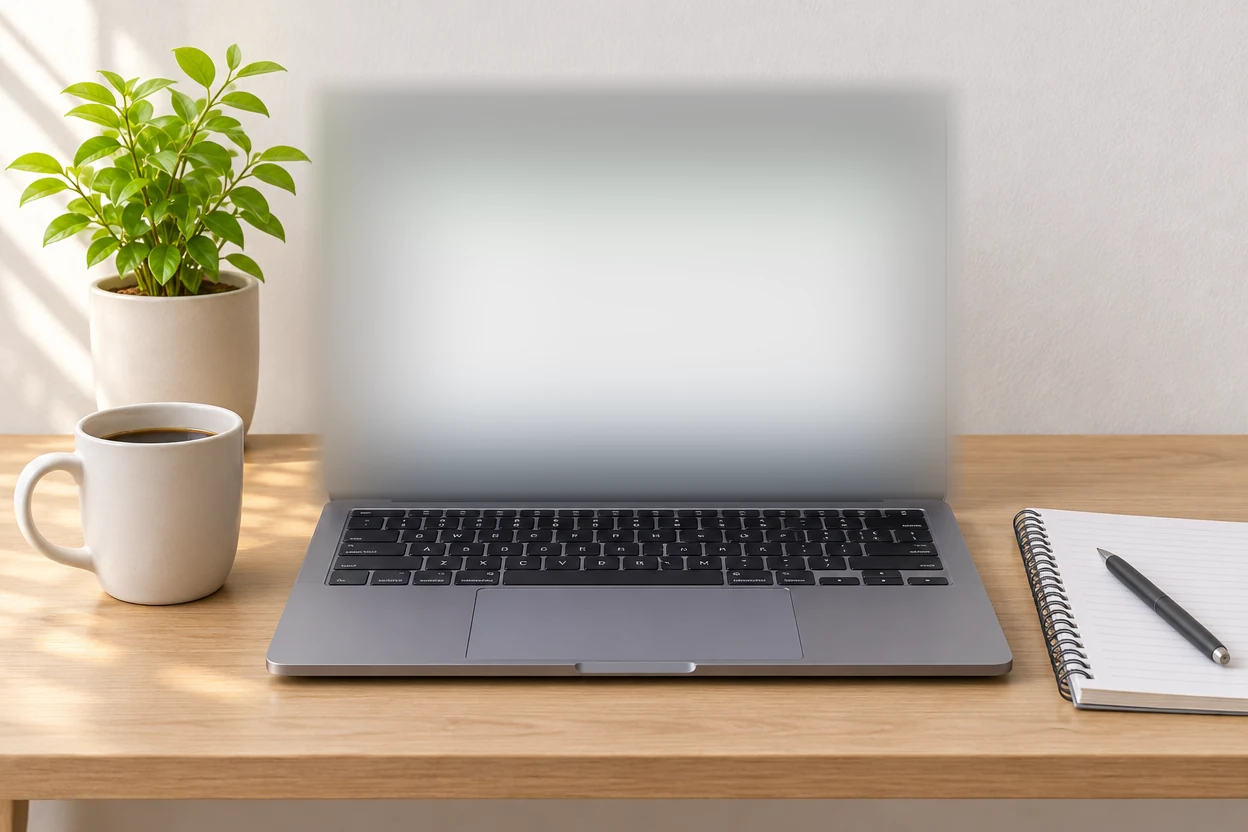
One box set to Blur hides what is on the screen.
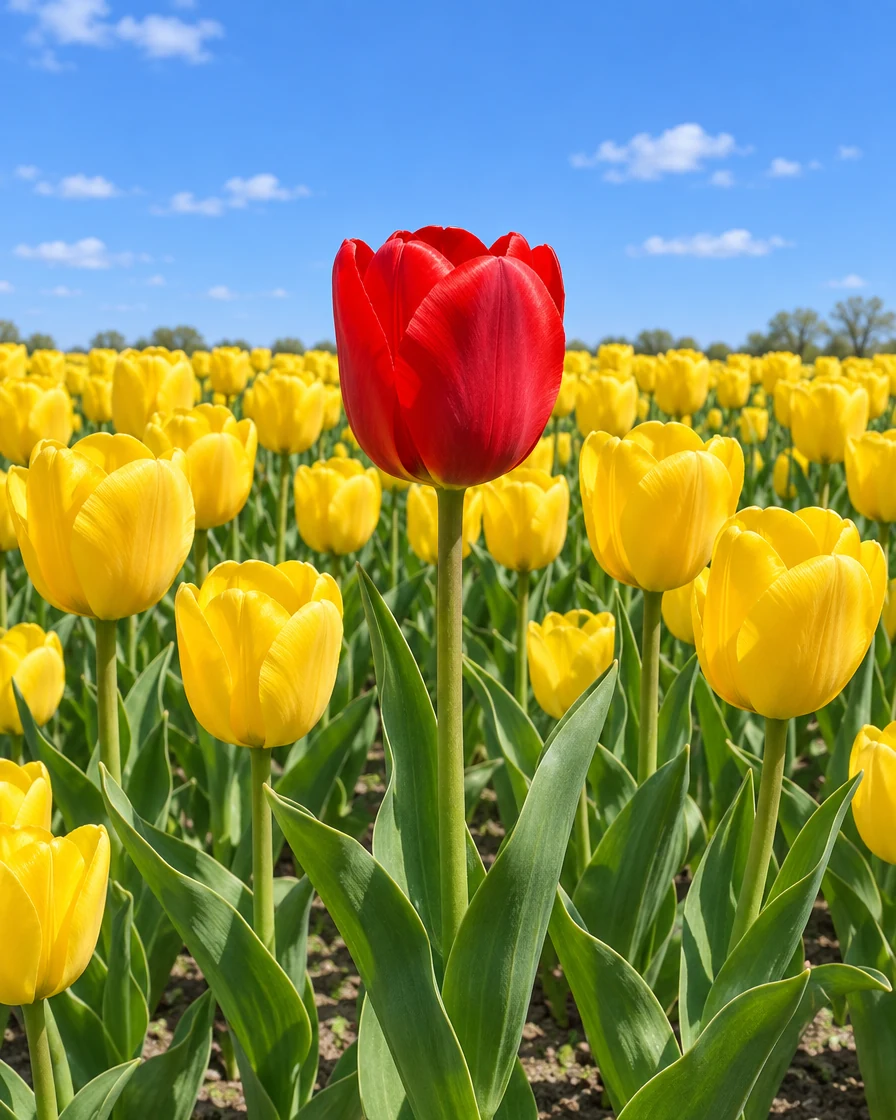
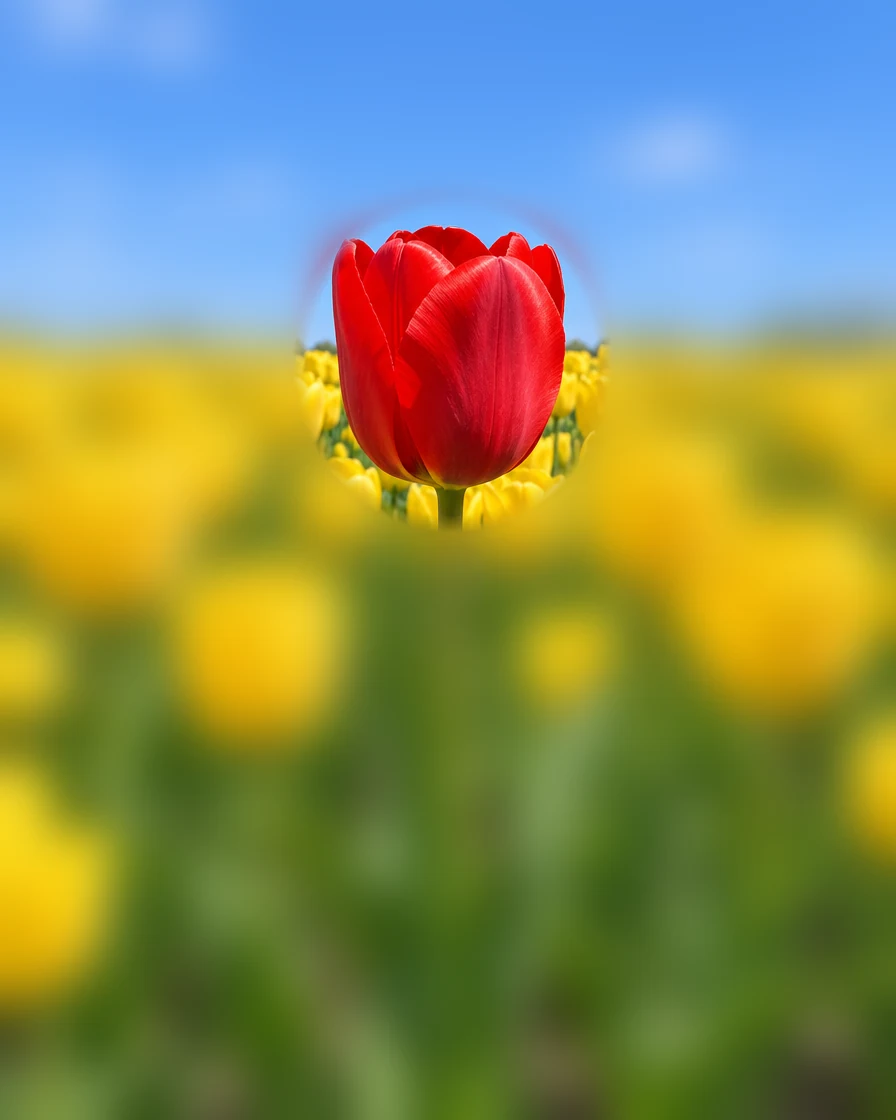
The whole picture is blurred, and an oval set to Keep sharp leaves the red tulip clear.
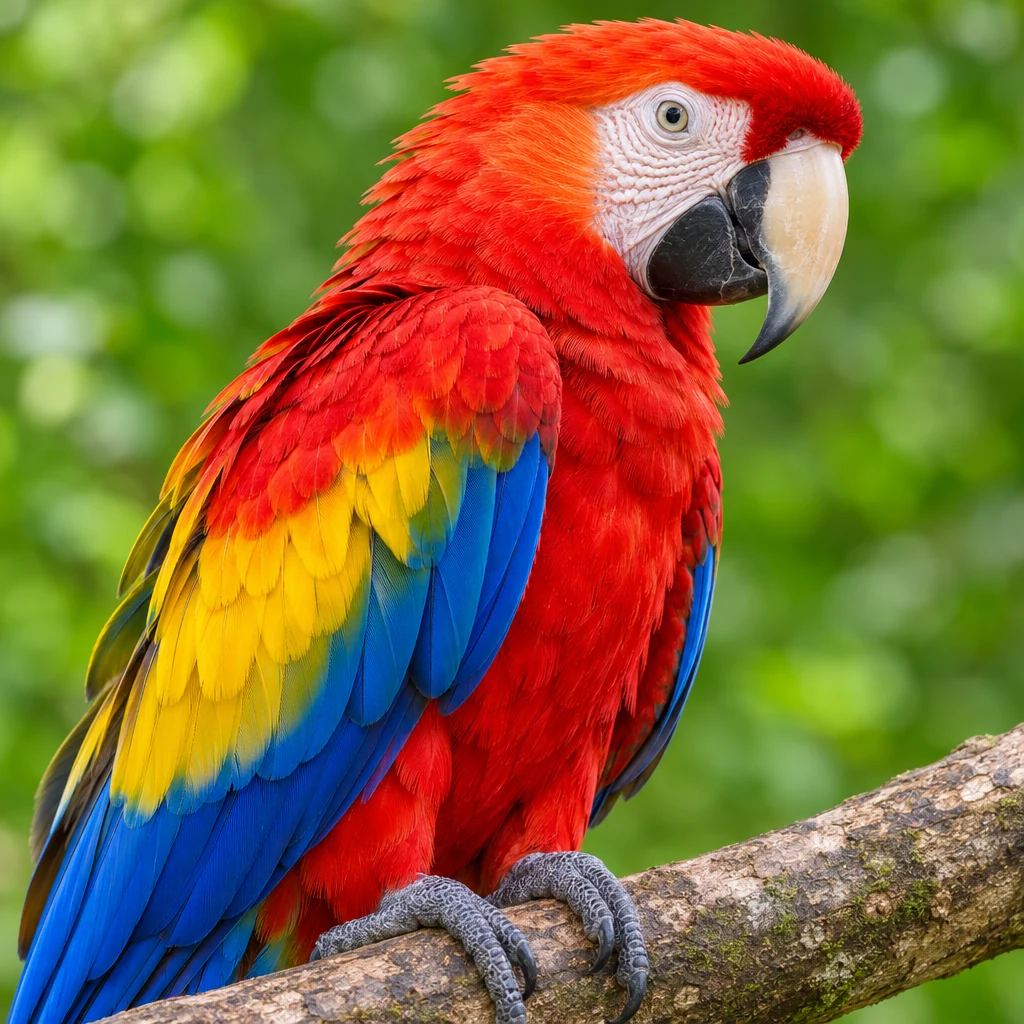
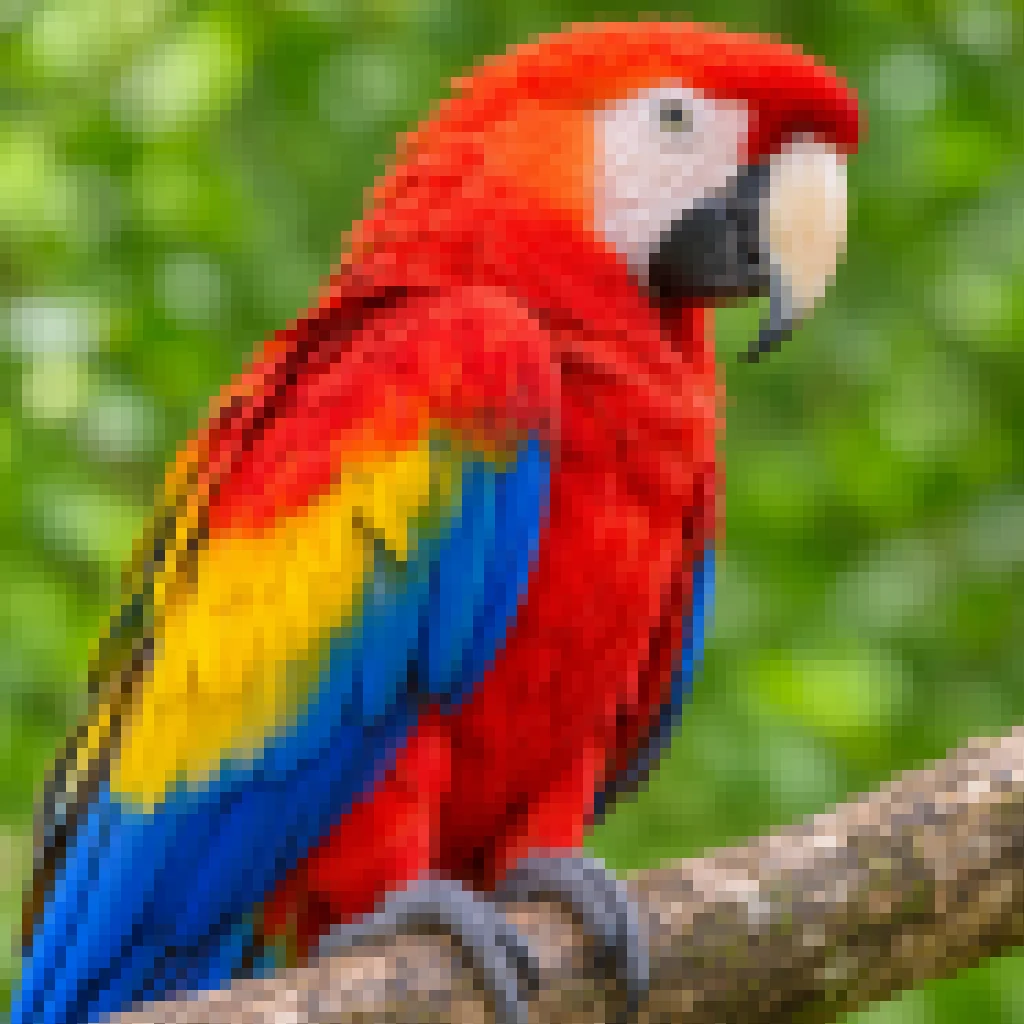
Whole picture with Pixelate turns the photo into large blocks of color.
Three steps to pixelate an image, all in your browser.
Drop a photo or a screenshot, choose a file or paste one from your clipboard. PNG, JPG, WebP, GIF, BMP and AVIF all work, up to 40 megapixels.
Press Find faces, or drag a box or an oval over a face, a name or a plate. Paint with the brush for odd shapes, or pick Whole picture. Each area gets its own effect: Pixelate, Blur or Solid.
Pick PNG, JPG or WebP and download. The file keeps the picture's full size, and it is written anew, so location and camera data stay out of it.
When you pixelate an image here, it hides exactly what you mark, as strongly as it needs, and keeps the rest of the picture untouched.
OriginalFind faces looks through the whole picture, small faces in a group shot included, and covers each one with an oval you can move, resize or delete.
The effect scales with what it covers, so a small face in the background is hidden as well as a large one in front. One slider, the same result at any picture size.
OriginalNames, numbers and passwords get a solid box in black, white or any color. Nothing of the original is left under it, which is the safest way to hide text.
OriginalDrag a box over a plate, an oval over a face, paint a logo with the brush, or pixelate an image from edge to edge. Every area keeps its own effect and strength.
OriginalPixelate or blur the whole picture, then mark what should stay clear with Keep sharp. The subject stays crisp and everything around it is hidden.
The picture is edited on your device and never uploaded, even when faces are found. The download is a new flat file with no layers, no history and no location data.
A few habits that hide the right thing the first time you pixelate an image.
For a face, a tattoo or a logo, Pixelate or Blur looks natural and hides who or what it is. For anything a person could read, such as a name, an address, a number or a password, choose Solid: a flat cover leaves nothing behind.
Draw the area slightly larger than the face or the line of text. Hairlines, the edge of a card or the last digits of a number give away more than you expect, and a wider cover costs nothing.
The stronger the setting, the fewer and larger the blocks. Keep the slider at 80% or higher when you pixelate image areas with faces, and zoom in to check that eyes and mouth are no longer shapes of their own.
Before you pixelate image areas, look for what sits in the background: a second face, a screen, a street sign, a badge, a reflection in a window. Add an area for each one, and hold Original to compare before you download.
The downloaded file is flat and carries no location or camera data, so it is the one to post or send. Keep the original somewhere private, and delete it from chats and shared folders.
Anyone who shares a picture and wants to keep part of it private can pixelate an image here in seconds.
Hide names, emails, account numbers and addresses before a screenshot goes into a chat, a ticket or a post.
Cover the faces of children, bystanders or clients who should stay private, and keep everyone else in the shot.
Cover a licence plate or a house number in a sale listing, a review or a forum post.
Pixelate spoilers, answers, brand logos or anything else that should not be read at first glance.
Answers about areas, effects, privacy and files.
Open the picture, choose Box, Oval or Brush, and drag or paint over the part to hide. It is pixelated at once, and you can move it, resize it, change its strength or switch it to Blur or Solid. Then download the result.
Yes. This image pixelator is free, with no sign-up, no watermark and no daily limit. It runs in your browser, so there is nothing to install.
No. The picture is opened, edited and saved on your own device. Finding faces also happens in your browser, so nothing is sent to a server.
Use Pixelate or Blur for faces, logos and backgrounds, where the picture should still look natural. Use Solid for text, numbers and codes: a flat cover keeps nothing of what is under it, so it is the right choice for anything that must stay unreadable.
Yes. Press Find faces and every face it sees gets an oval, including small ones in a group photo. You can move, resize or delete each oval, and add your own for a face seen from the side or partly hidden.
Yes. The file has the same pixel size as your picture, up to 40 megapixels on a computer and 16 on a phone, and only the areas you marked are changed. Save it as PNG, JPG or WebP.
Yes. The download is written as a new file, so the location, camera and date data stored in the original are not in it.
Yes. Choose Whole picture to pixelate or blur everything, then draw an area and set its effect to Keep sharp. That part stays exactly as it was.
Open a picture, mark what to hide and download it in seconds. Pixelate image areas free in your browser.
Open a picture