 Before → After
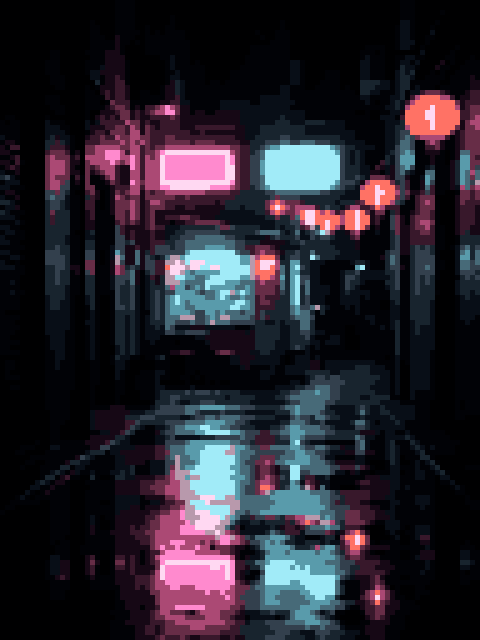
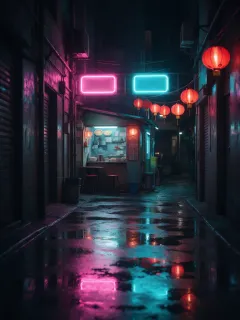
Neon alley at night
96 × 128 px · 16 colors
96 pixels wide holds the signs, the lanterns and their reflections.
This photo to pixel art converter shrinks your picture to a small grid, reduces it to a limited palette and can add dithering, all in your browser. Results appear at once; download a crisp PNG or a layered PSD. Free, no sign-up, nothing uploaded.
No photo at hand? Try one:
Add a picture, set the look, download. Changes update live.
Drop, choose or paste a JPG, PNG, WebP or GIF up to 50 MB.
Set the width (64 pixels by default), palette, edges and dithering. Drag the slider to compare.
Save a crisp PNG at real size or scaled up, a layered PSD, or the palette.
Six original photos run through this photo to pixel art converter. Open one to get the same result.
Before → After96 × 128 px · 16 colors
96 pixels wide holds the signs, the lanterns and their reflections.
 Before → After
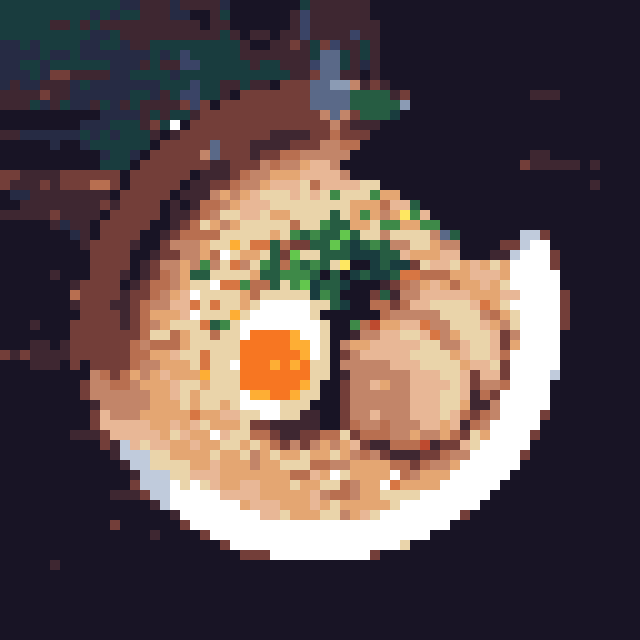
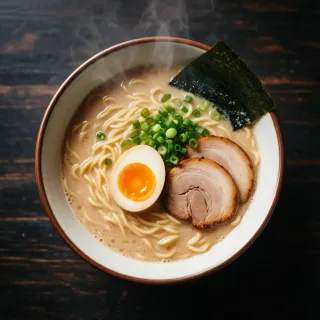
64 × 64 px · 23 colors
The Endesga 32 palette with Sharp edges: crisp noodles, a bright yolk.
 Before → After
64 × 48 px · 8 colors
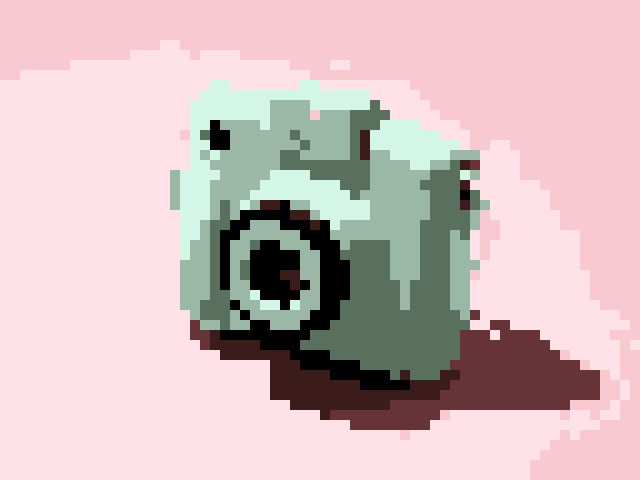
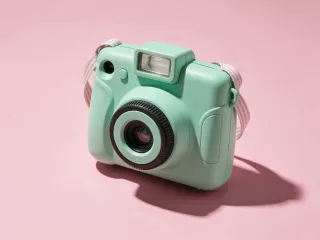
Only 8 colors and Sharp edges give a clean, icon-like product shot.
 Before → After
64 × 85 px · 24 colors
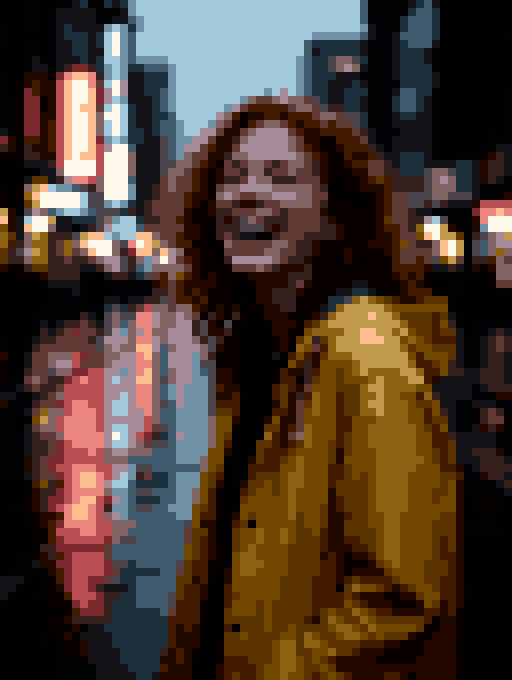
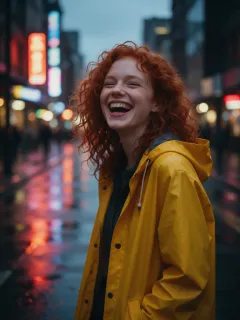
24 automatic colors keep the skin tones apart from the neon.
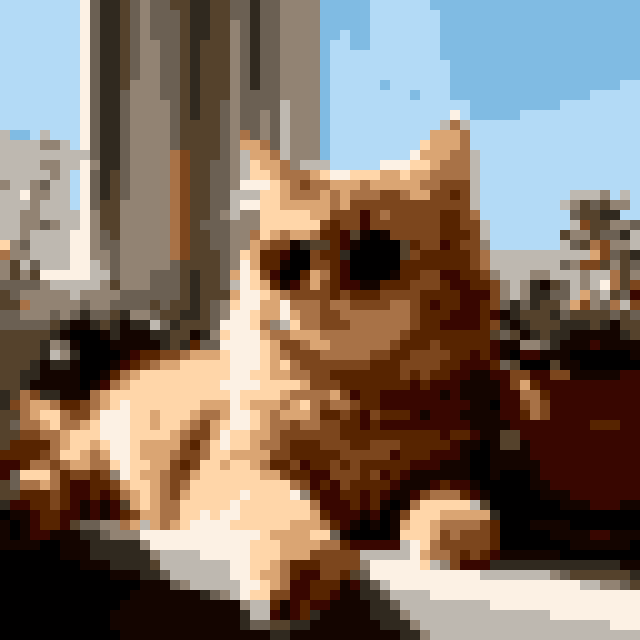
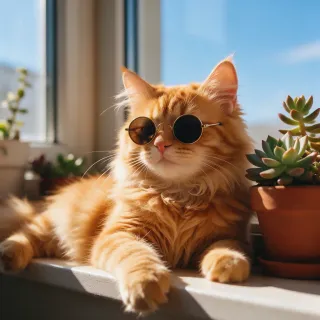 Before → After
64 × 64 px · 16 colors
The default settings: 64 pixels wide, 16 colors from the photo.
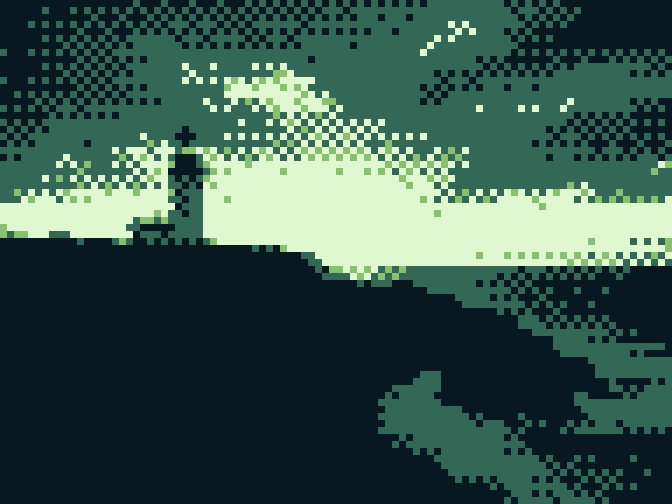
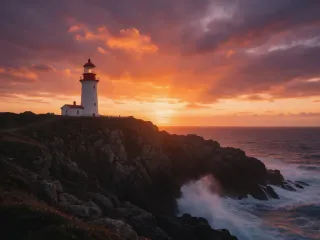 Before → After
96 × 72 px · 4 colors
A Game Boy style palette of 4 shades, with ordered dithering in the sky.
Before → After96 × 128 px · 16 colors
96 pixels wide holds the signs, the lanterns and their reflections.
Before → After64 × 48 px · 8 colors
Only 8 colors and Sharp edges give a clean, icon-like product shot.
Before → After64 × 85 px · 24 colors
24 automatic colors keep the skin tones apart from the neon.
Before → After96 × 72 px · 4 colors
A Game Boy style palette of 4 shades, with ordered dithering in the sky.
Before → After64 × 64 px · 16 colors
The default settings: 64 pixels wide, 16 colors from the photo.
Before → After64 × 64 px · 23 colors
The Endesga 32 palette with Sharp edges: crisp noodles, a bright yolk.
Every pixel comes from your photo; nothing is redrawn.
Tip: start at 64 pixels wide and 16 colors; go smaller for icons.
Good results by default, and files you can keep editing.
64 pixels wide, 16 colors from your photo and Auto levels on: even dark photos stay recognizable.
Layers named by hex code and pixel count, an outline layer, and the original hidden below.
The automatic palette is chosen in OKLab, a perceptual color space, closer to what eyes see than RGB.
Each pixel is fully transparent or solid, ready for game engines, with an optional 1-pixel outline.
PICO-8, Game Boy, NES, CGA and C64 style palettes, Sweetie 16 and more, plus three dithering styles.
No sign-up, no watermark, no usage limit. Your image is processed on your device and never uploaded.
How the conversion works and how to tune it.
Four steps run in your browser. The photo shrinks to a grid: Smooth takes each cell's average color, Sharp its most common one. Colors are reduced to a palette, matched in OKLab, with optional dithering. Then the image is scaled up by whole numbers with nearest neighbor, so every pixel stays a crisp square.
Width shapes the look most. 32 pixels wide gives a bold, icon-like result; 64, the default, keeps a face or pet readable; 96 to 128 hold a detailed scene. Sprites and icons are often 16×16, 32×32 or 64×64. The output size, such as 64 × 36, shows with the preview.
Fewer colors look more like pixel art. A Game Boy style palette has 4 shades; PICO-8 and C64 style palettes have 16. For photos, 8 to 16 automatic colors keep the subject and look hand-made; use 32 or more for skin and skies. Export the palette as .gpl, .hex or .aco.
Dithering mixes two palette colors in a pattern to suggest a missing shade. Off, the default, keeps areas flat and clean. Ordered uses a Bayer 4×4 pattern, the regular dots of classic pixel art. Floyd-Steinberg gives the smoothest photos and gradients; Atkinson, stronger contrast. Lower the strength if it looks noisy.
Save pixel art as PNG: it is lossless, so each block stays one exact color, while JPEG compression adds stray colors at block edges. Download real size for a game engine, or 2× to 32× for sharing, scaled with nearest neighbor. No Photoshop? Open the layered PSD in the free PSD viewer.
A few ways to use this pixel art converter.
Reference photos become sprites with clean transparency, an outline and a reusable palette.
A retro portrait of you or your pet for Discord, Twitch or a game profile.
A pet or favorite place as pixel art, scaled up sharply for print.
Retro visuals for posts and merch, with each color on its own PSD layer.
Price, privacy, size, colors, formats and AI.
Drop a photo, pick a size and palette, and download a PNG or PSD. Free, nothing uploaded.