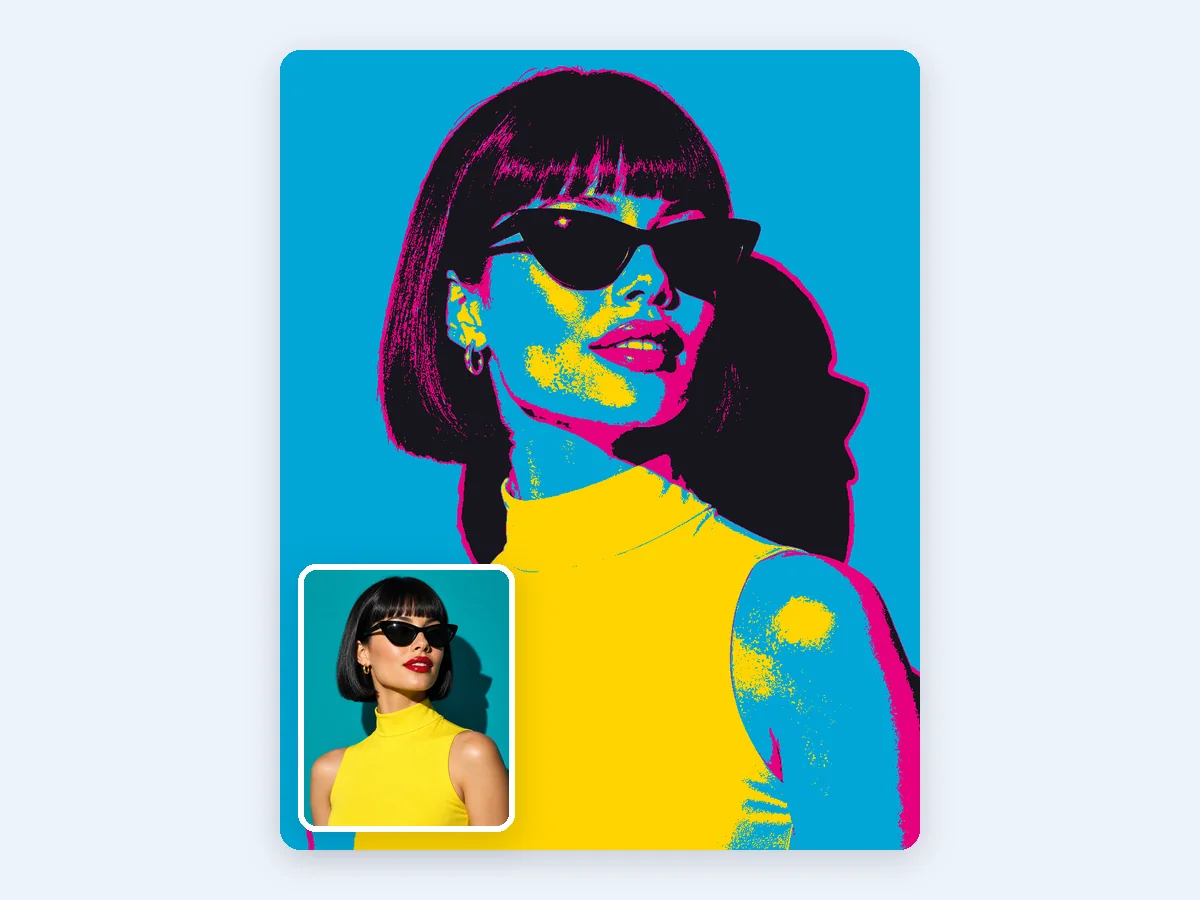
Pop art portrait
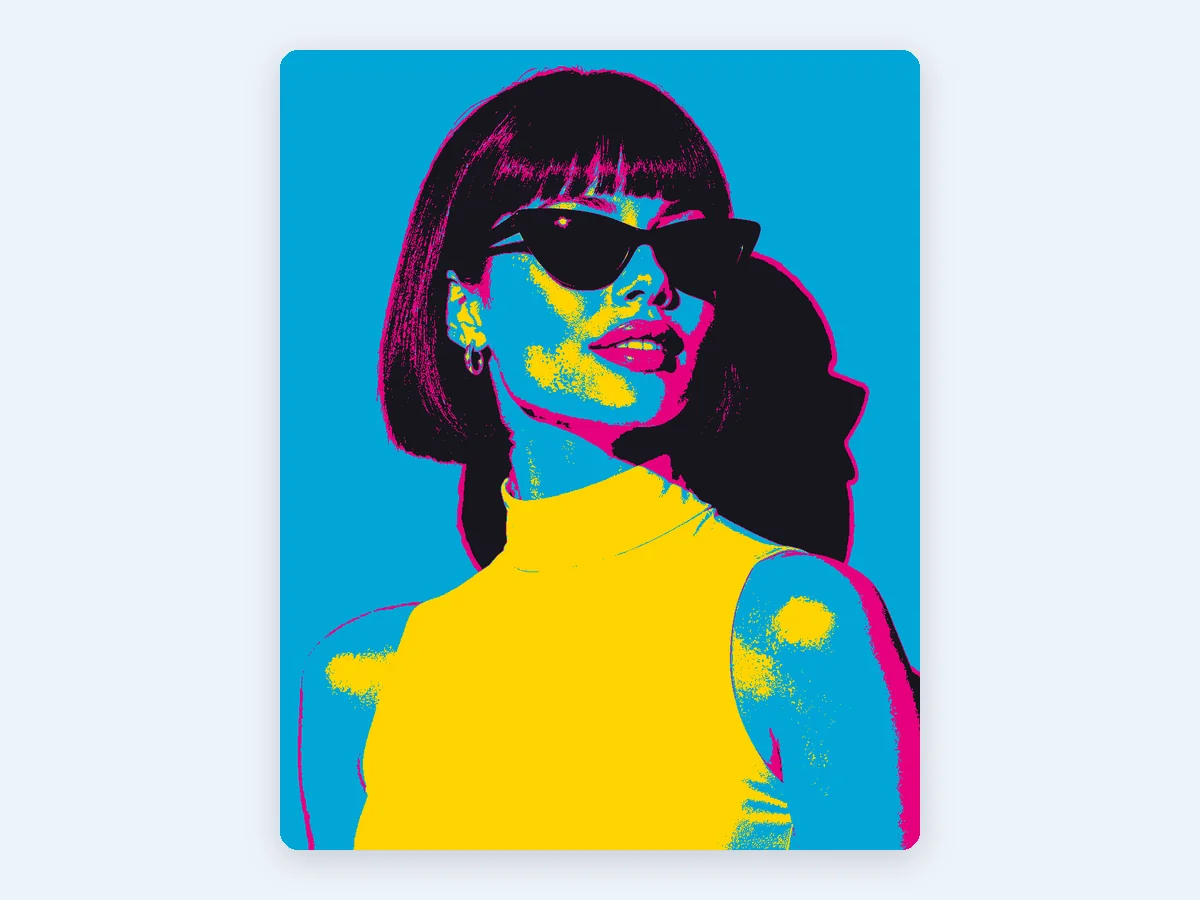
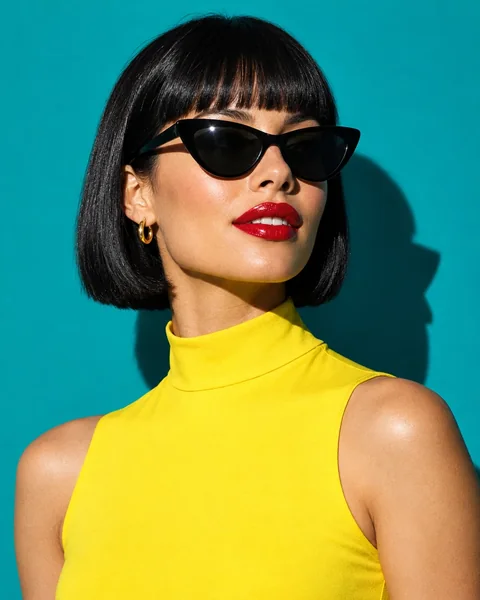
Four levels, the classic posterize effect, mapped to a pop color scheme: red lips and cat-eye sunglasses become flat blocks of bright color on cyan.
Posterize an image in seconds and turn any photo into a few bold, flat colors, like a screen-printed poster. Choose levels per channel or an exact number of colors, free in your browser.
Or try one of these
Eight original photos, each posterized with the settings that suit it, from pop art and travel posters to a stencil ready to cut. Open one to load the same photo and settings, then make it your own.
Four levels, the classic posterize effect, mapped to a pop color scheme: red lips and cat-eye sunglasses become flat blocks of bright color on cyan.
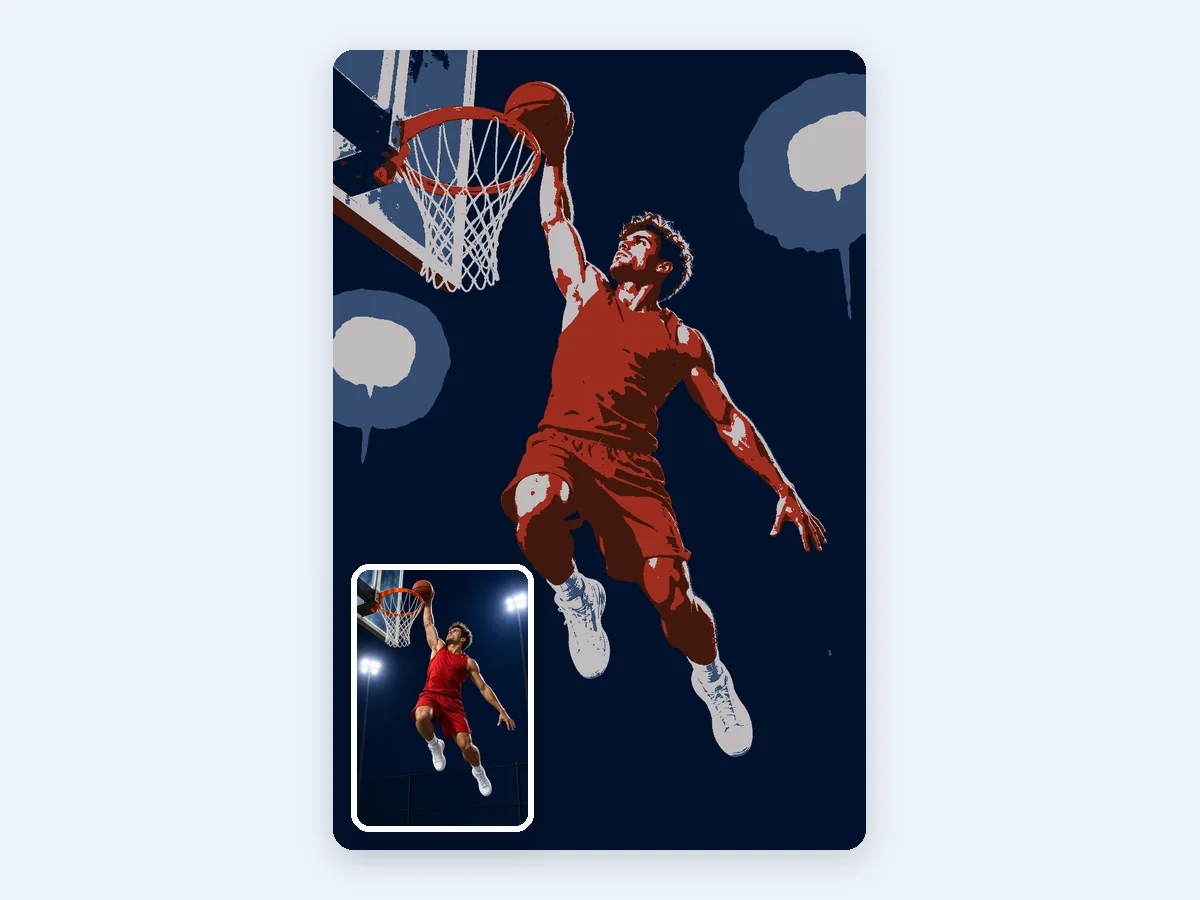
In basketball, to posterize someone is to dunk over them. Here the dunk becomes a real poster: exactly 5 colors with smoothing, so the arena lights turn into clean, flat shapes.
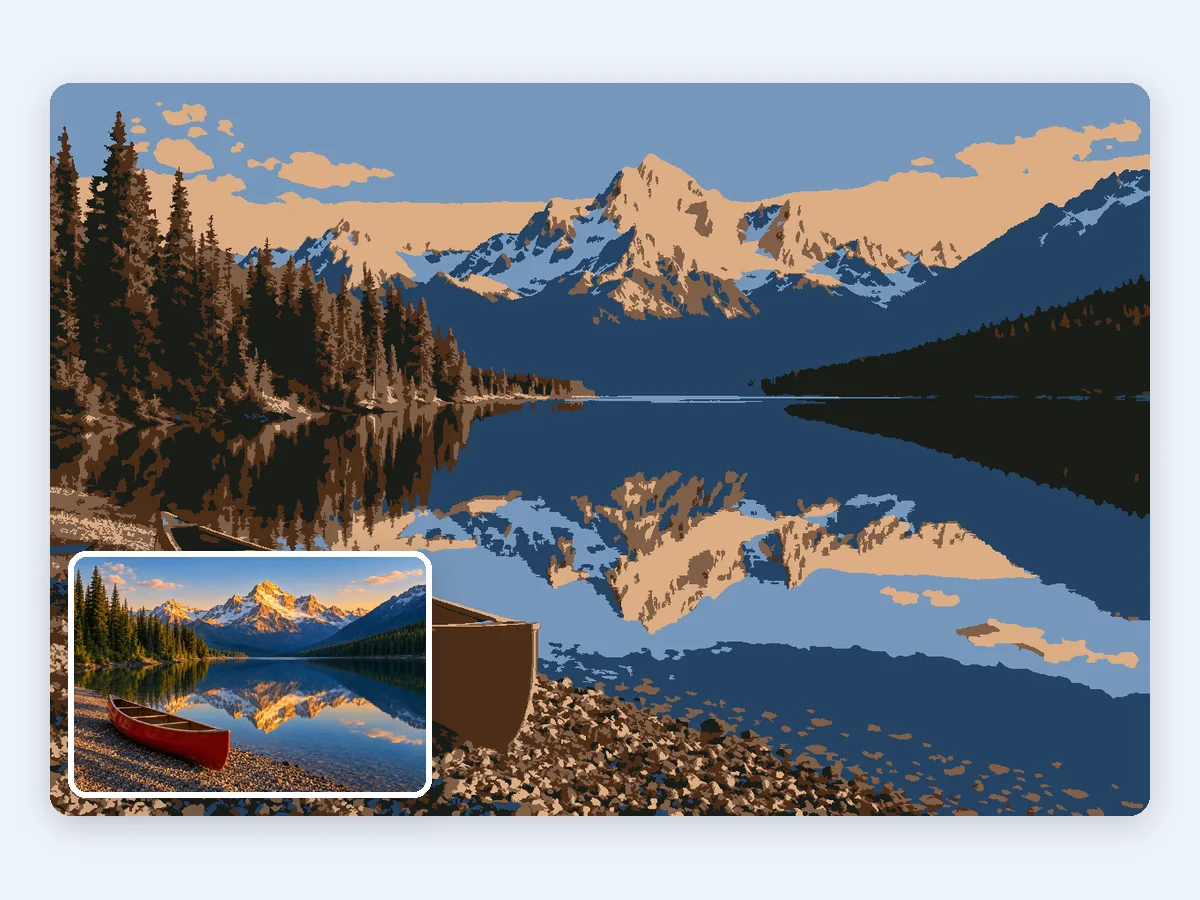
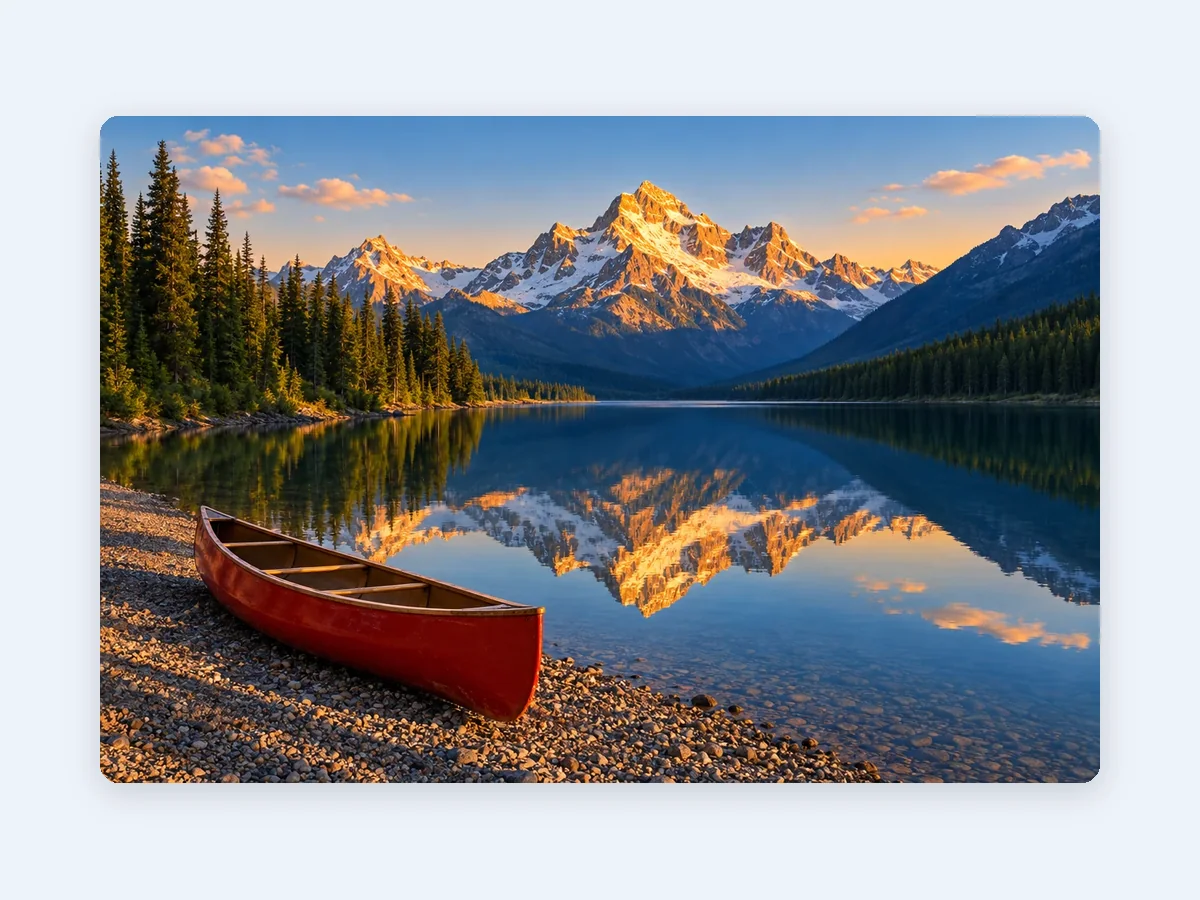
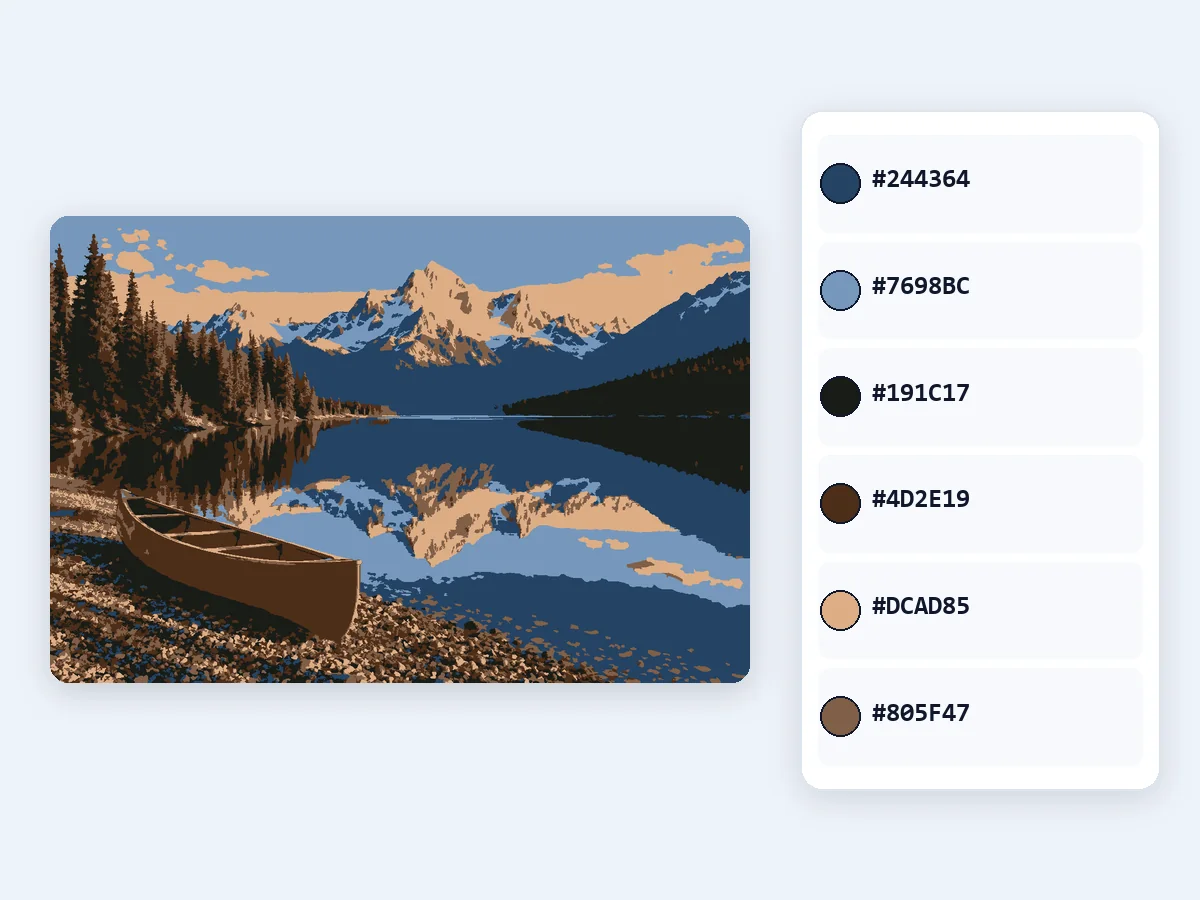
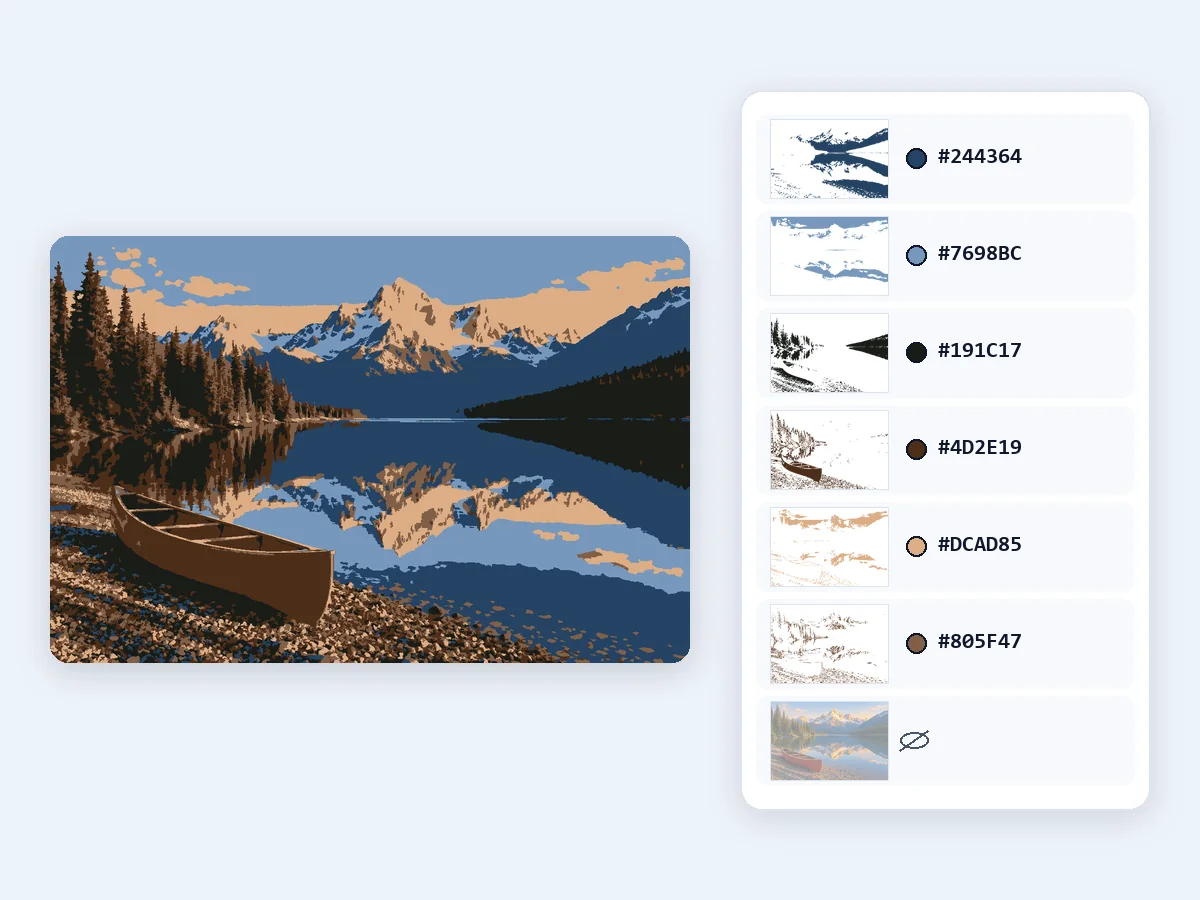
Pines, a canoe and the mountains at dusk in 6 flat colors: the look of a vintage national park poster, ready to frame.
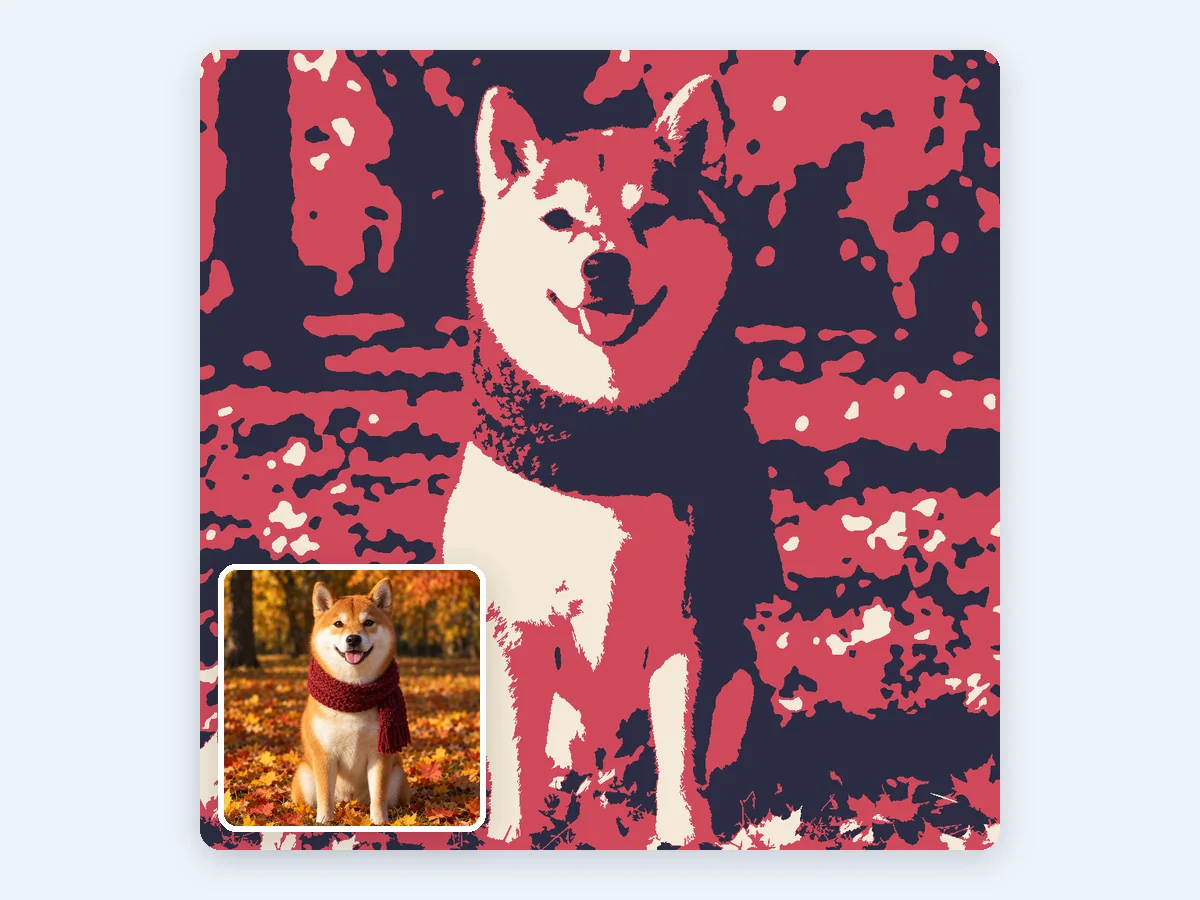
Three custom colors chosen as brand colors, so the pet portrait prints the same on a mug, a tote bag or a T-shirt.
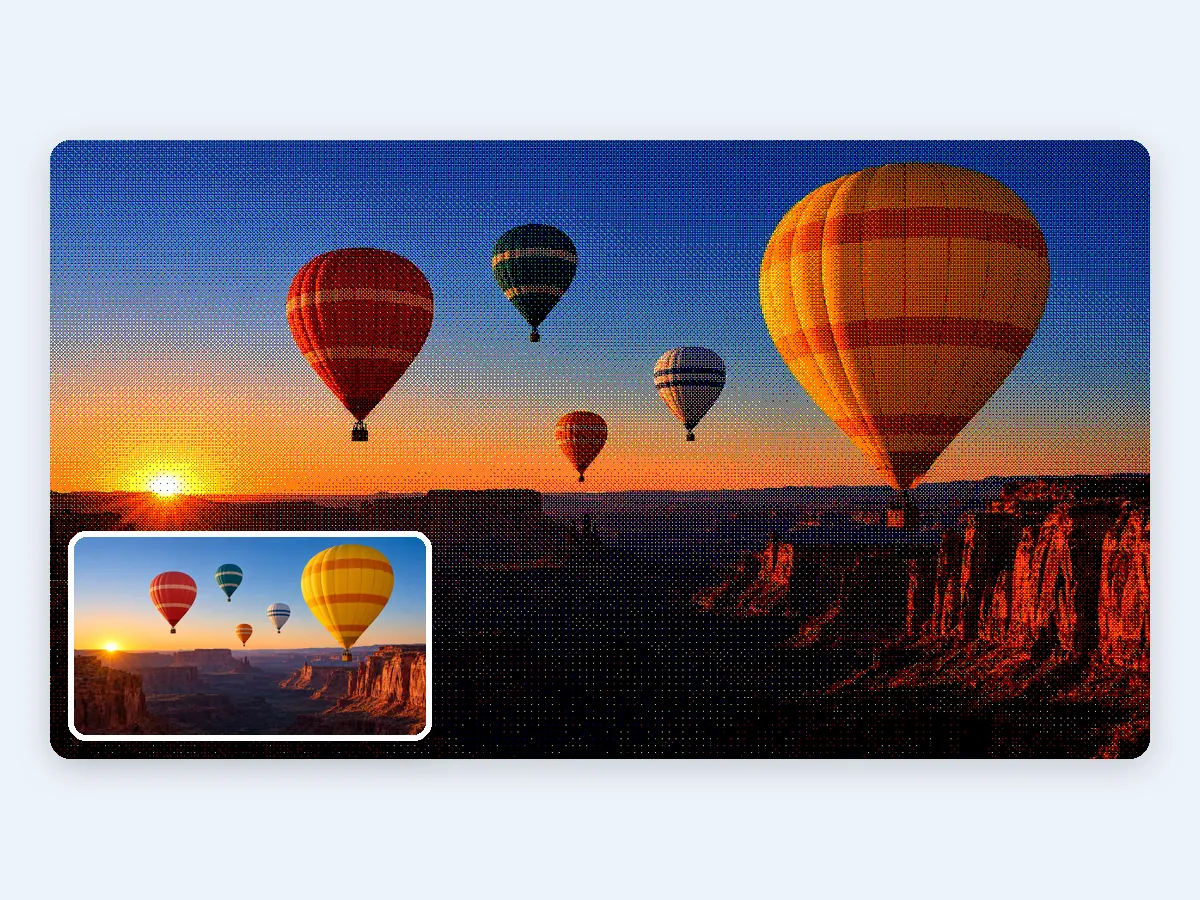
Levels with ordered dithering: a fine grid of dots keeps the sunrise gradient and gives the posterized photo a retro print look.
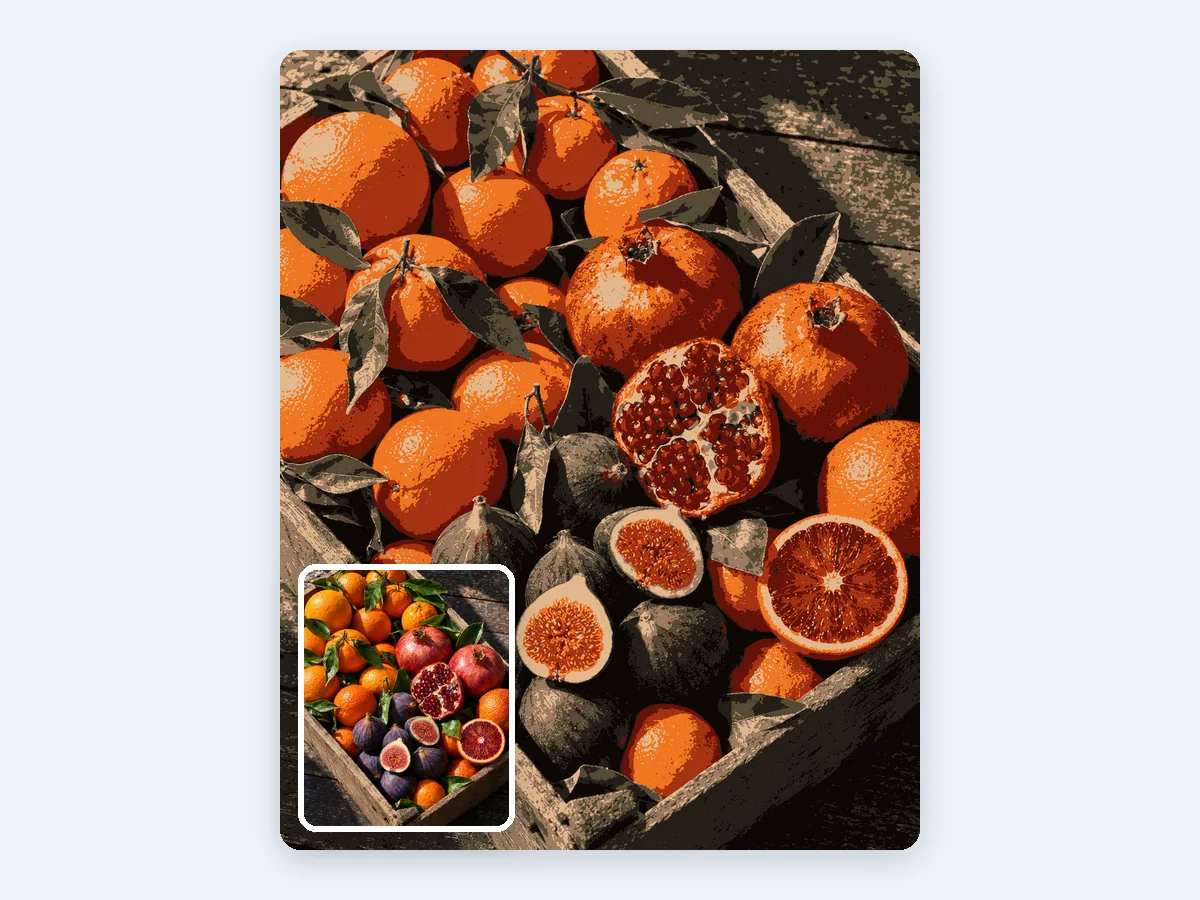
Citrus, pomegranates and figs in exactly 8 colors, with the palette exported as HEX codes and an ACO swatch file for the next design.
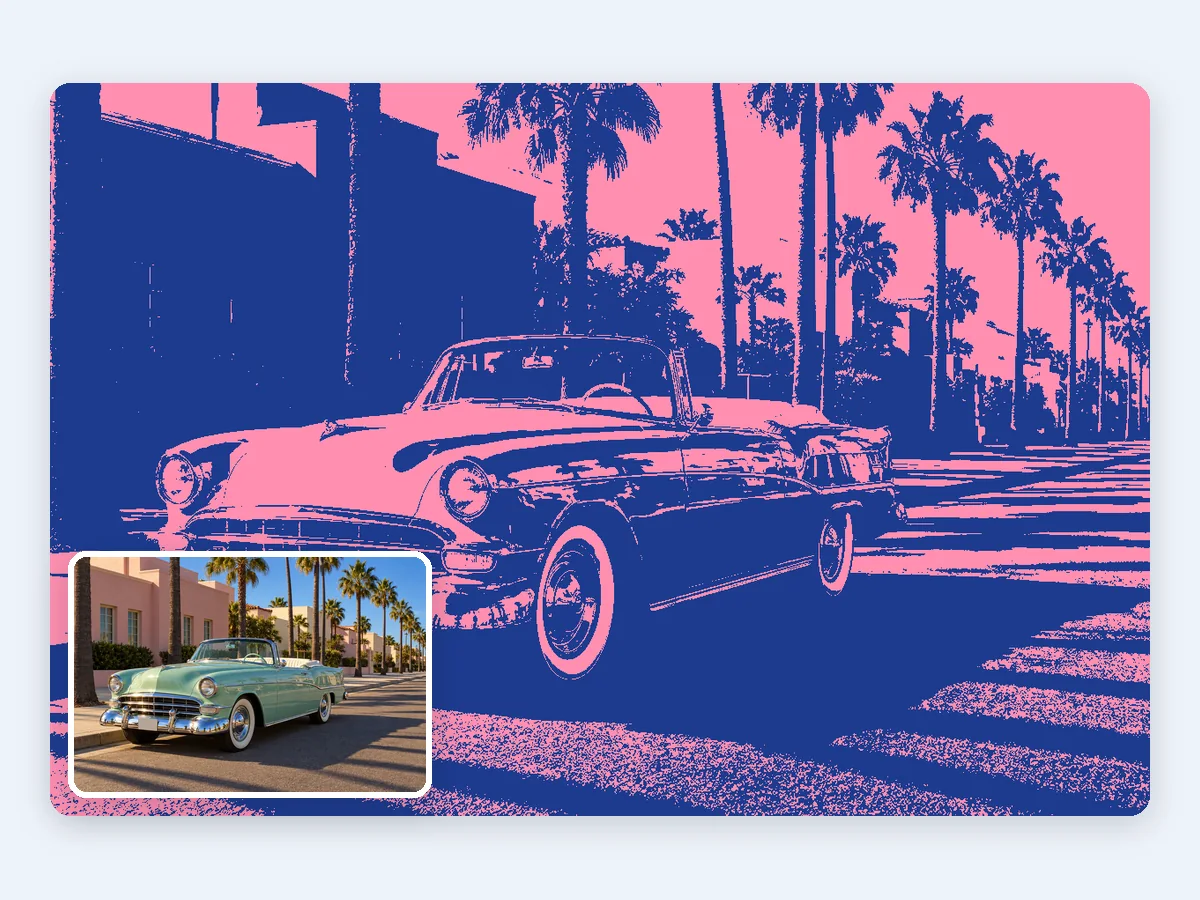
A pink and blue duotone, sent straight to color separation for two screen printing films, one per ink.
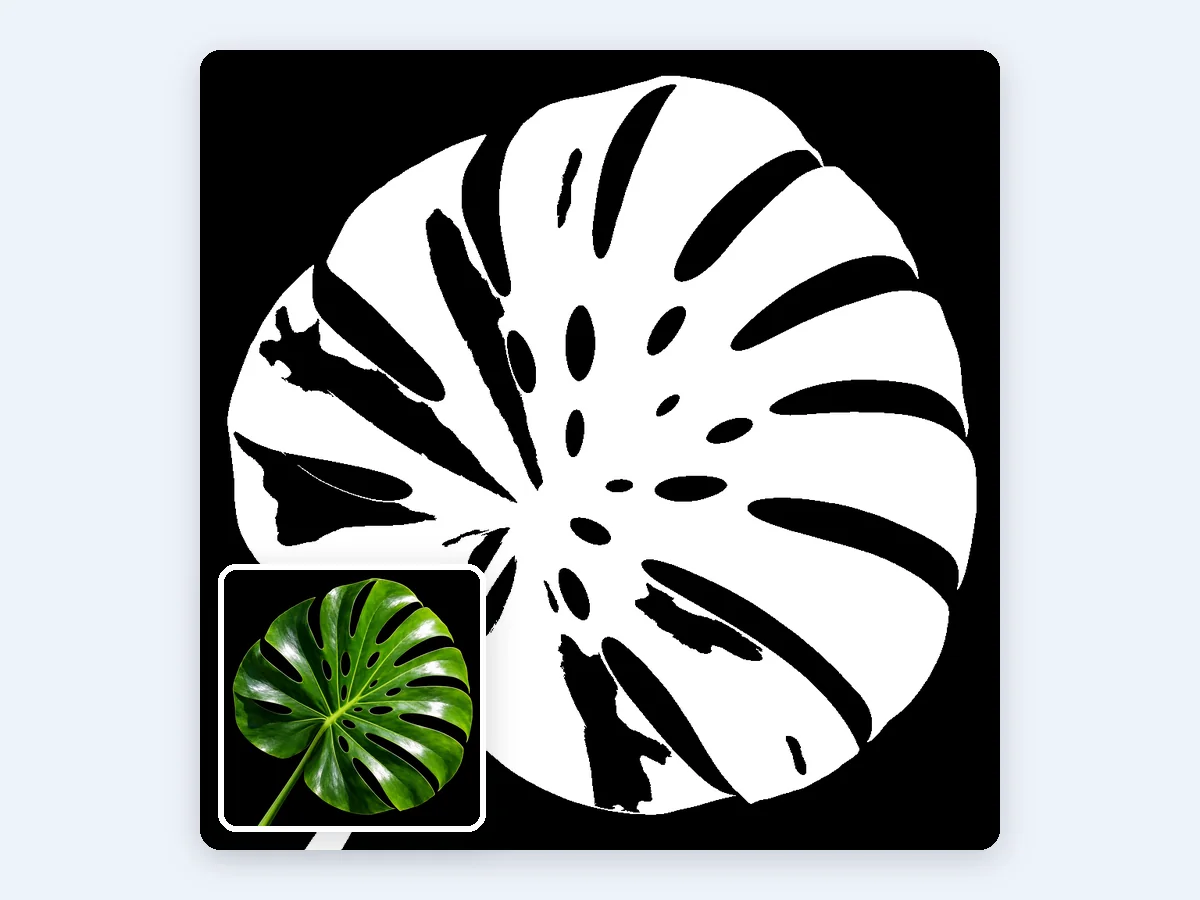
Exactly two colors in black and white make a crisp stencil, ready for PNG to SVG and a cutting machine.
Add a photo, choose levels or colors, download. Every change shows in the preview before you save.
Drop, paste or choose a PNG, JPG or WebP. The photo opens at full size right in your browser, and nothing is uploaded.
Start from a preset, such as Poster with 4 levels or Flat with 6 colors, or set 2 to 255 levels per channel or exactly 2 to 256 colors. Add smoothing, dithering or a color scheme when you want them.
Save a PNG, a JPG on the background color you pick, a lossless WebP or a layered PSD with one layer per color, all at the original size. PNG, JPG and PSD also keep the original DPI.
Five things that make the posterize effect easy to control, from the first preset to the file you print.
 Original
Levels mode gives each color channel 2 to 255 levels, the same split desktop photo editors use, so 4 levels give up to 64 colors and 2 levels up to 8. Colors mode picks exactly 2 to 256 colors from the photo itself, so the result keeps the colors that matter. Switch between the two with one tap.
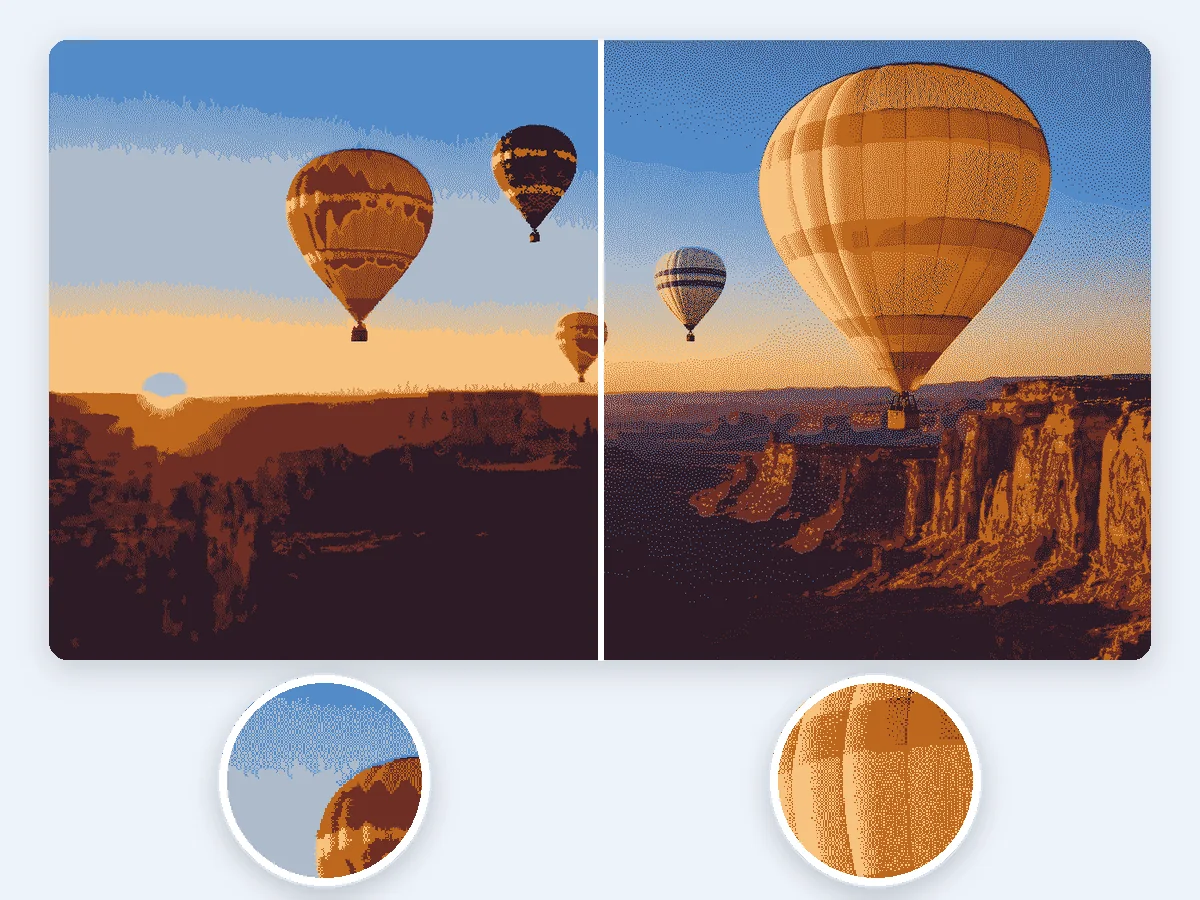
Smoothing evens out noise before you posterize the photo, and despeckle folds tiny specks into the color around them, so every area reads as one clean shape. For soft skies and skin, diffusion or ordered dithering mixes fine dots of the colors you have and keeps the gradient.
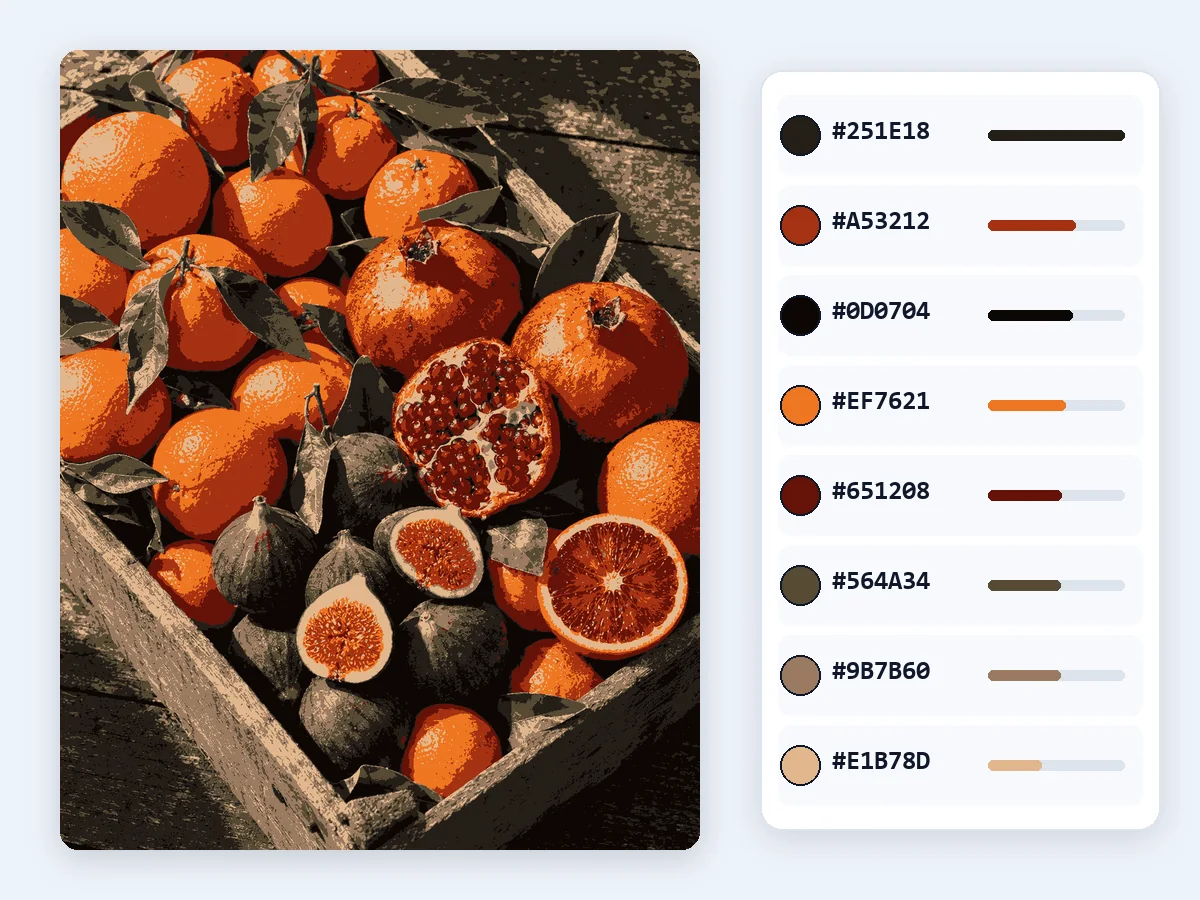
Use the eyedropper to keep a color you care about, recolor or merge colors in a click, and copy any HEX code. Apply a duotone, tritone or pop color scheme, or your own brand colors, then download the palette as a HEX list, a GPL palette for GIMP or an ACO swatch file for Photoshop.
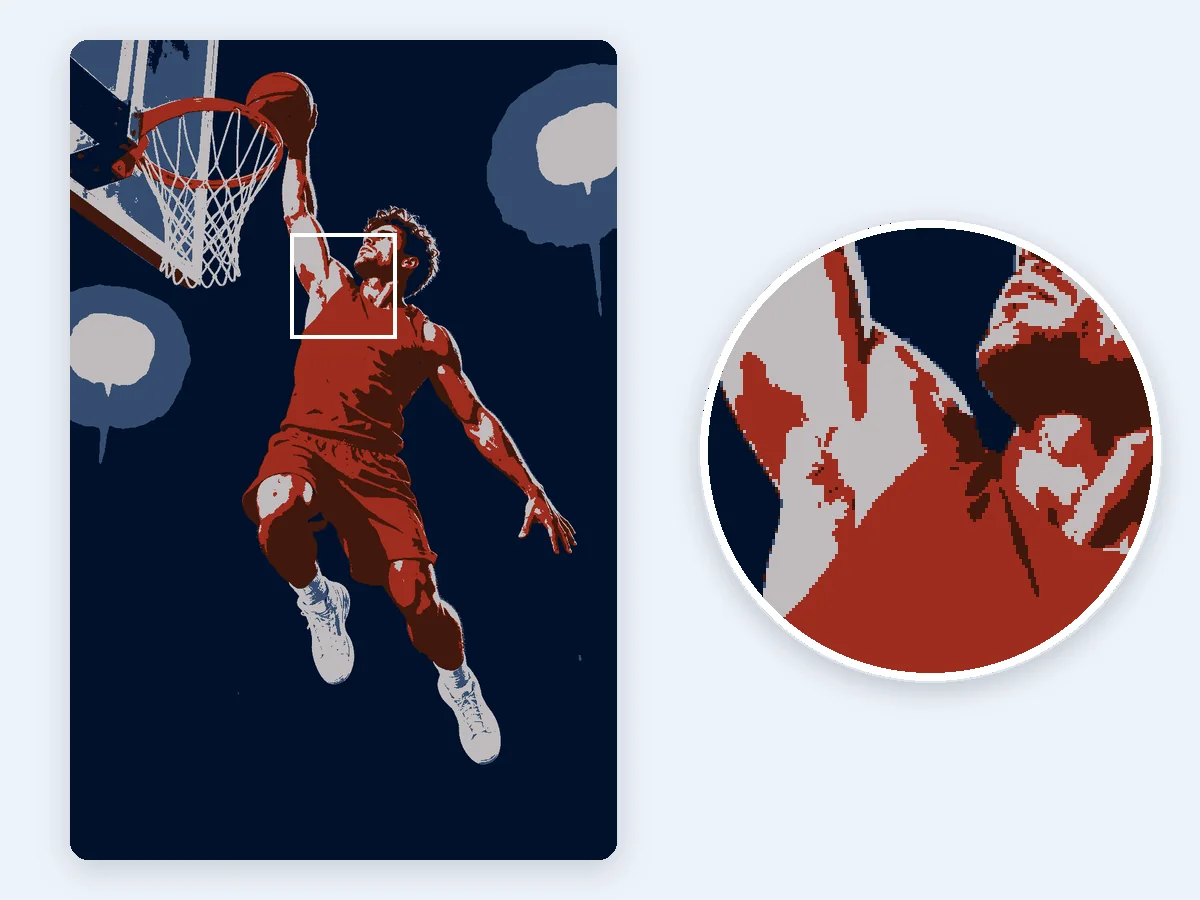
Large photos are posterized at full size in a few seconds, and the original DPI is kept, so a print comes out at the size you planned. Everything runs in your browser, with no sign-up and no watermark, and the photo is never uploaded.
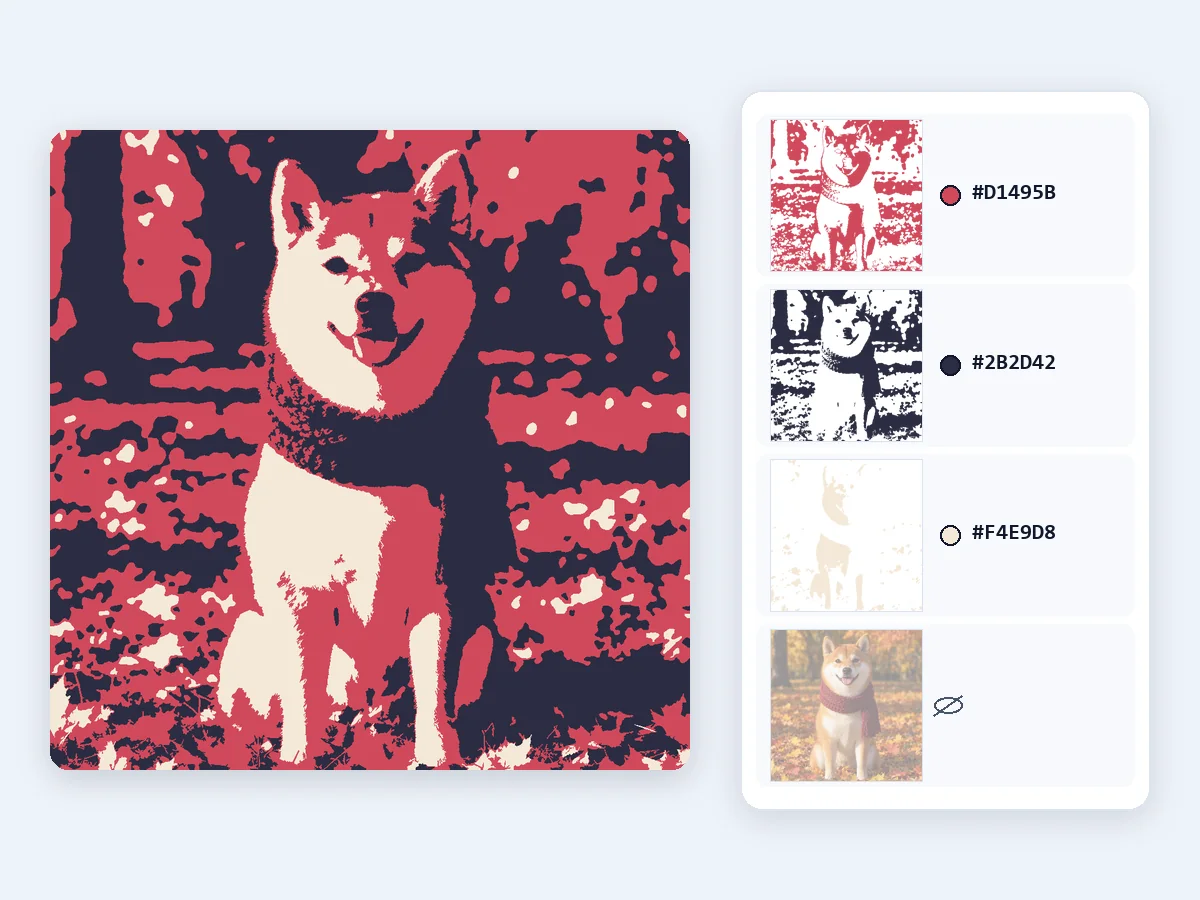
Download a layered PSD with one layer per color, ready for Photoshop or GIMP. Or send the posterized image on: to color separation for screen printing films, to PNG to SVG for a vector stencil, to photo to pixel art for game graphics, or to the image splitter to print a big poster on several pages.
How the posterize effect works, and the settings that give the best posterized photo for posters, pop art, stencils and print.
Posterization turns smooth gradations of tone into a few flat areas of color, with sharp steps between them. Used on purpose, it is the posterize effect: a photo that looks like a poster printed with a small set of inks. Seen by accident, it shows up as rings of banding in a smooth sky. To posterize an image here, you choose how many levels each color channel keeps, or how many colors the whole picture keeps, and the tool redraws every pixel with them.
Levels mode cuts each of red, green and blue into equal steps, the way desktop editors apply a posterize filter. The final colors come from combining the three channels, so N levels give up to N × N × N colors: 2 levels give 8 colors, 3 give 27 and 4 give 64. Colors mode works the other way round. It studies the photo and picks exactly the number of colors you ask for, so 6 colors means 6 colors. Choose levels for the classic posterize image look, and colors when you need a set number of inks, threads or swatches.
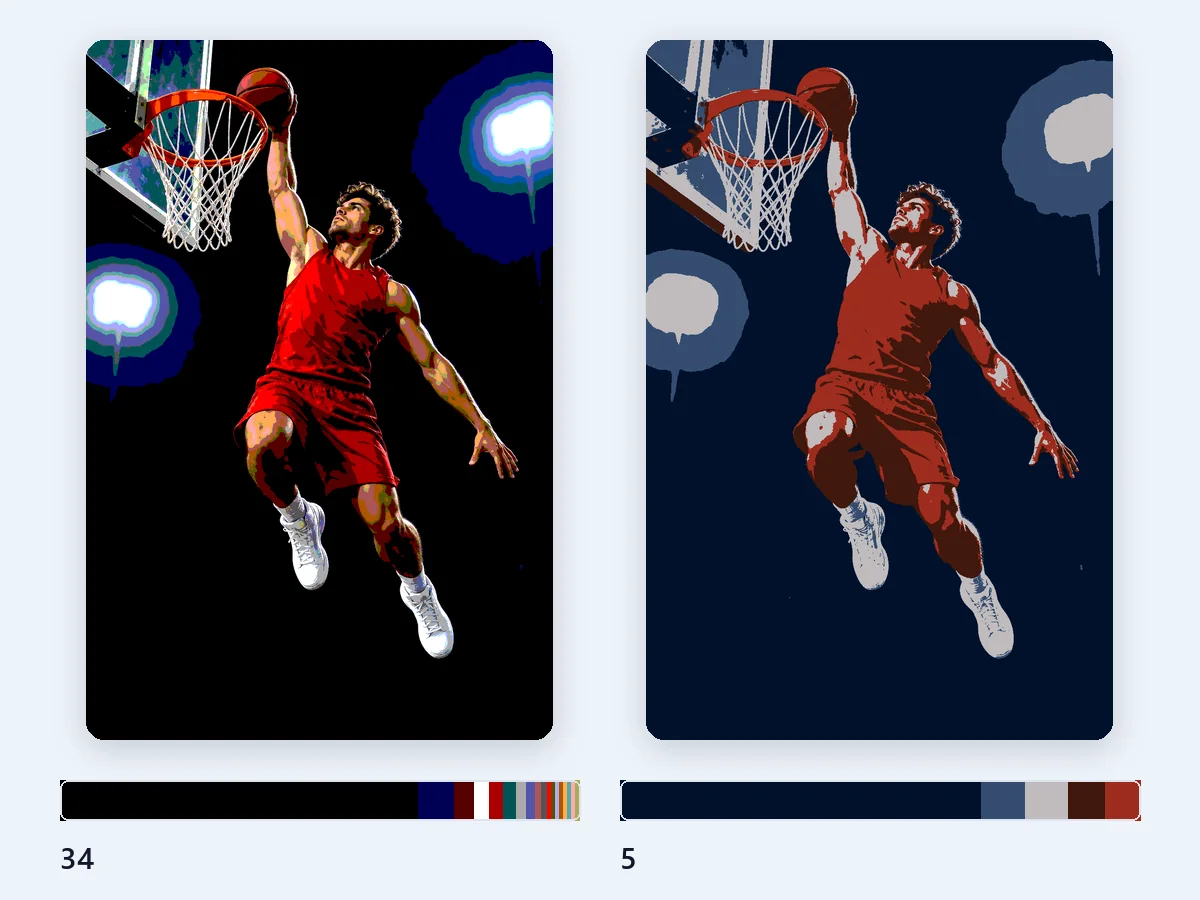
Between 2 and 6 levels give the boldest posterize effect, and 4 is a good start for portraits and posters. More levels stay closer to the photo, with softer bands. In colors mode, 2 to 4 colors suit stencils, logos and screen printing, 5 to 8 suit illustrations and travel posters, and 12 to 16 keep more detail in faces and food. The presets are quick starting points: Poster with 4 levels, Flat with 6 colors, Stencil with 2 levels in black and white, and Duotone with two colors of your choice.
Dithering places fine dots of the available colors side by side, so the eye mixes shades the palette leaves out. Keep it off for flat poster areas. Turn on diffusion when a sky, skin or a sunset should stay smooth, and set how strong it is. Ordered dithering, in levels mode, draws a regular grid of dots for a retro print or early computer look, a popular way to posterize photos for covers and social posts.
Photos carry noise and fine texture, and when you posterize a photo they can turn into confetti of tiny specks along the edges between colors. Smoothing evens out the noise before the image is posterized while it keeps edges sharp. Despeckle then removes the specks that are left by merging them into the color around them. Together they give clean, flat shapes that print, cut and trace well.
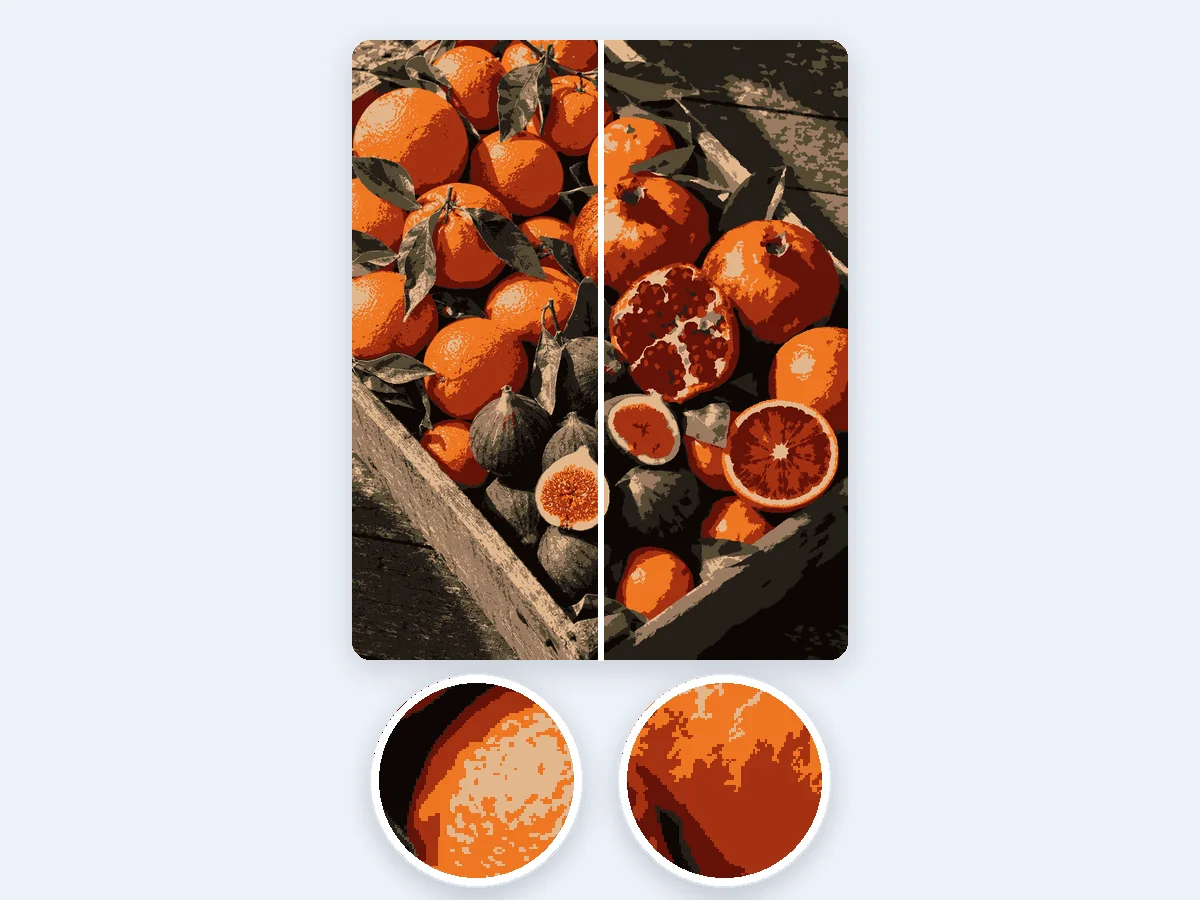
A color scheme replaces the tones of the picture, from dark to light, with colors you choose. Duotone uses two colors, tritone uses three, and pop uses bright, bold colors for a pop art portrait. With Your colors, you set every color yourself, such as your brand colors. The eyedropper keeps a color you want, and any color in the result can be changed or merged into another. Copy its HEX code, or download the whole palette as HEX, GPL or ACO.
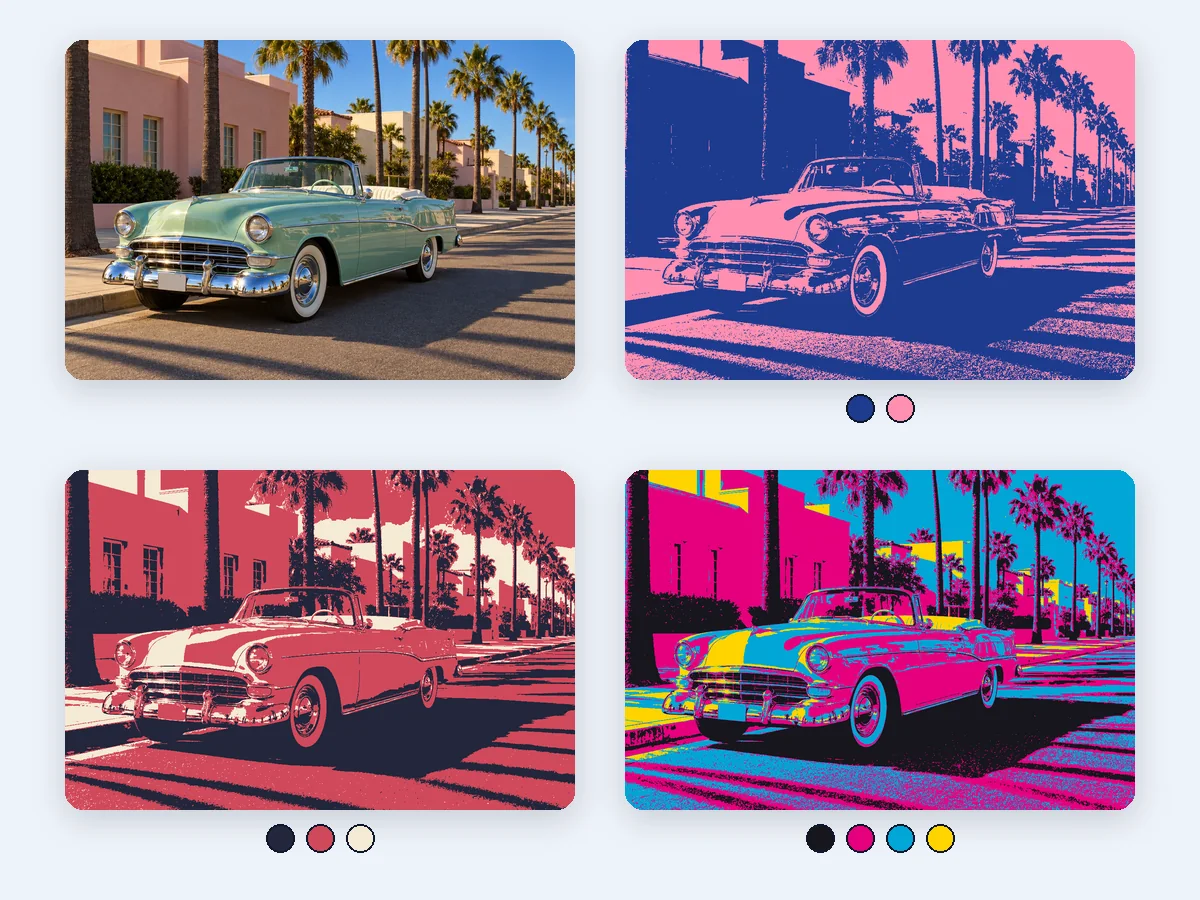
Transparent backgrounds stay transparent, and only the colors change. JPG has no transparency, so a JPG download is laid on a background color you pick, white by default. With 256 colors or fewer, the PNG is saved as an indexed PNG, which is often far smaller than a full color PNG. WebP is lossless, so flat areas stay crisp, and the layered PSD keeps every color on a layer of its own.
DPI is a note in the file that tells a printer how large to print, and it leaves the pixels as they are. This image posterizer keeps the DPI of your original, and every download has the full pixel size, so a posterized photo prints as large as the original allows. At 300 DPI, a 3600 × 5400 px photo prints at 12 × 18 inches. To print a poster bigger than your paper, open the result in the image splitter and print it across several pages.
Four everyday jobs for a free tool that can posterize any image in seconds.
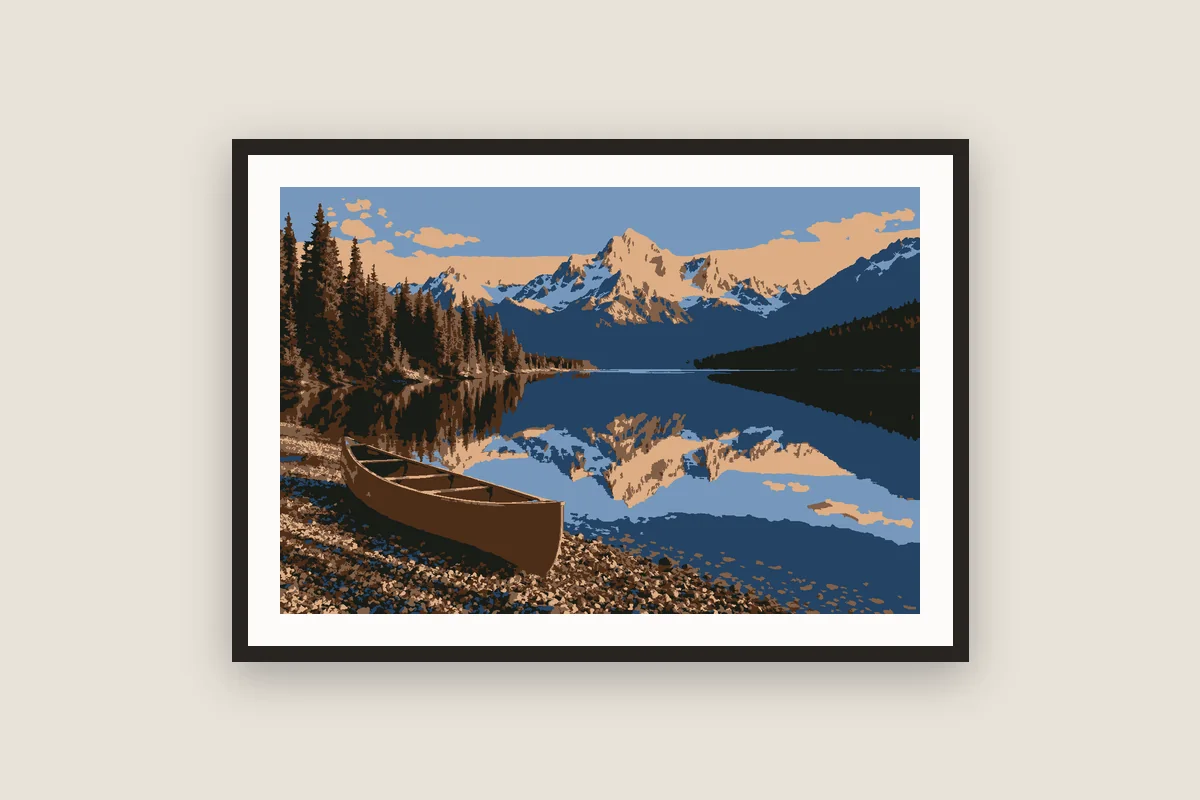
Posterize photos of trips, pets and people into prints with a few bold colors, ready to frame.
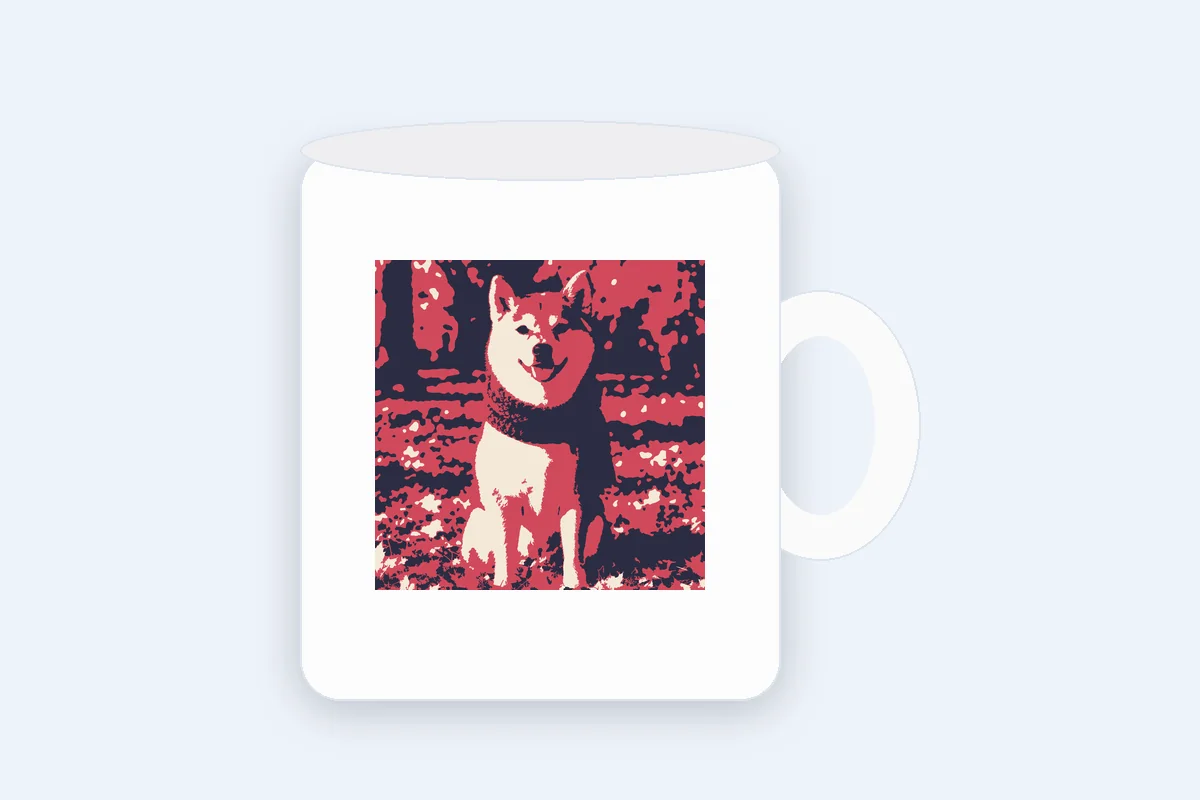
Posterize a selfie or a pet photo with a pop or duotone scheme for gifts, profile pictures and mugs.
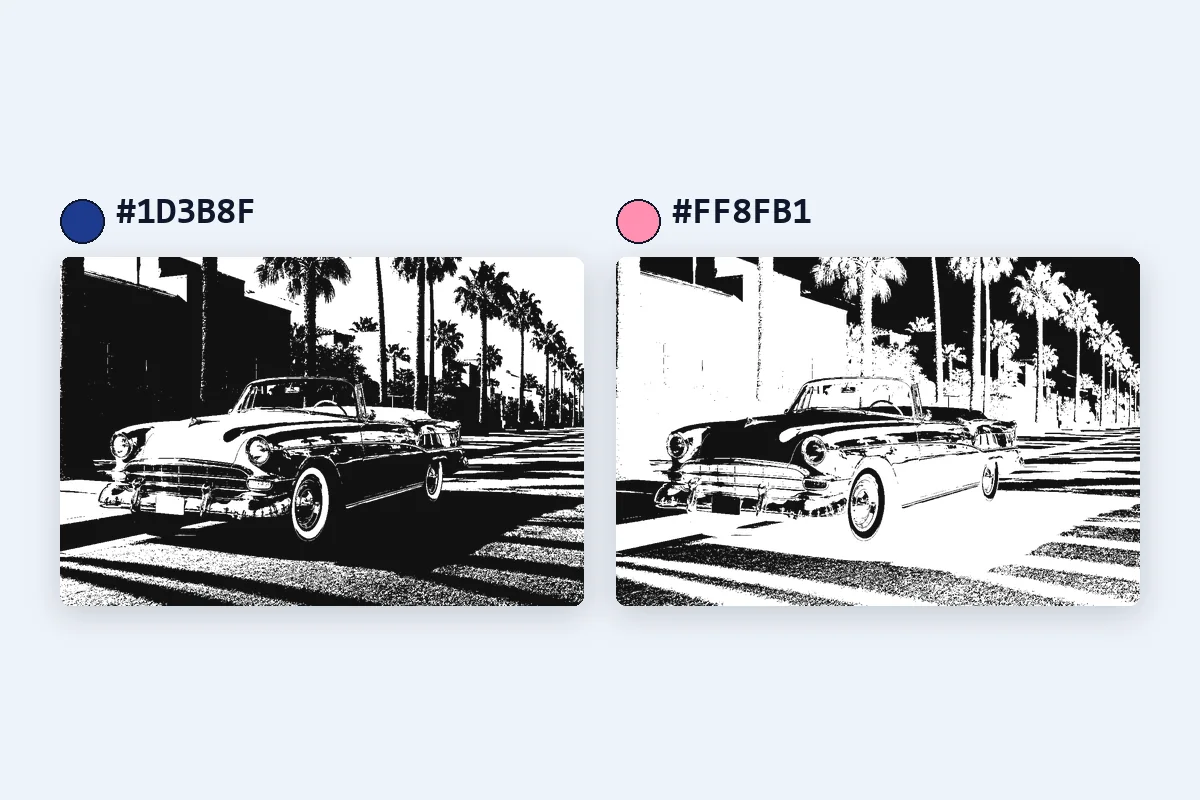
Bring a design down to a few colors, then send it to color separation for one film or layer per ink.
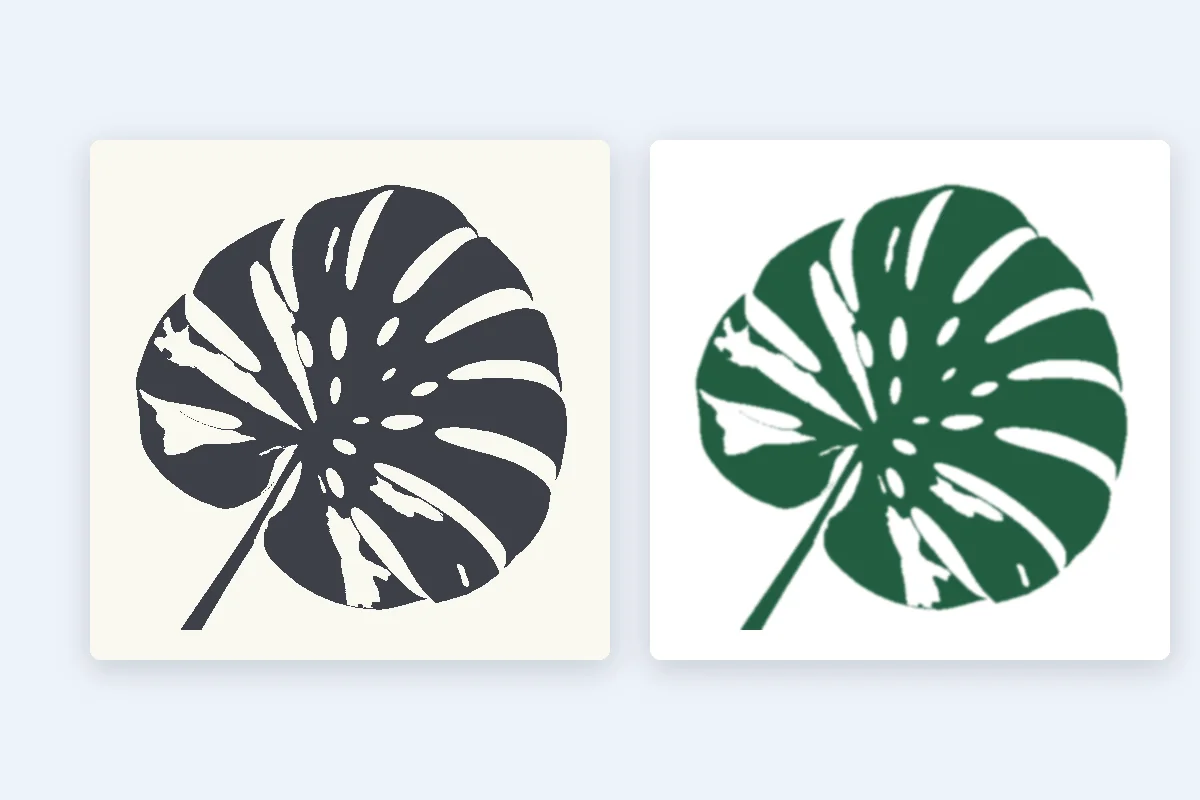
Two levels in black and white make a stencil, and PNG to SVG turns it into a vector for cutters and lasers.
Price, privacy, phones, levels and colors, transparency, posters and desktop editors.
Drop a photo, choose levels or colors, and download the posterized image at full size. Free in your browser, nothing uploaded.
Posterize image