
Camping badge
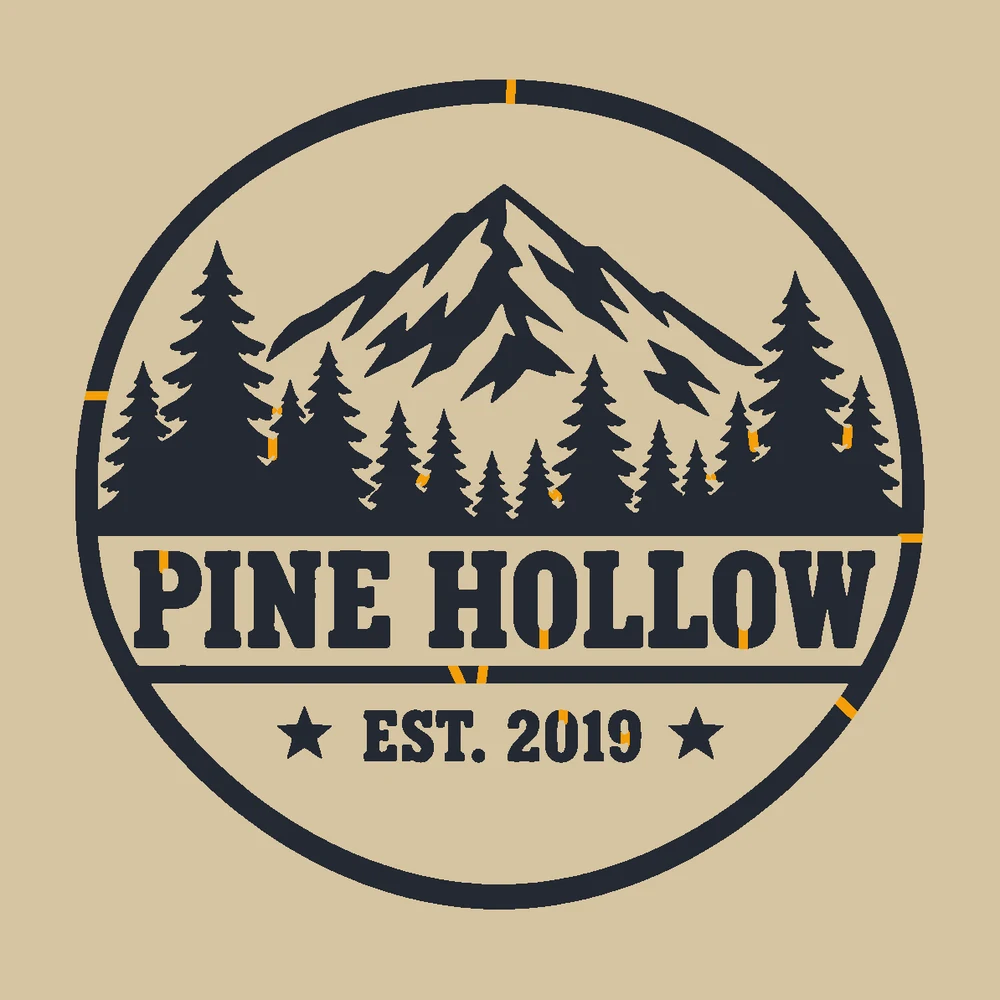
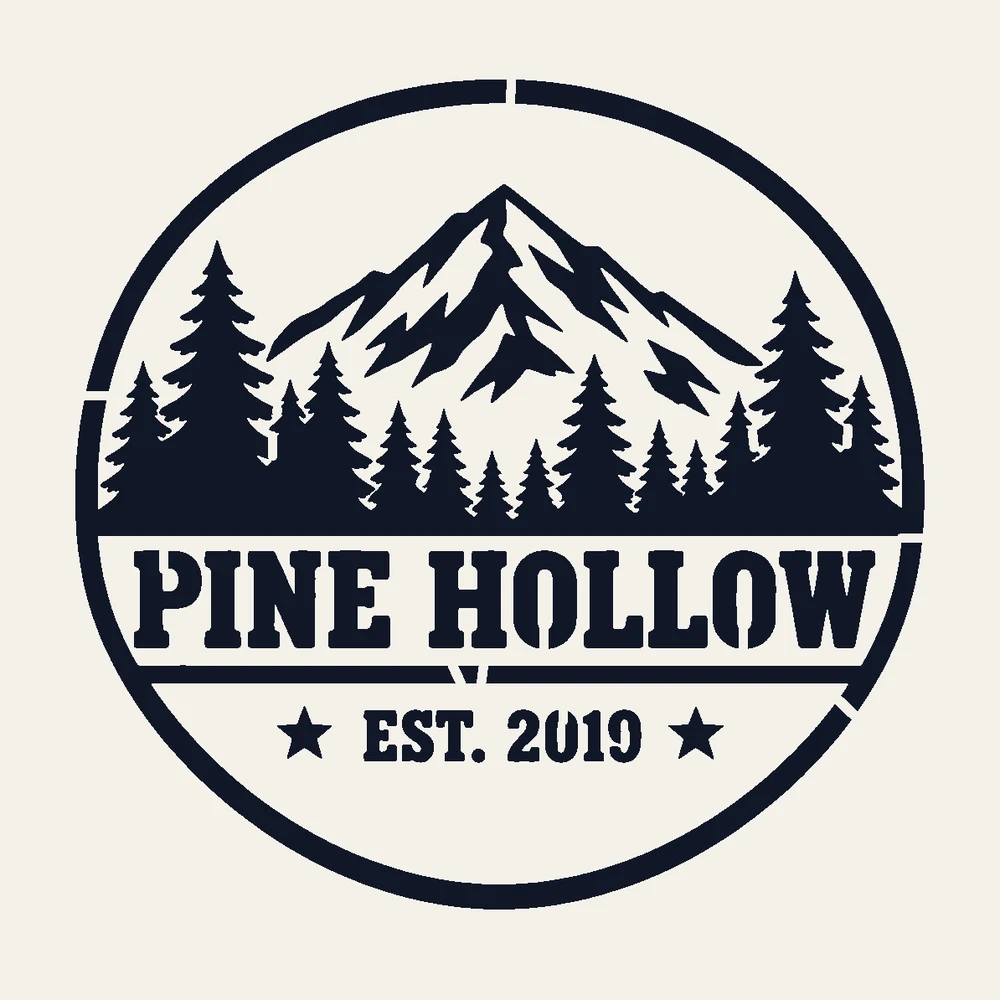
1 layerA round badge logo: the middle of the ring and the letters P, O and W are held by bridges.
Turn a logo, a drawing or a photo into a stencil you can cut: this stencil maker adds a bridge to every loose piece, splits photos into up to four spray layers, and gives you SVG and DXF cut files and a PDF that prints at real size. Free, and nothing is uploaded.
Drop a picture to make a stencil
A logo, a drawing or a photo: PNG, JPG, WebP or GIF. You can also paste one with Ctrl+V.
Each stencil below was made by this stencil maker from the picture in its corner: the cut sheet on the left, the painted result on the right.
A round badge logo: the middle of the ring and the letters P, O and W are held by bridges.
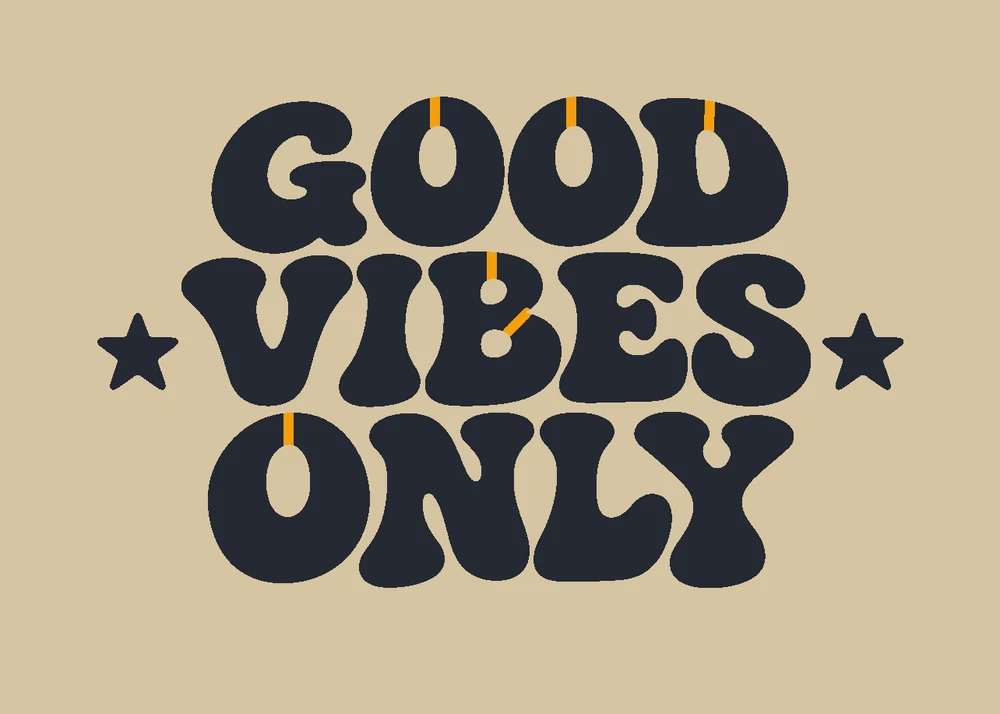
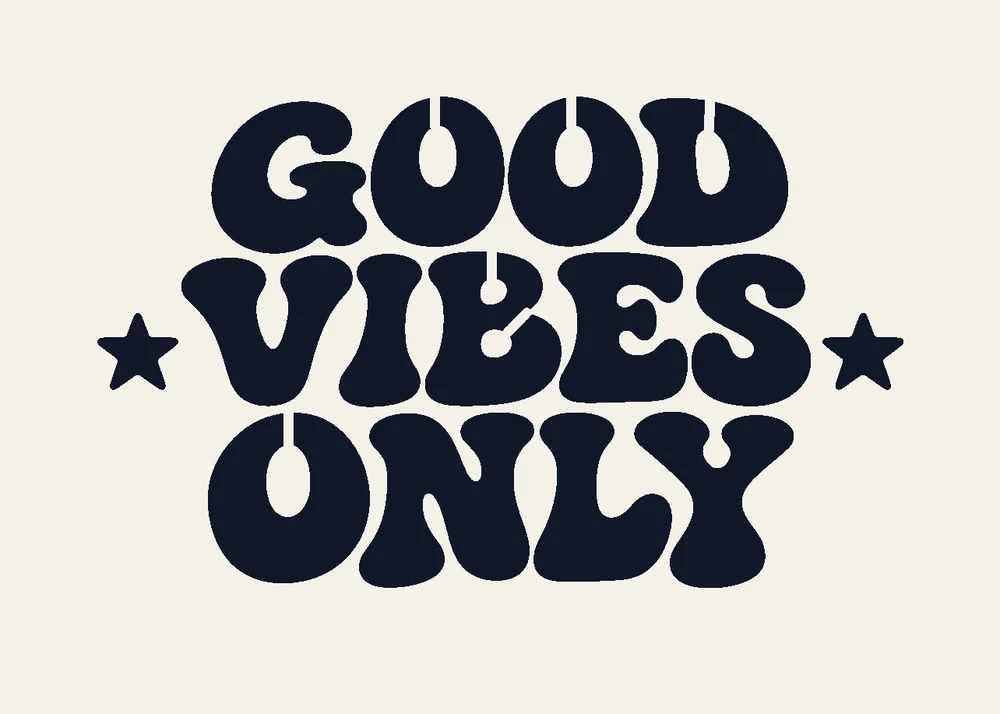
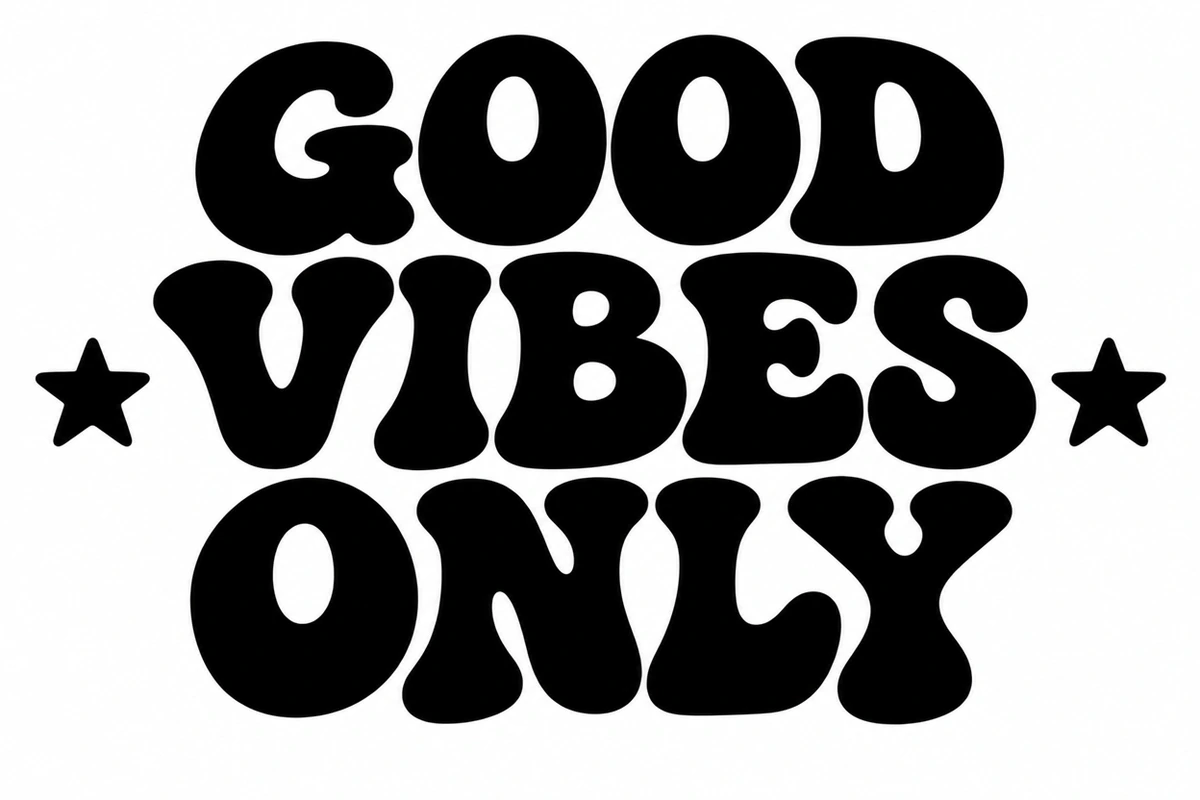
Bold letters with a bridge in every O, D and B, ready for a wall or a tote bag.
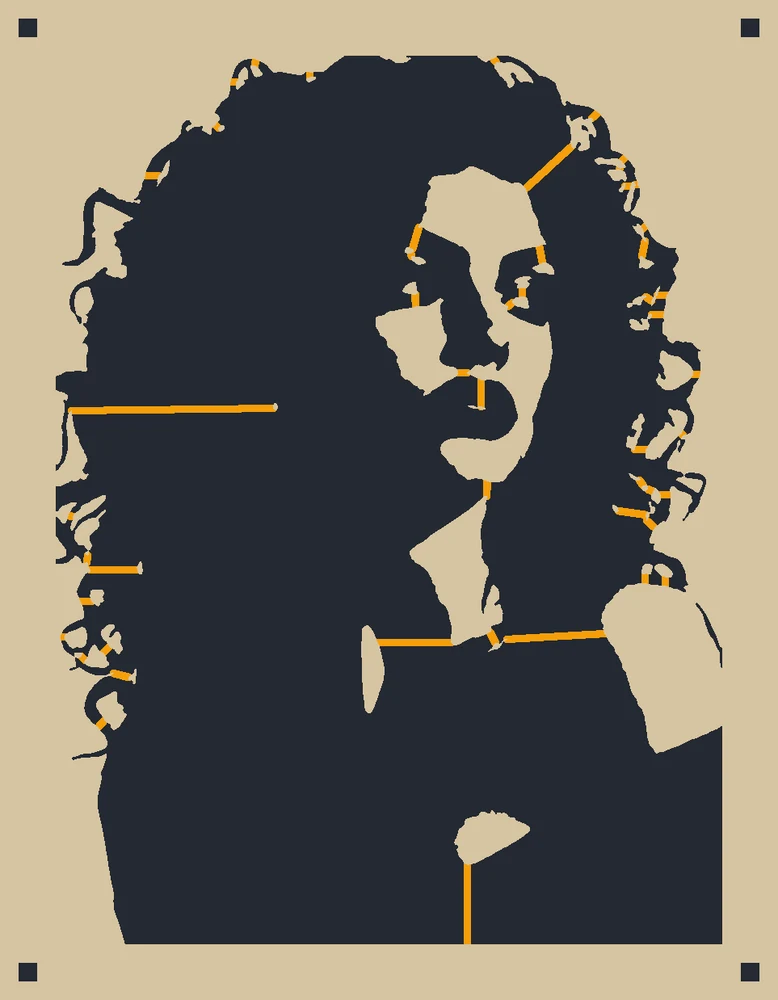
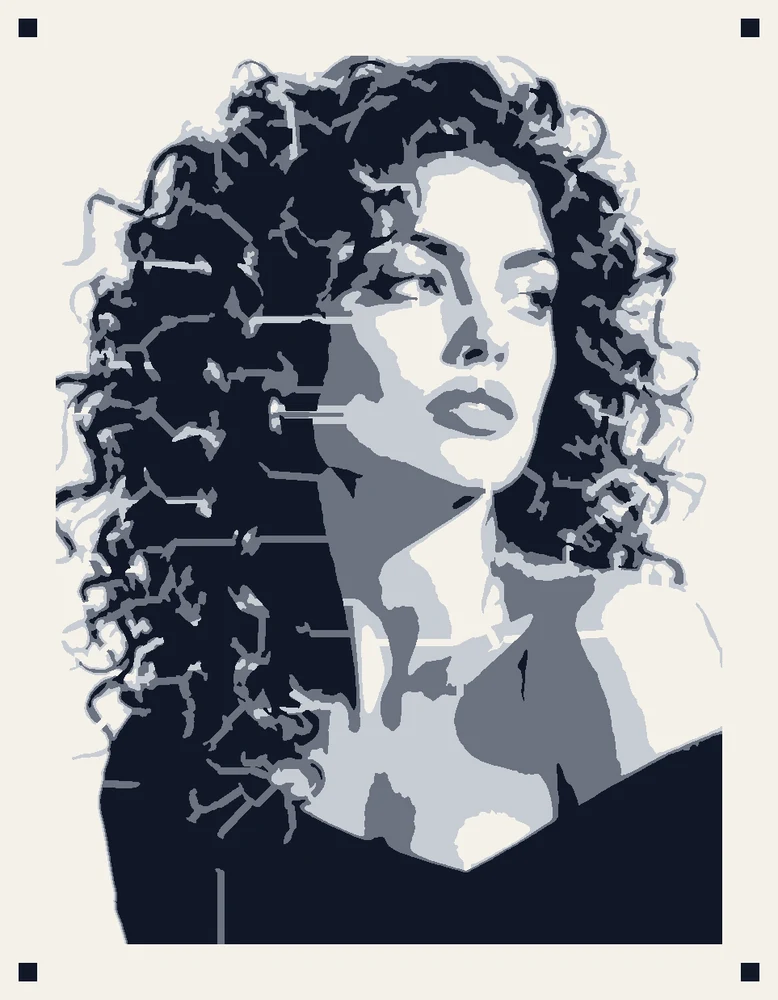

A studio portrait split into light, mid and dark layers, with registration squares in the corners.
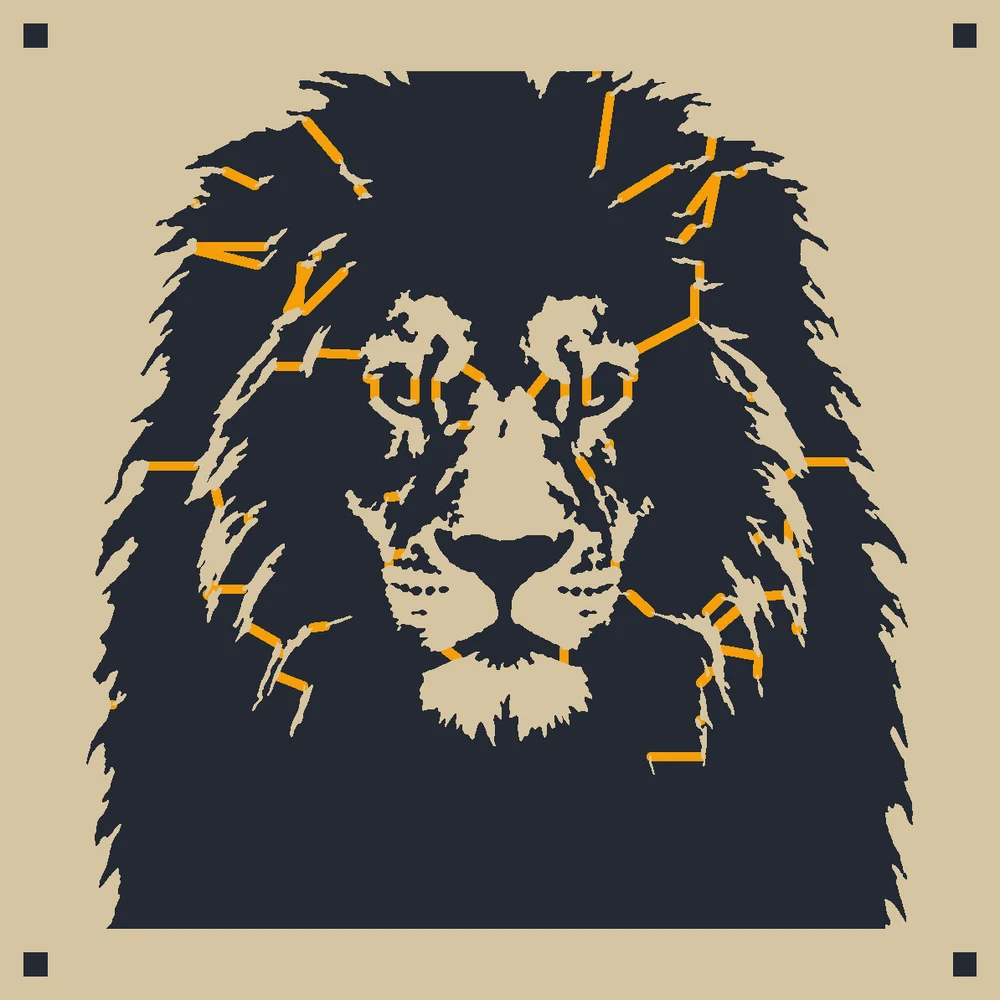
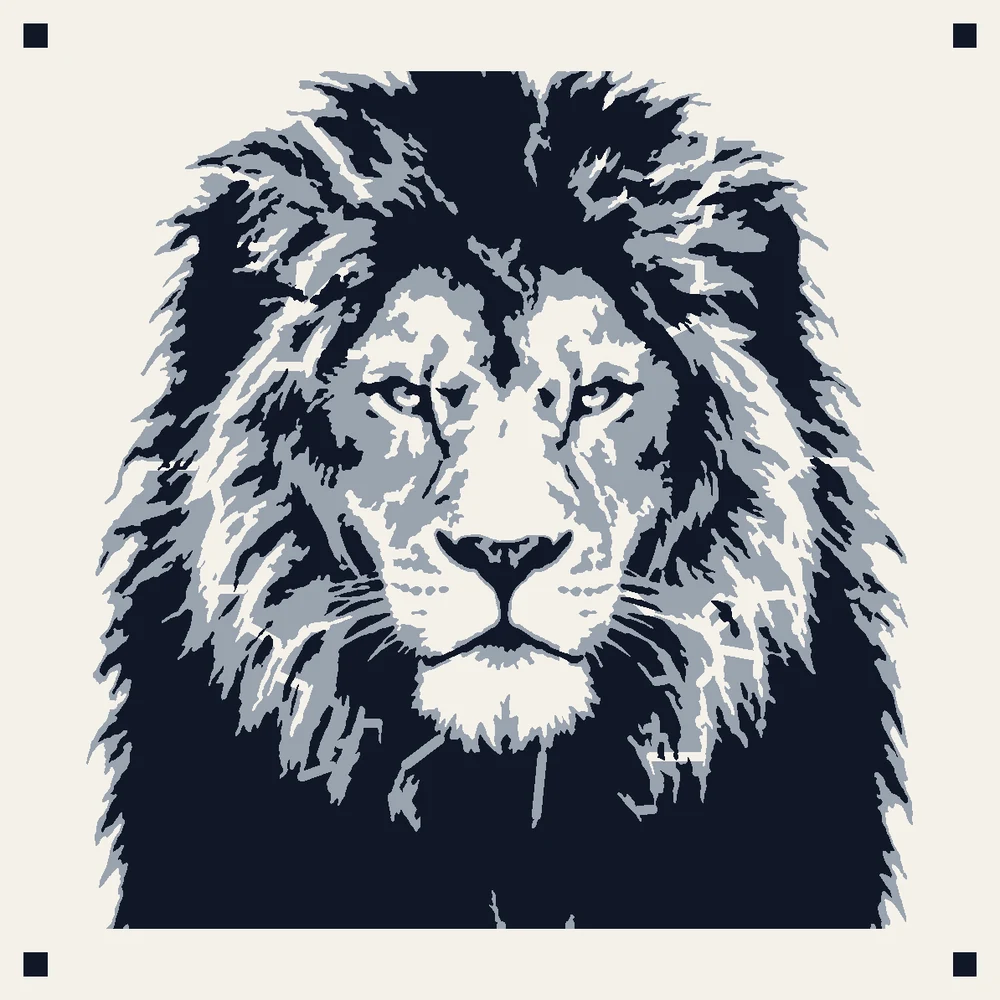
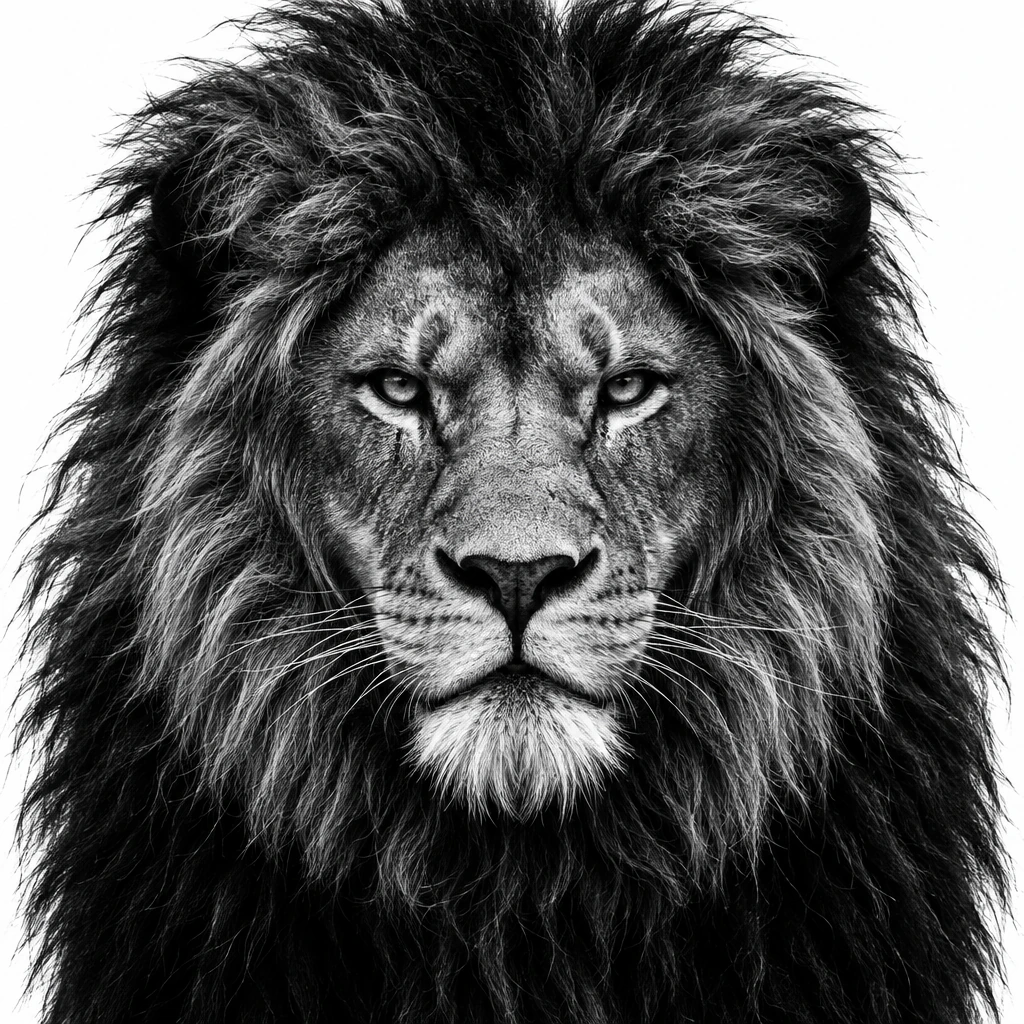
A lion's head in two tones: the light strands of the mane and the deep shadows.
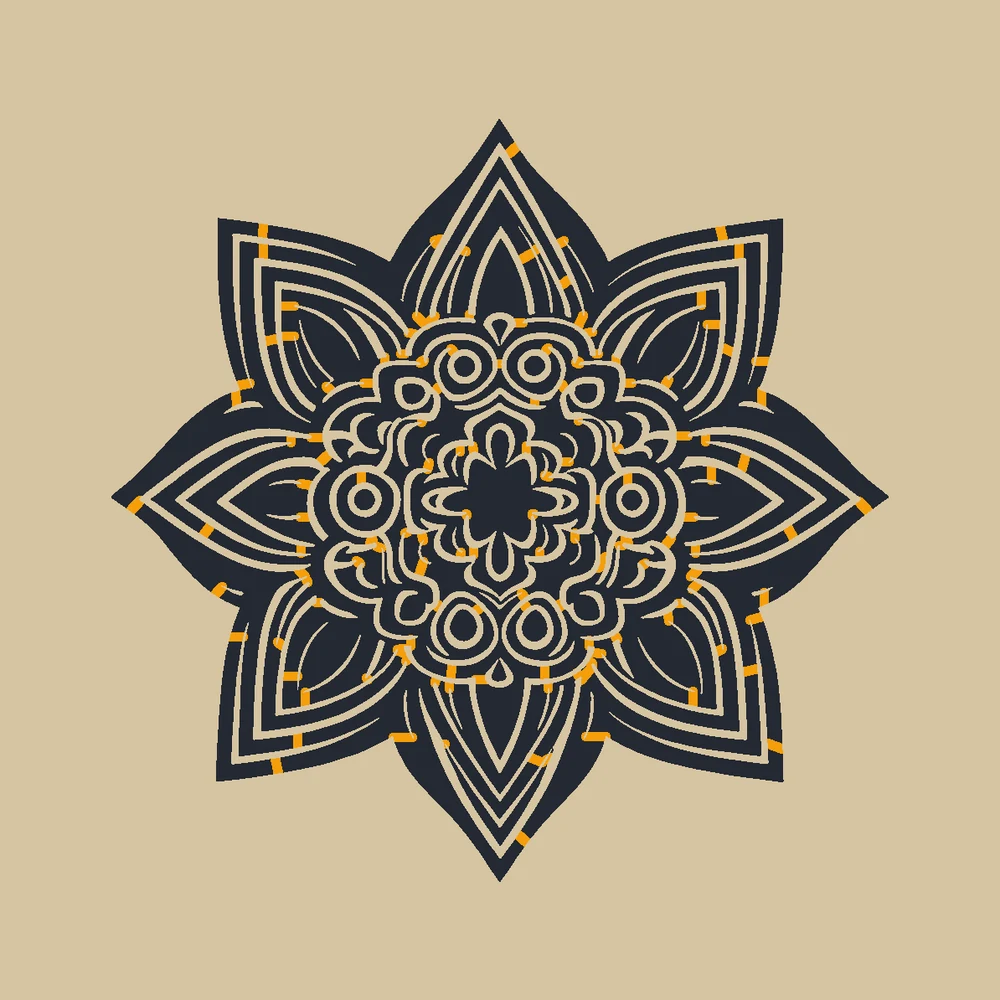
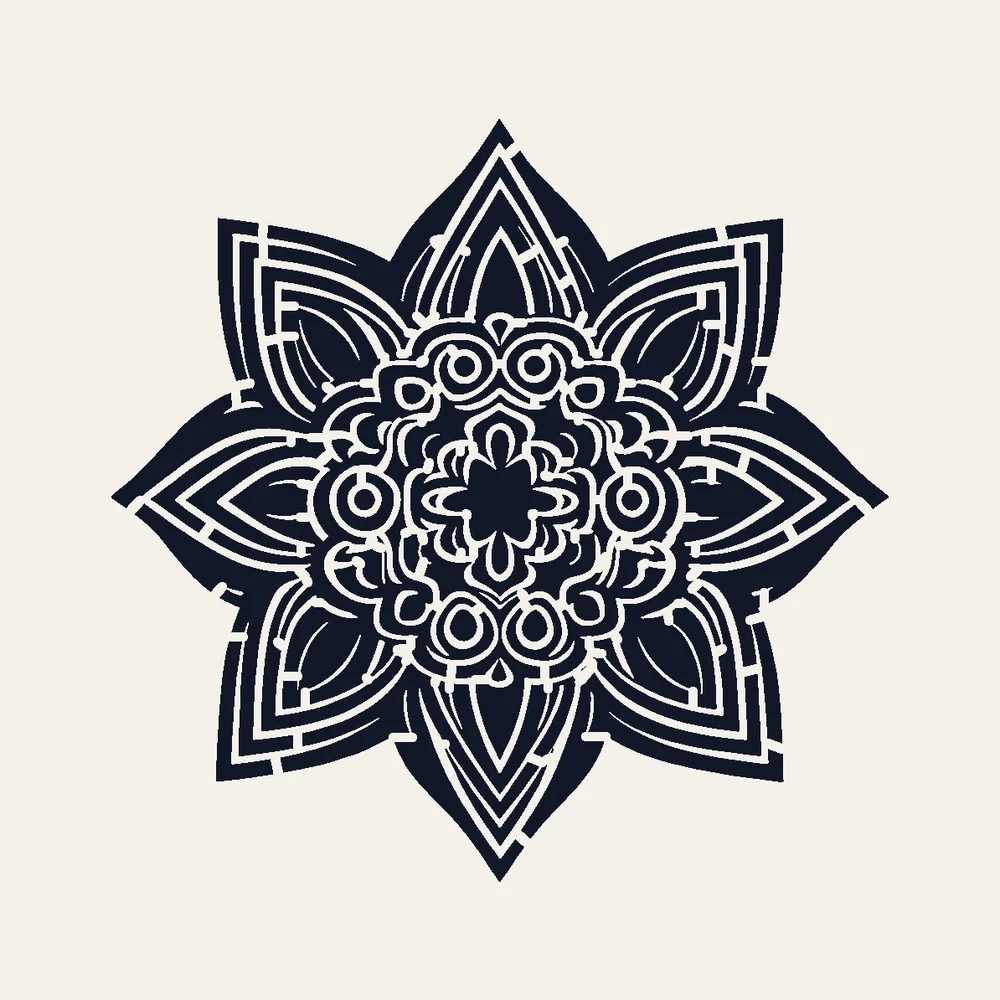
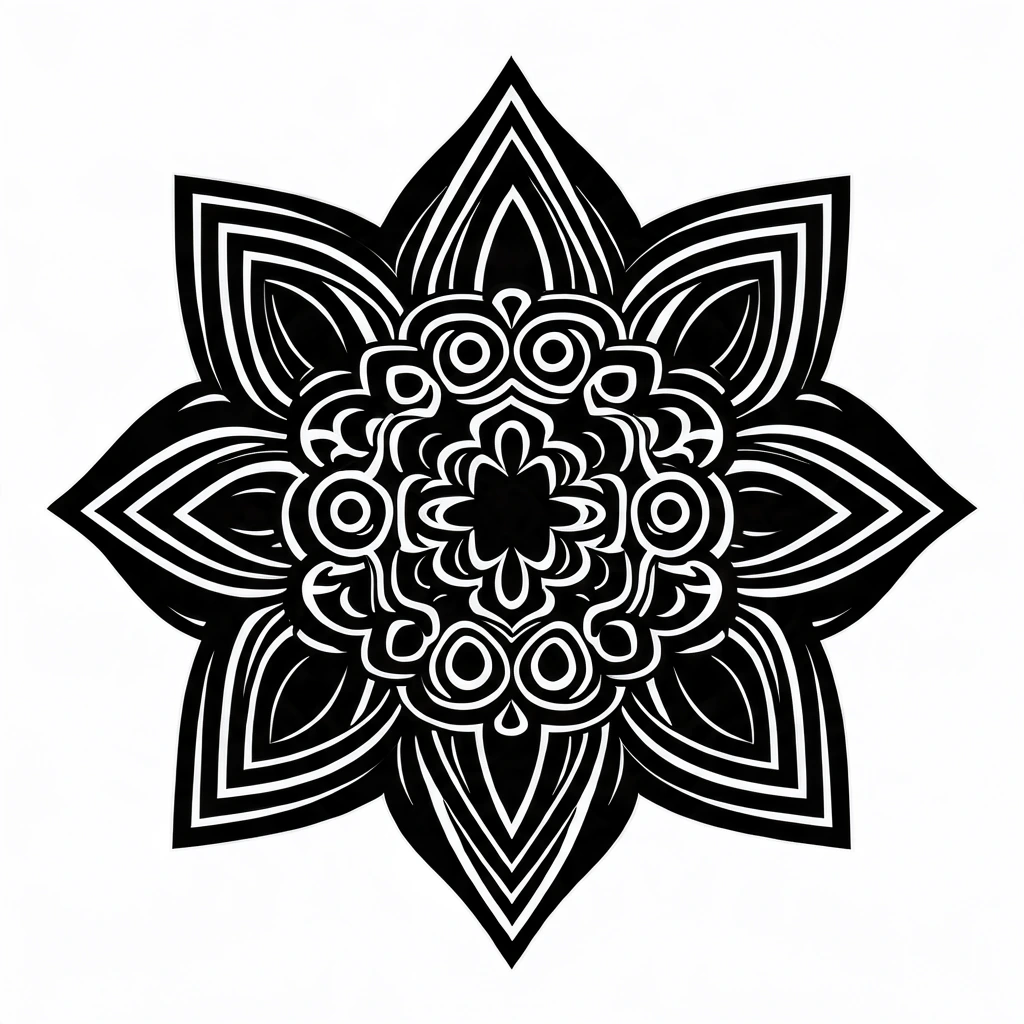
A detailed mandala with more than a hundred islands, each held by a bridge.


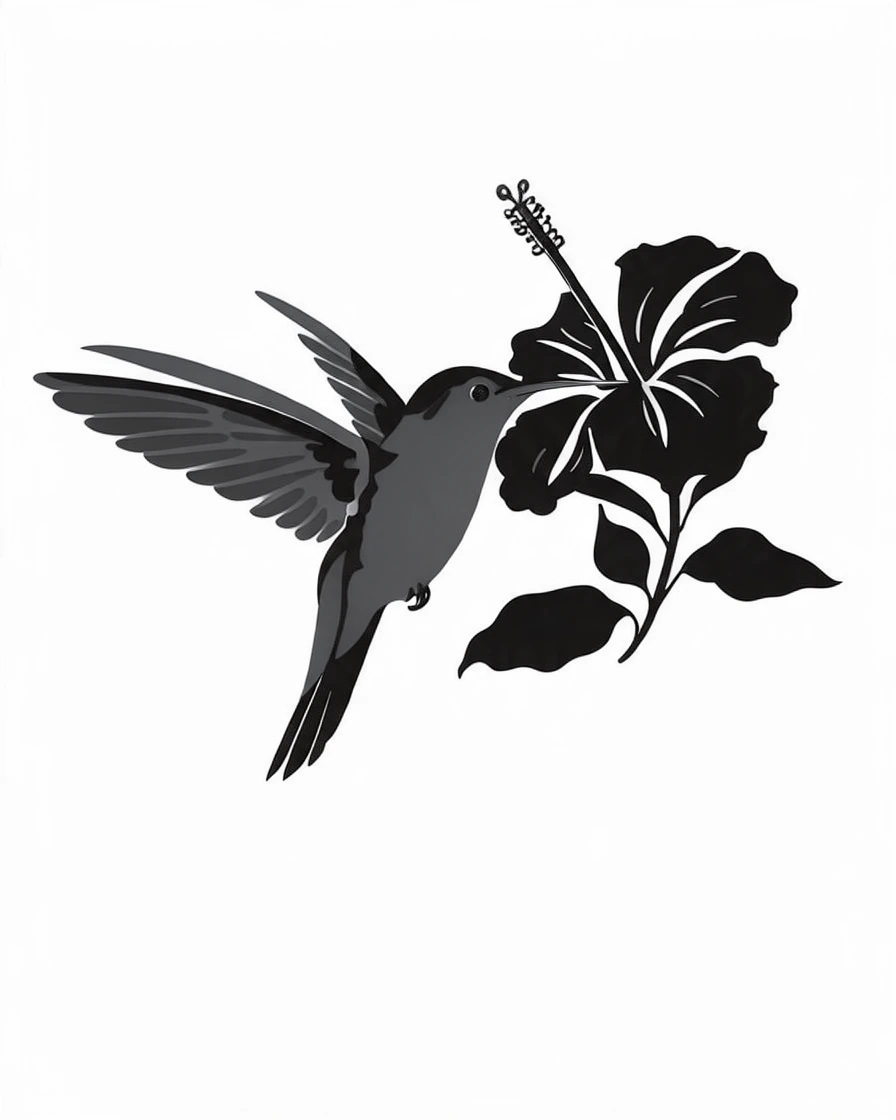
A flat illustration in two layers: grey wings and leaves, black details on top.
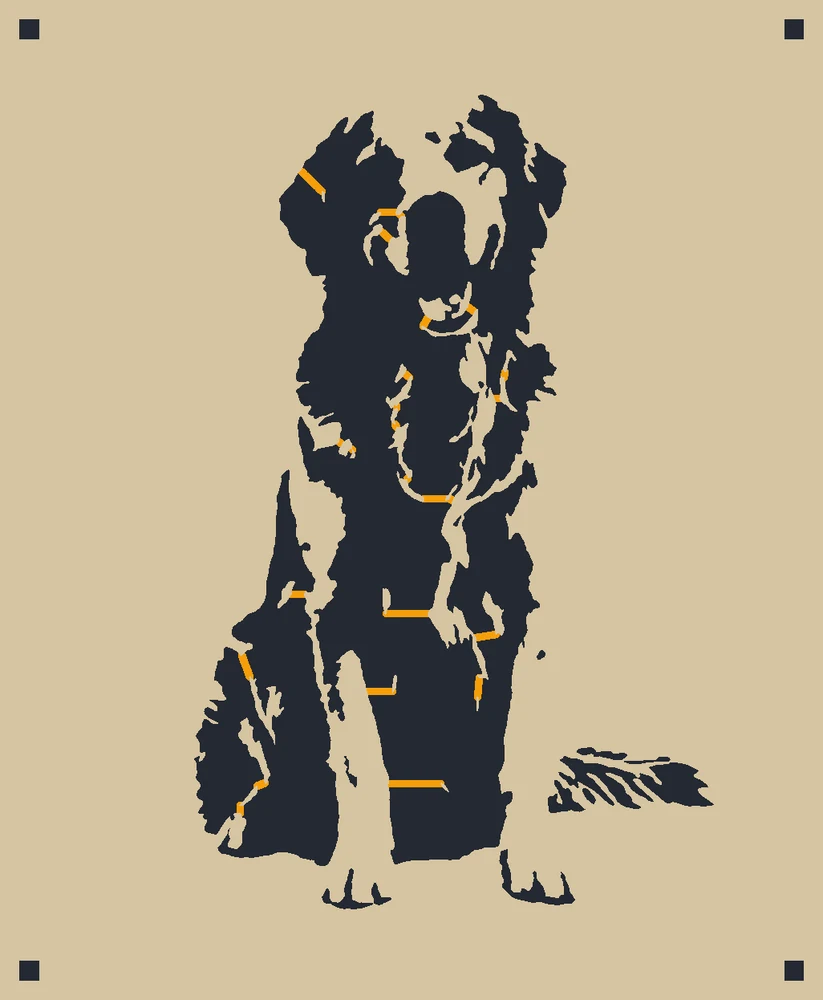
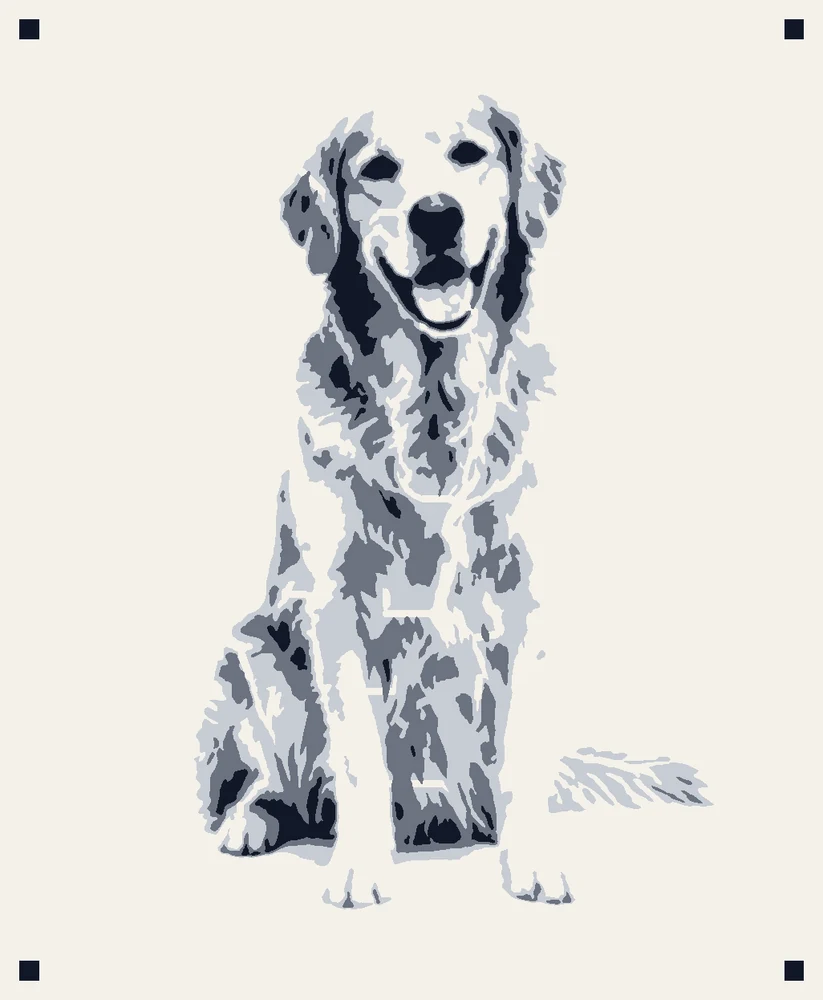
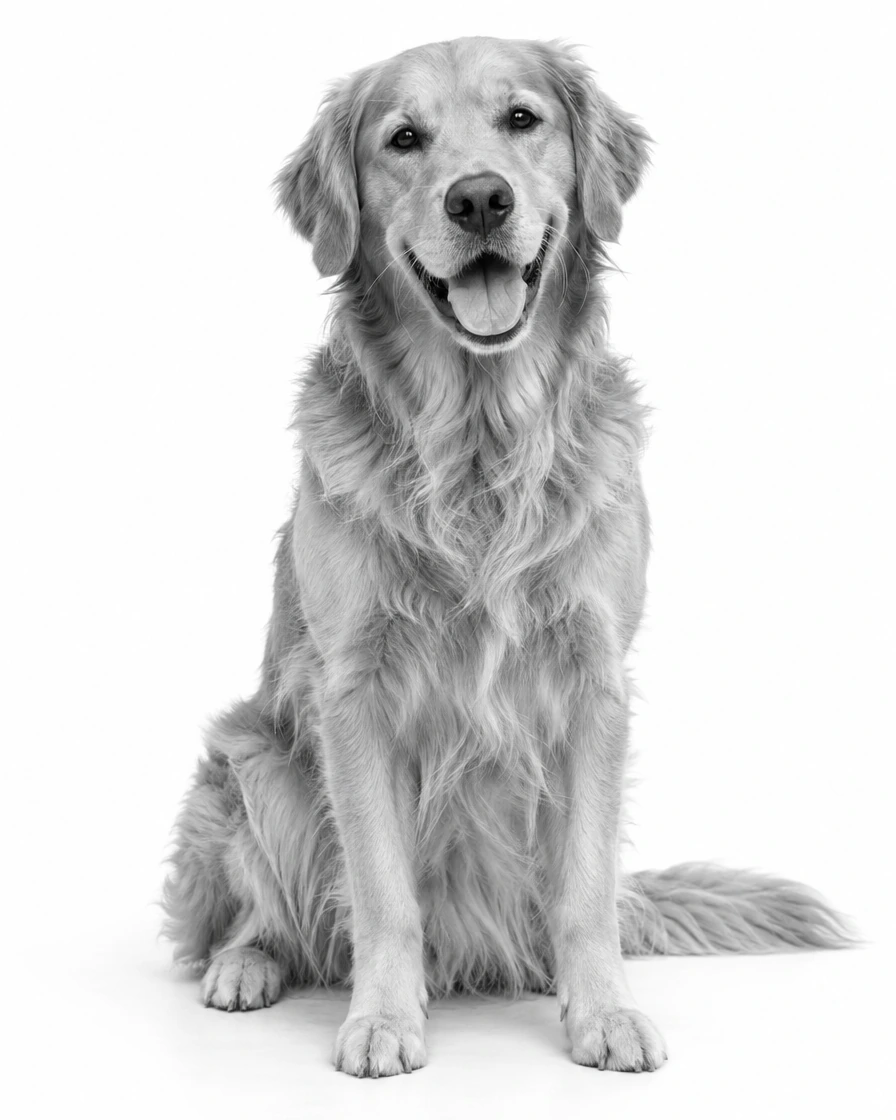
A dog's photo in three layers that keep the light and shadow of the fur.
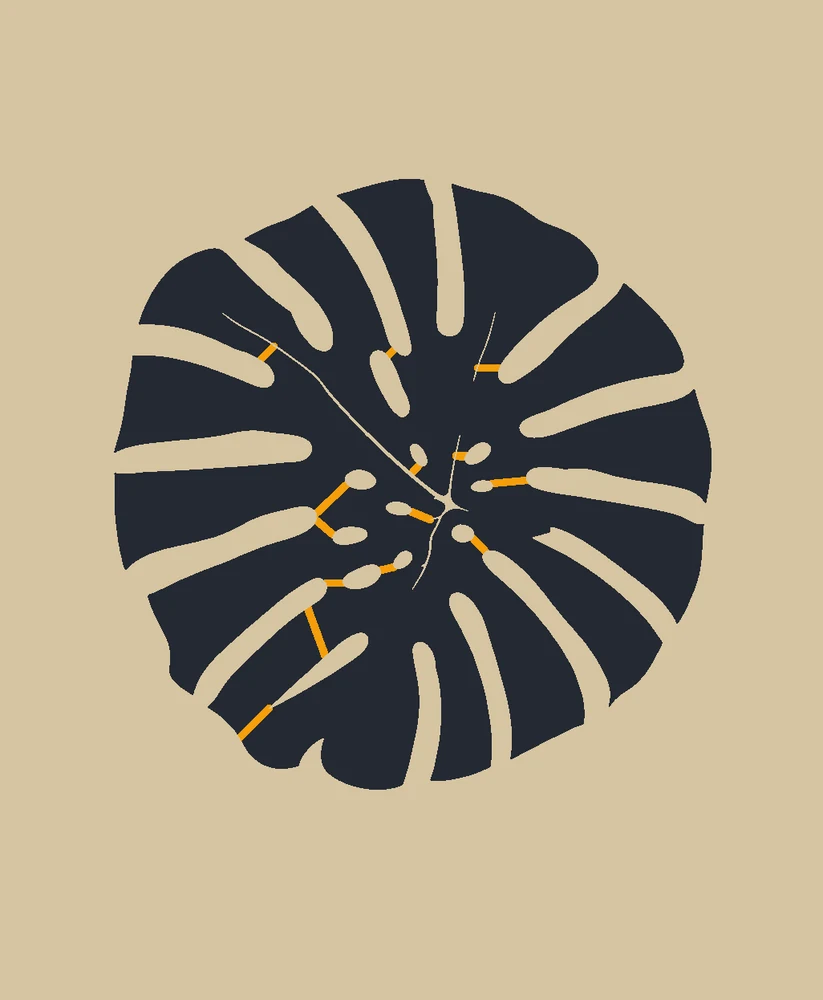

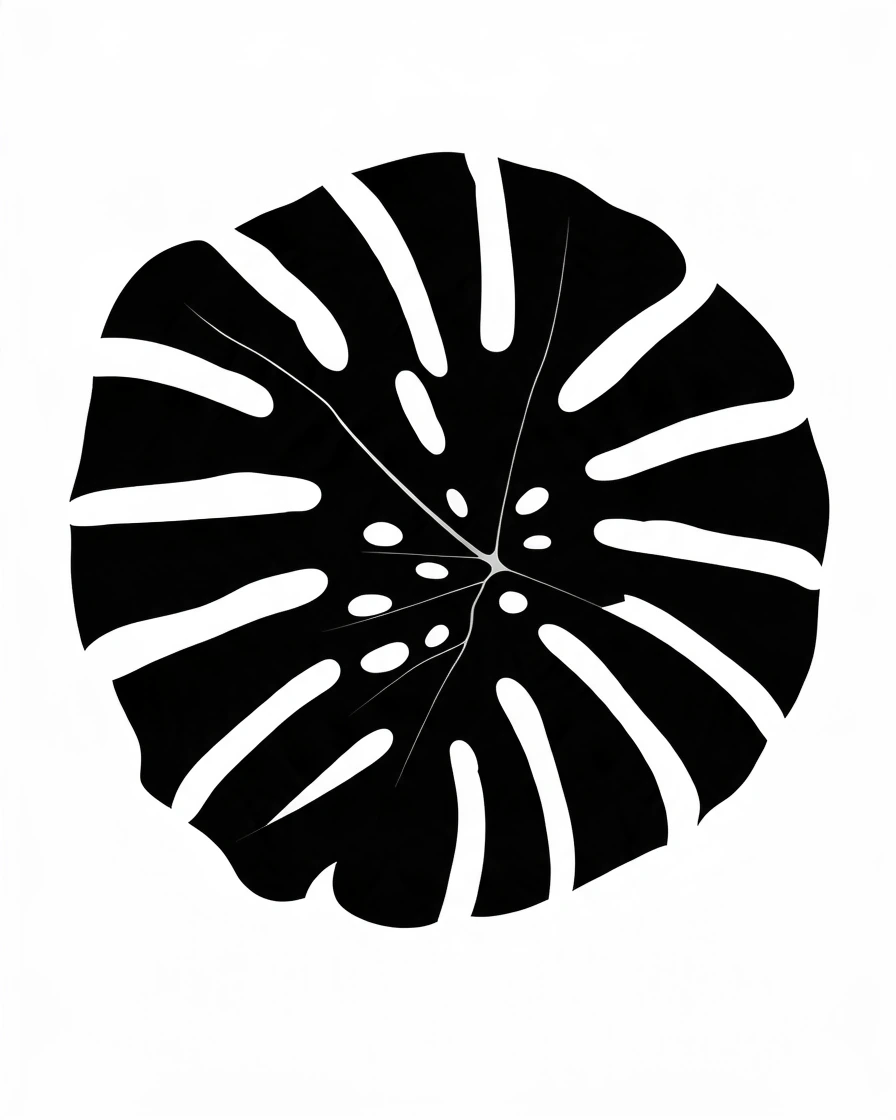
A leaf with natural holes: every hole stays in place on its own bridge.
Three steps, all in your browser.
Drop a logo, a drawing or a photo, choose a file or paste one with Ctrl+V. A first stencil appears at once.
Choose 1 to 4 layers, slide each layer's tone, and pick how loose pieces are held: bridges, cut out or kept. Bridges show in orange.
Download an SVG for your cutting machine, a DXF for a laser, a PDF that prints at real size on Letter or A4, or a PNG.
Six things that make a stencil you can really cut and paint.
Every loose piece, like the middle of an O or the eye of a lion, gets a bridge across the shortest gap, and big pieces get a second one. Each bridge shows in orange, and every layer counts its islands and bridges.
Photos split into 1 to 4 spray layers, lightest first, each inside the one before, with registration squares in the corners so the sheets line up.
An SVG at real size for Cricut, Silhouette and other cutting machines, a layered SVG with every layer in one file, and a DXF in mm or inches for lasers and CNC.
The PDF prints each layer at its real size on Letter or A4, across several pages when it is big, with cut lines, page labels and a 100 mm check line.
Set the detail, drop pieces smaller than a size you choose, and paint the light parts instead of the dark ones. A plain background is left out on its own.
Every layer and every file are free, with no account and no watermark. The picture is opened on your own device and never uploaded.
Five short notes on pictures, layers, bridges, sizes and cutting.
Logos, lettering and drawings with solid shapes make the cleanest stencil. For a photo, pick one with strong light and shadow and a plain background, or remove the background first.
One layer suits logos, lettering and silhouettes. Two or three layers bring out a face or an animal: spray the lightest layer first, then each darker one on top, lining up the registration squares.
An island is a piece that would fall out when you cut, like the middle of an O. Bridges hold it in place: make them wider for card and spray paint, thinner for vinyl. Choose Keep when you place the pieces by hand.
Set the width in mm or inches; the border around the design keeps the sheet strong. For a big stencil, the PDF spreads each layer over several pages you tape together.
Cut card, acetate or mylar with a craft knife, or send the SVG or DXF to your cutting machine or laser. Spray light coats from about 20 cm away, and let each layer dry before the next.
Anyone painting a design onto a wall, a shirt, wood or a cake.
Spray paint stencils of portraits and lettering, in one or more layers.
Fabric paint stencils, cut on a Cricut or a Silhouette.
Stencils for painted signs, and DXF files for laser-cut stencils.
Simple stencils for crafts, cake decorating and school projects.
Answers about stencils, layers, bridges and files.
Open the picture in this stencil maker, set the layers and how loose pieces are held, then download an SVG, a DXF, a PDF or a PNG. It takes about a minute and runs in your browser.
Yes. Every layer and every file format are free, with no sign-up, no watermark and no limit on stencils.
Bridges are thin strips that hold loose pieces, like the middle of an O, to the rest of the sheet. The stencil maker adds them across the shortest gaps; you can set their width or cut the pieces out instead.
Yes. Choose 2, 3 or 4 layers. Each layer paints a darker tone inside the one before, and registration squares in the corners line the sheets up.
Yes. Download the SVG for Cricut Design Space or Silhouette Studio, or the DXF in mm or inches for a laser or CNC. Both are at real size, with the sheet's outline when you want it.
Set the width you need and download the PDF. Each layer prints at real size on Letter or A4, across as many pages as it needs, with cut lines and page labels to tape them together.
Logos, lettering, silhouettes and photos with strong light and shadow. A plain background is left out by itself; for a busy one, remove the background first.
No. The picture is opened and made into a stencil on your own device, and the files are made in your browser.
Open a picture and download a stencil you can cut, free in your browser.
Open a picture