
ShengShu· Video modelNew

Vidu AI Video Generator

Make Vidu AI videos with Vidu Q3, ShengShu's model for up to 16 seconds of picture and sound in one pass. Use a prompt or start and end frames at 720p or 1080p, with credits shown first.

Made with these models

  • 32 credits for 5 s at 720p
  • 4 to 16 s clips, up to 1080p
  • Optional sound, no extra credits
  • About 2.5 min per clip
Made with Vidu Q3

Vidu Q3 Video Examples

Original clips from this model. Play them with sound, read each prompt, or press Use this example.

Vidu Q3
Start frame
Start frame

Night train, anime style

8s · 1080p · 50 credits

Hand-drawn anime style throughout. The city lights stream past the rainy window and their reflections slide across her face. She lifts her head from the glass, turns slowly toward the camera and, with a small tired smile, says softly in Japanese, "Mou sugu tsuku ne." A strand of her hair sways with the motion of the train. The camera holds still at seat level. One continuous shot, gentle natural motion. She does nothing else. Sound: the steady clatter of the rails, soft rain on the window, a distant station chime, her quiet voice. No music, no text, no subtitles.
Vidu Q3
Start frame
Start frame

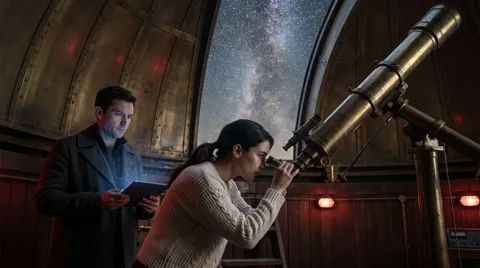
The observatory signal

8s · 1080p · 50 credits

Shot 1, medium two-shot: she pulls back from the eyepiece, eyes wide, and says quietly, "It's moving." He looks down at the tablet, then back at her, and answers in a low voice, "Then it isn't a star." Shot 2, cut to a slow push-in on the open dome slit: among the stars, one bright point of light glides steadily across the Milky Way, stops, and pulses twice. Natural lip sync, subtle expressions. Sound: the low hum of the dome motor, desert wind whistling through the slit, a soft rising electronic tone from the tablet, their hushed voices. No music, no subtitles, no text.

Where Vidu Q3 Shines: Sound, Length and Story

ShengShu Technology unveiled Vidu Q3 in January 2026, built for storytelling. Here is what it leads with.

01

Picture and sound in one pass

Turn sound on and the clip comes with dialogue, voice-over, effects and music made with the picture, so lips and footsteps land on time, for no extra credits.

02

Up to 16 seconds in one take

Choose 4, 5, 8, 10 or 16 seconds. A 16 second take fits a setup, a turn and a payoff in one clip.

03

Cuts and camera moves on cue

Q3 can switch shots inside one clip and follows camera directions: a 10 second scene can open wide and cut to a close-up. ShengShu aims it at comic dramas, short series and film.

04

Start and end frames, and anime

Add a start frame to animate a picture and an end frame to set where the shot lands. Anime is a Vidu strength: ShengShu says anime pictures keep their style in motion.

Vidu Q3 vs Q3 Turbo and Kling 3.0 Pro

Both versions run 4 to 16 seconds at 720p or 1080p, from text in five shapes or from start and end frames, with sound at no extra cost. Pick Q3 for the best picture and audio: 32 credits for 5 seconds, about 2.5 minutes at 720p. Q3 Turbo drafts at half the credits in about 1.5 minutes. Kling 3.0 Pro stops at 15 seconds and costs less when silent.

ModelThis pageVidu Q3Vidu Q3 TurboKling 3.0 Pro
Credits per clip32 (5 s, 720p)16 (5 s, 720p)23 (5 s, 1080p)
Clip length4 to 16 s4 to 16 s3 to 15 s
Resolution720p, 1080p720p, 1080p1080p
Shapes (text to video)16:9, 9:16, 1:1, 4:3, 3:416:9, 9:16, 1:1, 4:3, 3:416:9, 9:16, 1:1
End frameYesYesYes
SoundOptional sound, no extra creditsOptional sound, no extra creditsOptional sound, extra credits
Typical waitAbout 2.5 min per clipAbout 1.5 min per clipAbout 3 min per clip

Credits per clip at the default length and resolution, without optional sound. Longer, sharper or with-sound clips cost more; the button shows the credits before you run.

How to Make a Vidu Video in 3 Steps

One composer, with the model already selected.

  1. 1

    Write or add frames

    Describe the scene, or add a start frame to animate a picture and an end frame to set the last shot. The clip keeps its shape.

  2. 2

    Pick length, quality and sound

    Choose 4 to 16 seconds, 720p or 1080p, sound on or off, and up to 4 clips. Credits update on the button.

  3. 3

    Generate and download

    About 2.5 minutes at 720p. Play it with sound, download the MP4, or loop it with video to GIF.

Vidu Q3 Prompt Guide

Four habits that suit this model.

Script the sound

With sound on, describe what we hear, not just what we see. Put each spoken line in quotes and name the speaker: The captain turns and says, "Hold the line." Then list sounds in order: rain on a tin roof, a door slam, low strings. Vidu Q3 speaks English, Chinese and Japanese, and can voice several speakers.

Write long clips shot by shot

A 10 or 16 second clip has room for more than one shot, and Q3 can cut between them. Number the shots: Shot 1, wide view of a night market. Shot 2, close-up of a cook tossing noodles. Shot 3, she looks up and smiles. Give each shot one action and one camera move.

Let the end frame steer

The end frame decides where the shot lands, so the prompt only says how to get there: vines pull back, stones lift into place, the camera rises. Use two pictures of the same size and framing, as ShengShu asks for similar resolutions. Make the second by editing the first with image to image.

Put text and style in the prompt

Q3 can draw text into the scene in English, Chinese or Japanese, so write the exact words in quotes and keep them short: a neon sign that reads "OPEN LATE". For anime, open with the style, like hand-drawn anime with soft cel shading, or start from an anime picture so the look holds.

What to Make with Vidu AI

Vidu Q3 suits short stories where sound and timing must line up.

  • Micro-dramas and comic dramas

    Vertical scenes with spoken lines, reactions and a close-up cut, ready for a series.

  • Anime clips

    Animate anime art or write anime scenes, with voices and effects in the same file.

  • Before and after reveals

    Start and end frames for makeovers, restorations, product reveals and changing seasons.

  • Ads with words on screen

    Short ads with the product name or slogan in the scene, plus music and voice-over.

Vidu AI FAQ

Versions, credits, waits, inputs and limits.


Make a Vidu AI Video Now

Write a prompt or add frames, turn on sound, and see the credits first.