 Qwen-Image-Layered
 Layer 1
 Layer 2
 Layer 3
 Layer 4
Alibaba Qwen· Layer modelQwen Image Layered, the open-weight layer model from Alibaba's Qwen team, splits a picture into exactly as many layers as you ask for. Pick 2 to 8 and get transparent PNGs plus a layered PSD in about 45 seconds, from 6 credits.
Outputs: aligned transparent PNG layers (ZIP) and a layered PSD
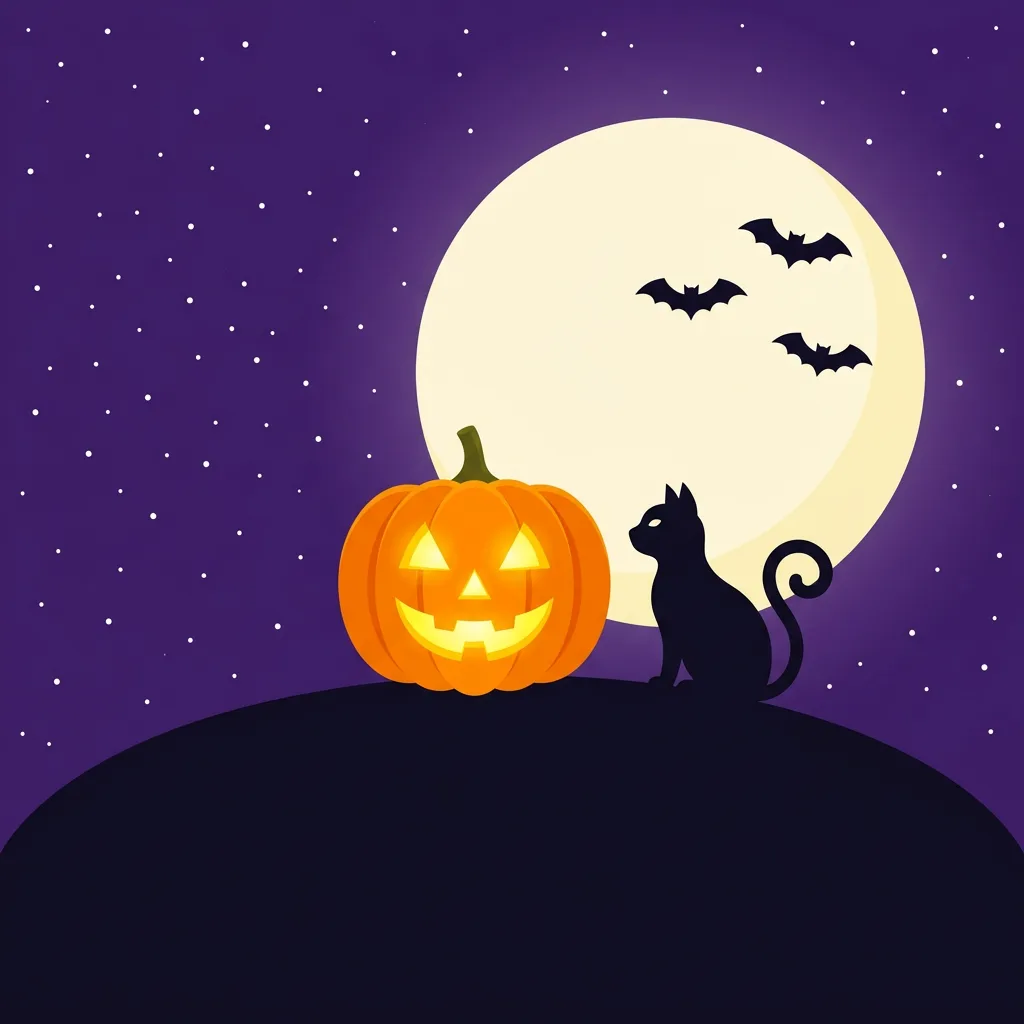
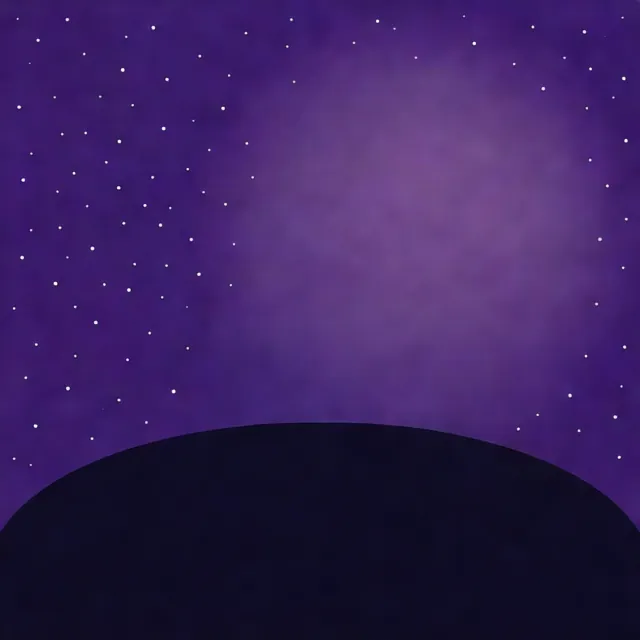
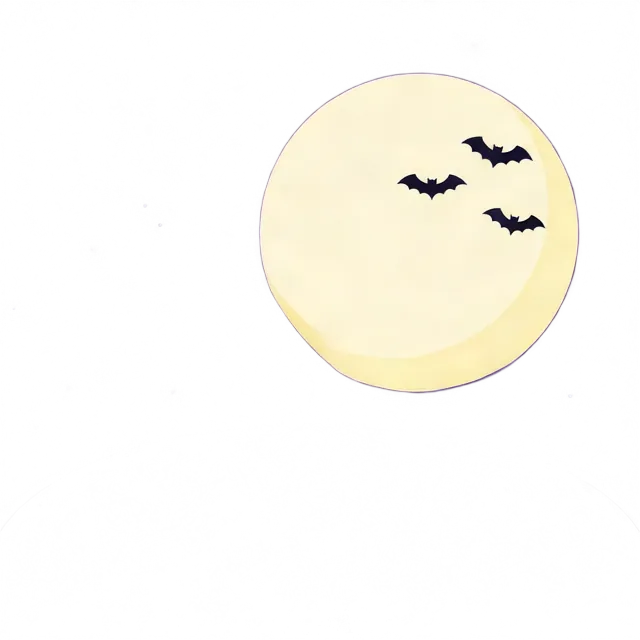
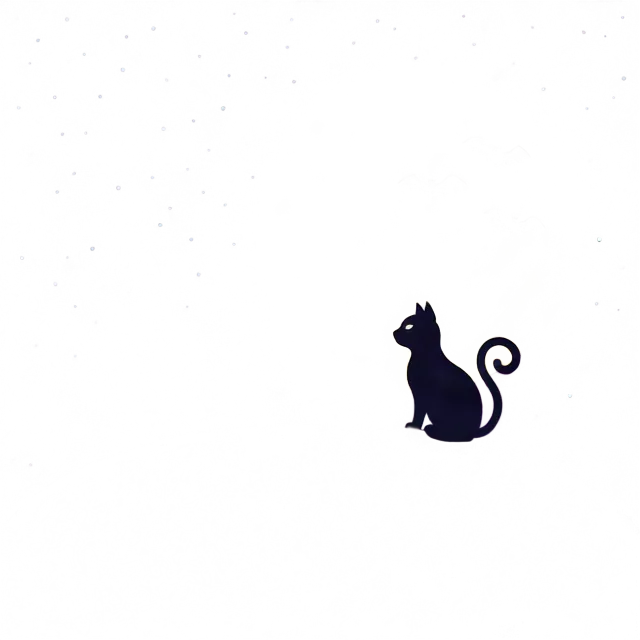
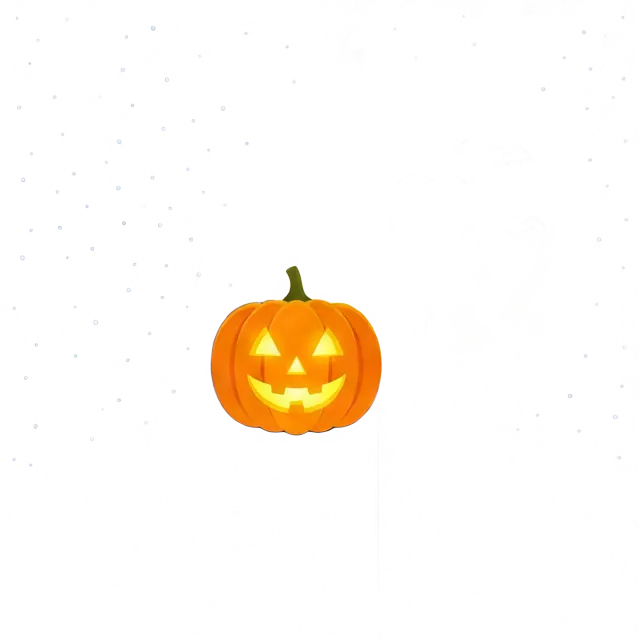
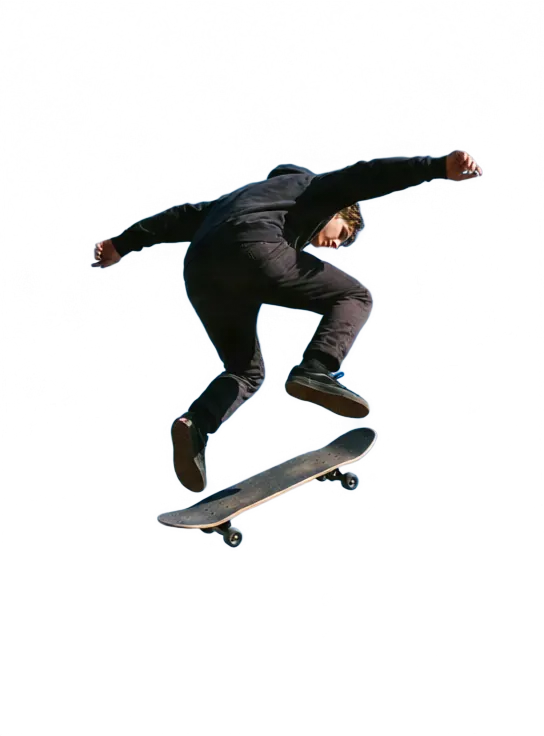
Original pictures we split on our site: a Halloween illustration in 4 layers, a skateboarder in 2 and a clay boat scene in 3, all unretouched.
Qwen-Image-LayeredLayer 1Layer 2Layer 3Layer 4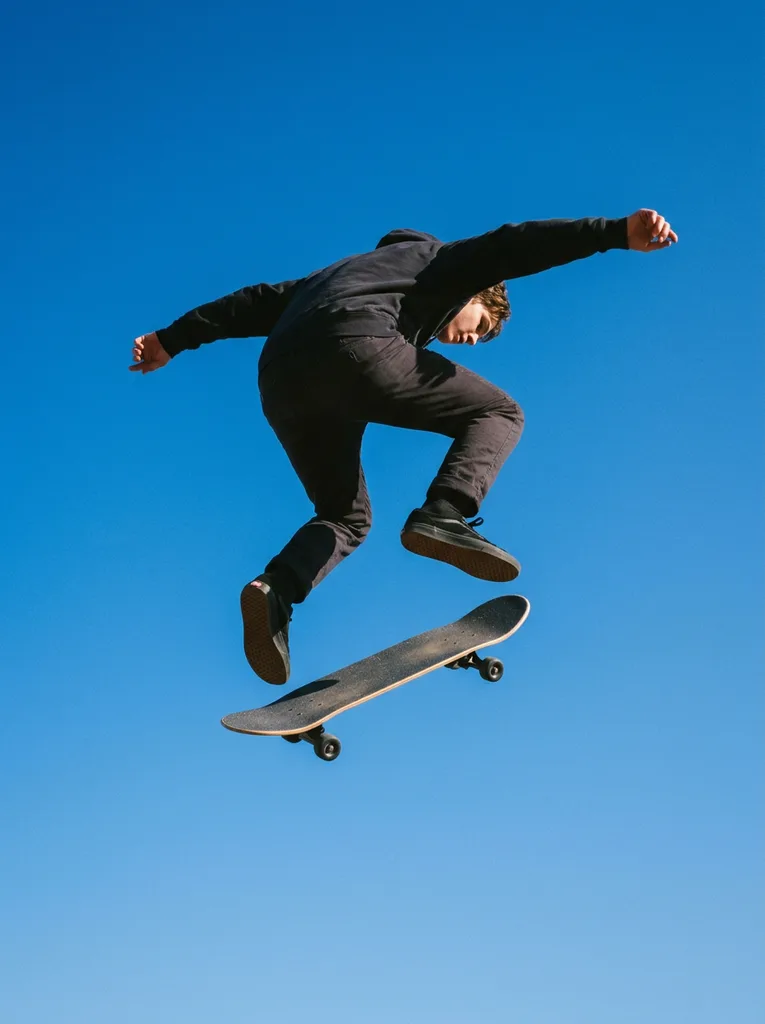 Qwen-Image-Layered
 Layer 1
 Layer 2
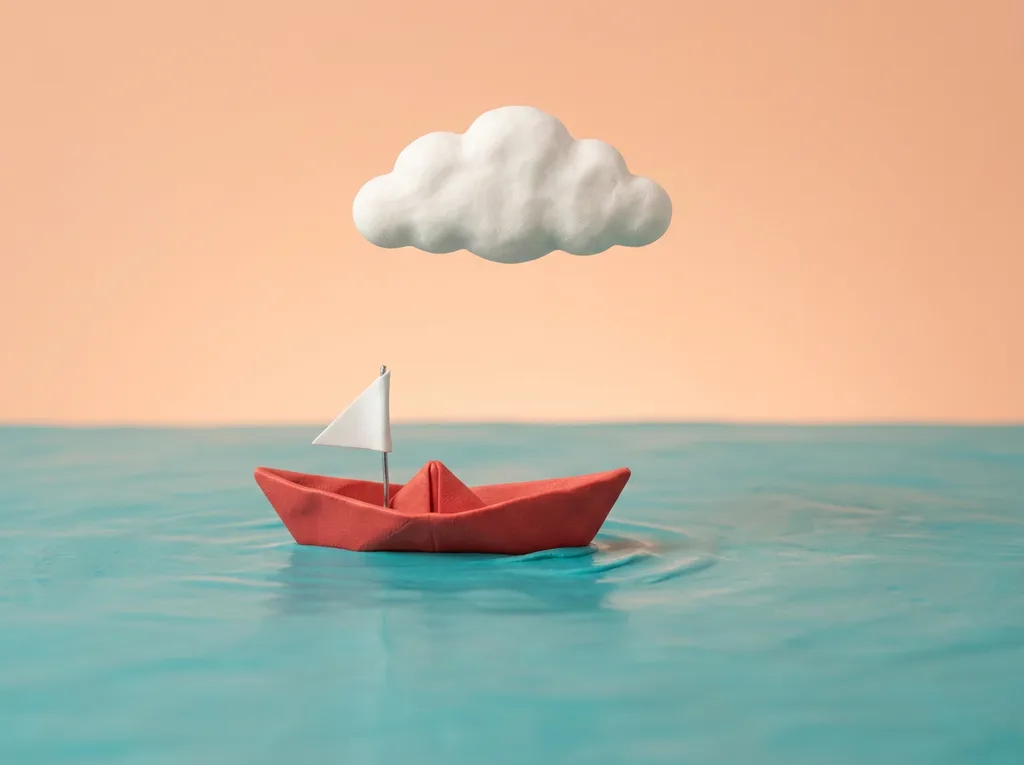 Qwen-Image-Layered
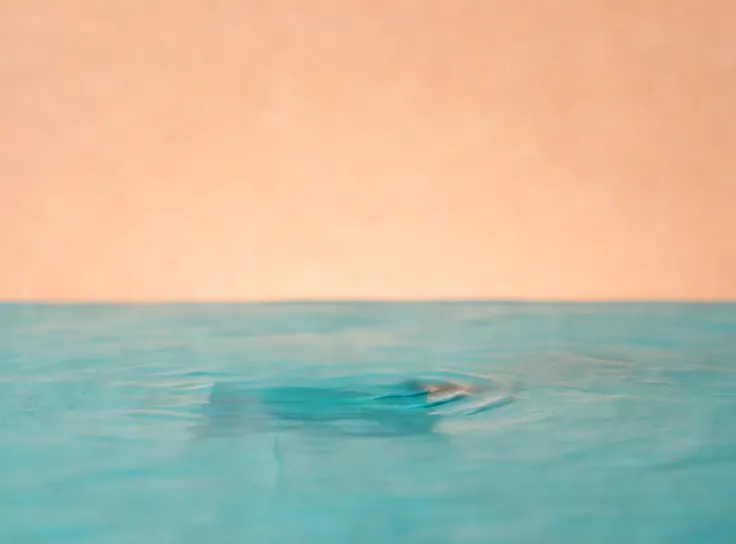 Layer 1
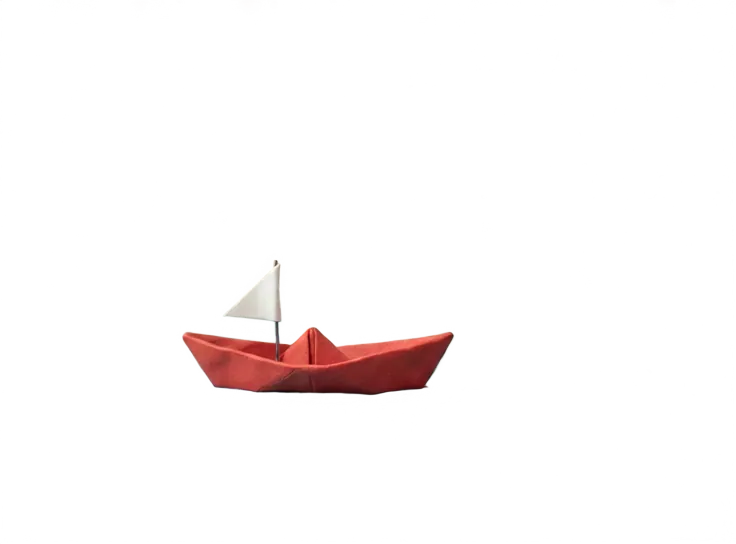 Layer 2
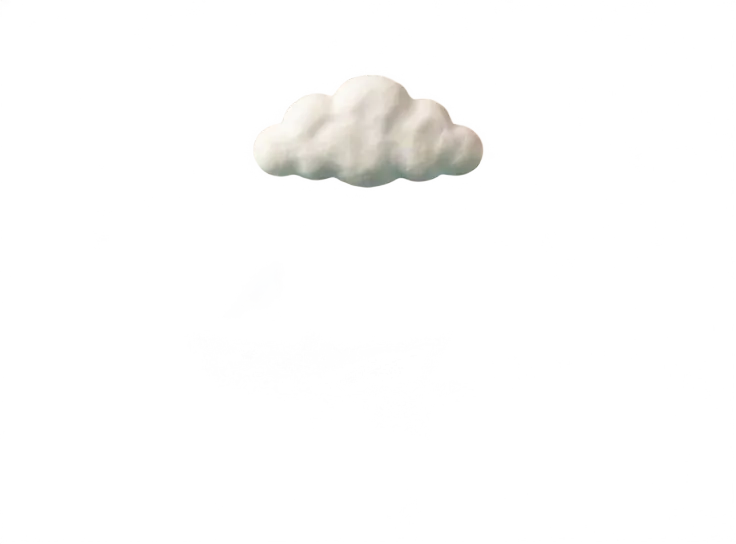 Layer 3Qwen-Image-LayeredLayer 1Layer 2Layer 3Layer 4Qwen-Image-LayeredLayer 1Layer 2Qwen-Image-LayeredLayer 1Layer 2Layer 3
Four strengths, from the Qwen team's design and our own runs.
Ask for 2, 3, 4, 5, 6 or 8 layers and exactly that many come back, at a known price. Each one then moves, resizes or recolors on its own.
Every layer is a transparent PNG the size of the whole picture, so the stack lines up in Photoshop, After Effects or Figma.
Lift out the moon, a skater or a boat and it paints the sky or water back in, so moving a layer leaves no hole. Check painted areas before close crops.
About 45 seconds a run and 6 credits for 2 layers, so trying a few counts on one picture stays cheap.
Both models fill in the background behind what they lift out. Qwen Image Layered costs 2 credits per layer plus 2, returns full-canvas layers of around 0.4 megapixels and takes about 45 seconds. Seedream 5.0 Pro Layerize, the default, picks and names the layers itself and keeps your size up to 1.5K or 2K, at 2 credits per returned layer (3 at 2K) in about 2 minutes. Use Qwen for an exact count, Seedream for text-heavy posters and bigger files.
| Model | This pageQwen-Image-Layered |  Seedream 5.0 Pro Layerize Seedream 5.0 Pro Layerize |
|---|---|---|
| Credits per run | 6 to 18 (2 to 8 layers) | 2 per layer (3 at 2K) |
| Number of layers | You choose 2 to 8 | The model decides, up to 16 |
| Layer size | Around 640 × 640 for a square picture | Your picture's size, up to 2K |
| Named layers | No | Yes |
| Split presets | No | 5 presets |
| Typical wait | About 45 s per run | About 2 min per run |
Credits per run. A model that finds the layers itself holds the most a run could cost and charges for the layers it returns; the rest comes back. The Convert button shows the credits before you run.
The converter at the top of this page already has Qwen-Image-Layered selected.
Drop a JPG, PNG or WebP up to 10 MB. Pictures with a few clear objects split best.
Pick 2 to 8 layers; the button shows the credits. Add a caption beside the picture if you like; Advanced holds the negative prompt, guidance and steps.
In about 45 seconds, check the layers in the 3D viewer and download a ZIP of PNGs or the PSD.
Four habits for useful layers, from the Qwen team's notes and our tests.
Count the clear objects and pick about that many layers: our skater against the sky needed 2, the clay boat 3 and the Halloween illustration 4. Busy pictures with many small parts can return empty or odd layers at high counts; one 4-layer flat lay gave a black layer. Start low and add one if two parts stay merged.
Describe the whole picture, not the layers. The Qwen team says the caption should cover the overall content, including partly hidden parts, and is not meant to assign things to layers. For example: a red sneaker on wet stone steps, a cactus on the left, the word "RUN" behind the shoe. Left empty, the model writes its own.
Start with the defaults, guidance 5 and 28 steps. Use 20 steps for a quick preview and 28 or more for the final run; the Qwen team's example uses 50. Raise guidance a little when parts are hard to tell apart. Credits stay the same, so compare two runs and keep the cleaner one.
Qwen Image Layered does best with clear shapes on simple backgrounds. Overlapping objects can fuse into one layer, glass, water and smoke confuse the transparency, and subjects that match the background may not separate. In our poster test, the headline and the product shared a layer. For text-heavy designs, use the default Seedream model.
Full-canvas layers suit any project where part of a picture has to move or change.
Put the sky, the skater and the foreground on separate tracks for a slow 2.5D camera move.
Move, resize, recolor or remove one element in Photoshop or Figma without masking it by hand.
Layers of around 0.4 megapixels suit web pages, social posts, slides and video overlays.
Split a character or scene into parts to block out a Live2D rig or parallax background.
Credits, speed, files, license and how it compares with Seedream.
Pick 2 to 8 layers, see the credits first and get your PSD in about 45 seconds.