Kuaishou· Video modelNew

Kling AI Video Generator

Kling 3.0 Pro is the Kling AI video model from Kuaishou for 1080p clips of 3 to 15 seconds, with consistent characters, sharp on-screen text and sound when you want it. Write a prompt or add a start frame, and see the credits on the button before you run.

Made with these models

  • 23 credits for 5 s at 1080p
  • 3 to 15 s clips, up to 1080p
  • Optional sound, extra credits
  • About 3 min per clip
Made with Kling 3.0

Kling 3.0 Video Examples

Original clips made with this model. Turn on the sound, read the full prompt, or press Use this example to load the same settings.

Kling 3.0 Pro
Start frame
Start frame

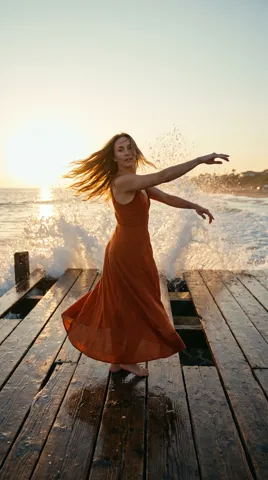
Golden hour dance

5s · 1080p · 34 credits

She launches into a fast sequence: two whipping spins with her skirt flaring, a sweeping leg extension, then a leaping turn. As she lands in a low lunge, a wave explodes up through the boards behind her and the spray hangs in the backlight before falling around her. The handheld camera arcs halfway around her at waist height. One continuous shot, realistic balance and momentum. Sound: crashing surf, wet bare feet on wood, wind. No music, no text.
Kling 3.0 Pro
Start frame
Start frame

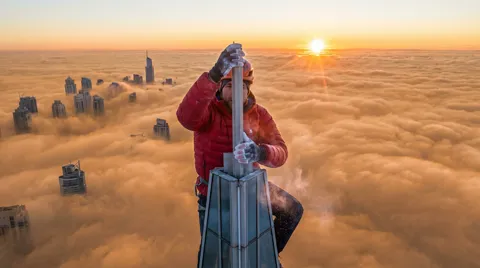
Sunrise on the spire

5s · 1080p · 34 credits

He hauls himself up, swings a leg over and slowly stands on the narrow top of the spire, arms out for balance as the wind snaps his jacket. A puff of chalk blows off his hands. The drone camera orbits 180 degrees around him, revealing the sheer drop and the sunrise blazing behind him. One continuous shot, realistic weight and balance. Sound: gusting wind, his steady breathing, a faint distant helicopter. No music, no text.

Where It Shines: People, Text and Motion

Kuaishou launched the 3.0 series in February 2026 with upgrades in consistency, realism, length and native audio.

01

Faces that stay the same

People keep the same face, outfit and build across the clip, and expressions look lifelike. It is the model to try here for portraits and photos of real people.

02

Text and logos stay readable

Signs, captions and logos keep their shape as the camera moves. Kuaishou points to product ads: a branded shirt stays legible through the whole clip.

03

Native sound, when you want it

Switch sound on and the clip comes with dialogue, effects and ambience made with the picture, with speech in English or Chinese. Silent clips cost fewer credits: 23 instead of 34 for 5 seconds.

04

Start and end frames

Animate one picture, or add an end frame and the clip moves from the first to the second. Choose 3 to 15 seconds; with no picture, pick 16:9, 9:16 or 1:1.

Kling 3.0 Specs, Versions and Credits

Two Kling 3.0 versions run here. Pick Pro for quality: 1080p, 3 to 15 seconds, end frames and optional sound, in about 3 minutes. Turbo is the quick draft: 5 or 10 seconds at 720p with sound always on, ready in about 1 minute for the same 23 credits per 5 seconds, but with no end frame.

ModelThis pageKling 3.0 ProKling 3.0 Turbo
Credits per clip23 (5 s, 1080p)23 (5 s, 720p)
Clip length3 to 15 s5 or 10 s
Resolution1080p720p
Shapes (text to video)16:9, 9:16, 1:116:9, 9:16, 1:1
End frameYesNo
SoundOptional sound, extra creditsSound always on
Typical waitAbout 3 min per clipAbout 1 min per clip

Credits per clip at the default length and resolution, without optional sound. Longer, sharper or with-sound clips cost more; the button shows the credits before you run.

How to Make a Clip in 3 Steps

From idea to MP4 in one composer, with the model already selected.

  1. 1

    Write or upload

    Describe the scene, or add a start frame (and an end frame if you like) to animate a picture. The clip keeps the picture's shape.

  2. 2

    Choose the settings

    Pick 3 to 15 seconds, the shape for text to video, sound on or off, and up to 4 clips. Credits update as you choose.

  3. 3

    Generate and download

    A clip takes about 3 minutes. Play it on your canvas, download the MP4, or make a loop with video to GIF.

Kling AI Prompt Guide

Four habits for better clips on the first run.

Write the action, then the camera

Start with who does what, then add one camera move: "The chef flips the pan and flames leap up; slow push in from the counter." A clear order of events and a named move work better than a list of adjectives. Keep each clip to one or two actions so the motion stays clean.

Plan shots inside one clip

Kling 3.0 understands multi-shot directions, so a 10 or 15 second clip can cut from a wide shot to a close-up. Write the shots in order: "Shot 1: wide view of the harbor at dawn. Shot 2: close-up of the captain's face." Kuaishou names shot-reverse-shot dialogue as one pattern it handles.

Give dialogue its own line

With sound on, put each spoken line in quotes and say who speaks: The girl looks up and says, "Is it snowing?" Write the lines in English or Chinese; other languages are spoken in English. Add the sounds you want, such as rain on glass or a busy street. Leave sound off if you will add music later; it also saves credits.

Start from a clean frame

The start frame sets the shape and the look, so use a sharp picture already cropped to 16:9, 9:16 or the shape you need. Faces, logos and text in the frame hold up well, which makes product shots and portraits a good fit. Need the picture first? Make one with text to image.

Where Kling Video Fits

Pick it when people, products or on-screen text must look right from start to finish.

  • Product and brand ads

    Products and packaging with logos that stay readable while the camera moves.

  • Portraits and characters

    Bring a portrait or a character to life with natural expressions and small moves.

  • Dialogue scenes

    Short scenes where two people talk, with spoken lines and cuts between the speakers.

  • Social clips in 1080p

    Vertical 9:16 and square 1:1 clips for reels, stories and feeds.

Kling AI FAQ

Credits, speed, inputs, rights and limits on ImageToPsd.AI.


Make Your First Kling AI Clip

Write a prompt or add a start frame. Credits show before you run.