PixVerse· Video modelNew

PixVerse AI Video Generator

Make PixVerse AI videos with PixVerse V6: accurate camera moves, steady emotion and believable physics. Get 5 to 15 second clips up to 1080p with optional sound, no PixVerse account needed.

Made with these models

  • 10 credits for 5 s at 720p
  • 5 to 15 s clips, up to 1080p
  • Optional sound, extra credits
  • About 1.5 min per clip
Made with PixVerse V6

PixVerse V6 Video Examples
Original clips made with this model. Read the prompt, or press Use this example to load its settings.

PixVerse V6
Start frame
Start frame

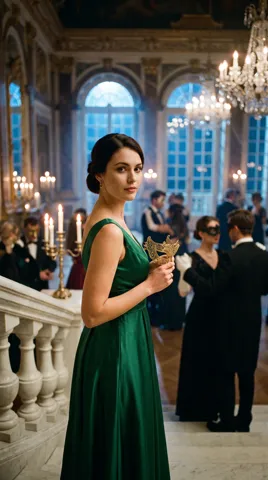
Masquerade unmasked

8s · 1080p · 38 credits

She slowly lowers the mask, her guarded expression softening into a faint, knowing smile as she looks straight into the lens, then tilts her head slightly and says quietly, "You found me." The camera pushes in slowly from the medium shot to a close-up of her face while the dancers keep turning behind her, candle flames flickering. One continuous shot. Sound: a string quartet waltz in the background, soft crowd murmur and clinking glasses, and her quiet line "You found me."
PixVerse V6
Start frame
Start frame

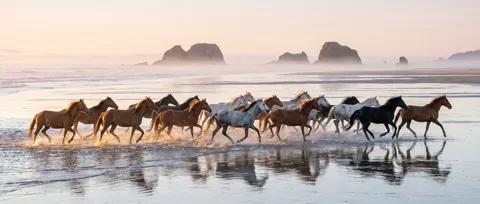
Wild horses on the tidal flats

8s · 1080p · 38 credits

The herd thunders forward through the shallow water, hooves striking the surface and throwing up arcs of spray that catch the sunlight and fall back as glittering droplets; the lead grey mare surges ahead and tosses her head. The camera tracks alongside at water level, matching their speed and rising gradually as it moves, until the whole herd is seen stretching back toward the misty sea stacks. One continuous shot. Sound: thundering hooves, heavy splashes, snorting breath and wind over open water, no music.

Camera, Emotion and Physics: Where It Shines

PixVerse released V6 on March 30, 2026, after its V5 models. These are the gains it lists.

01

Camera moves that land

Tracking shots, perspective shifts and environmental reveals come out more accurately, with fewer artifacts than in earlier releases, its maker says. Useful for product reveals.

02

Emotion that holds

A character's feeling carries across frames: facial expressions and body language stay continuous as the scene moves. Good for reaction shots and short drama beats.

03

Believable physics and action

Collisions, movement and the space between objects look more real, and action and stylized effects stay consistent from frame to frame. Think splashes, crashes and chases.

04

Sound when you want it

Turn sound on and dialogue, effects and ambience come with the picture in the same run. Leave it off to save credits: 10 for a 5 second 720p clip, 13 with sound.

PixVerse V6 Specs and How It Compares

This page runs PixVerse V6: 5 to 15 seconds, 720p or 1080p, six shapes and optional sound. Seedance 1.5 Pro, our default, costs less (6 credits for 5 seconds at 720p) and takes end frames. Kling 3.0 Turbo finishes sooner, in about 1 minute, with sound always on, for 23 credits.

ModelThis pagePixVerse V6Seedance 1.5 ProKling 3.0 Turbo
Credits per clip10 (5 s, 720p)6 (5 s, 720p)23 (5 s, 720p)
Clip length5 to 15 s4 to 12 s5 or 10 s
Resolution720p, 1080p480p, 720p, 1080p720p
Shapes (text to video)16:9, 9:16, 1:1, 4:3, 3:4, 21:916:9, 9:16, 1:1, 4:3, 3:4, 21:916:9, 9:16, 1:1
End frameNoYesNo
SoundOptional sound, extra creditsOptional sound, extra creditsSound always on
Typical waitAbout 1.5 min per clipAbout 1.5 min per clipAbout 1 min per clip

Credits per clip at the default length and resolution, without optional sound. Longer, sharper or with-sound clips cost more; the button shows the credits before you run.

How to Use PixVerse on ImageToPsd.AI

Three steps from an idea to an MP4, with the model already selected.

  1. 1

    Write the shot or add a picture

    Describe the subject, action and camera. Add a start frame to animate a picture.

  2. 2

    Choose length, quality and sound

    Pick a length, 720p or 1080p, a shape and sound. Make up to 4 clips per run; the credits on the button update as you go.

  3. 3

    Play and download

    A PixVerse video is ready in about 1.5 minutes. Play it, download the MP4, or loop it with video to GIF.

PixVerse Prompt Guide

Four tips, starting with the maker's own advice for V6.

Brief it like a film crew

PixVerse suggests writing the scene as if briefing a camera operator and a sound designer at once: subject, setting, camera, motion, light, sound and mood. For example: a red vintage motorbike skids to a stop on wet cobblestones at night, low tracking shot, neon reflections, the engine growl fading into rain. Literal details beat metaphors.

One camera move per clip

Name one move in plain words: slow push-in, handheld tracking shot, low angle, POV, orbit. Its maker says precise direction in complex scenes is still improving, so one clear instruction beats three. The model may still cut to a closer shot on its own; for a planned sequence, make several clips and repeat the same character details in each prompt.

Spell out the sound

With sound on, describe what should be heard: rain on a tin roof, a crowd gasps, the waiter leans in and says, "Your table is ready." Put spoken lines in quotes, name the speaker and keep lines short in a 5 second clip. Adding music later? Leave sound off and save credits.

Use a clean start frame

For PixVerse image to video, pick a picture with a clear subject, readable edges and strong composition, as its maker advises. Then describe only what changes and how the camera moves; the clip keeps the picture's shape. There is no end frame here, so for start to end transitions use Seedance 1.5 Pro. No picture yet? Make one with text to image.

What to Make with PixVerse

This model suits clips where the camera, the action or the sound carries the idea.

  • Product teasers and ad hooks

    Products that turn, pour or open on cue, with a click or chime when sound is on.

  • Short drama scenes

    Character moments with clear emotion and a spoken line, in 9:16.

  • Action and trailer shots

    Chases, crashes and big reveals with steady motion and weight.

  • Cinematic social posts

    Widescreen 21:9 or vertical 9:16 clips at 1080p for feeds and channels.

PixVerse AI FAQ

What it is, credits, wait times, inputs and limits.


Make a PixVerse AI Video Now

Write a prompt or add a start frame, and see the credits before you run.