Google· Video modelNew

Veo 3 AI Video Generator

Veo 3.1 is the current version of Google's Veo 3. Write a prompt or add a start frame, turn on sound for dialogue and effects, and get a 4 to 8 second clip at up to 1080p. Credits show before you run.

Made with these models

  • 33 credits for 4 s at 720p
  • 4 to 8 s clips, up to 1080p
  • Optional sound, extra credits
  • About 2.5 min per clip
Made with Veo 3.1

Veo 3 Examples Made on This Page

Original clips made with this model. Read the prompt, or press Use this example to load the same settings.

Veo 3.1
Start frame
Start frame

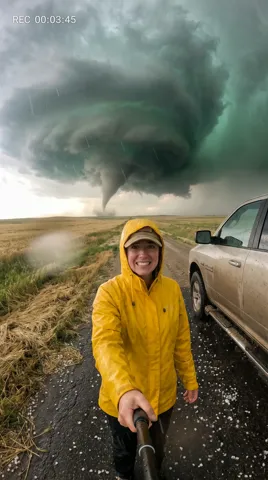
Storm chaser vlog

4s · 720p · 65 credits

Handheld selfie vlog in one continuous shot. She shouts to the camera: "Okay, it is touching down. We are leaving!" Behind her the funnel touches down and throws debris across the field, hail bounces off the truck and the camera shakes in the gusts as she turns to run. Sound: roaring wind, hail drumming on metal, a distant siren. No music, no text.

Veo 3.1
Start frame
Start frame

The negotiator

4s · 720p · 65 credits

Slow push-in. The dog narrows its eyes and speaks firmly into the receiver with matching mouth movements: "No. Two treats by Friday, or no deal." Lightning flashes over the skyline behind it. Sound: rain on glass, distant thunder, creaking leather. No music, no text.

Sound, Light and Frames: Where It Shines

Google built this update on Veo 3 with richer sound, closer prompt following and better image to video.

01

Dialogue and sound in one pass

With sound on, speech, effects and room tone come with the picture, in sync. Put a line in quotes and a character says it. Sound is optional, so you pay for it only when needed.

02

Real light and texture

Google says this version renders more true-to-life textures. You see it in skin, fabric, water and evening light, ideal for product shots, travel scenes and anything that should look filmed.

03

Start and end frames

Add a start frame and the clip opens on your picture. Add an end frame and the model fills in the move between them, sound included: ideal for reveals and before and after shots.

04

Three versions, one composer

Veo 3.1, Fast and Lite share one picker: test an idea on Lite for 5 credits, then render the final take on the full model.

Veo 3.1, Fast and Lite Compared

All three make 4 to 8 second clips at up to 1080p, 16:9 or 9:16, with optional sound. The full model is the quality tier (about 2.5 minutes), Fast uses half the credits or less (about 1.5 minutes), and Lite costs the least (about 1 minute) but has no end frame.

ModelThis pageVeo 3.1Veo 3.1 FastVeo 3.1 Lite
Credits per clip33 (4 s, 720p)17 (4 s, 720p)5 (4 s, 720p)
Clip length4 to 8 s4 to 8 s4 to 8 s
Resolution720p, 1080p720p, 1080p720p, 1080p
Shapes (text to video)16:9, 9:1616:9, 9:1616:9, 9:16
End frameYesYesNo
SoundOptional sound, extra creditsOptional sound, extra creditsOptional sound, extra credits
Typical waitAbout 2.5 min per clipAbout 1.5 min per clipAbout 1 min per clip

Credits per clip at the default length and resolution, without optional sound. Longer, sharper or with-sound clips cost more; the button shows the credits before you run.

How to Use Veo 3 on ImageToPsd.AI

From idea to finished clip in three steps.

  1. 1

    Write the shot

    Describe the subject, action, camera and light. Add a start frame to animate a picture, or both frames for a transition.

  2. 2

    Pick length, size and sound

    Choose length, resolution, shape and sound, and make up to 4 clips per run. The credits on the button update as you go.

  3. 3

    Watch and download

    A Veo 3.1 clip takes about 2.5 minutes. Play it, download the MP4, or loop it with video to GIF.

Veo 3 Prompt Guide

Four tips drawn from Google's own prompt advice.

Cover the five basics

Google's guide lists what a good prompt holds: subject, action, style, camera position and move, and framing. Fit all five into one or two sentences, for example: close-up of an old fisherman mending a net on a pier at dawn, handheld camera slowly pushing in, warm documentary look. A vague prompt leaves the model guessing.

Put dialogue in quotes

With sound on, write each spoken line in quotation marks and say who speaks it: the barista looks up and says, "Your usual?" Keep lines short, because an 8 second clip holds only one or two. English is the safest choice, as Google notes that other languages have not been fully evaluated.

Describe the sound too

Google's guide says the model follows cues for sound effects and ambient noise, so name them: rain on a tin roof, a slamming door, the murmur of a busy cafe, wind in the pines. If a clip needs no audio at all, switch sound off: it comes out silent and costs about half the credits.

Match your two frames

For a start and end frame clip, use two pictures with the same shape, light and style, and describe only the move between them: the camera glides from the doorway to the window. Matching pictures give a smooth transition; very different ones can force a jump cut. Need the frames? Make them with text to image.

What People Make with Veo 3

Short shots that need real light, believable motion or a voice.

  • Ads and product films

    Product shots and spoken ad hooks for the web or for reels.

  • Social video

    Vertical clips with dialogue, ready to post without a voice-over.

  • Storyboards and pitches

    Show a client a script beat they can see and hear.

  • Openers and explainers

    Establishing shots and talking scenes for intros and courses.

Veo 3 FAQ

Versions, credits, wait times, sound and commercial use.


Make Your First Veo 3 Video

Write a prompt, choose sound and see the credits before you run.