xAI· Video modelNew

Grok Imagine AI Video Generator

Grok Imagine 1.5 is xAI's video model, and every clip comes with sound: dialogue, effects and ambience made with the picture. Write a prompt or add a photo, pick 3 to 15 seconds at up to 1080p, and see the credits first.

Made with these models

Sound included
  • 29 credits for 5 s at 720p
  • 3 to 15 s clips, up to 1080p
  • Sound always on
  • About 1.5 min per clip
Made with Grok Imagine

Grok Imagine Video Examples

Original clips made with this model, each with its own sound. Read the prompt, or press Use this example to load the same settings.

Grok Imagine 1.5
Start frame
Start frame

The bronze fleet

5s · 720p · 29 credits

The camera skims low over the waves beside the lead galley as dozens of oars dip in unison, throwing spray across the lens. A swell lifts the bow and slams it down. The camera rises as the fleet glides into the shadow of the stone arch and sunlight bursts through behind it. One continuous shot, heavy, believable momentum. Sound: pounding war drums keeping time, creaking oars, crashing surf, a captain shouting "Steady... ROW!"
Grok Imagine 1.5
Start frame
Start frame

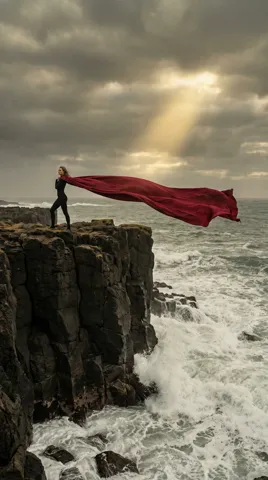
Crimson cape in a gale

5s · 720p · 29 credits

She turns and walks toward the camera along the cliff edge with steady strides as a huge gust snaps the cape into a rippling crimson arc that fills the sky behind her. A wave bursts against the rocks and spray drifts up through the sunlight. The camera tracks slowly backward at a low angle. One continuous shot, realistic heavy-fabric physics. Sound: howling wind, silk cracking like a sail, booming surf. No music, no text.

Sound, Motion and Fidelity: Where It Shines

xAI says version 1.5 improves motion, physics and audio over its previous video model.

01

Sound in every clip

Dialogue, effects and ambience come in the same pass as the picture and land on the action, xAI says, with clearer, better synced speech than before. Sound is always on and included in the credits.

02

Motion that holds together

Movement stays coherent across the clip, with fewer warps and more believable weight and momentum, according to xAI: useful for running, falling, pouring and other heavy motion.

03

True to your photo

Give it a start frame and the model keeps your picture's detail and lighting, so the clip continues the image instead of reinventing it, in the same shape.

04

3 to 15 seconds, five shapes

Pick 3 to 15 seconds at 480p, 720p or 1080p, in five shapes for text to video. A 5 second 720p clip is 29 credits and takes about 1.5 minutes.

Grok Imagine Video Specs and Settings

This page runs Grok Imagine 1.5, the one Grok model here. Use 480p for drafts, 720p for most posts and 1080p for the final cut; credits grow with length and resolution, up to 152 for 15 seconds at 1080p. For start and end frame transitions, use Veo 3.1 or Kling 3.0.

ModelThis pageGrok Imagine 1.5Seedance 2.0Kling 3.0 Pro
Credits per clip29 (5 s, 720p)62 (5 s, 720p)23 (5 s, 1080p)
Clip length3 to 15 s4 to 15 s3 to 15 s
Resolution480p, 720p, 1080p480p, 720p, 1080p1080p
Shapes (text to video)16:9, 9:16, 1:1, 4:3, 3:416:9, 9:16, 1:1, 4:3, 3:4, 21:916:9, 9:16, 1:1
End frameNoYesYes
SoundSound always onOptional sound, no extra creditsOptional sound, extra credits
Typical waitAbout 1.5 min per clipAbout 4.5 min per clipAbout 3 min per clip

Credits per clip at the default length and resolution, without optional sound. Longer, sharper or with-sound clips cost more; the button shows the credits before you run.

How to Use Grok Imagine on ImageToPsd.AI

Three steps from an idea to a clip with sound.

  1. 1

    Write the shot or add a photo

    Describe the subject, motion, camera and sound. Add a photo as the start frame to animate it.

  2. 2

    Set length and resolution

    Choose length, resolution and shape, and make up to 4 clips per run; the credits on the button update as you go.

  3. 3

    Play and download

    A Grok Imagine clip is ready in about 1.5 minutes. Play it with sound, download the MP4, or loop it with video to GIF.

Grok Imagine Prompt Guide

Four tips, starting with xAI's own advice.

Direct the camera, pacing and sound

xAI suggests directing the shot in plain language: the camera move, the pacing and the sound design. For example: slow push in on a lighthouse keeper as the storm builds, waves boom against the rocks, he whispers, "Not tonight." A few clear words for each part work better than a long string of adjectives.

Write the exact line

Speech is generated with the picture, so put the exact words in quotes and name the speaker: the street vendor grins and shouts, "Two for one!" A 5 second clip fits a line or two; give longer speeches 10 or 15 seconds. If a clip should have no speech, say so and describe the ambient sound instead.

For photos, describe only the change

With a start frame, the model already keeps your picture's detail and light, so spend the prompt on what changes: her hair lifts in the wind, she turns and laughs, the camera drifts left. Repeating what the photo shows adds nothing. Use a sharp picture in the shape you want; the clip keeps it.

Build longer scenes from short shots

xAI suggests chaining shots into longer scenes. Make each shot its own clip of up to 15 seconds, repeat the same style words and character description in every prompt, and start each one from a matching frame. Then join the clips in your editor. Make matching start frames with text to image.

What to Make with Grok Imagine

Grok Imagine suits short clips that need sound and steady motion.

  • Social clips with sound

    Vertical or square posts with built-in dialogue or effects.

  • Animated photos

    Bring a portrait, a pet or a travel shot to life, keeping its look.

  • Ads and teasers

    Product moments and spoken hooks in every common shape.

  • Trailers and story shots

    Chain short shots with a consistent look into a trailer or a story.

Grok Imagine FAQ

Credits, wait times, inputs, sound and commercial use.


Make a Grok Imagine Video with Sound

Write a prompt or add a photo and see the credits first.