One model out of two
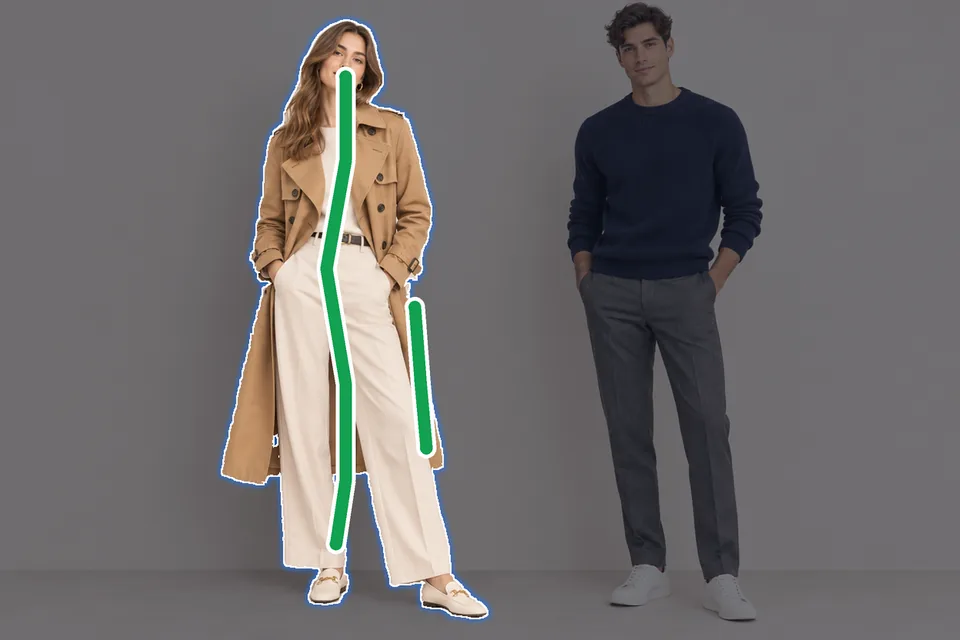
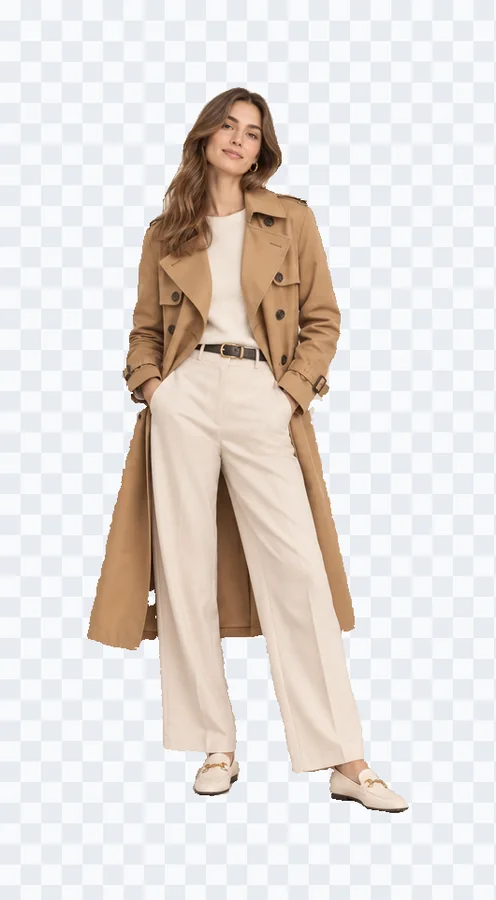
A green stroke down her coat selected her, shoes included, and he stayed in the picture. A second stroke along the coat’s edge, in one Update, brought back a strip the first had missed.
Paint green over the object you want and red over anything to leave out, then press Start cutout: this object selection tool cuts out everything you marked in one go. Add more marks, touch up with a brush, then download a PNG or a layered PSD.
Paint green over what to keep and red over what to leave out, then press Start cutout. 1 credit covers 10 runs.
Each picture below went through the object selection tool exactly as you would use it. A green line is a stroke over what to keep, a red one over what to leave out, and the lit area is the selection that came back.
A green stroke down her coat selected her, shoes included, and he stayed in the picture. A second stroke along the coat’s edge, in one Update, brought back a strip the first had missed.
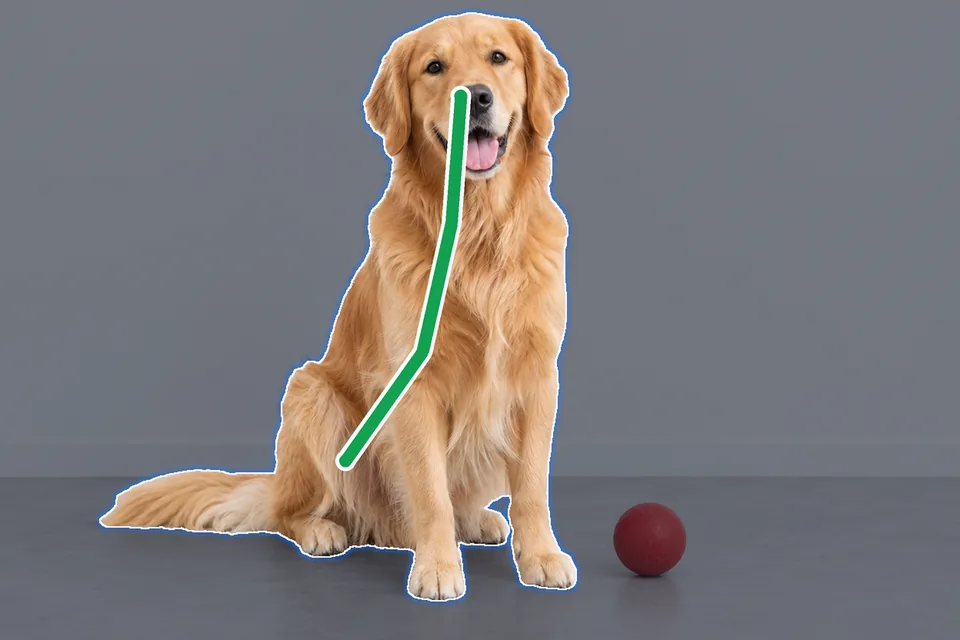
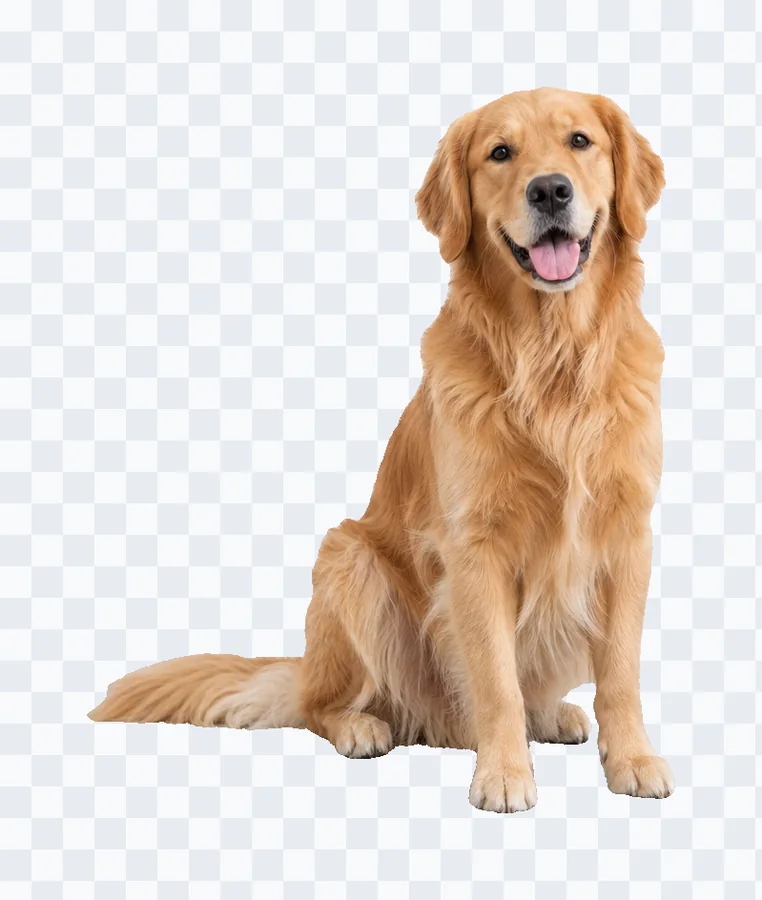
One stroke from the head down the back selected the dog from nose to tail and left the ball on the floor.
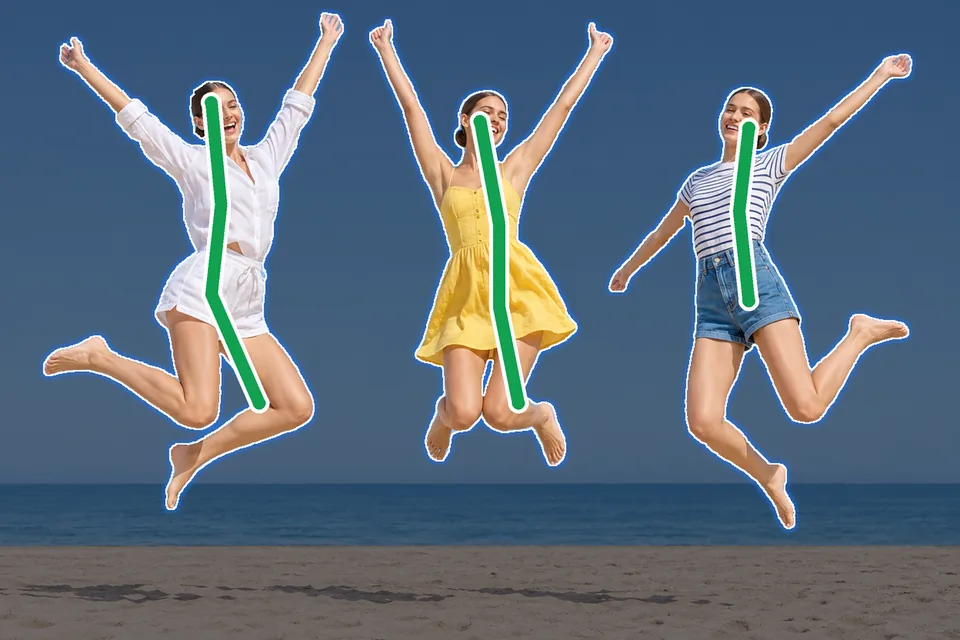

A stroke down each friend selected all three in one run, hands and feet included. The brush cleared a little sky between her legs.
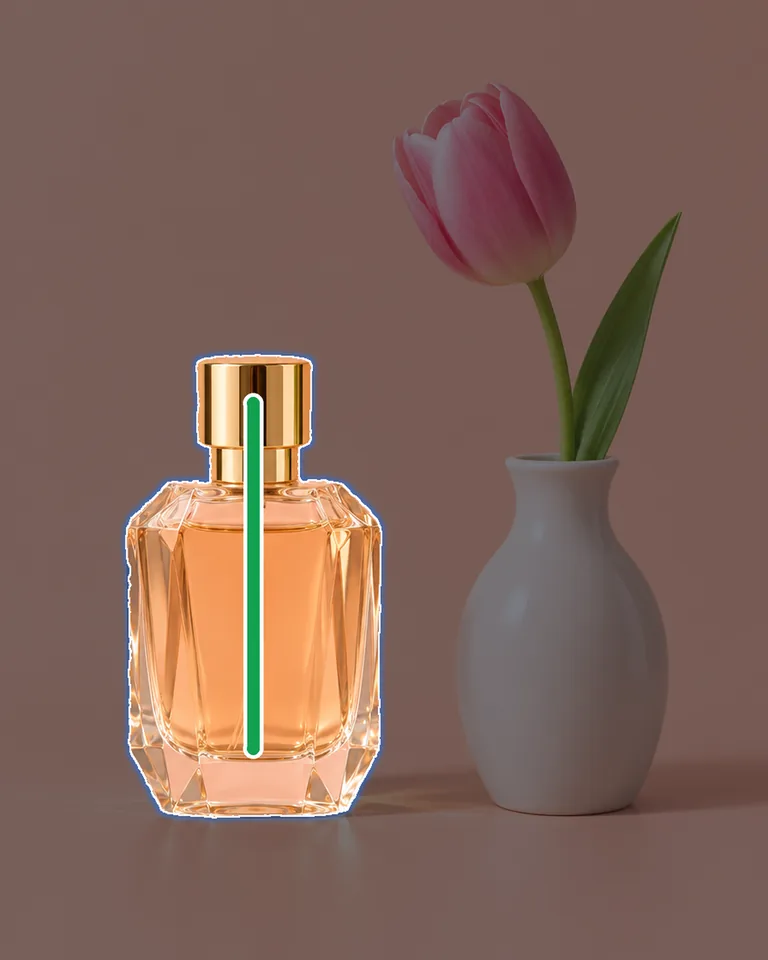
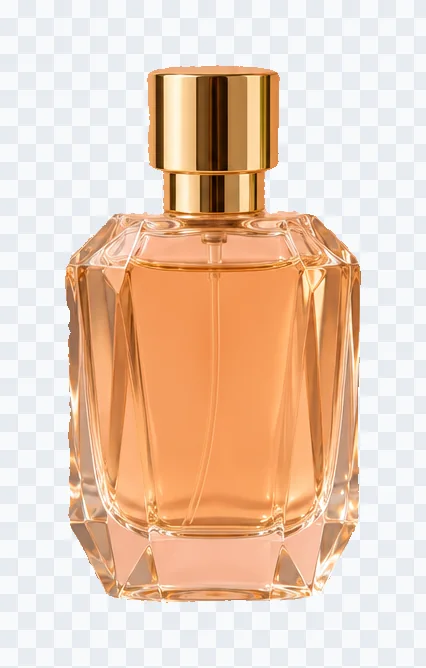
One stroke down the bottle picked it, cap included, and left the vase and the tulip beside it.
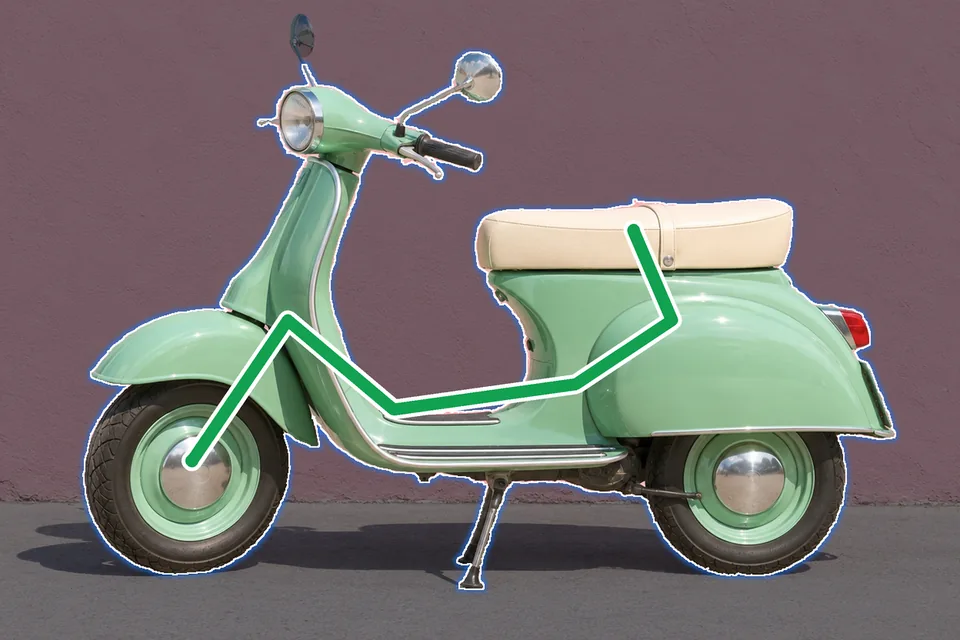
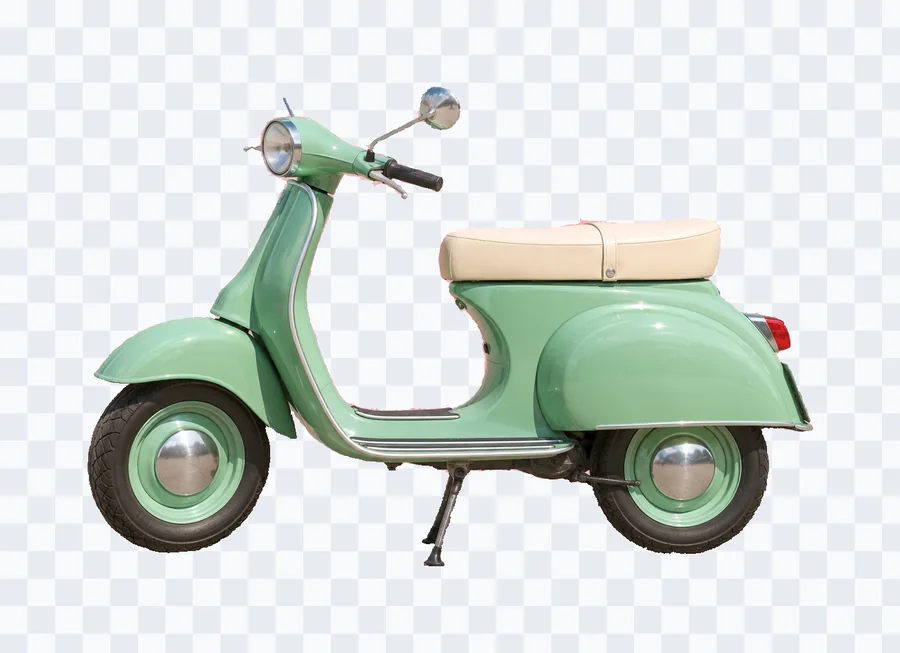
One stroke along the body took the scooter with its mirrors, its stand and both wheels.
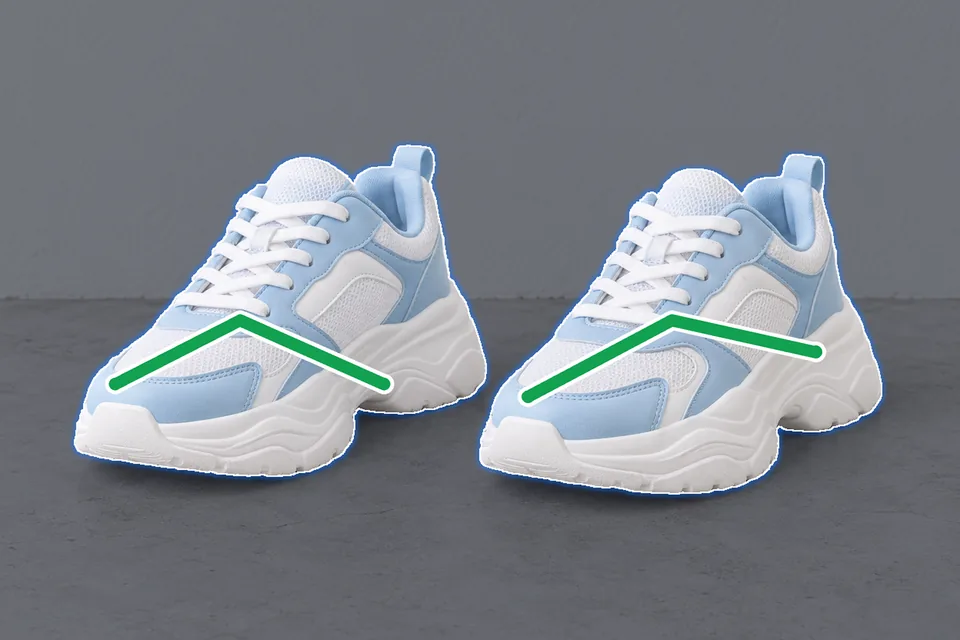
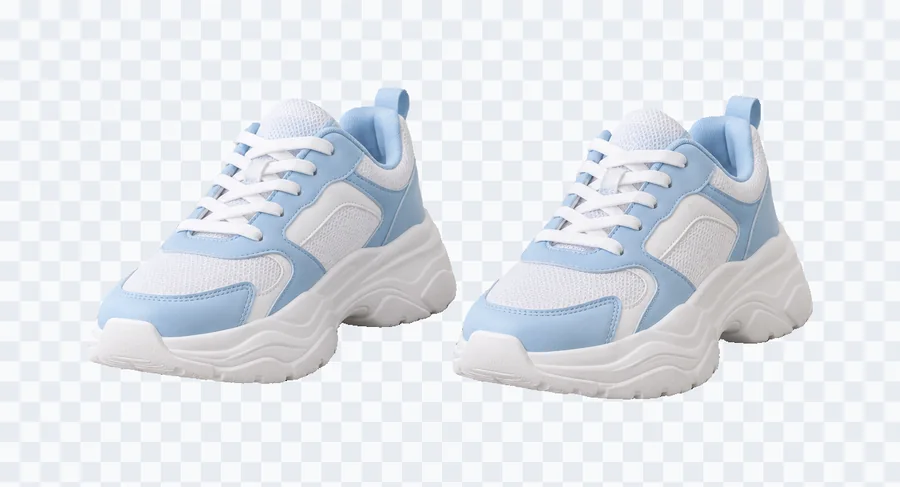
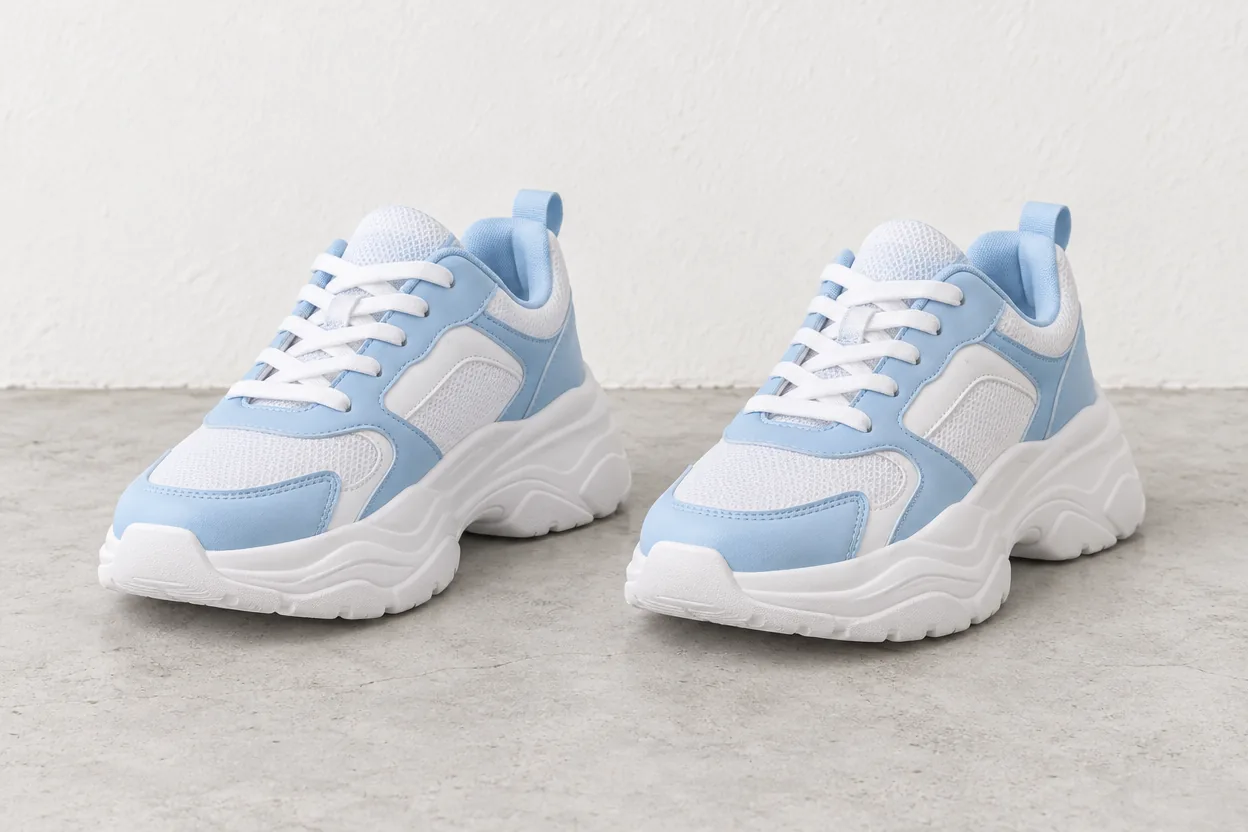
Two strokes, one on each shoe, selected the pair together in one run.
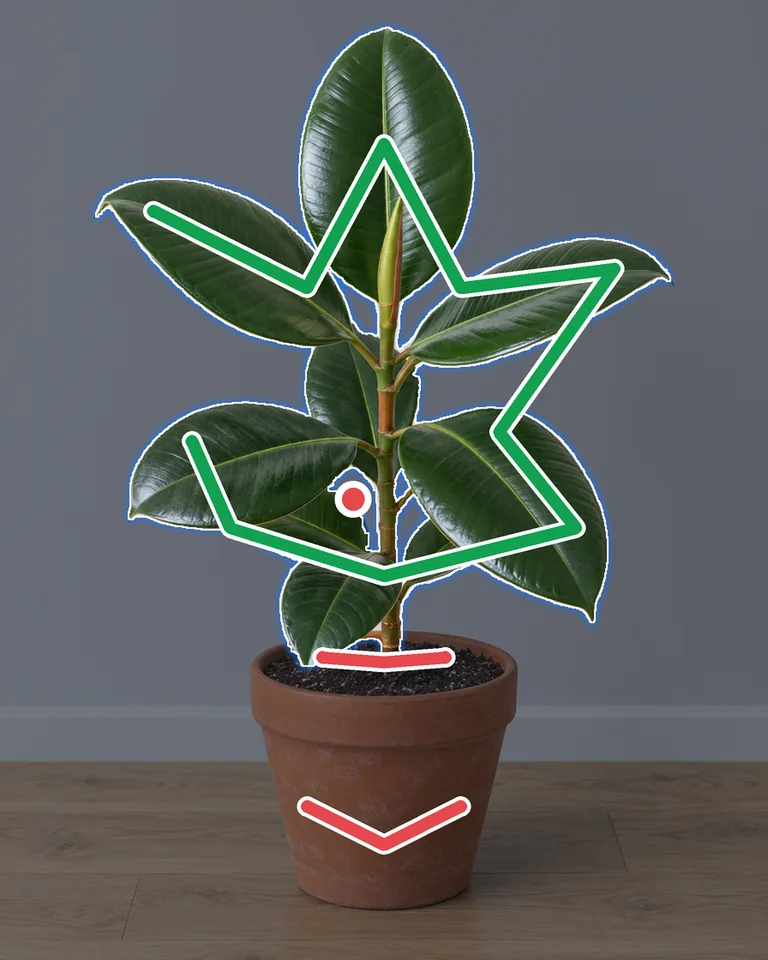
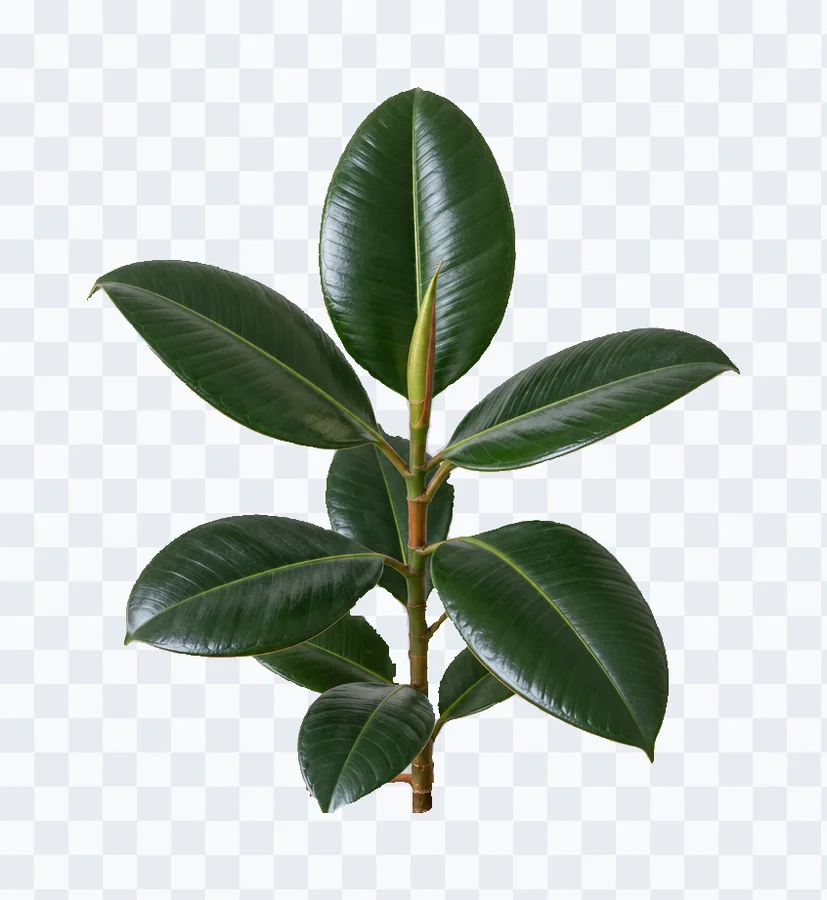
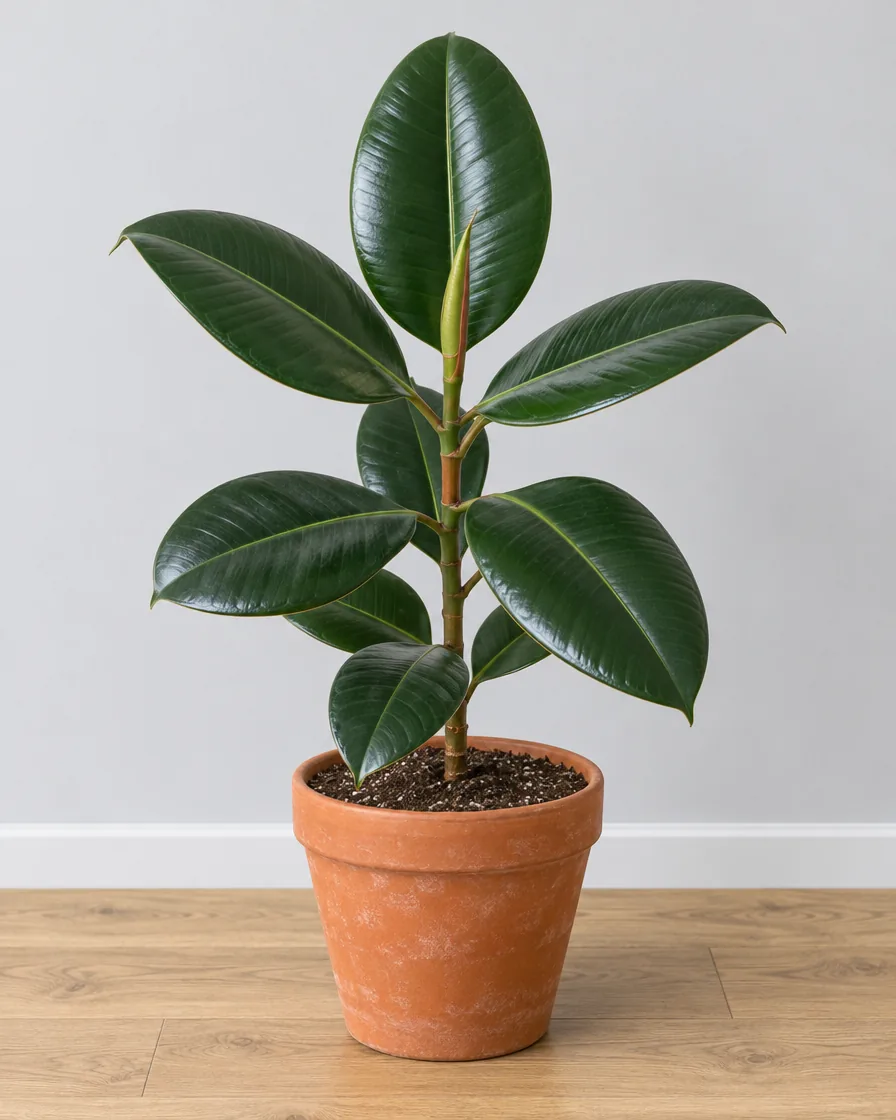
A stroke across the leaves took the plant in its pot. One Update with red marks on the pot, the soil and the wall between two leaves left only the plant, and the brush, zoomed in, cleared a last bit of wall by the stem.
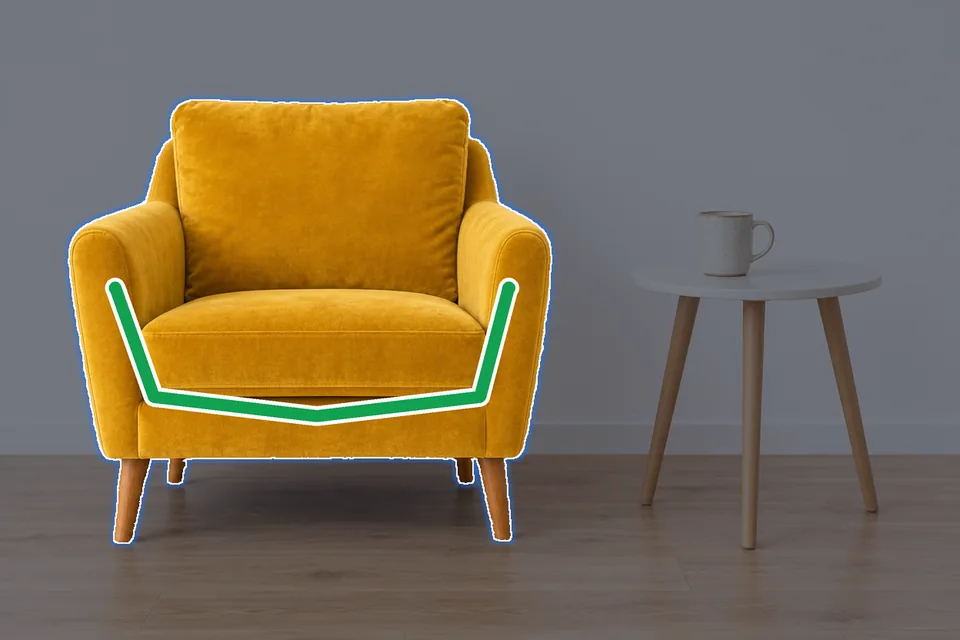
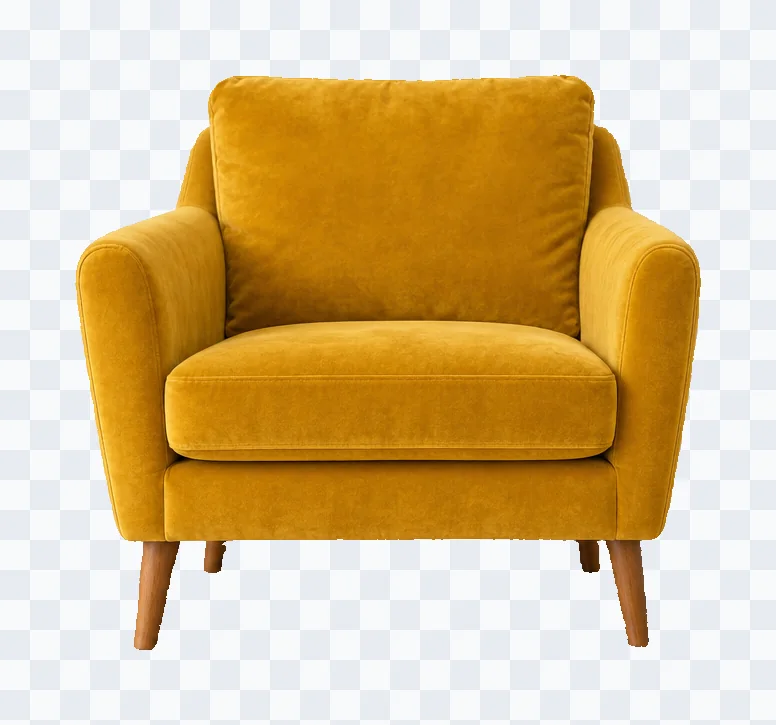
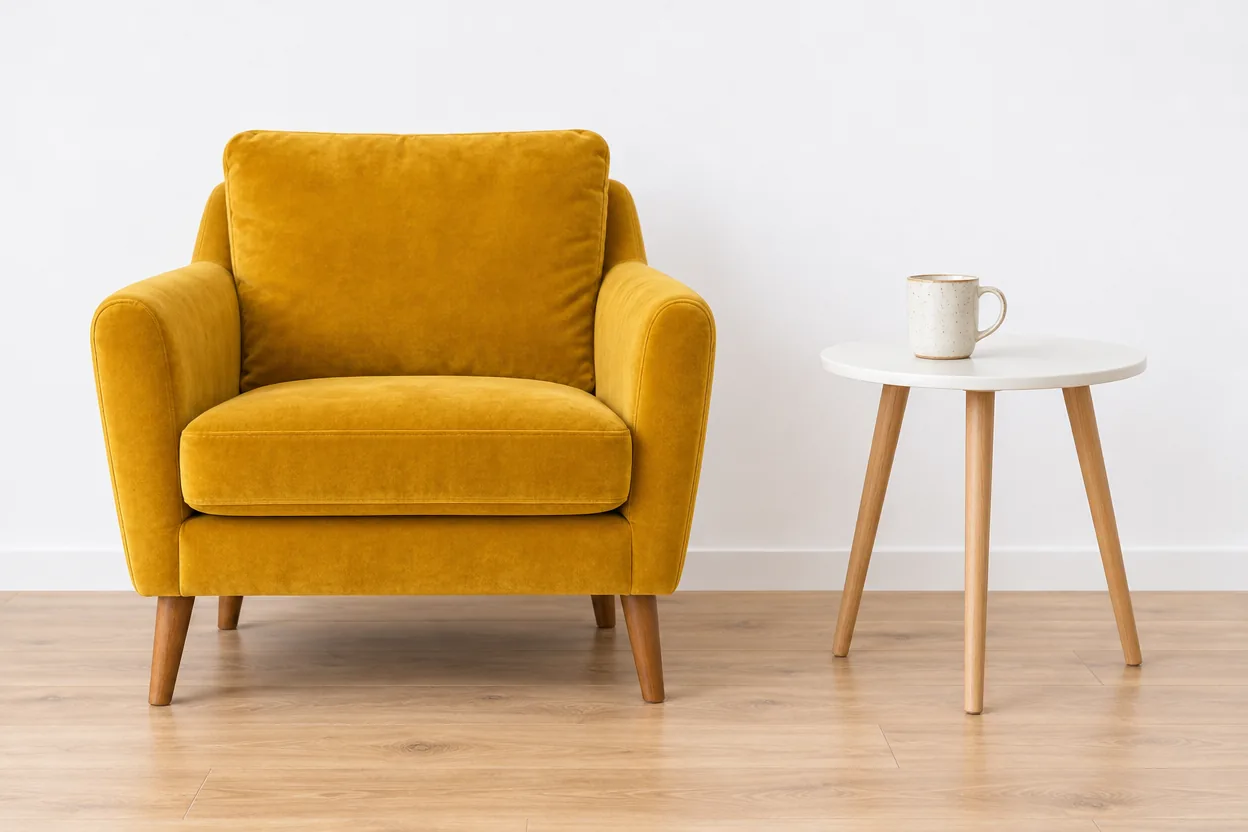
A stroke along the arms and the base lifted the armchair, all four legs included, and left the side table and the mug.
Three steps, all in your browser.
Upload a photo, drop one in or paste it from your clipboard. JPG, PNG and WebP all work.
Press Start selecting and paint over the picture: green over what to keep, red over what to leave out. A click leaves a dot. Then press Start cutout, and everything you marked is cut out at once. Add more marks and press Update to refine it.
Press Done. Save the object as a transparent PNG cropped to its edges, a full-size PNG that keeps its place, or a PSD with the object on its own layer.
You mark everything first and the tool cuts it out in one go, so one short wait shows the whole selection.
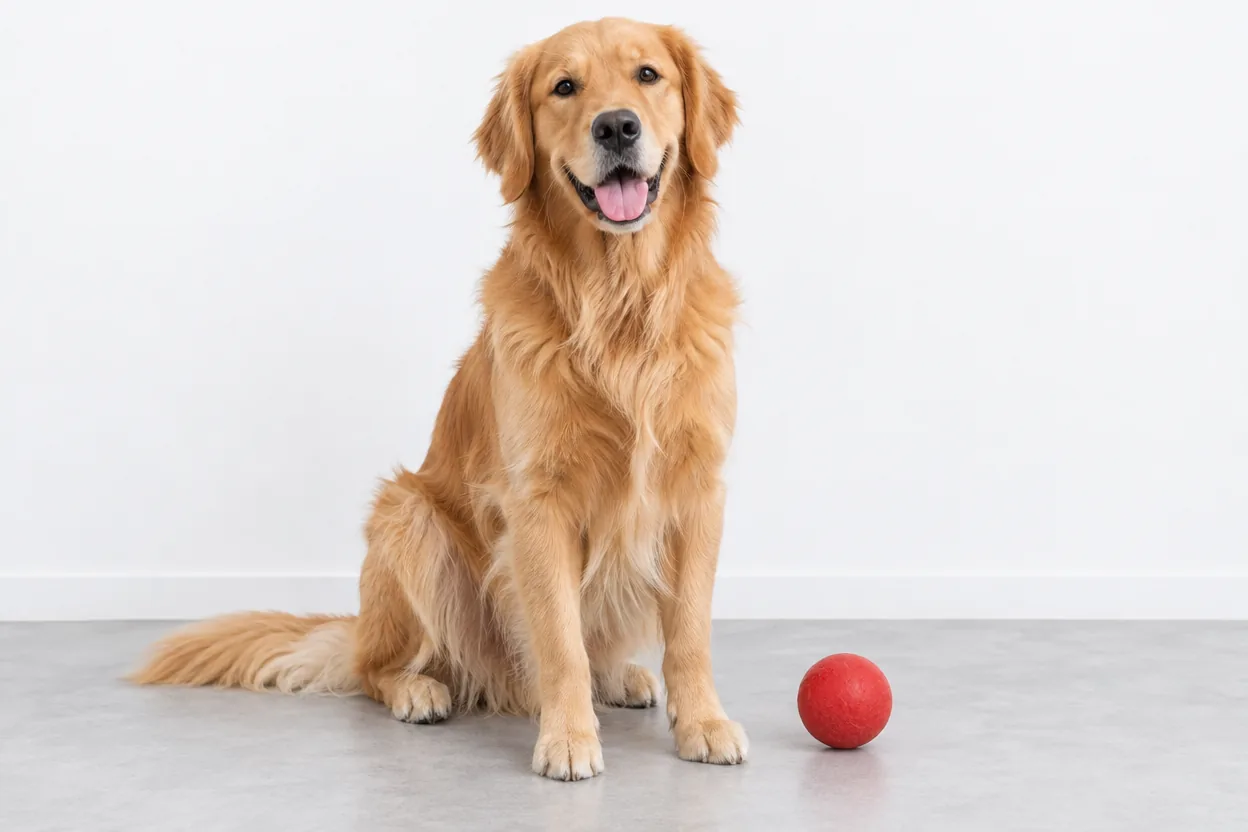
 Original
Paint a line along a person, a product or a pet. The stroke tells the object selection tool what you mean, and it selects all of it, from the hair down to the shoes.
 Original
Mark a second object and a third before you start. The object selection tool cuts them out together in one run, and they download as one picture: a pair of shoes, a group of friends, a whole table setting.
 Original
Paint red over what doesn't belong, like the pot under a plant. Press Update and that part is cut away while the rest stays selected.
Paint to add what is missing or to erase what is extra, such as a little background between legs, zoomed in as close as you like. The brush is free and never uses a run.
Undo and Redo step through your marks without running anything again, and Start over clears them. Marks cost nothing until you press Update.
 Original
The PSD puts the object on its own layer over the original, ready to open in Photoshop, Affinity Photo or GIMP.
A few habits that get a clean selection from the object selection tool in fewer runs.
A stroke that follows the object from end to end works better than a single click. Keep the line on the object itself: if it crosses the background, some of the background can come along.
Mark every object you want before you press Start cutout. Give each object its own stroke, and the object selection tool cuts all of them out in the same run.
When the cut-out takes too much, such as the pot with a plant or the bag with a person, paint red over that part and press Update. A red mark takes away what lies under it.
A gap of a few pixels, like sky between legs or wall between leaves, is quickest with the brush. Switch to Brush, choose Remove and paint it away zoomed in. Brush strokes are free.
On a wide screen the cut-out shows beside your picture; on a phone, press Preview. Zoom in on the edges, fix what you see, then press Done.
Anyone who needs to select an object from a picture, without the rest.
Pull one product out of a group shot for a listing, a banner or an ad.
Lift a person or an object into a layout, with the PSD layer ready to place.
Cut out yourself, your friends or your pet for stickers, thumbnails and collages.
Lift a chair, a plant or a lamp out of a room photo for a catalogue or a mood board.
Answers about marks, runs, credits and files.
It selects an object in a picture without you tracing its edge. Here you paint a rough stroke over what you want, and the tool works out the whole object and cuts it out, ready to download as a transparent PNG or a PSD.
A picture costs 1 credit, charged when you press Start cutout, and that covers 10 runs: the first cutout and each Update. Marking, the brush, Undo, Redo and Start over are free, and every picture includes all three downloads.
A run is one press of Start cutout or Update. It cuts out every mark you added since the last run in one go, up to 16 marks at a time.
Yes. Mark each object with its own stroke and they join one selection, which downloads as one picture. To get every object as its own file, use Cut out image instead.
A transparent PNG cropped to the object, a full-size PNG that keeps the object where it was, and a PSD with the original and the object on its own layer.
No. The selection is your photo's own pixels with everything else made transparent. Nothing is redrawn.
Thirty minutes. You can close the editor and come back to it from your history; when the time is up, your latest selection is saved for you.
Photos and illustrations where the object stands clear of what is around it: a product on a table, a person against a wall, a pet on the floor. Even light and a simple background give the cleanest edges.